🔒
Es gibt neue verfügbare Artikel. Klicken Sie, um die Seite zu aktualisieren.
✇It's FOSS

5 Reasons to Upgrade to Ubuntu 26.04 (and 3 Reasons to Stay Away)

Von: Roland Taylor

Ubuntu 26.04, the much anticipated LTS upgrade to 25.10 and 24.04, is here. This release promises to be one of the more daring and potentially revolutionary releases in quite some time, delivering on many much-awaited features, and laying the foundation for the next generation of Ubuntu and its derivatives. Still, this release is bound to be one of the most controversial, in that it's got quite a lot of good, but to some, a little bit of "bad". To be fair, how you see it is largely a matter of perspective.

In this article, we'll look at 5 of the reasons you should consider upgrading to Ubuntu 26.04, and 3 reasons you might want to sit this one out, or even consider if it's time to set sail for other shores.

Reasons to upgrade

LTS releases are popular among many users, from the casual everyday user, to hardcore developers and creators. Even some gamers feel at home on these releases, and the reasons for all categories of user are typically the same: stability, reliability, and the promise that future updates will bring the best tested elements of the future back to the refuge of the past.

That said, LTS releases also often bring a balanced blend to this island of stability by introducing a well-tested, but relatively fresh tech stack. So what's new in Ubuntu 26.04? Let's have a look.

1. Linux kernel 7.0

One of the highlights of Ubuntu 26.04 is that it ships with Linux kernel 7.0, which brings a much newer hardware and driver stack than version 6.8 in Ubuntu 24.04 LTS. While kernel version numbers aren't typically especially significant, newer kernels still matter because they bring improved compatibility with newer hardware and give Ubuntu a stronger foundation for the years ahead. No doubt, Linux kernel 7.0 does exactly this in some critical areas.

For instance, this release improves support for newer Intel and NVIDIA systems, with full support for Intel's Core Ultra Xe2 integrated graphics and Arc Battlemage GPUs, plus NVIDIA Dynamic Boost enabled by default on supported laptops. NVIDIA users have even more reason to rejoice, in that Ubuntu 26.04 improves suspend and resume behaviour with the proprietary NVIDIA driver. AMD and ARM users aren't left out either, thanks to broadened compatibility for ARM64 desktop systems that boot via UEFI, and initial support for Snapdragon X Elite devices in the new generic ARM64 Desktop ISO.

Also in this LTS are a few practical platform-level improvements around reliability and responsiveness. Crash dumps are now enabled by default on both desktop and server installations, making it easier to diagnose serious failures, while the old linux-lowlatency package has been retired in favour of tuning low-latency behaviour on the generic kernel at boot time.

2. GNOME 50: HDR & VRR improvements, robust parental controls, smoother NVIDIA experience, and more
Ubuntu 26.04 comes hot on the heels of GNOME 50, bringing a wave of important refinements that should be noticeable in everyday use.

First up, GNOME 50 builds on the HDR groundwork introduced in GNOME 48 with further colour-management improvements and, at long last, HDR screen sharing support. That should be welcome news for creators, because accurate colour handling matters in professional photography, video, and design work. It also helps modern games to look as intended on supported hardware. Additionally, GNOME 50 improves both Variable Refresh Rate (VRR) and fractional scaling, with bug fixes, stability work, and various user-experience improvements. Some of these features were once treated as experimental across various distributions, but GNOME 50 now enables them by default, making for a smoother out of the box experience.

Rounding out the display improvements, NVIDIA users also have reason to be optimistic. GNOME 50 includes workarounds for NVIDIA driver quirks aimed at reducing stutter and frame-timing issues, which should make window animations and general desktop fluidity feel smoother on affected systems. GNOME 50 also adds a low-latency cursor path while VRR is active, helping the pointer stay responsive even when an application is running below the monitor’s maximum refresh rate.

Accessibility and parental controls
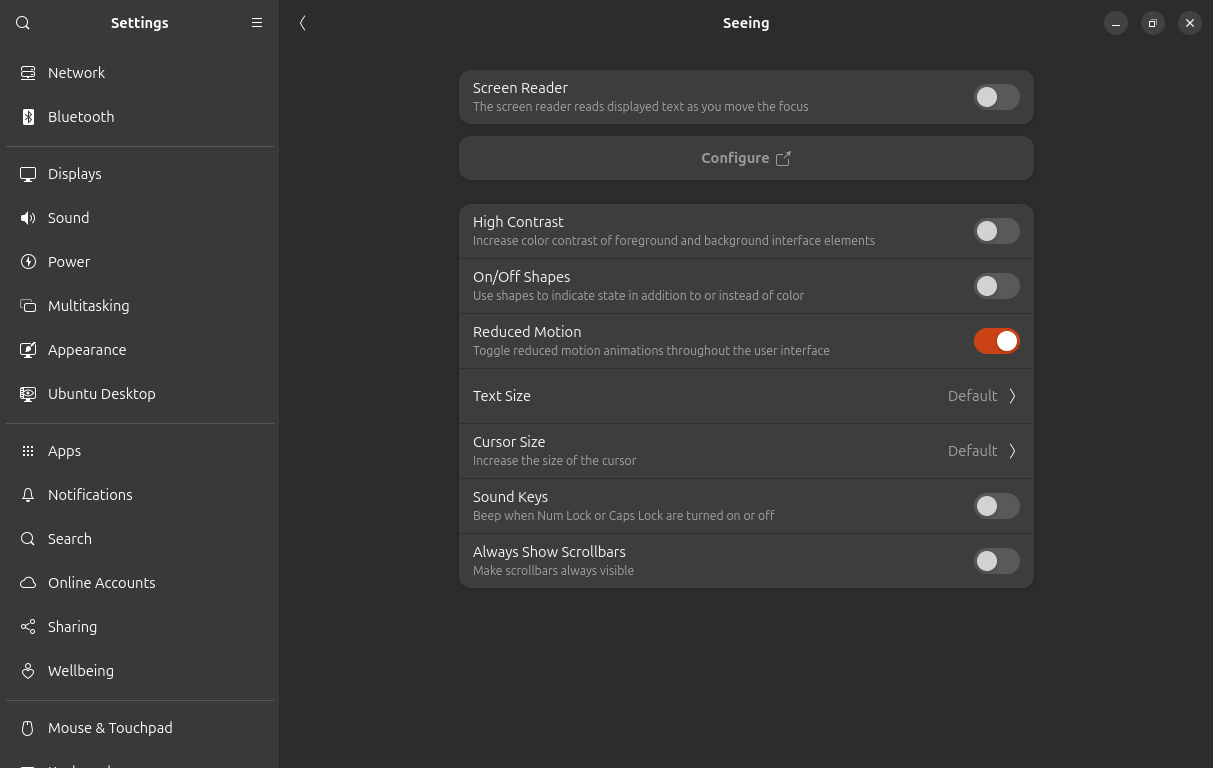
A screenshot of the GNOME Accessibility settings panel showing the Reduce Motion option toggled on
GNOME's accessibility setttings now has a Reduce Motion option

GNOME 50 brings some important accessibility improvements. Orca, the GNOME screen reader, now has a significantly improved preferences window, global settings, automatic language switching for web content and app UI, better Braille support, and Mouse Review support in Wayland sessions. Also new is a new Reduced Motion option in Accessibility settings, which tones down interface animations to reduce discomfort and distraction.

That should come as a real relief for users with vestibular issues or motion sensitivity. For now, the biggest wins will be in GNOME and libadwaita-based apps, while broader support across other toolkits and desktops will take a little more time to mature.

Parents moving to Ubuntu 26.04 will also benefit from much stronger parental controls. GNOME 50 now allows parents and guardians to monitor screen time, set limits for child accounts, define bedtime schedules, and automatically lock the screen once those limits are reached. Time can also be extended when needed. On top of that, GNOME has laid the backend foundations for web filtering, though the user-facing components needed for this part are still to come in a future update.

3. Better gaming potential with NTSYNC

A lightly coloured game controller sitting on a dark desk
Pexels / Roberto

This one is sure to be exciting for the growing number of users choosing to switch to Ubuntu (among other distros), as their home for gaming. NTSYNC is a Linux kernel driver that emulates key Windows NT synchronization primitives directly in the Linux kernel. Wine and Proton can use it to provide a faster, more accurate implementation of these operations in a way that Windows applications expect.

So why does this matter so much for gaming? The answer is simple: modern games often rely heavily on multithreading, which means they constantly need to coordinate tasks and wait on synchronization objects efficiently. Handling these operations entirely in user space can add overhead and make it harder to match Windows behaviour precisely.

By providing a kernel-level interface for these synchronization primitives, NTSYNC improves performance potential and helps deliver behaviour that is closer to what many Windows games and applications expect under Wine and Proton. In some cases, performance has even been shown to be better on Linux than when running the same game natively on Windows.

💡
Want to learn more about NTSYNC? Read our breakdown to get a better understanding of how this tech improves Linux gaming.

4. Security Center and better Snap privacy controls
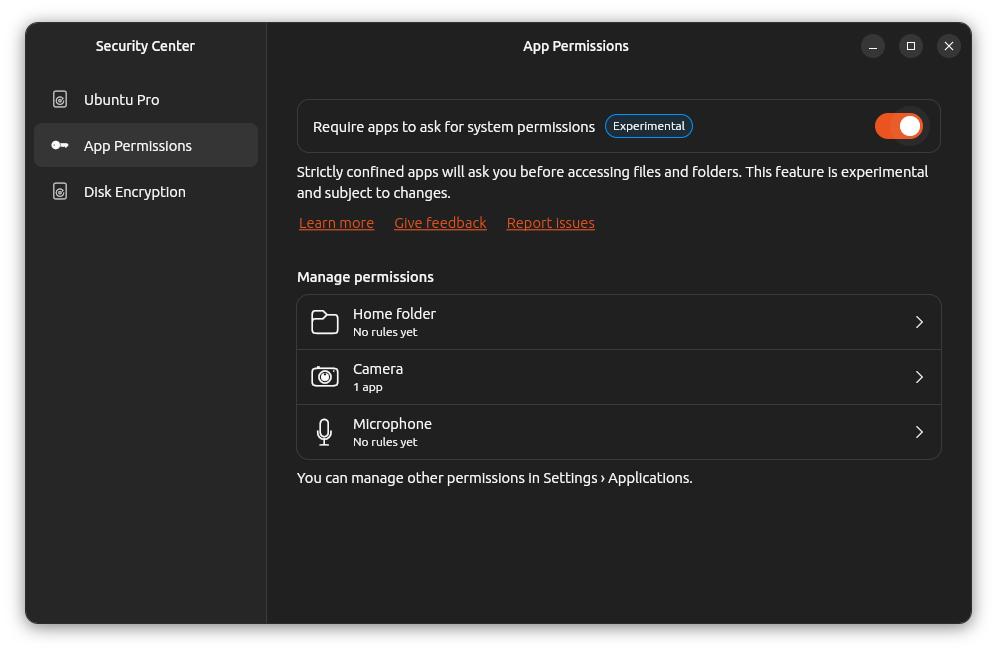
A screenshot of the new Security Center on Ubuntu, showing the default setting with apps not required to request permissions
The new Security Center lets you choose whether apps need to request permission before accessing files

Users upgrading from Ubuntu 24.04 will find the new Security Center and its experimental permissions prompting system for Snap apps. First introduced in 24.10, the Security Center is a critical part of the 26.04 LTS. Traditionally, Snap permissions have been handled mostly through interfaces, which define broad access to system resources.

With the new prompting system, Ubuntu gains a more granular permissions layer by using AppArmor to mediate access at the system-call level, even for applications that were not specifically written to support this behaviour. In its current form, the feature focuses on Home directory, camera, and microphone permissions, giving users more direct control over which locations and features Snap applications can access, and for how long.

It's worth noting that Canonical still describes this feature as experimental, and says the Security Center will expand over time with additional prompting options and other desktop security controls. Ubuntu does have a history of backporting key desktop features over the life of an LTS release, so 26.04 may well benefit from further refinements in this area over its lifetime.

5. Dual-booting with Windows is finally less painful
The Ubuntu and Windows icons sitting on a split backdrop with purple and blue backgrounds respectively
Ubuntu and Windows playing well together at last? Yes

In recent years, thanks to the ever increasing convolution of Windows, dual-booting Ubuntu alongside Windows has become a far more fragile and awkward affair than it really should be, especially on modern machines protected by BitLocker. Ubuntu 26.04 helps smooth this out, carrying forward recent installer improvements that help Ubuntu get along more comfortably with BitLocker-based Windows systems.

Most importantly, Ubuntu can now be installed alongside existing BitLocker partitions when enough unallocated space is available, or when a large enough partition can be resized safely. The new installer also makes encrypted Ubuntu installs and other advanced options available in dual-boot scenarios — a significant quality-of-life improvement for users who still need to run Windows on the same machine.

Reasons not to upgrade

As mentioned earlier, there are some real reasons you may want to sit this release out, and some users may find these reason to consider sticking with an older release for a little while longer, or even changing distros altogether.

1. Sudo replaced with sudo-rs
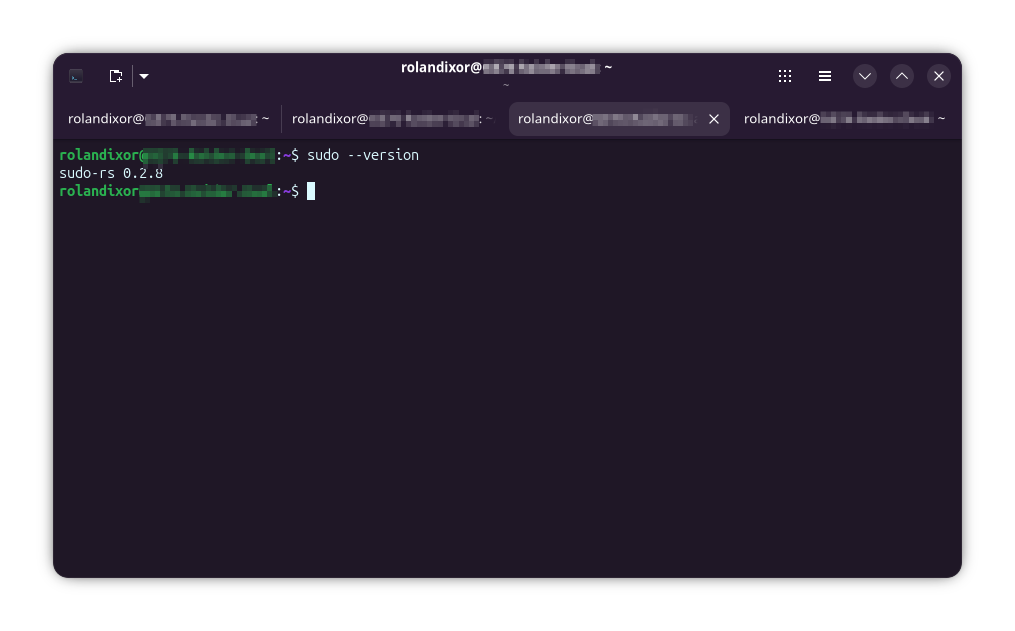
A terminal window showing the output of sudo --version, which gives sudo-rs 0.2.8 (taken on Ubuntu 25.10)
Things aren't quite as they seem

sudo-rs is a Rust implementation of the su and sudo commands. This is definitely one of the more controversial changes, technically introduced in 25.10, that will land for LTS-only users upgrading to 26.04. It's pretty easy to understand the logic here: these are critical security components, and Rust is generally considered a safer language for security-sensitive software. Still, replacing something as deeply trusted as sudo understandably makes some people uneasy.

To be fair, this caution isn't unreasonable. Even though most common use cases should work without issue, sudo-rs isn't yet a 100% compatible replacement. Sure, for everyday desktop users, the differences are likely to be invisible. For system administrators and power users however, there's a risk of some older scripts or applications encountering problems. It's a smaller risk, but still a genuine concern, and may be reason enough to wait until the situation settles.

Read about the difference between classic sudo and rust-based sudo.

2. No more X11 session for Ubuntu’s default GNOME desktop

GNOME on Ubuntu is now effectively Wayland-only (as of 25.10), meaning the classic “Ubuntu on Xorg” session is no longer available at login. Users upgrading from 24.04 will need to be aware of this if looking to remain on Xorg. Granted, in practice, this will only affect users who specifically use GNOME on X11 and/or still depend on Xorg features and or hardware quirks that Wayland doesn't handle yet (or at all). Most others likely won't even notice the change and can just keep using Ubuntu as normal.

Alternative desktop environments aren't affected, though. If you install something like XFCE, LXQt, or OpenWM, GDM can still show those sessions at the login screen. This may change in future releases, but at least 26.04 is marked safe for X11 users who aren't yet ready to move on. Just, not for GNOME.

3. Too many changes under-the-hood in one go

A photo of a person surrounded by chemical formulas and holding their head with their eyes closed, expressing confusion and overwhelm
System admins and power users might feel a little like this Photo / Vitaly Gariev

Simply put, Ubuntu 26.04 brings a lot of low-level change at once, especially for LTS users, and this alone may be enough reason for some folks to hold off for a while. For instance, this release switches to Dracut as the default initramfs system, removes apt-key, drops support for cgroup v1, and is marked as the last Ubuntu release with support for System V service scripts in systemd.

While many desktop users won't notice the difference, some on older systems, custom setups, or long-lived admin habits, may be at greater risk of something unexpectedly breaking. For cautious users, this may be one of those releases that is better adopted after at least one or more point releases.

Will you be upgrading or sitting this one out?

Ubuntu 26.04 is surely one of the more interesting LTS releases in quite some time. It brings some genuinely exciting improvements, especially for newer hardware, gaming, and some modernization on a few rough edges. At the same time, it does ask advanced users to accept a fair bit of change under the hood, and of course, not everyone will be comfortable making the leap right away.

For some, Ubuntu 26.04 will be an easy yes. For others, it may be the kind of release best approached with caution, and perhaps a good backup plan. Either way, one thing is clear: this LTS is sure to give us a whole lot to talk about.

5 Reasons to Upgrade to Ubuntu 26.04 (and 3 Reasons to Stay Away)
✇It's FOSS

10 Things Linux Can Do That Windows Still Can’t

Von: Roland Taylor

We all know Linux gives us a world of freedoms we couldn't possibly have on Windows, but have you ever stopped to think about that freedom in real, qualitative terms? After all, when most people say they can't switch to Linux, it's usually because of something they just can't do without Windows or macOS or Android (which itself is Linux, even if most don't consider it such).

So, let's take a closer look at some of the things you can do on/with a Linux system that you just can't typically do on Windows.

1. Live USB/Live session

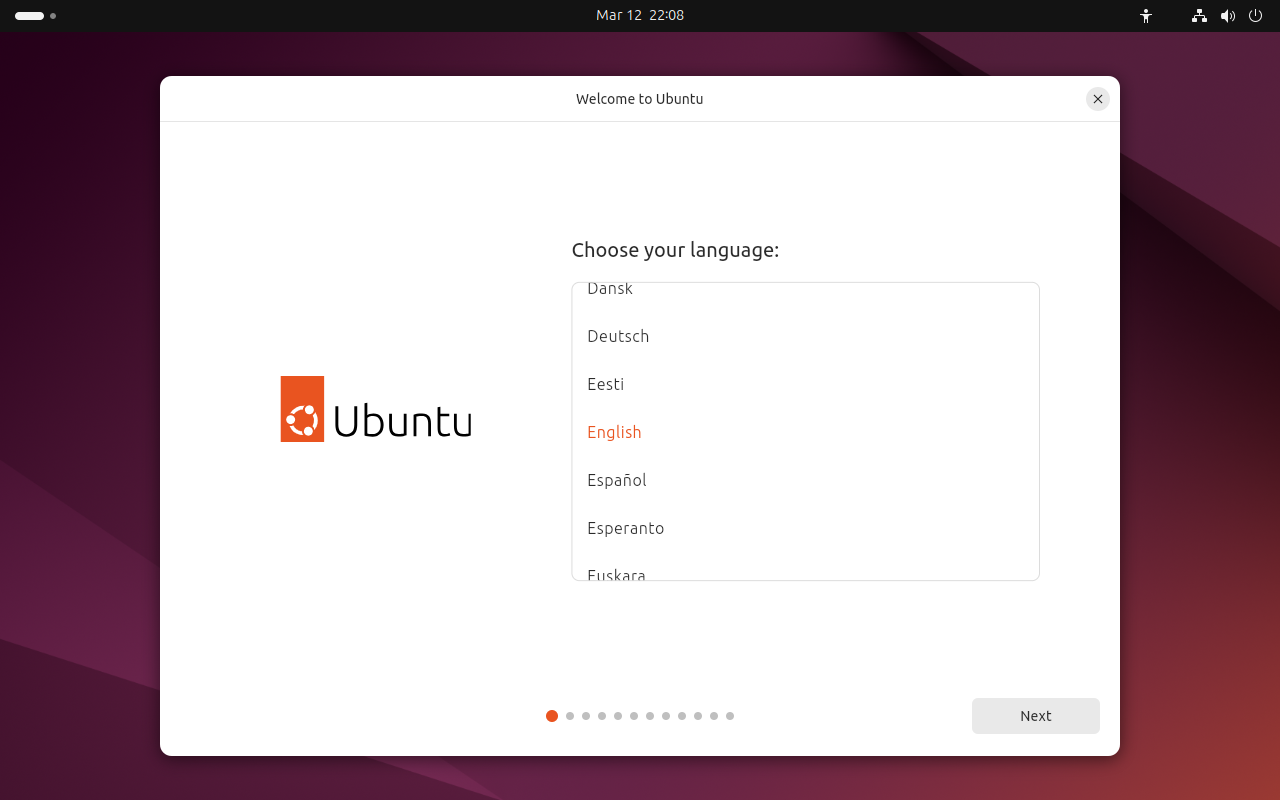
The Ubuntu 24.04 welcome screen showing the language selection tab
Running Ubuntu 24.04 in a live session

It goes without saying that this one deserves the #1 spot on this list. After all, for most of us, our first experience with Linux was at the welcome screen of a live session from a USB, SD card, or, in the past, CD or DVD. If you go even further back, some of us (myself included) first got to know Linux through the likes of Damn Small Linux running a live session inside Windows itself.

The crazy thing? Live CDs have been a part of the Linux experience since the early 90s, when we still regularly used floppy drives! And yes, live floppies were a thing, too. In fact, they still are.

Not only is there no official way to run Windows as a live session out the box, but Microsoft's own live session solution, Windows To Go, was an enterprise-only solution and has been discontinued. Non-standard solutions exist, but these are on shaky ground in that they rely on creating a Windows install on portable media, which is something Microsoft hasn't sanctioned.

2. Login screen customization

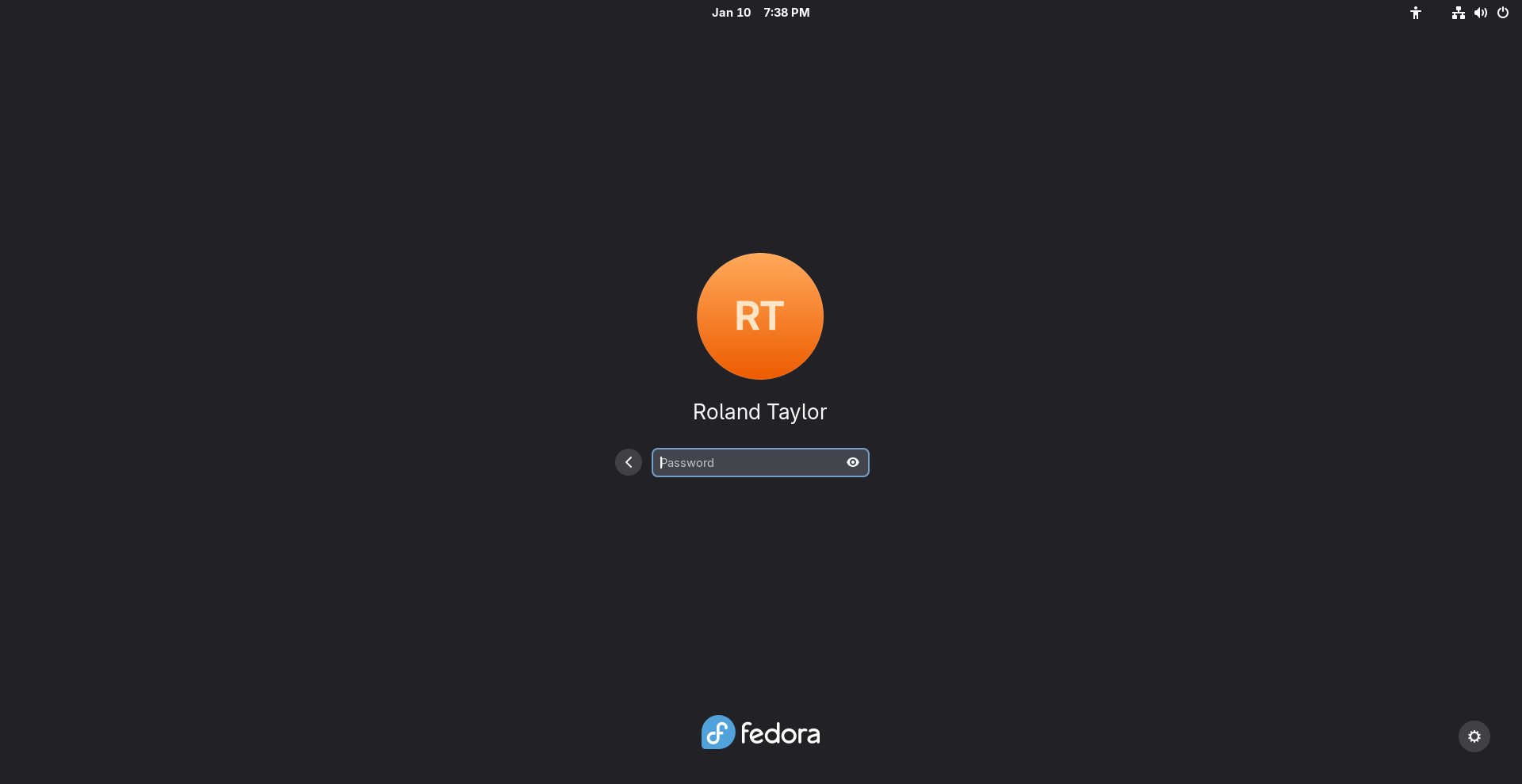
The GDM login screen showing the author's user account ready for sign-in to a Fedora system
The GDM login screen comes by default on GNOME-based systems

No lie, this one blew me away when I first switched to Linux from Windows. I'd always loved the idea of customising my system's visuals, and the fact I couldn't do this easily on Windows was a source of frustration. So to come from a world where I needed to risk malware or pay a fee just to put a wallpaper on the login screen to the full-scale flexibility of Linux has never stopped being amazing.

Not only can you change your wallpaper, but you can change the layout, even swap out the login manager altogether. Don't like the layout and style of GDM? Try SDDM or LightDM for greater flexibility, or even Ly, if you prefer something terminal-based. As a matter of fact, you can completely ditch the login manager altogether and boot straight to a TTY or desktop environment if you desire.

While you can change your wallpaper on recent releases of Windows, customising your login screen beyond this or changing your login manager altogether is simply not possible. After all, Microsoft wants you to log in with your Microsoft account going forward, so a third-party solution would somehow need to account for this.

3. Changing your desktop environment

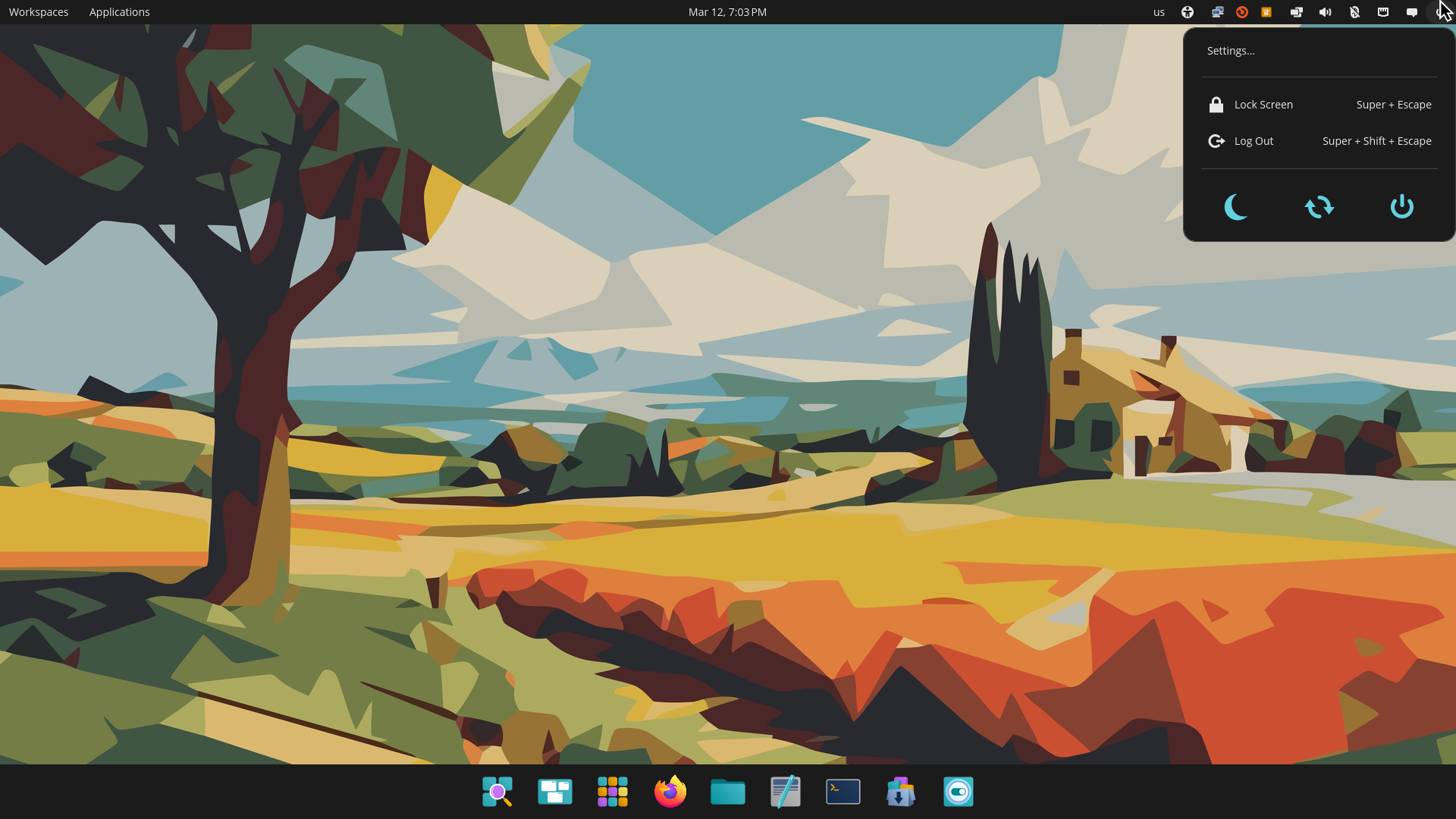
A screenshot of the COSMIC desktop environment running on Ubuntu 24.04
COSM Desktop running on Ubuntu 24.04

Maybe I shouldn't even say "desktop environment" here, because let's be honest — Linux has way more than just desktop environments for us to play with. We've got a broad selection of window managers (compositors, with the rise of Wayland), desktop environments, desktop-independent panels, docks, you name it. Whether you want to do minimal bling with Wayfire or Hyprland, or sink your teeth into something beefy with Plasma or GNOME, the choice is yours.

You can customise your layout, app selection, software store, launchers, or whatever you like, and you won't be penalised for it, nor do you have to pay a dime or risk giving your data to a company that could go defunct and leave you hanging.

Can you change your desktop environment or window manager on Windows? Nope. Sure, you can use third-party tools to achieve some degree of customisation, but these methods are not officially supported and may even violate the operating system's terms of use. Many of these customisations break standard features in Explorer or other parts of the system and can easily fail when Microsoft releases routine updates.

4. Use the system without a GUI

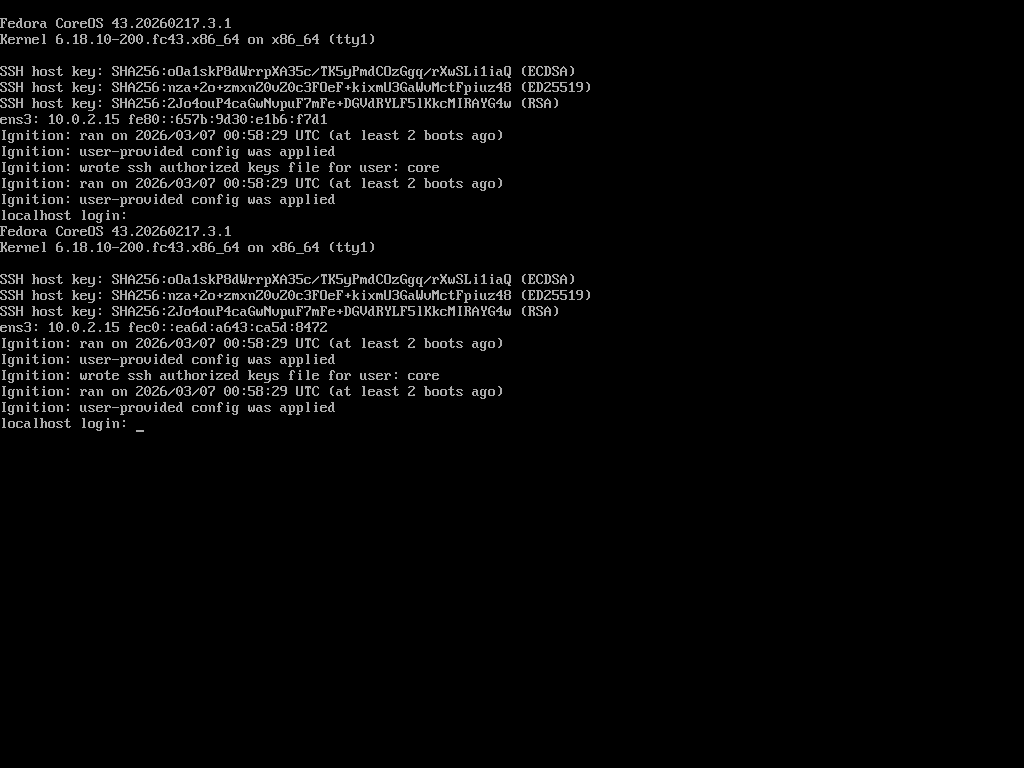
The Fedora CoreOS login prompt
Fedora CoreOS is designed to run with no GUI

Whether it's booting to the recovery session, running with the login manager disabled, or using a headless install through SSH, there are many ways you can use Linux on real hardware without ever using a graphical interface of any sort. While this option may not appeal to the majority of "average" users, it's still a pretty important distinction. You can use Linux as minimally as you need, even if it's as a temporary solution to bring up your graphical system just as you'd prefer.

For instance, this is the standard way to install Arch, by the way, and you can customise just about any distro to function in the same way even after installation. What makes this possible is the fact that what we know as "Linux" is actually a collection of software: the kernel, GNU utilities, init systems, and more. By choosing exactly what combination of software you're using, you can set up a minimal system that requires no graphical components whatsoever and still directly or remotely execute software from the system. It's even possible to set up such a system to display graphics over the network.

In the case of Windows (for consumers), this pathway isn't supported whatsoever. If something goes wrong, recovery is typically a graphical affair. Even Safe Mode is primarily designed around this. Running Windows as a text-based operating system just isn't something the average consumer can do.

5. Install it on just about anything

A close up of someone checking their smartwatch with one hand crossed over the other. Green grass in the background, blurred. The visible hand has red nail polish, with the 4th finger having pink nail polish.
Pexels / www.kaboompics.com

Linux on a fridge? A toaster? A toothbrush? Yes. And it probably can run Doom, too. The reality is, Linux is so flexible and portable, it can run on just about any device with a processor, even a tiny microcontroller. From the world's most powerful supercomputers to some of the smallest single-board computers and Internet of Things (IoT) devices, Linux has grown to basically power the majority of the digital world. There are even custom distributions for many non-standard devices, from game consoles to smartwatches, and the list just keeps growing.

On the contrary, while Windows has spread to some other devices over the years, it's not anywhere near the level of portability we have with Linux. You can't just grab a Windows ARM ISO and install it on a Raspberry Pi. You can't put Windows on a smart fridge either, unless the manufacturer happens to have an existing agreement and collaboration with Microsoft. Plus, since Windows is objectively not open-source, the community can't port it on their own.

Linux on the other hand, we can take wherever we want, not only because it's open-source but also because it was built with portability in mind. It can easily be stripped down and streamlined to fit just about any hardware. That's a freedom we just don't have with Windows.

6. Move your Linux install between systems

An office setting with white walls and various computer monitors behind different cubicles, alonig with headsets and other peripherals
Pexels / Pixabay

You might not have ever considered this, but really think about it. Let's say your current laptop or workstation goes down, maybe because the CPU burnt out or the motherboard got damaged, but the SSD is still working just fine. With Windows, it's time to get a new licence. You can certainly recover your files, provided your drive wasn't encrypted, but it's unlikely you're sticking that SSD in another system, booting it up, and continuing on like nothing happened. The bad news is, this is getting even harder with the introduction of mandatory Microsoft accounts attached to your system's TPM chip.

With Linux on the other hand, that's actually a pretty common workflow. I know this first-hand, because I've done it with multiple systems in the past. Sure, if you've got proprietary drivers installed, you may need to ensure that you remove them if your hardware differs too strongly, especially in the case of graphics cards.

Yet, Linux won't just automatically give up and quit if your drivers don't match your hardware. Instead, it'll choose a fallback method or fail to a command-line interface until you get that sorted out. It's a fascinating experience once you actually try it (or are forced to do it).

7. Customize or even swap your kernel

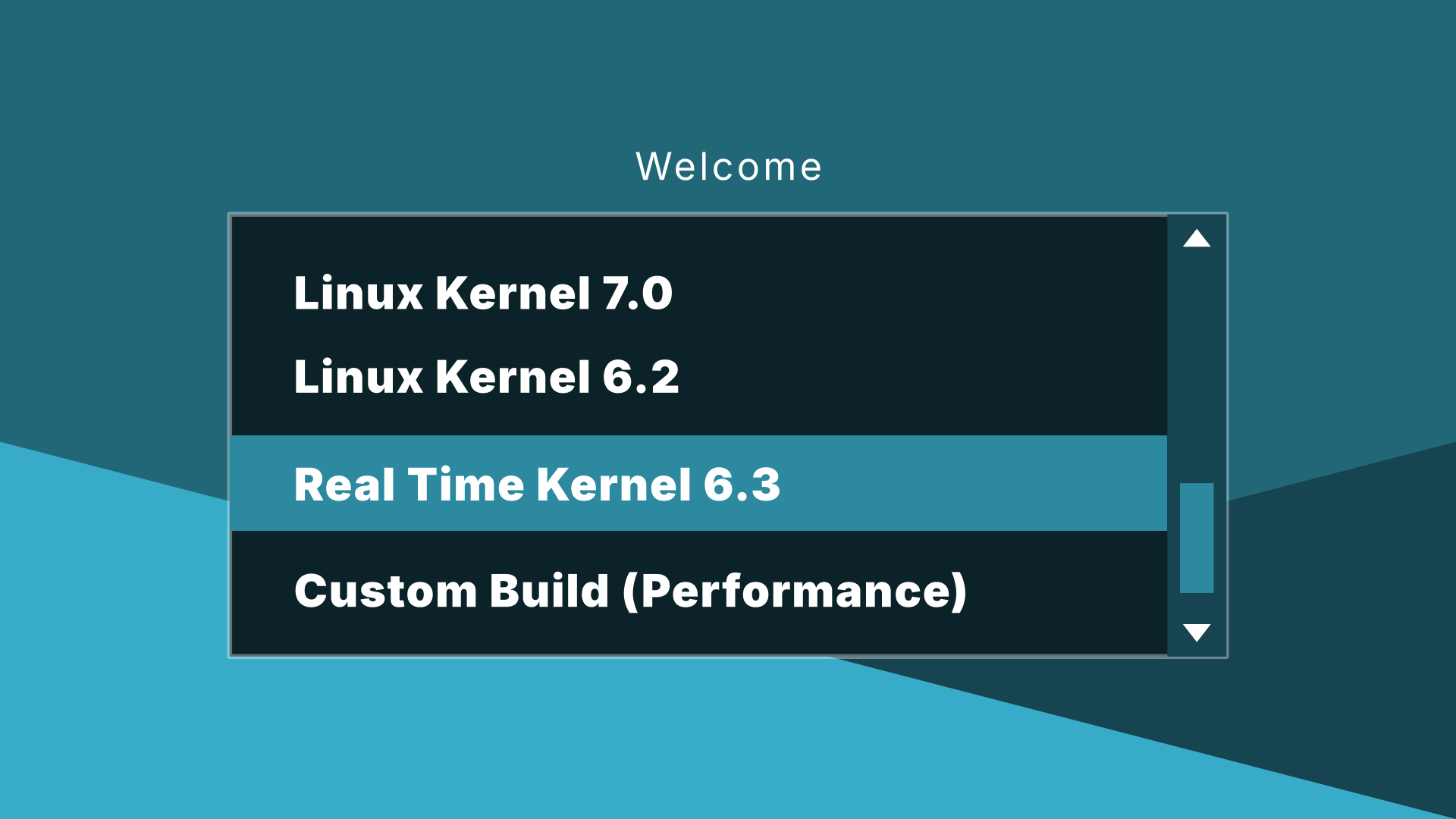
A simulated boot screen showing kernels 7.0, 6.2, Real Time Kernel 6.3 and "Custom Build (Performance)" as options
A simulated boot screen – perhaps someone wants to make this theme?

Imagine one day you wake up and decide you need to swap your kernel for a more optimised workflow. It could go something like this:

"Hmm, let's see here, should I run the Liquorix kernel today or the real-time kernel? How about the mainline kernel? Choices, choices..."

This is one thing long-time Linux users may take for granted, but it's actually a pretty big deal that we can do this in the first place. Again, this is made possible not only by the open-source nature of the kernel but also by the modular nature of most of the distributions we use. As a result of this modular nature, we can swap kernels any time we need to, especially so long as the distribution we're using provides a method for doing this.

🗒️
Immutable systems may have different restrictions or methods for changing the kernel.

Why might you need a different kernel? Well, it can be for any number of reasons, but typically, it's down to two main needs: better driver support and better performance. Newer kernels typically have broader support for new hardware, but sometimes an older kernel may also be needed for a specific device or quirk. Likewise, performance can vary with different kernel versions and build-time configurations.

Needless to say, this isn't something a normal user can do on Windows beyond applying standard updates. Yet on Linux, it's something so normal as to not even feel remarkable.

8. Choose different filesystems during installation

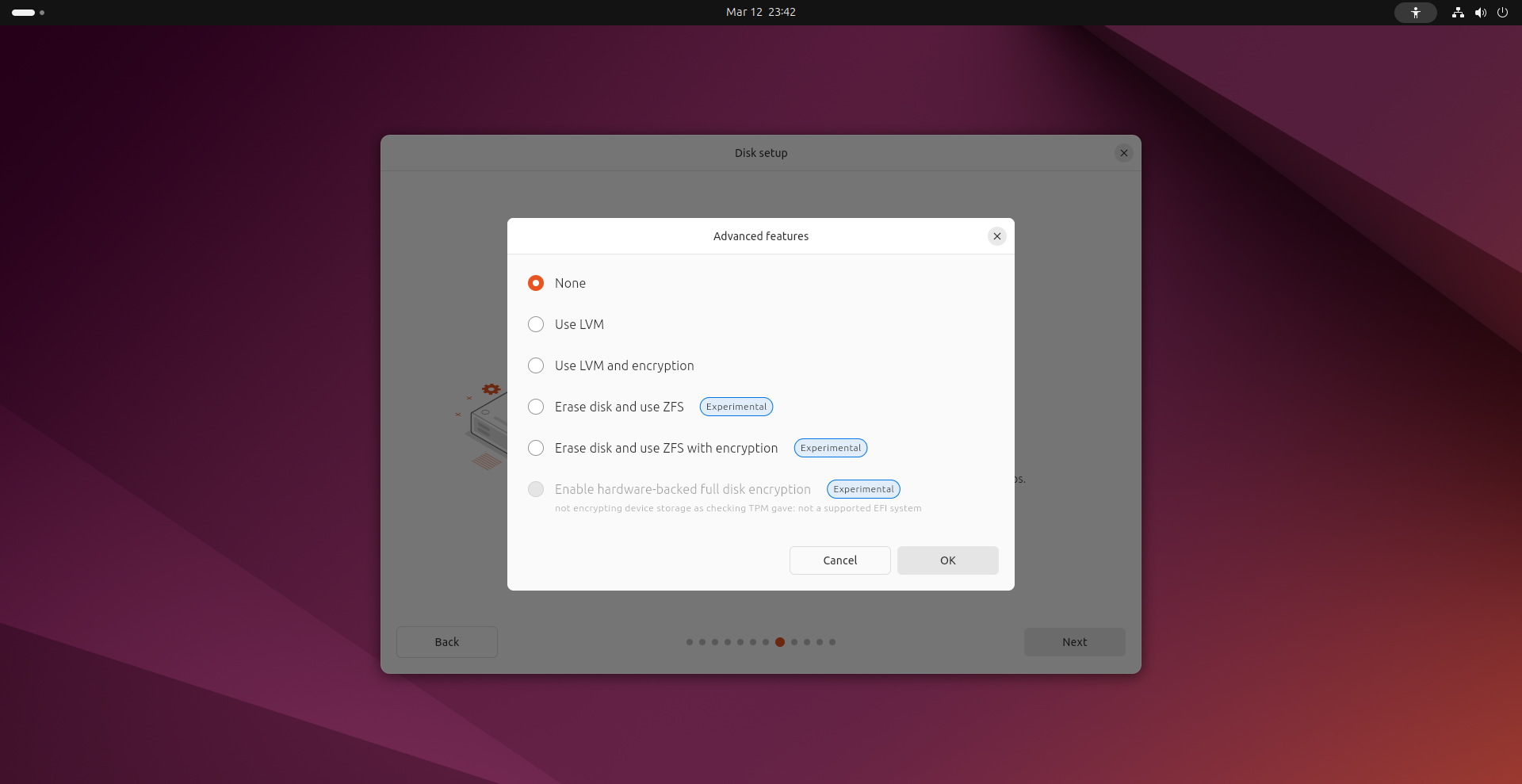
The "Advanced Features" sceen in the Disk setup screen of the Ubuntu 24.04 installer
Choosing disk options in the Ubuntu 24.04 installer. The ZFS file system is available as an option.

Windows supports a few filesystems for reading/writing files, including the typical FAT and EXFAT filesystems, NTFS, and more recently, ReFS, which is more used for server environments. However, when it comes time to actually install the system your options are pretty limited. You can install your main system on an NTFS filesystem, and with the exception of the FAT32 EFI partition, that's about it. No other filesystems are supported out the box, and while Windows setup supports loading third-party drivers, this doesn't cleanly open the door to installing Windows on any non-standard filesystems.

On the other hand, Linux supports many filesystems by default, and most distros give you the option to install on a much broader selection of them. Most offer at least the option of using ext4 or Btrfs, with some, such as Fedora, offering additional options, like XFS. In theory, you can even move your Linux install from one filesystem to another, provided you have the knowhow. For instance, btrfs-convert lets you convert an existing ext2, ext3, or ext4 installation to Btrfs.

9. Revive older hardware

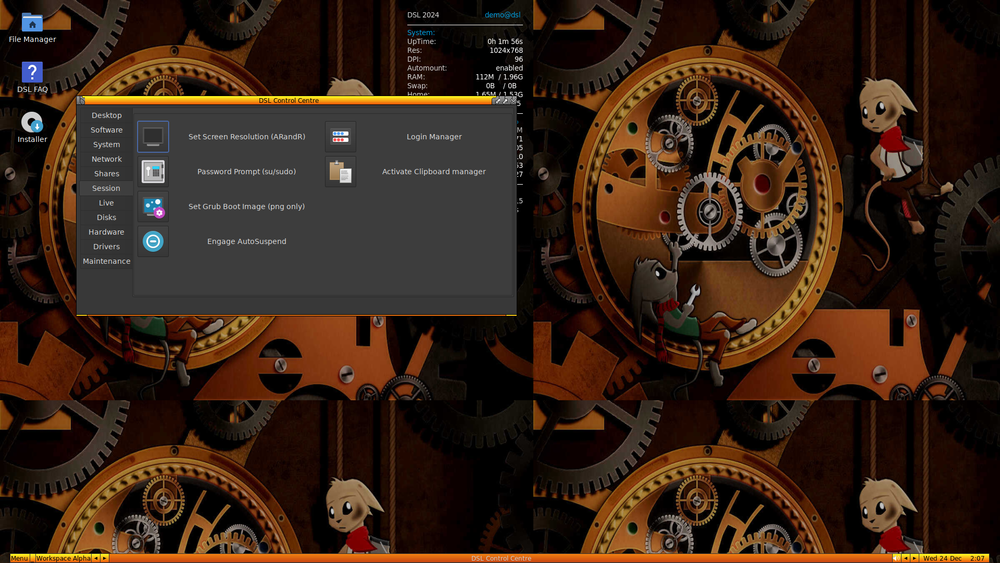
Damn small Linux showing the settings screen
Damn Small Linux 2024 is designed specifically to run on older hardware

Windows is notorious for its tendency to introduce seemingly unnecessary, forced hardware requirements that stop users from being able to keep using their older hardware, even when testing proves that Windows would run on it just fine. With Windows 11, things have never been worse. Perfectly powerful systems from as recently as 2017 or 2018 are somehow not supported all because of Microsoft's tighter hardware requirements, including requiring a TPM 2.0 chip, Secure Boot, and other platform features that can sometimes just barely edge a system out.

It gets worse when you consider the bloat that's been steadily creeping (or pouring) into Windows over the decades. Since users don't have any right to control what's in Windows by default or create their own official "Windows distribution", there's no way around this.

Not so with Linux, as many are discovering, and as you may have seen earlier with Linux running live off a floppy disk. In fact, there are Linux distributions especially built for this very reason, such as Puppy Linux and antiX, which the modern DSL 2024 is based on. Furthermore, Linux can be compiled specifically for older systems, even those with 32bit processors, unlike Windows, which typically drops older hardware with no way back.

10. Swap parts of your stack, as you wish

We've already talked about how you can swap your desktop environment, login manager, and kernel, but to end off this list, I think we should dig a little deeper. Unlike Windows which basically dictates what your operating system stack is from the ground up and provides few options for change, Linux gives you freedom change pretty much everything. For instance, let's say you're running Ubuntu and you really don't like snaps. Solution? Remove snapd.

You're probably thinking "But won't snapd just reinstall itself on the next update?", and the answer is no, but even if that were the case, you could block the update by locking the package. You can also change your init system, audio system, display system (betwen X11 and Wayland, and now the various forks of X11 that have popped up since it was all-but-abandoned).

Put simply, whatever you don't like about Linux, technically, you can change it. You just have to know how to do it and what to do if something goes wrong along the way. In some cases, there are even scripts that can automate the process for you, or distributions that do exactly what it is you're looking for already. For example, there's Devuan for Debian users who don't want systemd.

While unofficial "builds" of Windows exist, such as Tiny 11, most of these taking risk by distributing modified ISOs of Microsoft's intellectual property. It's legally gray at best, but it's pretty much the only option for many users.

Final thoughts: The narrative needs to flip

The text "FLIP THE SCRIPT" on a wavy background of pale green and blue hues
That's it. That's the message.

I could've kept this list going even longer, but I think the point is clear. While there are legitimate grievances like software that hasn't been ported yet, or challenges with hardware that vendors haven't provided drivers for, the reality is that Linux has a lot going for it if you stop to give it a fair shake.

If you've not yet tried Linux, maybe now's a good time to see what all the hype's about (and I don't just mean Hyprland, all though that's pretty sweet too). There's a lot you can do just fine on Linux that you can't actually do on Windows, or if you can, it's definitely not a walk in the park, whereas for us Linux denizens, it's just another part of daily life.

If you ask my advice, I say go for it: see what you've been missing, and you might just get hooked over this side too.

10 Things Linux Can Do That Windows Still Can’t

✇It's FOSS

Why Linux Users Love to Hate Ubuntu

Von: Roland Taylor

These days, it’s become fashionable to make fun of Ubuntu.

Whether it’s jokes about Snap packages or criticism of Canonical’s decisions, mocking Ubuntu often feels like the default attitude in parts of the Linux community.

To be fair, Canonical has made decisions over the years that have not always been well received, and some of the criticisms of Ubuntu and the direction it’s taken have their own merit. Yet, the derisive way Ubuntu is often talked about online isn’t particularly fair and, frankly, misses the point.

Ubuntu didn’t become the “face of Linux” by accident, nor did it gain its popularity and mass appeal (both on the desktop and servers) without real, solid reasons behind it. For many, it is in fact these same reasons that cause them to feel so passionately about the shift in direction since the early days.

Ubuntu’s speciality: Linux for Human Beings

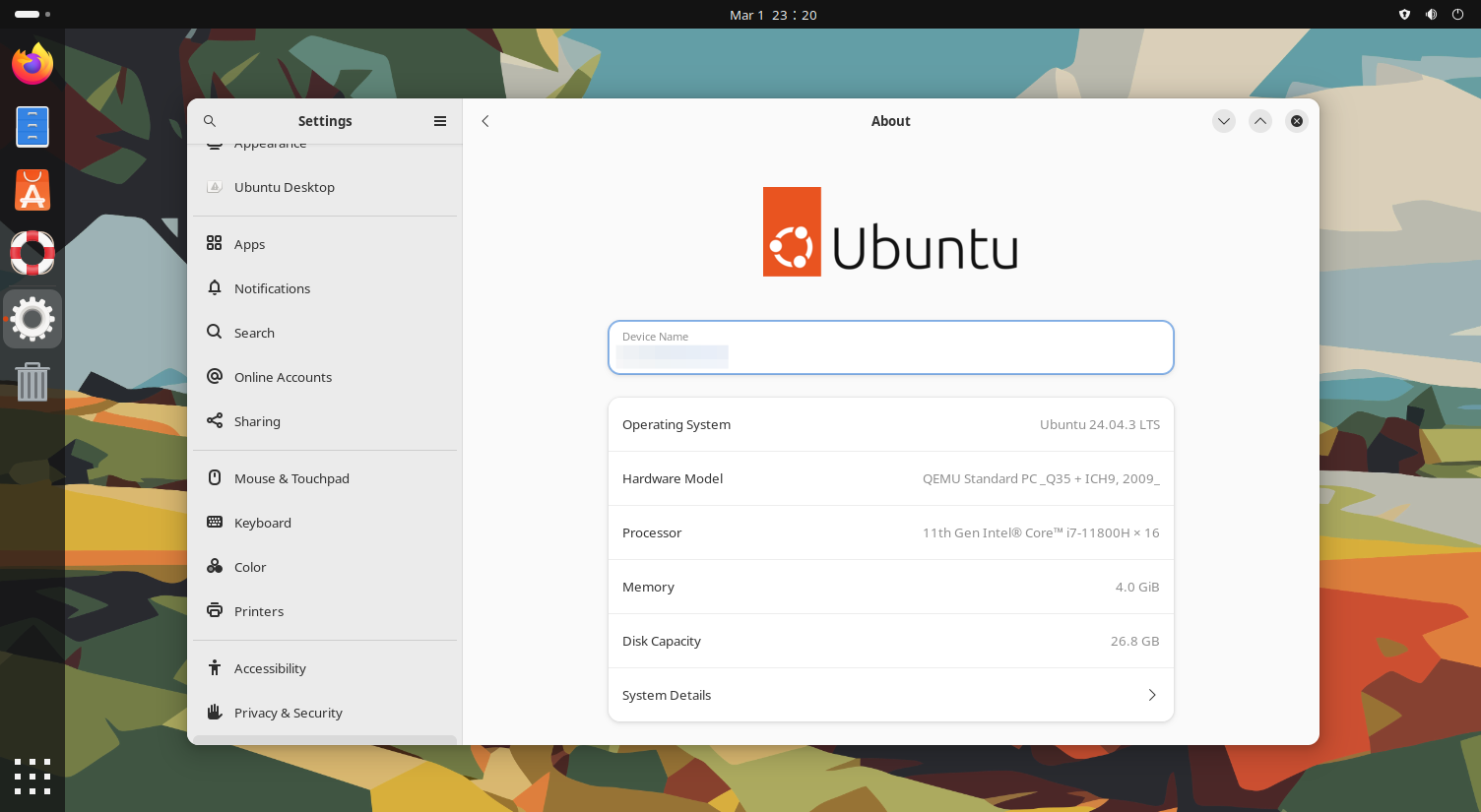
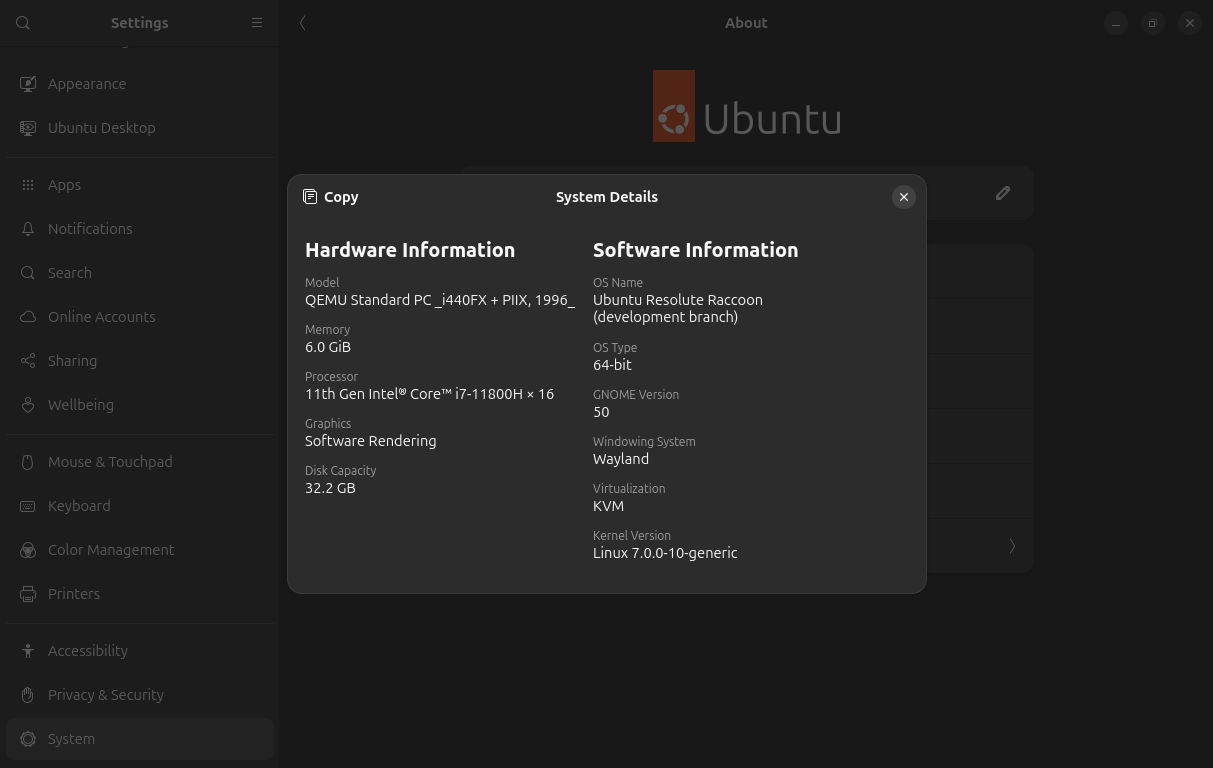
A slightly customized Ubuntu desktop with the "About" panel of the system settings open
Ubuntu's simplicity and ease of use have always been its strengths

Ubuntu was once widely seen as the easiest Linux distro for beginners and a solid choice for both casual and “power” users alike. Many Linux enthusiasts (myself included) recommended it without hesitation because it was straightforward and opinionated in a way that just felt sensible for regular people. From the time you popped in a live CD, you got a sane, uncomplicated experience that felt like a breath of fresh air compared to Windows, and it made you feel like Linux could actually feel like home. All you had to do was install it, update it when necessary, and get on with your life.

The slogan “Linux for human beings” was more than a branding choice. Ubuntu embodied this motto in a very real way by reducing friction for everyday people and never being afraid to match form to function. It hasn’t always lived up to that purpose in ways that everyone agreed with, but the underlying mission has never truly changed, if we’re being fair.

Even with the shift towards a more developer-focused ecosystem, it has remained just as easy to download, install, learn the ropes (if you’re new) and get on with your life. Drivers are still a breeze to set up for most hardware. The default themes are still designed with a polished aesthetic taste in mind, and yes, installing apps easily and swiftly is still a major feature. Whether you’re deep in DevOps or a casual desktop user who wants a stable system that doesn’t demand constant babysitting, Ubuntu remains one of the most practical choices in the Linux world. In other words, the memes and tropes are loud and often funny, but reality still begs to differ because Ubuntu still delivers.

So why all the hate? What happened to our once beloved flagship among Linux distros?

From darling to punching bag (and why that happened)

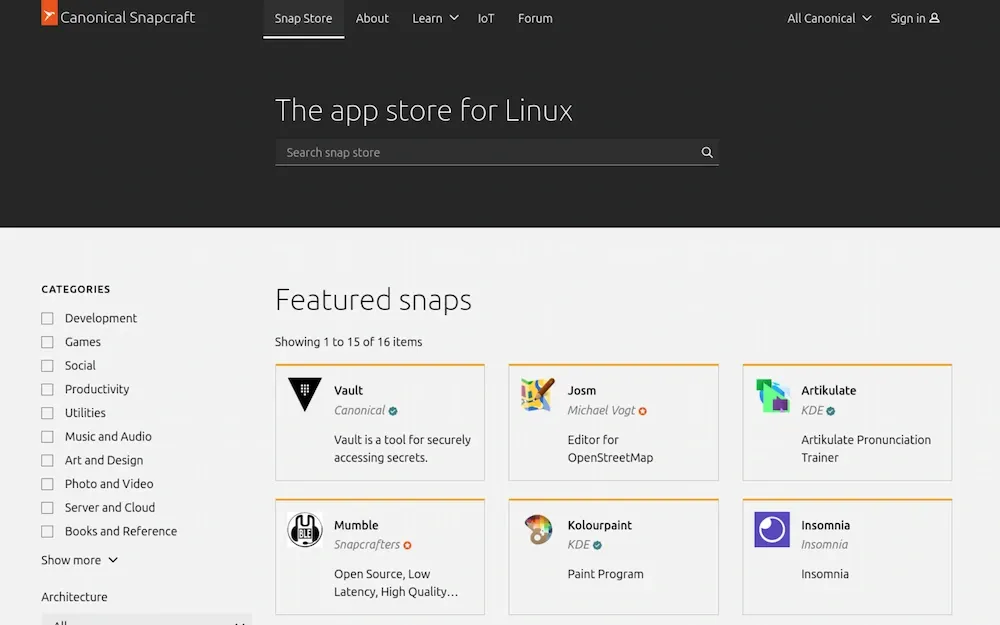
Snapstore for Ubuntu

In order to understand why Ubuntu has been falling from its place of overwhelming popularity among Linux users, it’s important to remember that Ubuntu was not just a community effort, as is the case with many other distros. Ubuntu is both a community effort and a product of Canonical, and it’s actually the latter first. While the community has some say in what happens through feedback, bug reports, feature requests, and other standard open-source infrastructure, Canonical ultimately makes the call for what defines Ubuntu as a whole.

Like any company, Canonical makes decisions based on factors that aren’t always known or agreed with by the broader public. While many of these decisions have ultimately worked out well, just about as many have also proven not to work out in the long run. This fluctuation between success and well, failure, is a natural part of the product lifecycle for any long-running product.

Ubuntu is no exception to this rule.

However, from the perspective of the community, many of these decisions started steering Ubuntu in directions that many users found puzzling and, at times, concerning. The backlash didn’t come suddenly, nor did it stem from a single decision. It came from a notable pattern: Ubuntu choosing its own path, even when the broader Linux community preferred a different direction. While this isn’t inherently “bad”, it’s unfortunately created friction within the community. To be fair, some of these decisions, such as introducing Amazon affiliate links during the Unity era, or the decision to keep the Snap Store closed on the backend, haven’t followed the expected ethos of the Linux/open-source world.

Furthermore, with the Linux desktop constantly fighting the challenges of “fragmentation”, the decisions to use snaps over Flatpaks for a containerised solution, AppArmor over SELinux, etc, have brought on accusations of ‘NIH’ (Not Invented Here) syndrome. Unfortunately, while Canonical has reversed course on some of its more controversial choices and attempted to show goodwill and engage more collaboratively, the reputation and distrust are unfortunately hard to shake. Yet, in spite of these difficulties, Ubuntu itself has largely settled into a steady state, even becoming, in the eyes of some, “boringly stable”.

But whether or not this accusation is fair, it’s a sign that Ubuntu is largely doing its job. A boring desktop is often a reliable desktop, and for most people, especially people trying to work, play, study, or just have a functional computer, reliability beats novelty any day.

Taking a path less travelled, and yet…

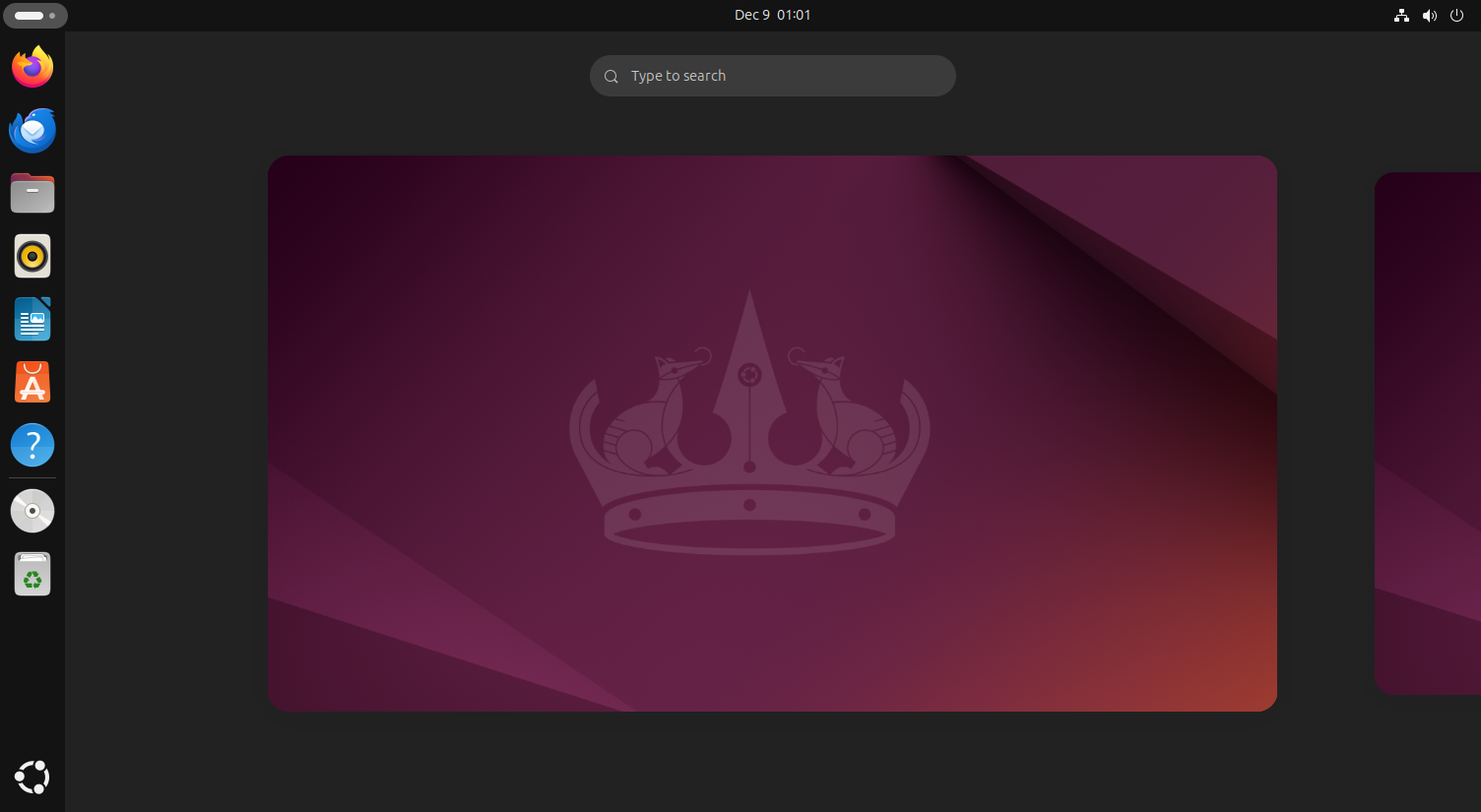
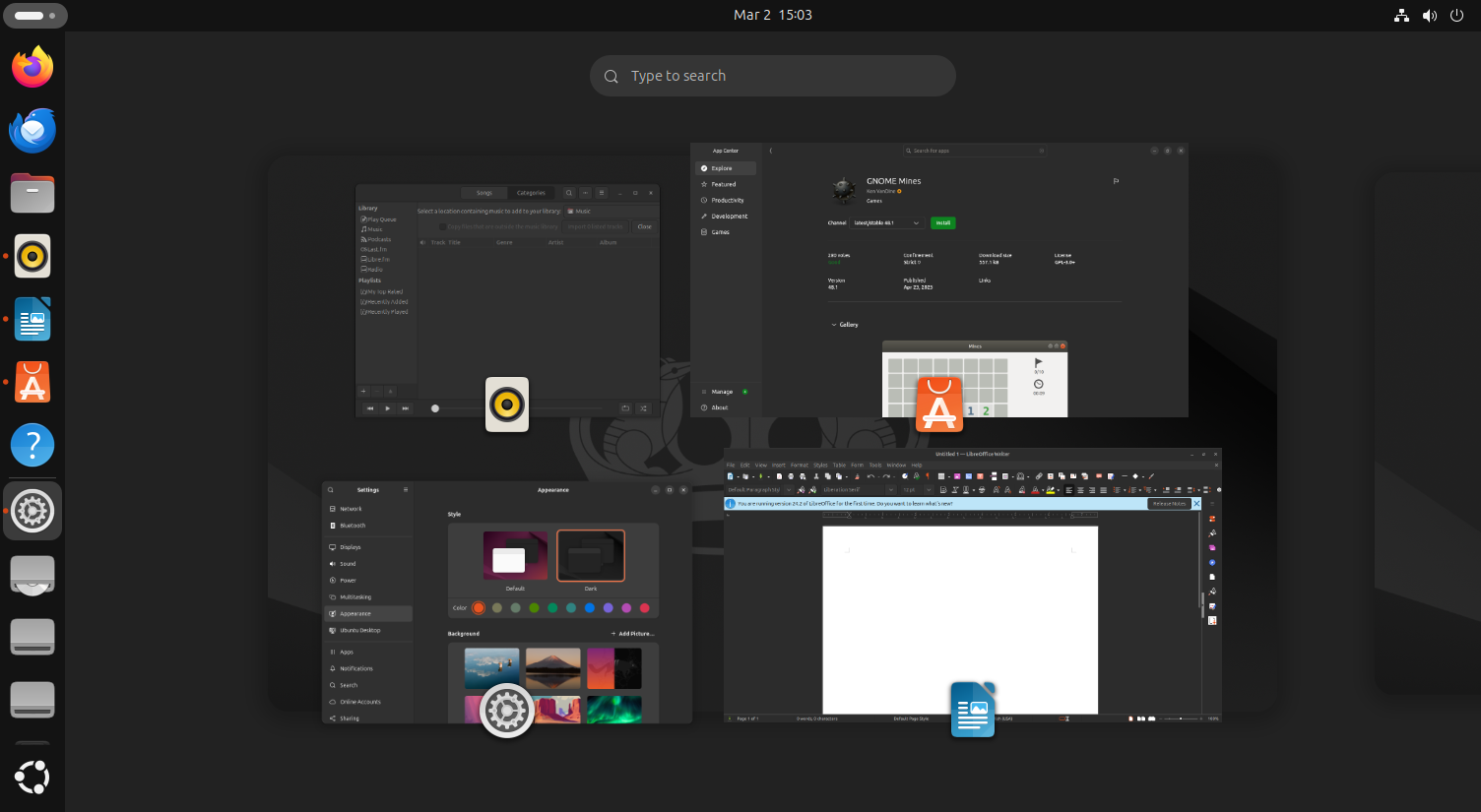
An Ubuntu desktop showing the GNOME dash and Ubuntu's panel interface

Ubuntu is often criticised for “driving in its own lane”, but that independence is also why it has remained so relevant and popular. Many of the distros that have taken its crown in the ranks of popularity and ease of use are still Ubuntu derivatives. Even if they look different on the surface, or choose not to include technologies that have become synonymous with Ubuntu, they’re still Ubuntu at heart (like snaps).

This isn’t a mistake. Ubuntu is a solid base for the likes of Mint, Zorin, AnduinOS, and others because it’s stable, widely supported, and consistent, even while Canonical is willing to take the heat for making strong platform decisions.

Like any other distro, Ubuntu is a reflection of choices and decisions, whether those are made by the community, upstream maintainers, or the entity curating and tying everything together. It represents the collective work of everyone who contributes, packages, and builds. As such, it’s not just “another Canonical product”, even if the influence of a product mindset is evident. That combination of open-source philosophy and community culture, alongside the stability and direction of a commercially stewarded platform, is what makes Ubuntu unique.

Ubuntu’s mission is simple: ship something cohesive, make it consistent, and keep it well supported over time. Sure, it’s not always going to please everyone, especially those of us who would prefer a more decentralised decision-making process or more community consensus. But if we’re being honest, it’s also why we so often assume Ubuntu when we’re writing tutorials and install instructions.

That’s no accident, either. Ubuntu may not be perfect (no distro is), but it makes enough of the right choices to remain a dependable foundation, not only for users, but for an entire ecosystem built on top of it.

More than a desktop OS

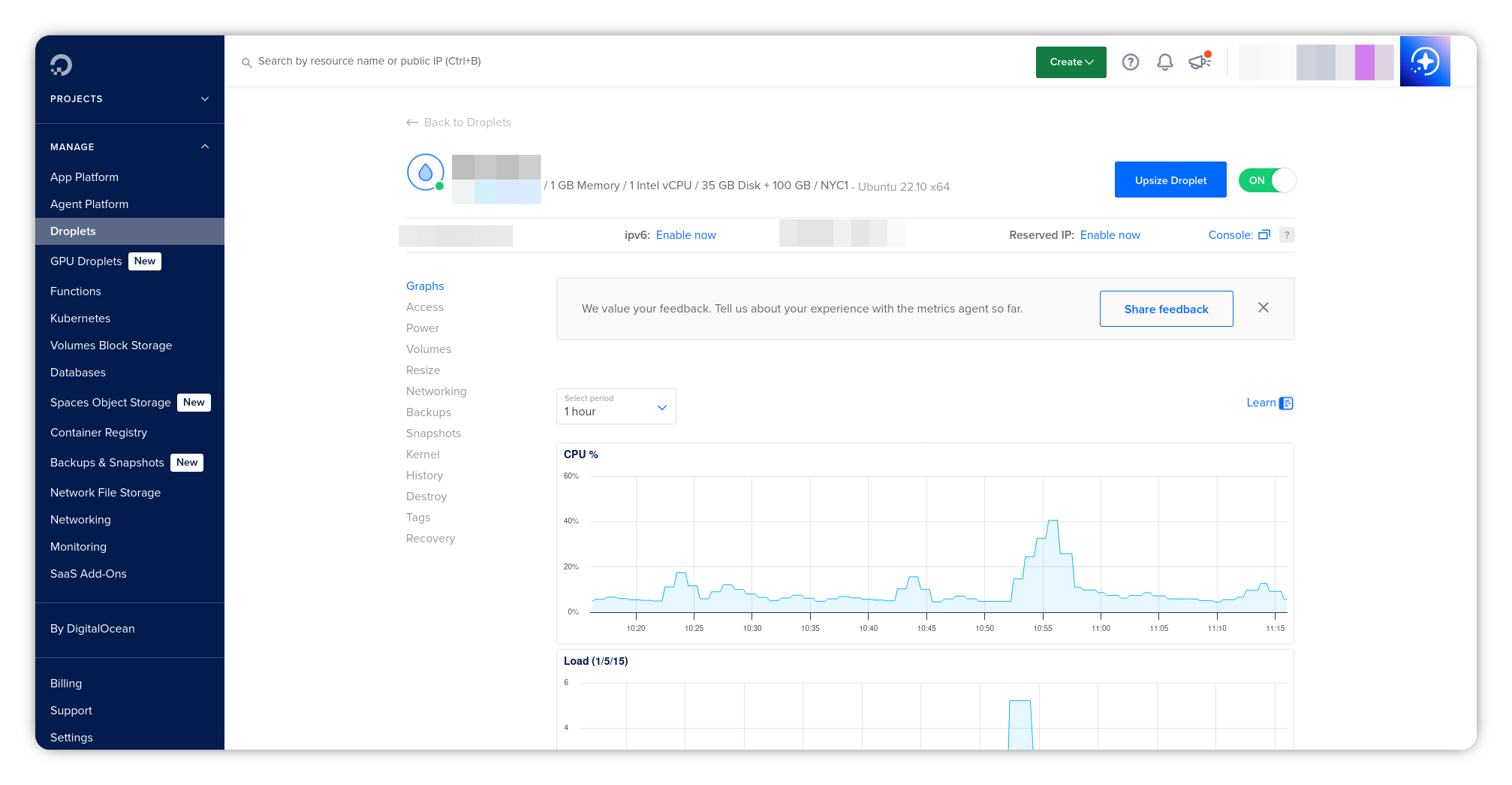
A Digital Ocean dashboard screenshot showing information for an Ubuntu-based droplet
Ubuntu is popular as a server OS, with many platforms offering pre-built images for various applications

Ubuntu and its ecosystem are often easy to reduce to the realm of “beginner distro,” but that view is outdated, and I’d even argue it’s never really been true. Granted, I personally started using Ubuntu because I wanted to see what the hype was about where the likes of Compiz, Beryl, and other flashy effects were concerned. Yet, I never even got to try any of the whiz-bang features until I was a few years into my Linux experience, due to hardware limitations. So what kept me here? It was recognising that Ubuntu is so much more than a desktop.

Ubuntu is a serious platform across the server space, cloud platforms, and embedded environments and infotainment, and even lives on in the mobile space due to the efforts of UBPorts. Personally, I’ve never run a VPS on any other distro, not because I couldn’t, but because I haven’t found any reason to choose another. Ubuntu just works, and when your mission is to keep servers reliably online and updated for yourself and clients, that’s exactly what you need it to do.

Ironically, many of the same reasons Ubuntu gets flack on the desktop are the reasons it’s preferred in development and server spaces today. For instance, using a snap to install and configure a web service like Nextcloud is far simpler than even using a more well-known solution like Docker. Some snaps don’t even require any further configuration beyond setting up basic admin credentials and settings through web-based UI.

Ubuntu’s LTS cadence is a lifeline for server stability. Once you’ve successfully deployed a complex server environment, it’s often preferable to keep it “as is” for as long as humanly possible, while still getting the necessary security upgrades and minimal feature changes that you need to keep it up to date. With a Ubuntu LTS, that kind of stability isn’t even a challenge to solve, because there again, it just works. You get the flexibility and familiarity of a Debian-based system, with the freshness and stability that Ubuntu brings to the table.

Another important point is that a lot of production environments, containers, tutorials, and automation examples are written with Ubuntu (or Ubuntu-like) systems in mind. By matching what’s common in the field, you spend less time fighting your environment and more time understanding and using the tools you need to get actual work done.

Giving Snaps a fair shake

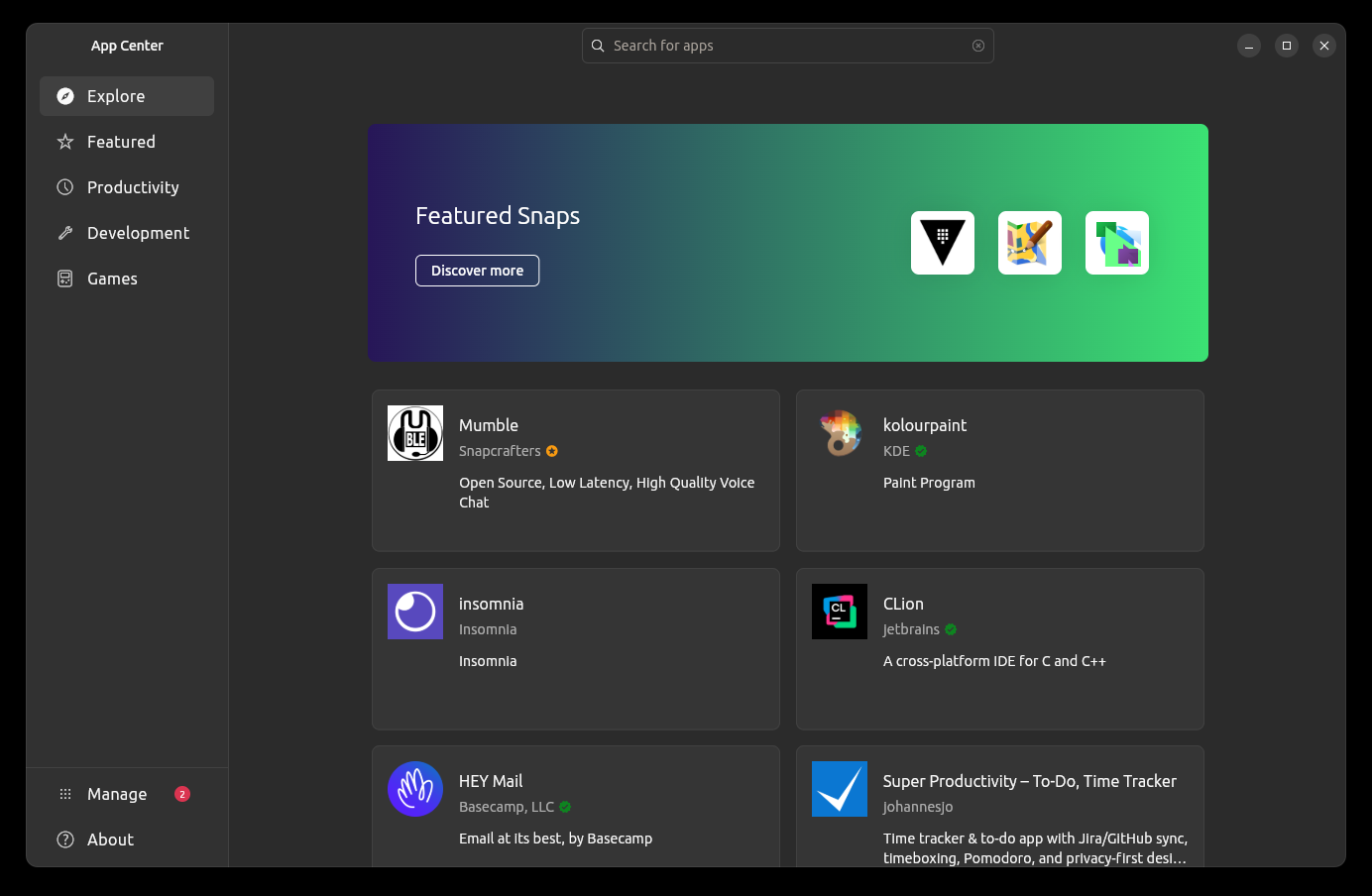
The Ubuntu App Center on the "Explore" tab
Ubuntu's App Center is the default "app store" for snaps

While “just getting work done” is one of Ubuntu’s hallmarks, that’s not typically what people think of when they think of snaps, and let’s be honest: snaps are a big part of why Ubuntu gets mocked. This criticism isn’t completely imaginary either. While the tech has come a long way, snaps still have some real-world challenges. But, the same can be said for just about any containerised packaging system. For the sake of fairness, let’s just get some of the remaining issues out of the way.

Theming inconsistencies still persist, especially if you are using an app built with a toolkit that your desktop isn’t built on. Snaps still take significantly more storage space than “native” packages, because they often depend on other “foundational” snaps. Also, there’s no open or decentralised software store, so we have to trust Canonical’s stewardship. These are real trade-offs, and it’s only fair to acknowledge them.

Usually, the discourse stops right here, as if “Snaps exist” is the same thing as “Ubuntu is unusable.” If I had a dollar for every time I’ve seen someone say “First thing I do is remove snap from the system”, I could end world hunger overnight. Yet, realistically, most people don’t choose an OS to make a statement about packaging decisions. They just want to be able to install what they need, do it quickly, keep it updated, and avoid breaking things in the process. Whether some in the community like them or not, snaps deliver on this promise.

By providing a consistent delivery mechanism for newer app releases, a simple rollback method and a clean way to clear app settings and data once an app is removed, snaps reduce dependency stress across different Ubuntu releases. For most types of software they simplify maintenance for developers and users alike. Plus, many of the issues that led to snaps being so heavily disparaged, such as slow startup times and terrible desktop integration, have been massively improved since their introduction, and continue to be improved with time.

Besides, even if you absolutely detest snap as a technology, Ubuntu is still flexible enough that you can make your own choices about where you get your apps and what package distribution formats you prefer. Case in point: most of the apps I use on my Ubuntu system today are Flatpaks and native applications, not because I don’t use snaps (I actually use quite a few), but just because that’s how most of the latest versions of the apps I need are currently packaged.

Why you can safely ignore the noise

Many of the arguments against Ubuntu these days are essentially identity- or philosophy- based, not practical positions. For most people, a better question is simply: what do you need your computer to do?

Ubuntu is still a strong choice if you’re new to Linux and want something straightforward, different from Windows and macOS, but familiar enough to not be a complete shock to the system. If you’re a developer seeking the friendly environment of a Linux-based workflow, choosing Ubuntu means you’ll have a system that matches the majority of guides and tutorials you’ll encounter online. The same is true if you work in DevOps or system administration.

The point is, whether you’re a casual desktop user or a seasoned denizen of SSH terminals, Ubuntu still meets the mark, offering stability, broad app availability, and the ability to Google a problem and find answers quickly.

Why it’s never going to be for everyone

A screenshot of the GNOME dash in Ubuntu showing multiple applications running on a virtual desktop
Not everyone likes Ubuntu, and that's perfectly okay

It goes without saying, but Ubuntu can’t be everyone’s cup of tea either, and even some long-time users might find it no longer fits their needs. For instance, if you prefer ultra-minimal systems that let you build everything your own way, or even if you just want to avoid Canonical’s decisions on principle, Ubuntu won’t fit the bill, and that’s perfectly okay.

With the move to deliver more core components as snaps, it’s also understandable that some of us might be forced to choose other distros to avoid this fundamental change in direction.

What really matters here is that none of this is a matter of a moral judgement, though I’m sure some folks would argue otherwise (and hey, I respect it, even if I disagree). At the end of the day, it’s all about freedom and finding the matching tools to get the job done, whatever that means for you.

Final thoughts

Long story short, Ubuntu often gets the most backlash because it’s one of the most visible and durable targets. It’s a distro many of us have long outgrown, but it’s also the distro where we “cut our teeth” on everything Linux has to offer. It’s no surprise then, that it’s the distro many people now love to dunk on and poke fun at.

Love it or hate it though, Ubuntu remains. It’s still quietly doing what many people actually need, still serving its age-old role as many folk’s first foray into Linux, still pushing innovation and momentum across spaces where we need it most, and still helping the collective to gain market share. The work Ubuntu does behind the scenes may not always be exciting, but no doubt, it’s quite invaluable. It doesn’t have to be perfect, and sure, it would be nice to see it reclaim its former glory, even just for a bit of nostalgia.

But Ubuntu has earned its place among the Linux giants, and continues to prove itself every day. So maybe, just maybe, it doesn’t deserve our hate.

  • Es gibt keine weiteren Artikel
❌