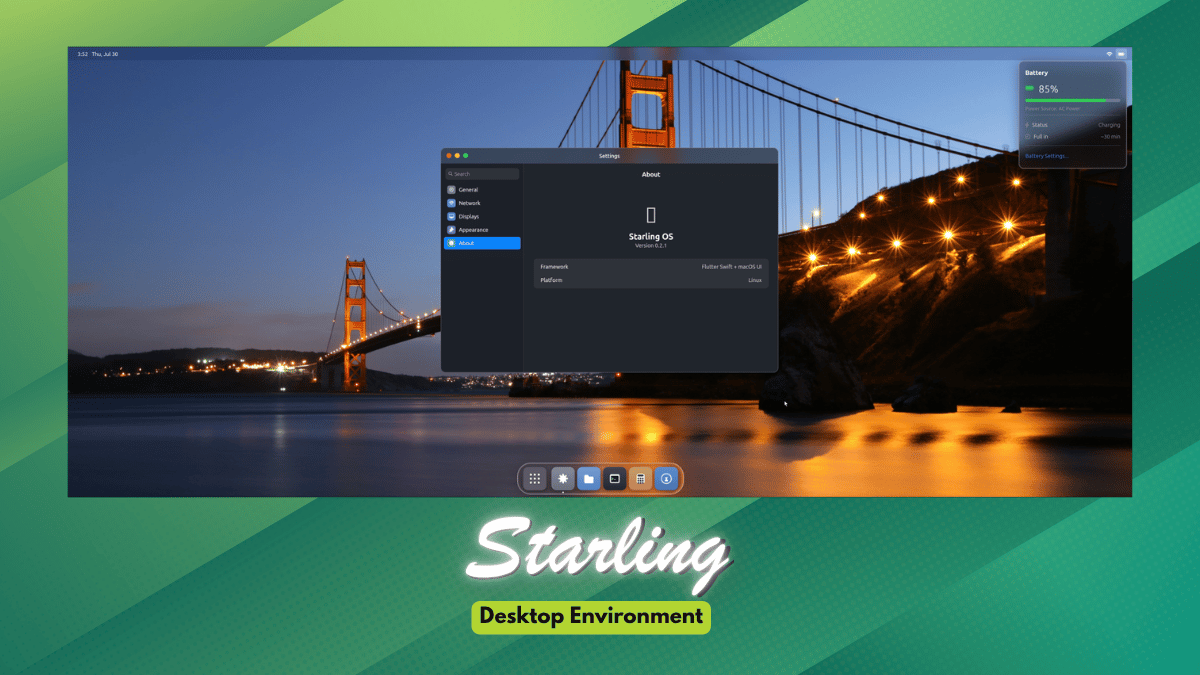
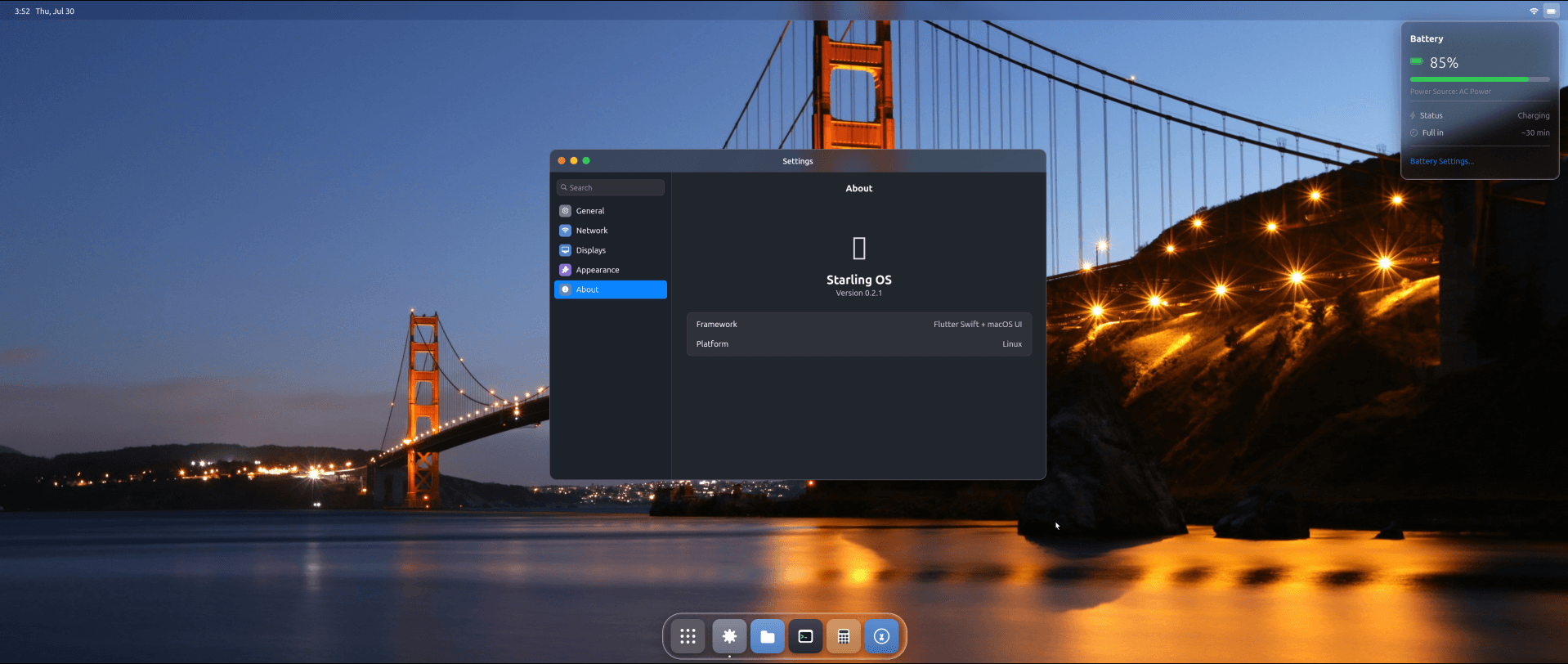
Starling is a new open source Linux desktop environment. One developer built it by directing Claude for about six months, ending up with a working desktop that boots into its own session with a compositor and window manager.
Don't think of this as a themed shell bolted onto GNOME or KDE either. It brings its own X11 server, so apps like Chrome, Slack, and Zoom run on it without requiring any special modifications.
🚧
This is a vibe-coded desktop environment, still an early preview built mostly through AI prompts rather than a full engineering team. Expect bugs, security issues, missing settings, and rough edges throughout.
What is Starling?
Every part of it, like the shell, the compositor, the window manager, and the apps, are written in Swift, a language that has hardly been used for a Linux desktop before.
Most of the heavylifting here has been done using Claude, which was instructed to follow things like "Wayland only. Do not read, modify, or reference X11Server/ or X11 launch paths unless explicitly asked."
Under the hood, the framework running the whole desktop is a full port of Flutter's Dart framework to Swift. Starling brings a Wayland compositor written in C and its own X11 server, so older X11 apps still work.
That combination is what actually makes it a desktop rather than a demo.
For features, it has things like:
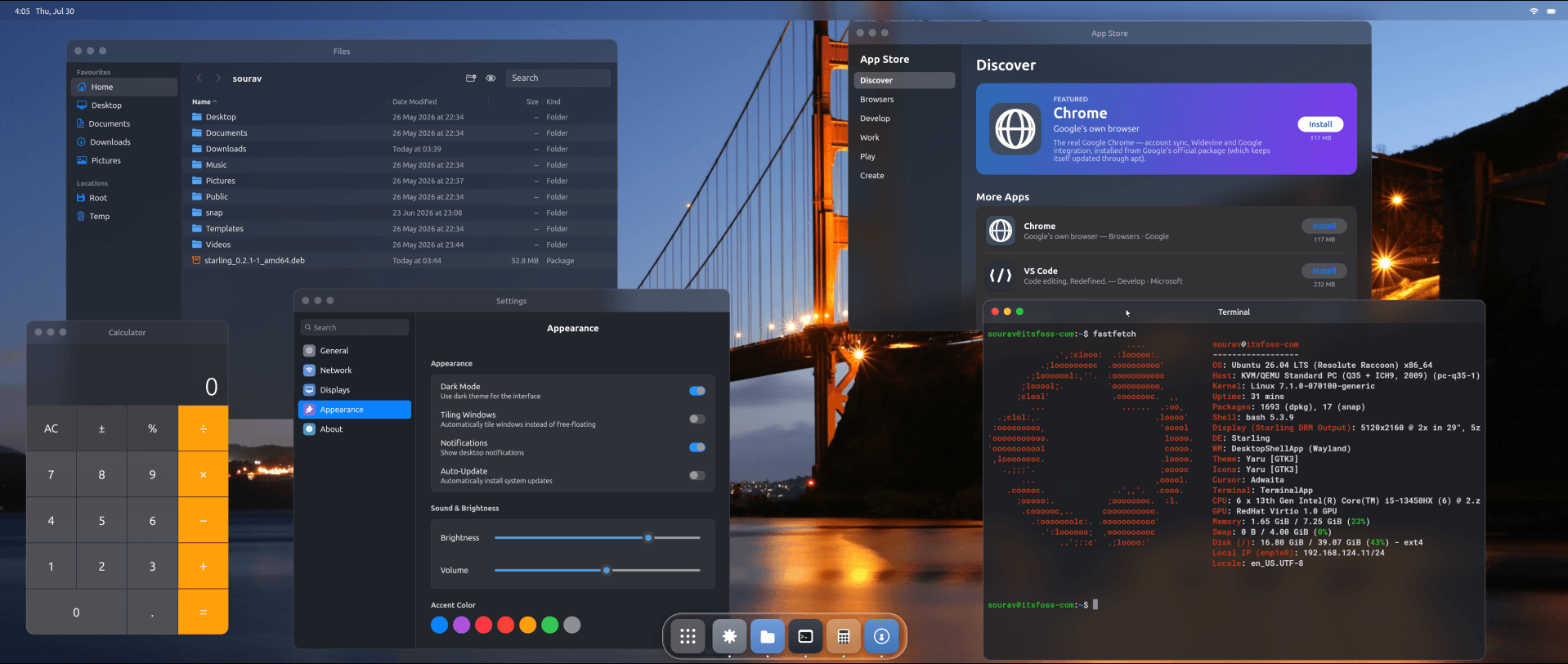
A dock and Launchpad (app launcher).
Floating and tiling window management.
A shader-based glass effect on the dock and panels.
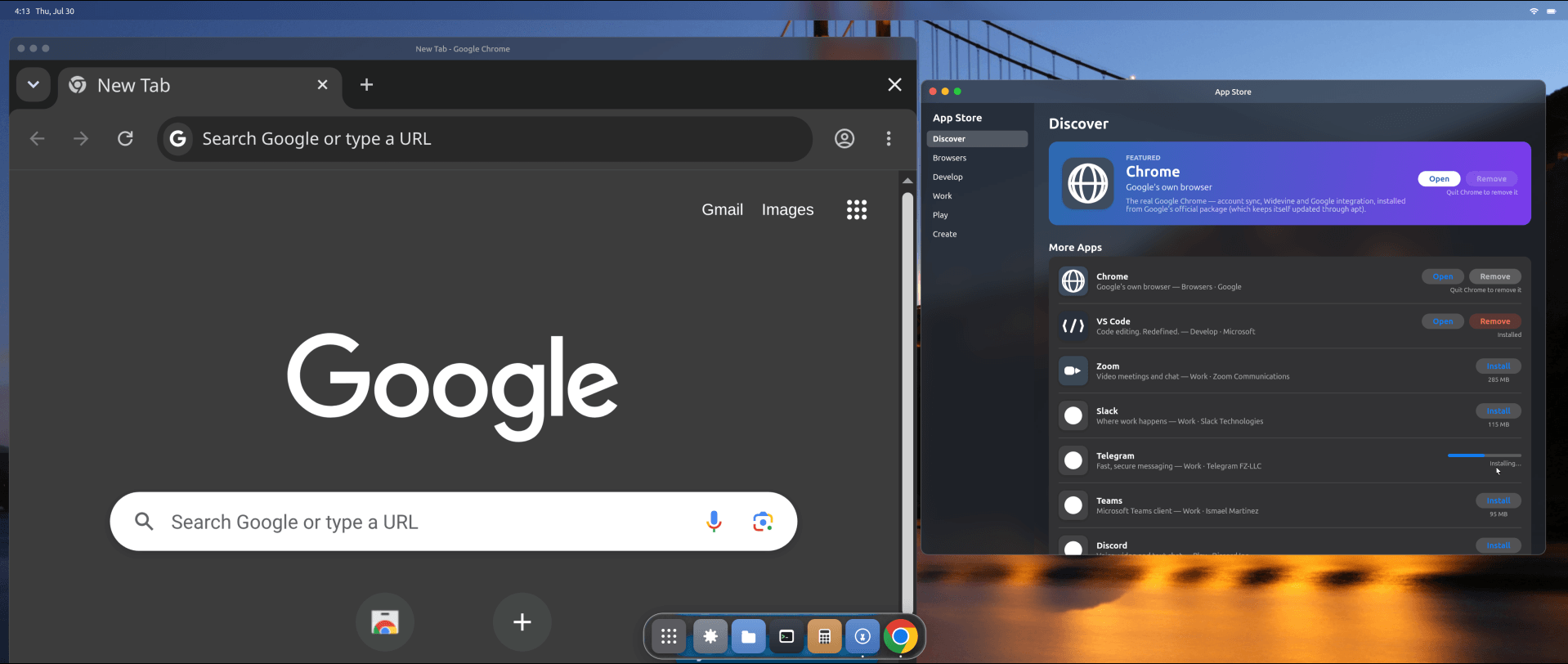
Five first-party apps, including Terminal and an apt-powered App Store.
Taking it for a run
I tested Starling on an Ubuntu 26.04 LTS virtual machine, and its rough edges showed up almost immediately. Right after logging in, the resolution defaulted to a non-standard, letterboxed widescreen ratio of 5120x2160 at 2x scaling (according to Fastfetch).
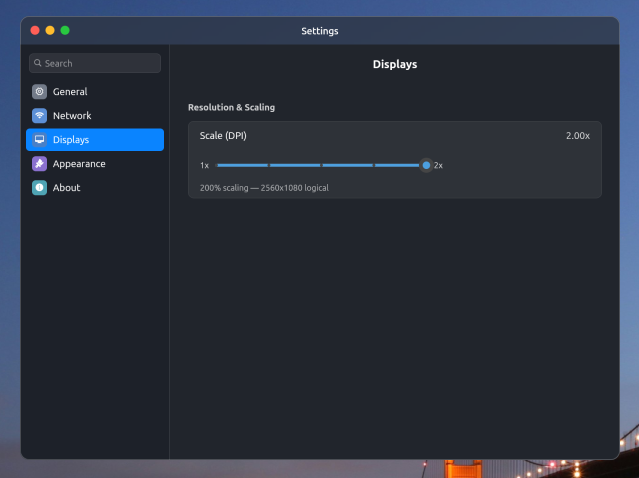
I tried searching for an option to change this in the Settings menu, and the "Displays" page only had a slider for scaling, nothing for resolution itself. Things might be better if you install it on a computer directly, but that's a risk you are more than welcome to take. 🙂↔️
A few smaller things didn't work either. The search bar inside the Launchpad (app launcher) doesn't respond to typing, and none of the accent color swatches in Appearance actually apply once clicked.
The App Store itself works, technically. I installed Chrome through it without any errors, but the browser opened up oversized and ran noticeably laggy once it loaded. Not exactly the experience you'd want from one of the few apps the store puts at the top of its list.
Shutting the system down turned into its own small hunt. There's no power menu anywhere on the desktop, so I had to go into the Terminal and run sudo shutdown to turn it all off.
Early stages of abandonware?
Starling probably won't be the last project like this. If one developer directing an AI can produce a working desktop environment, compositor and all in about six months, expect a lot more attempts over the coming years.
Building something and keeping it alive are two very different jobs. Vibe coding gets you off the ground fast. Debugging what it produces is painfully slow, and that grind is usually what kills a developer's motivation before the project gets anywhere.
Installing Starling
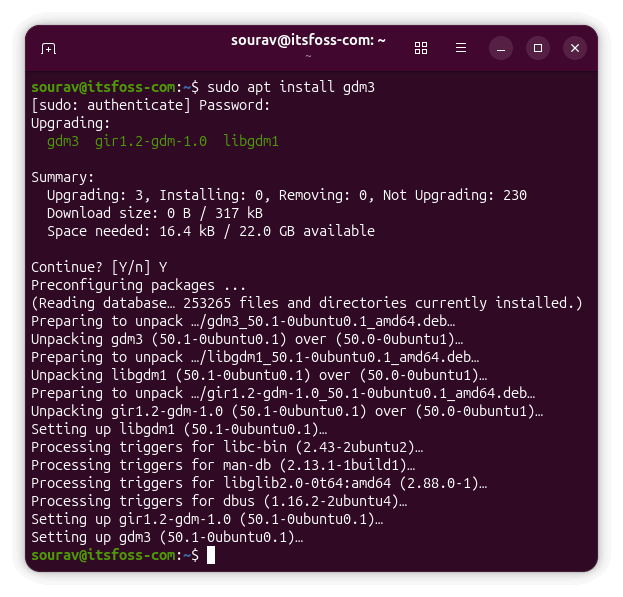
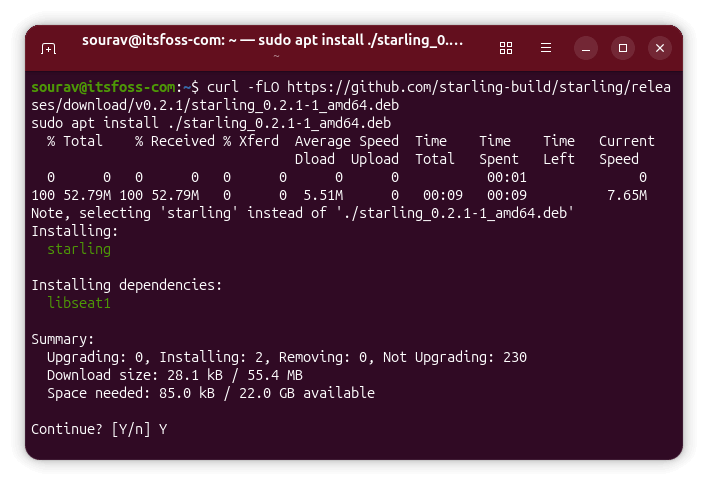
Starling packages as a single DEB, built for Ubuntu 26.04 LTS on amd64. You will have to ensure that you have a Wayland-capable login manager (which the Desktop LTS release ships with).
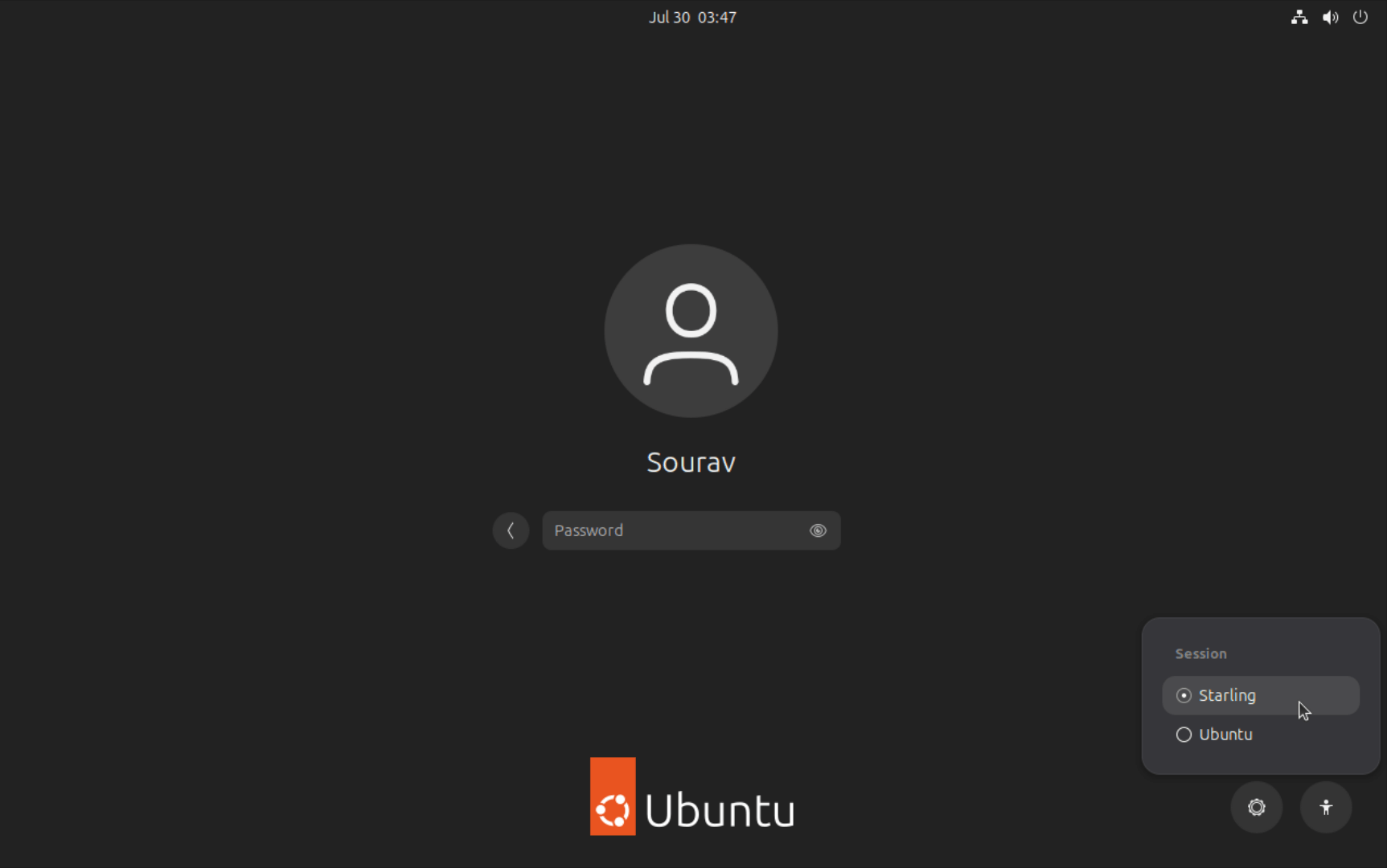
Next, you have to either log out or reboot, then at the login screen click your name, open the session menu (a small gear icon at the bottom-right), and pick "Starling" from the list.
Mind you, it is quite early for this desktop. Currently on v0.2.1, the project itself is being handled by an anonymous human developer (or maybe AGI 😱?), so I would test it on a spare machine.
Terramaster F4-425 Plus was the first NAS I ever used in my hoemlab setup. It's a solid device for a NAS. Not too expensive, silent and has a decent operating system. The hybrid HDD+SSD model along with TRAID and built-in backup tools makes it a good NAS choice.
Now Terramaster has refreshed their F4-425 series with a Pro model. The main thing that changes here is the CPU. There is also a revamped operating system in the form of TOS 7 but that should be available on previous F4-425 models, too.
The new F4-425 is still a solid device, hardware wise. Operating system has rough edges and hopefully it will improve in the future updates if Terramaster is serious on this product. They usually are.
I have used the device for a few days as it's a new device and I have been travelling to other cities for most of the past few weeks. So what I am sharing here are more of first impressions. A more thorough review with extended daily use will follow.
Still, there is enough here to give you a useful picture of where the F4-425 Pro stands right now.
📋
Just so that you know, Terramaster sent me the F4-425 Plus NAS. The views shared are my own, coming from my experience of using this device.
The hardware
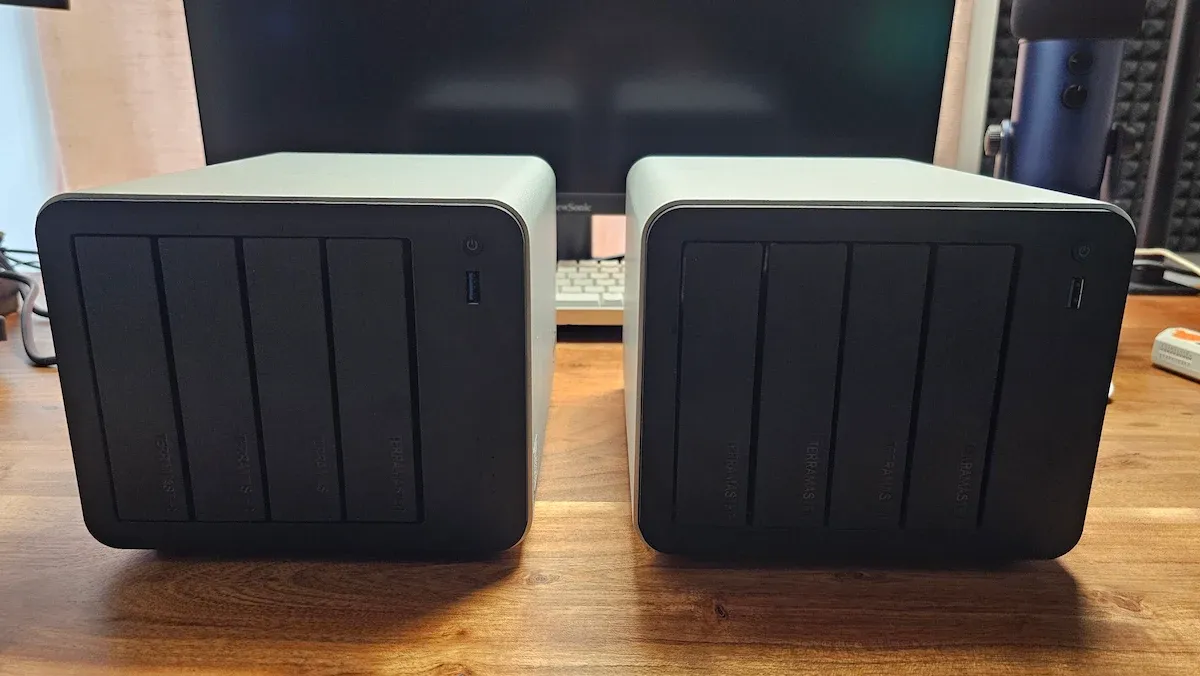
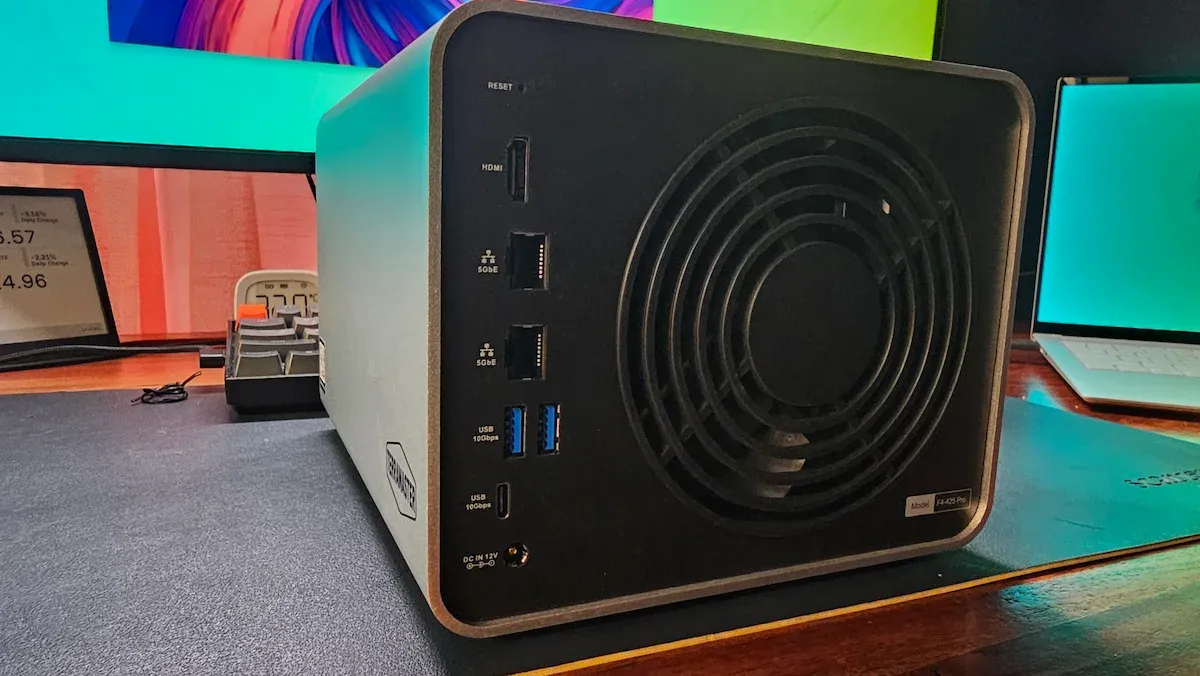
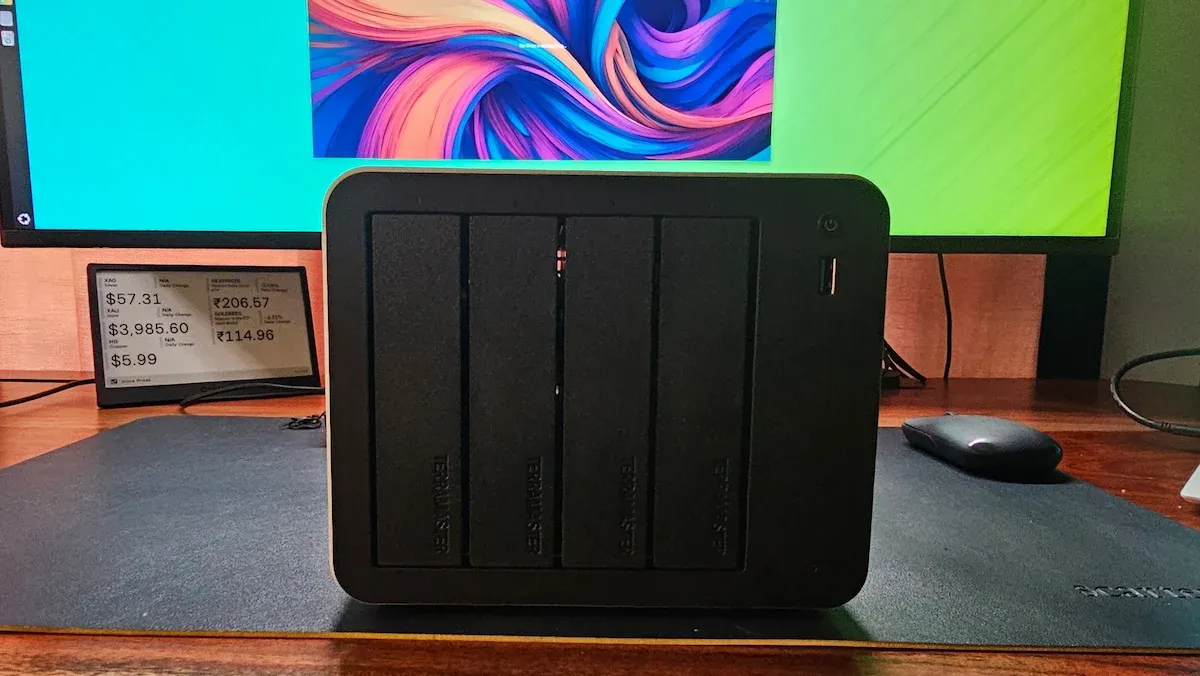
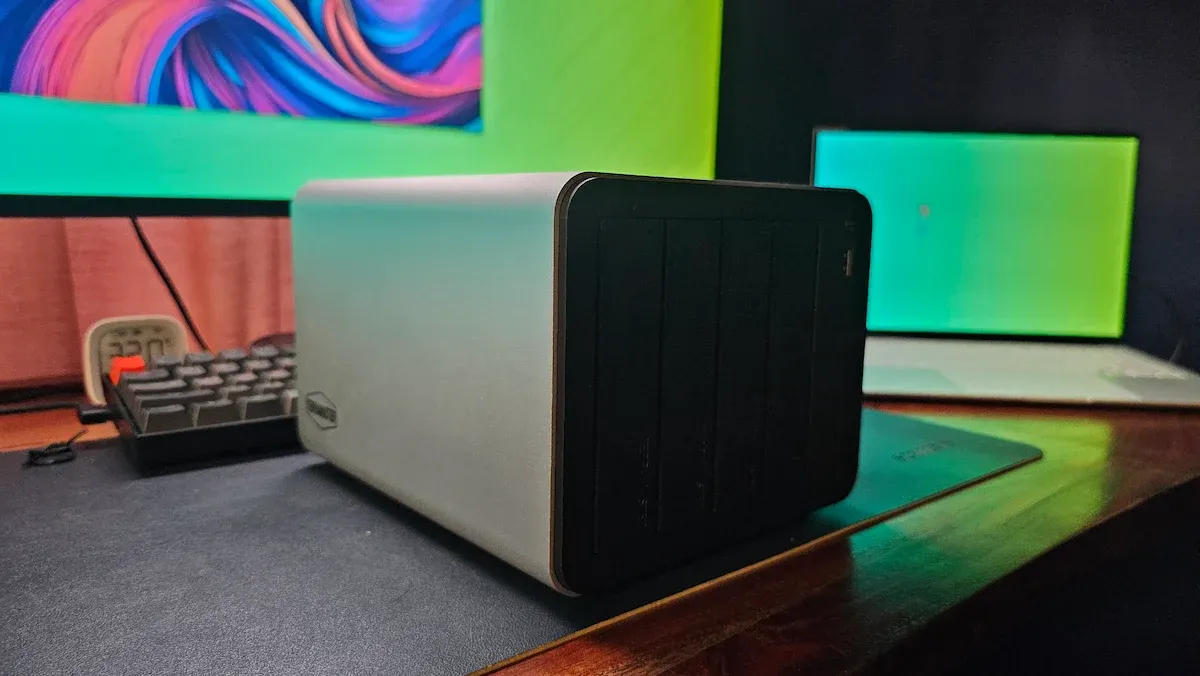
Visually, the F4-425 Pro is identical to the Plus. Same aluminum chassis, same front layout with four HDD bays and a single USB-A port, same rear port arrangement. There is no design refresh here. You cannot distinguish between the two by just looking at them from the outside.
Find differences between the two models of F4-425
What changed is the processor primarily. The Plus had an Intel N150 with 4 cores. The Pro moves to the Intel Core 3 N350 with 8 cores and a 7W TDP. The integrated GPU gains 32 execution units versus 16 to 24 on the Plus, which matters for hardware-accelerated transcoding. My unit is the top configuration with the N350 and 16GB DDR5.
Component
F4-425 Pro (this unit)
F4-425 Plus
CPU
Intel Core 3 N350, 8-core (7W)
Intel N150, 4-core
RAM
16GB DDR5 (single SODIMM slot)
16GB DDR5
GPU (iGPU)
32 execution units
16–24 execution units
HDD Bays
4× SATA hot-swap
4× SATA hot-swap
M.2 Slots
3× NVMe (PCIe Gen3 x1)
3× NVMe (PCIe Gen3 x1)
Max Storage
152TB (32TB×4 HDD + 8TB×3 NVMe)
144TB
LAN
Dual 5GbE
Dual 5GbE
USB
3× USB-A + 1× USB-C (all 10Gbps)
3× USB-A + 1× USB-C (10Gbps)
OS
TOS 7
TOS 6 (upgradeable to TOS 7)
Price
$799.99
$599.99
The 8-core upgrade is meaningful for a NAS running multiple Docker containers, simultaneous services, and media transcoding. There is also a cheaper N305 variant at $699.99 with 8GB less RAM, but given how much a NAS tends to do in parallel, I would lean toward this configuration.
One constraint worth noting is that there is only one SODIMM slot. If you want to upgrade beyond 16GB later, you will need a single module of single-rank DDR5.
📋
I like the fact that Terramaster includes bunch of M2 screws and stickers to label the hard disks. It's a minor thing but worth appreciation.
First, a discovery that changed how I think about TerraMaster migration
Before the hardware rundown, I want to share something I stumbled into during setup that I did not know before and found genuinely useful.
Terrmaster's operating system, TOS, does not live on the NAS device itself. There is no onboard eMMC storage. The operating system is installed directly on one of the user-inserted disks.
When I moved some of my existing drives from the Plus into the Pro, it booted straight into TOS 6 with my old user credentials already present. The Pro just picked up where the Plus left off because the OS was on the drives, not the device.
If that was amusing, the story gets better.
I then inserted those same drives into my ZimaCube Pro as I wanted to format them. And the strangest thing happened. The ZimaCube started presenting itself as a TerraMaster NAS running TOS. The TOS installation on disk was only about 280 MB but that was enough to 'hijack' the boot process.
I formatted the SSDs by putting them in my Terramaster D1 SSD enclosure and connecting it to my Ubuntu laptop. I formatted the drives using GParted via my TerraMaster USB DAS, reinserted them in the Pro, and it initialized fresh with TOS 7.
💡
The upside of this design is that NAS migration is much simpler than you might expect. If the NAS unit dies, your OS, configuration, and data all survive on the drives. Move them to a new TerraMaster device and you pick up right where you left off.
The OS installation experience
No, I am not talking about installing an open source NAS OS on the Terramaster F4-425 Pro. I am talking about TOS itself.
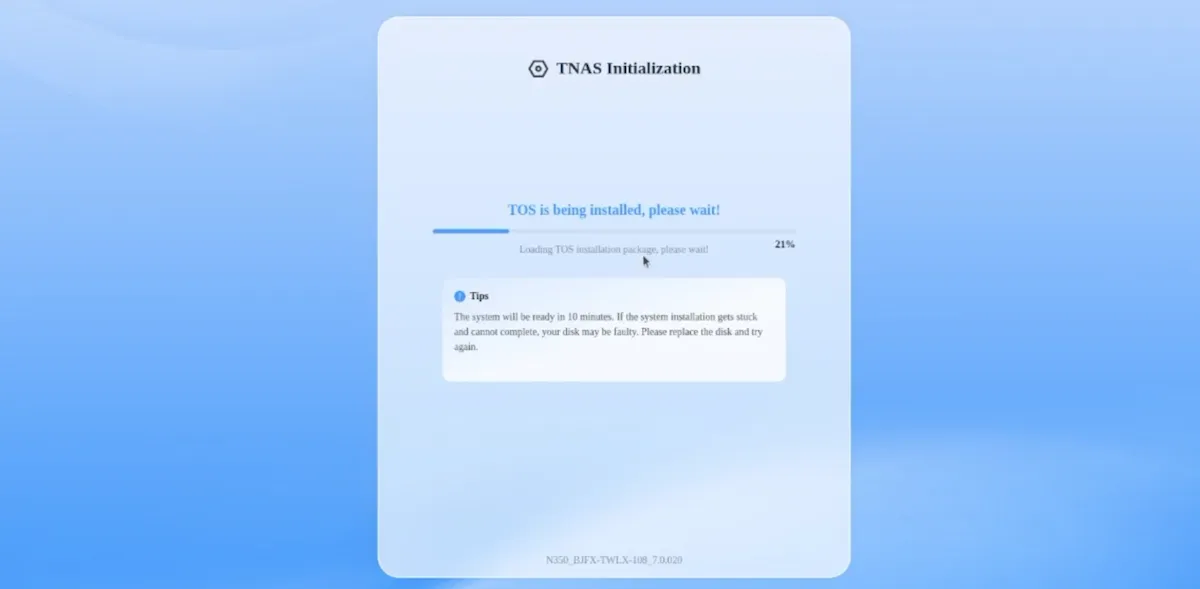
Since the device doesn't come with on-board storage, the OS is installed when you boot (with fresh hard disks).
I used two SSDs to test the NAS. Only SSDs, no HDDs (don't judge me). I think in total, I have 8 SSDs of various size. I started buying them 2 years back when I started exploring homelab setup. My collection of disks would have grown as my interest and devices grew in my homelab but the increased price have put a stop on them for now. From what I see, the SSDs that I bought 2 years ago, cost 2 to 3 times more these days. I'll wait for the prices to come down.
Enough of my sob story. So, I used two disks and they were combined into one with TRAID.
The TOS 7 was downloaded and installed in 25 minutes or so.
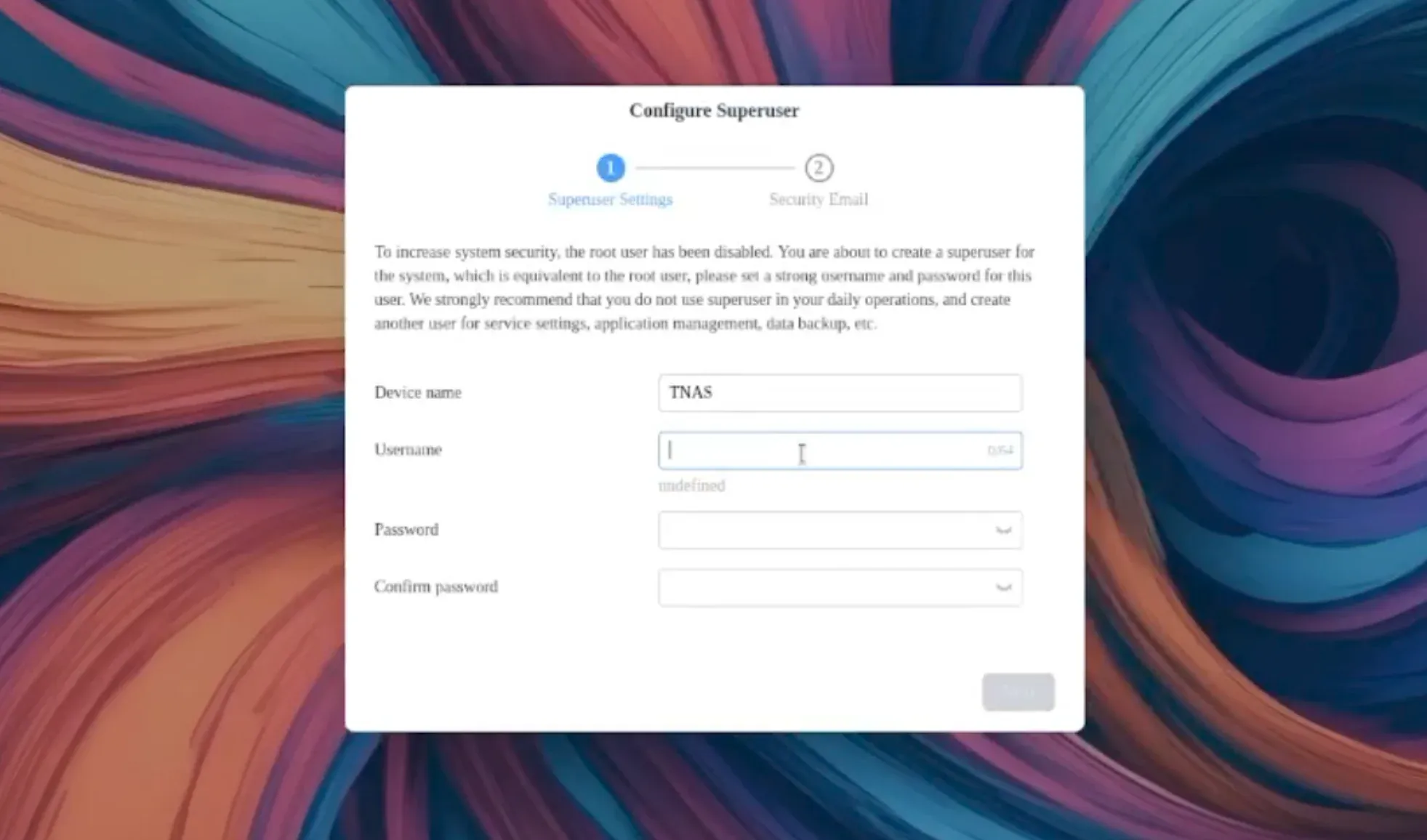
Once it is installed, you get the option to create a "super user" locally:
And then you get the option to add an email account. You have to provide an email address and you may provide a fake or temporary one and skip verification, I think. However, this email address is used to send notification about certain events like NAS being rebooted, shutdown and more. You can also configure custom notification for when disks are full or they encounter issues.
Here's a video of the TNAS OS installation and initilization. It's a raw, unedited video of about 35 minutes. Mostly the first and last few minutes are of interest.
You'll notice some errors when I first log in to the TOS. Those errors went away after the reboot.
Using TOS 7: Improvement on TOS 6, but the "AI-native" label is not justified (yet)
TOS 7 is surely an improvement over the previous TOS 6. The interface is cleaner, navigation is more intuitive, and the storage management tools feel more coherent. The addition of system monitor in the sidebar is a good move and overall, the TOS seems to have a good user interface at first look.
The redesign is evident, sepecially if you have used TOS 6 in the past.
That said, TerraMaster is marketing TOS 7 as "the world's first AI-native NAS OS" and I think that's more of marketing than actual AI features.
The "Ai-native" tag needs a lot more work
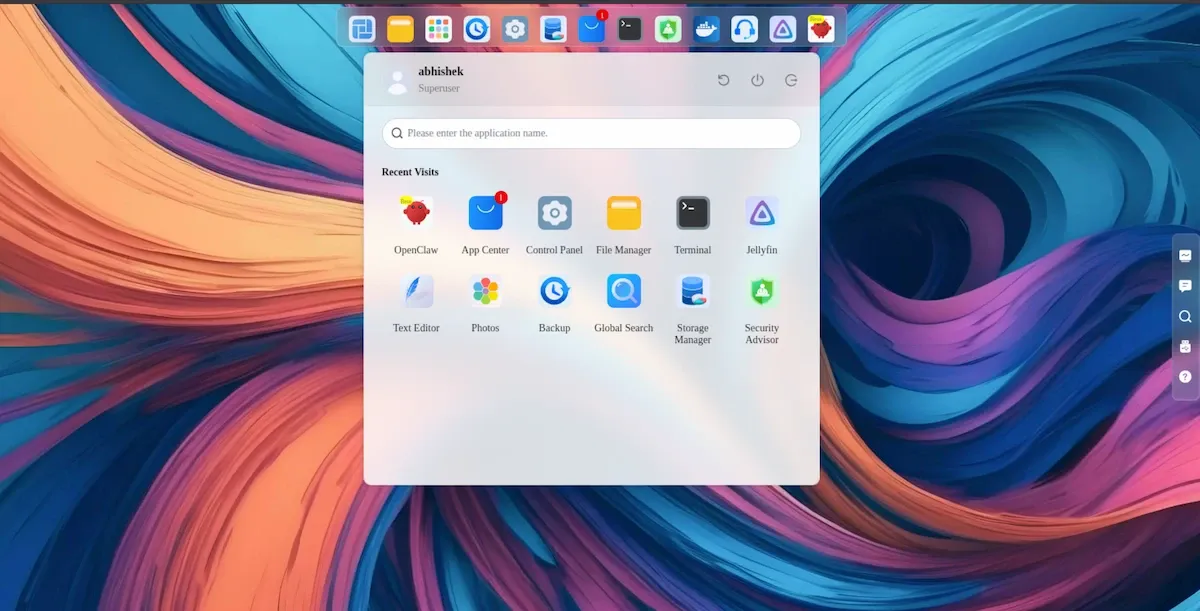
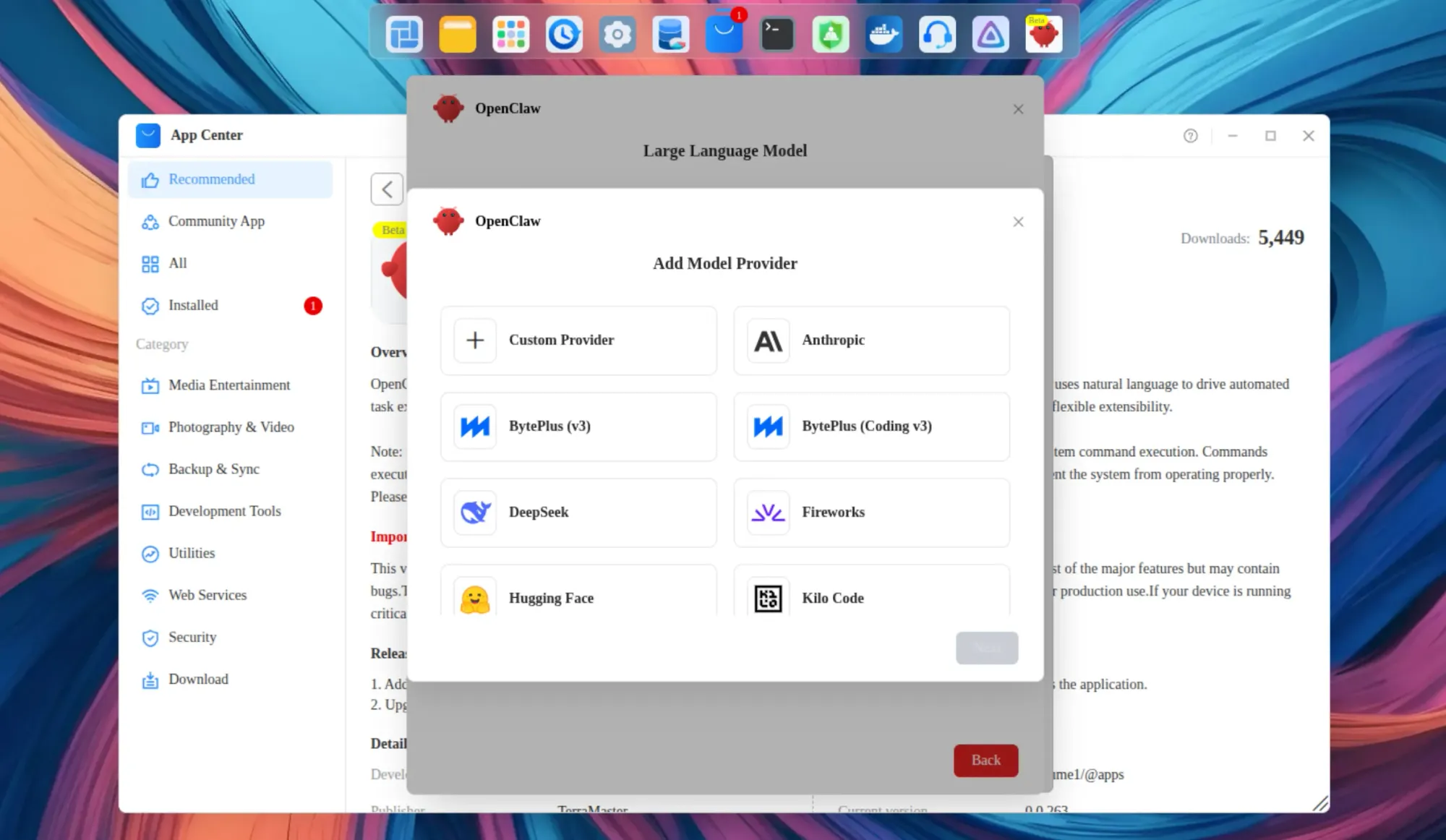
The main AI feature is the inclusion of OpenClaw, which lets you interact with the NAS using natural language. Sounds compelling. But OpenClaw is an orchestration layer, not an AI model itself. It acts as a middleman between you and whatever LLM you connect it to, which could be a cloud service or a local model running on current or another device. The NAS itself is not doing any AI inference. So "AI-native" means "designed to connect to AI", which is a different thing.
The idea Terramaster showcased in their TOS7 video was that OpenClaw could be used to manage the NAS more easily by asking the AI to configure a few things instead of doing it all by yourself.
If that was the idea, it would have made more sense to include some open source model pretrained data on Terramaster docs or at least have some custom skills added to it (for the lack of good enough GPU for local AI). There is no scope for adding a GPU for more local AI capabilities.
Nanoclaw needs to be conncted to an LLM first
I tried pointing OpenClaw at Ollama running on my ZimaCube Pro. The configuration is not straightforward. There are networking details to sort out and Ollama's API endpoint format matters. It is doable (and I'll revisit this scenario later), but it is not the one-click experience the marketing implies.
Of course, OpenClaw can be connected with Claude and other cloud LLMs but then it won't be native, local AI. I also don't have Claude Max plan to connect it to OpenClaw.
Personally, I would not trust AI automation with my private data, especially when I plan to use this as my primary local data backup. That said, the idea of including AI assistance is not entirely bad. People are increasingly using AI and they want it built into the tools they already use, rather than switching to a browser tab or a terminal.
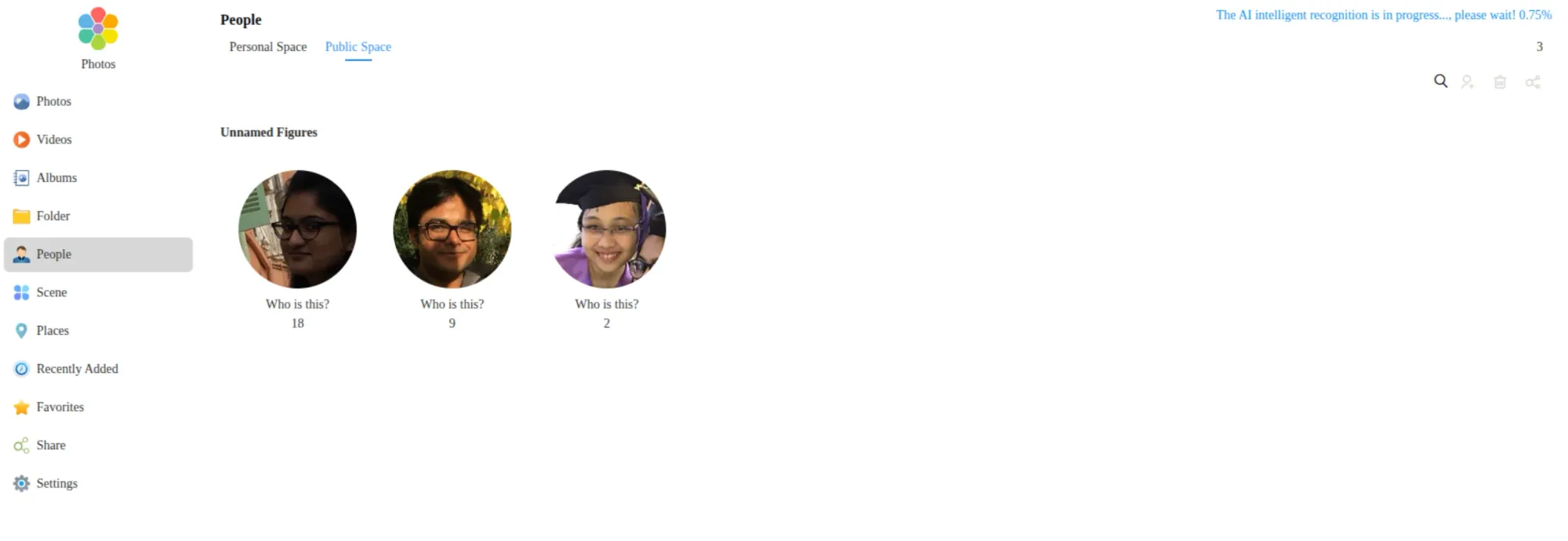
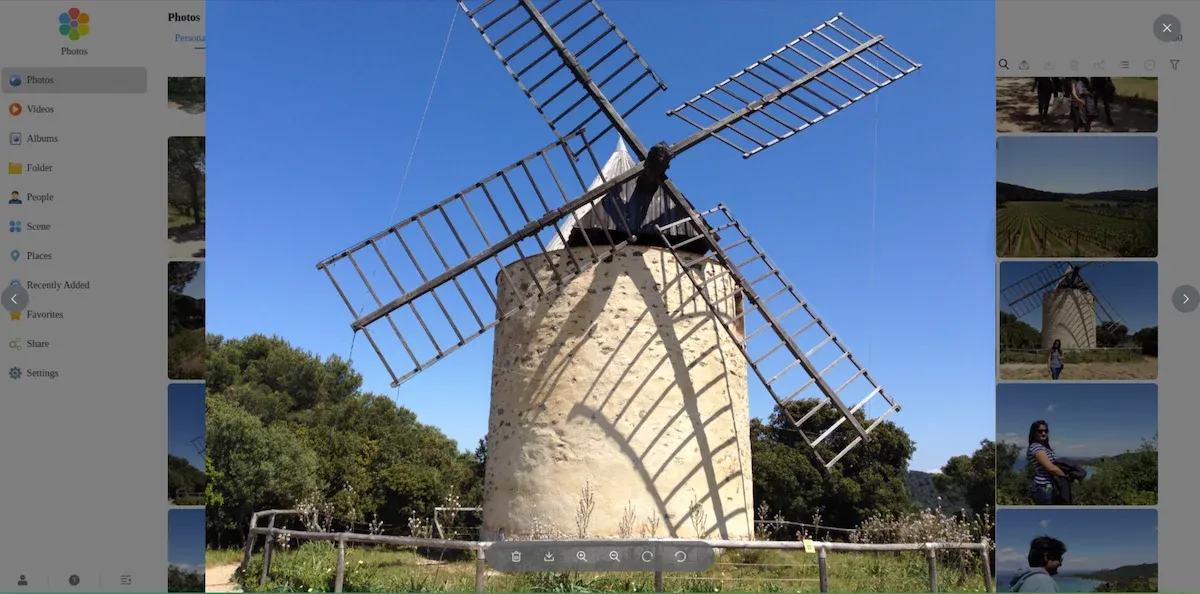
The other AI feature is in the Photos app. It scans your library to recognize faces, places, and scenes. This is useful but nothing new or revolutionary, it was already there in TOS version 6. Tools like Immich and PhotoPrism already do this, and they are both open source options you can install on the NAS itself. What would actually differentiate this is something like OCR on scanned documents, which neither Photos nor most self-hosted tools handle well. That opportunity is sitting right there.
Official Terramaster Photos apps has some AI features (that were in TOS 6 too)
The AI recognition in Photos is also not enabled by default. You have to go into settings and turn it on manually. Once enabled, it takes a while to process a large library.
📋
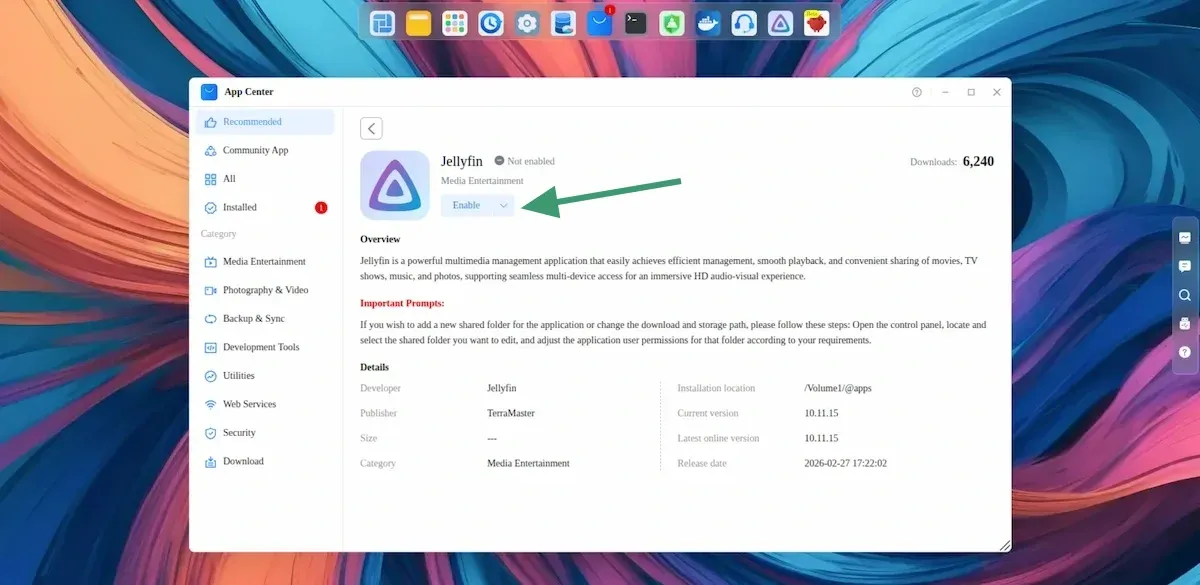
To give credit where it is due: TRAID for combining disks of different sizes works well and remains one of TOS' highlights. And Jellyfin had Intel QuickSync hardware transcoding enabled out of the box without any manual configuration on my part, which I appreciated.
There is a Linux terminal, too
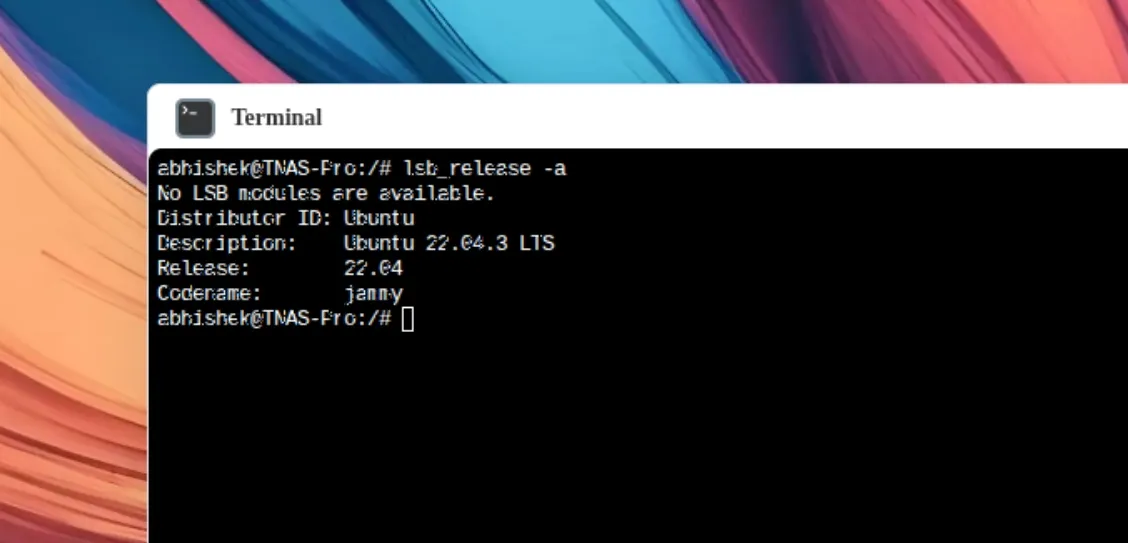
TOS 7 provides terminal access to a Linux environment running underneath. I guess this is good for people who do not want to rely on the provided graphical user interface and want to take matters into their own hands by using the command line.
Now, the Linux environment is Ubuntu. Ubuntu 22.04 specifically. That version reaches end of life in April 2027, almost a year from now. For a device just launched in mid-2026 and expected to run for years, shipping with a near-EOL Ubuntu base is not a good move. I would have expected 24.04 at minimum.
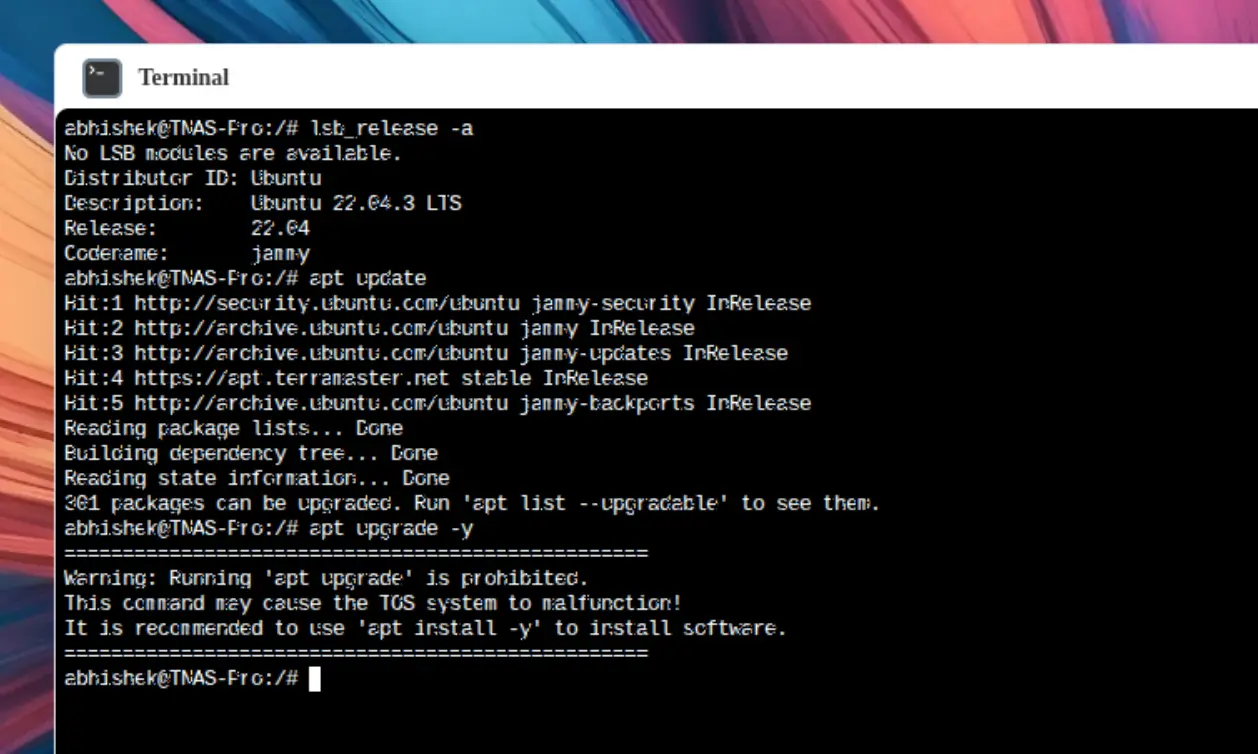
Another thing is that I could see pending updates in the terminal but it threw a warning when I tried to run apt upgrade.
I don't know why the screenshot is blurry. Still, you can see the upgrade results in warning
Which makes sense to some extent. Terramaster doesn't want you to upgrade the system on your own. Rather, they will provide OTA updates. If you install a package on your own, you can upgrade it with "apt install package_name" way. And of course, the terminal is at your disposal to configure docker, development tools etc from the command line because a few things are rather easy in the terminal than fiddling around in the GUI menu.
Easy remote access through
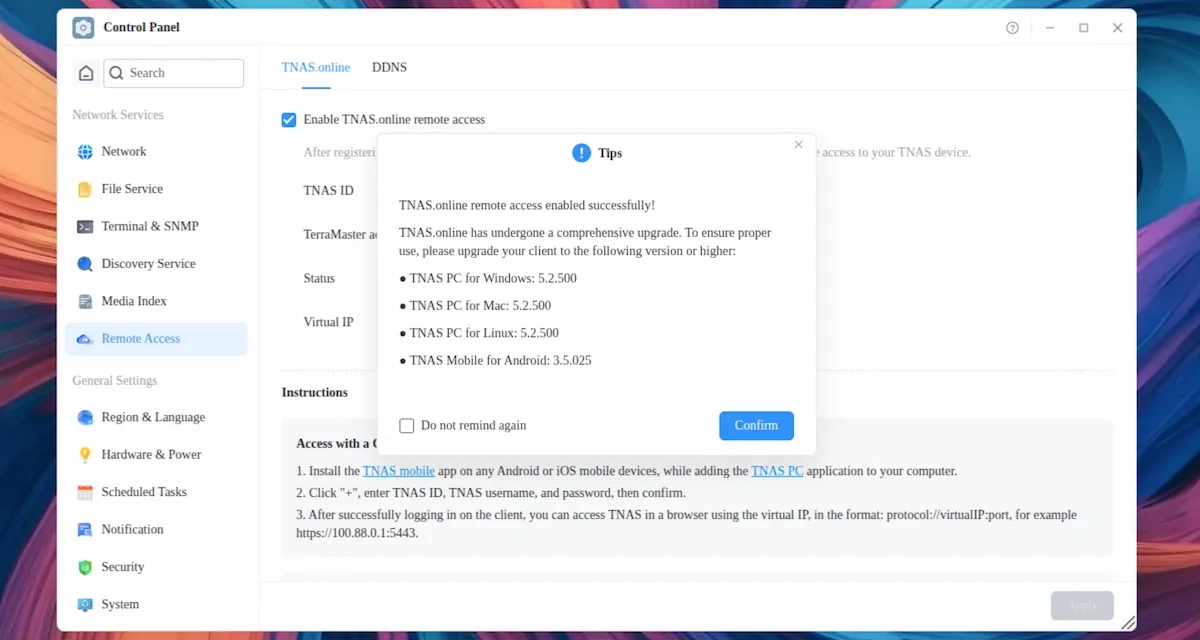
Terramaster also has this new feature (I think) calles TNAS.online remote access. So, if you register an account with Terramaster, you can enable remote acces to your NAS device. This makes it easier for you to access data when you are not on your home network.
Rough edges worth knowing about
These are not dealbreakers but they add up and are worth calling out early. I hope Terramaster team reads this and provides software updates to address these issues.
Global search has a scope problem. TOS 7 has a distinction between your personal space (home directory) and the shared public space. A global search only returns results from your home directory. Files stored elsewhere on the device did not appear. Even files I copied into the home directory did not show up in search results immediately, possibly due to indexing time. But the lack of clear guidance on what the two spaces mean, and which one search actually covers, will confuse new users.
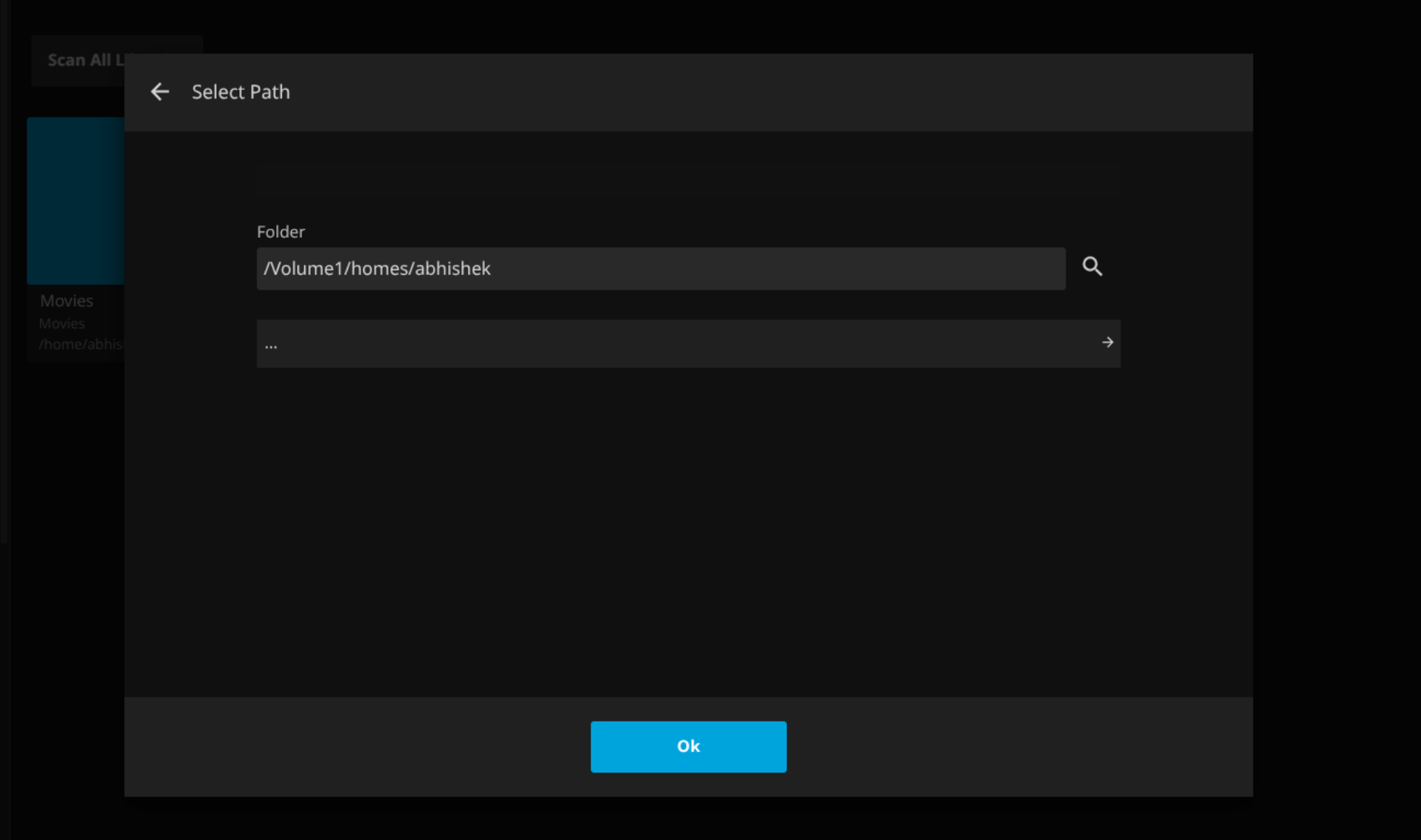
Jellyfin cannot browse subdirectories inside the home directory. I set up a Movies folder inside my home directory but Jellyfin would not display subdirectories when I tried to add it as a media library. It wanted to use /Volume1/jellyfin by default, which means media gets tied to the application path. If Jellyfin gets uninstalled, the data location becomes a concern.
No keyboard navigation in Photos. Browsing photos requires mouse clicks throughout. You cannot use arrow keys to move between images in the viewer. The app search bar launched from the top bar also does not dismiss with Escape. These are minor but they signal a UI that was not fully tested for keyboard users.
Would make more sense to navigate through keys rather than mouse clicks
The absurd need to enable apps after each reboot. Unless Terramaster really want to discourage shutting down the NAS device, I see no reason why an installed application needs to be enabled again after rebooting the device. I noticed it with OpenClaw, Jellyfin and even Terramaster's Photos application. It makes no sense to me.
Still excellent hardware wise
I liked the previous F4-425 Plus device. This one is not much different other than a (needed) CPU upgrade. It's the same aluminium chasis, same small form factor and the same silent device.
Yes, F4-425 Pro is also a 'silent machine'. You'll probably won't notice it running even if it is sitting on your disk and its fan is running.
The hybrid model to include 4 HDDs and 3 SSDs is good. It's just that you need to pull out the outer casing to access the SSD compartment. HDDs can be easily accessed from the front.
It seems that TOS's software is capable of handling the hot swap. I could not test it for the lack of disks.
It measures 181 mm wide, 219 mm deep, and 150 mm tall. Basically a small form factor device that doesn't take much desk space.
The USB-C port is still at the back. I said this in my F4-425 Plus review, too. The single USB-C port is on the rear of the device. For quick external SSD connections, this is inconvenient for a lazy person like me.
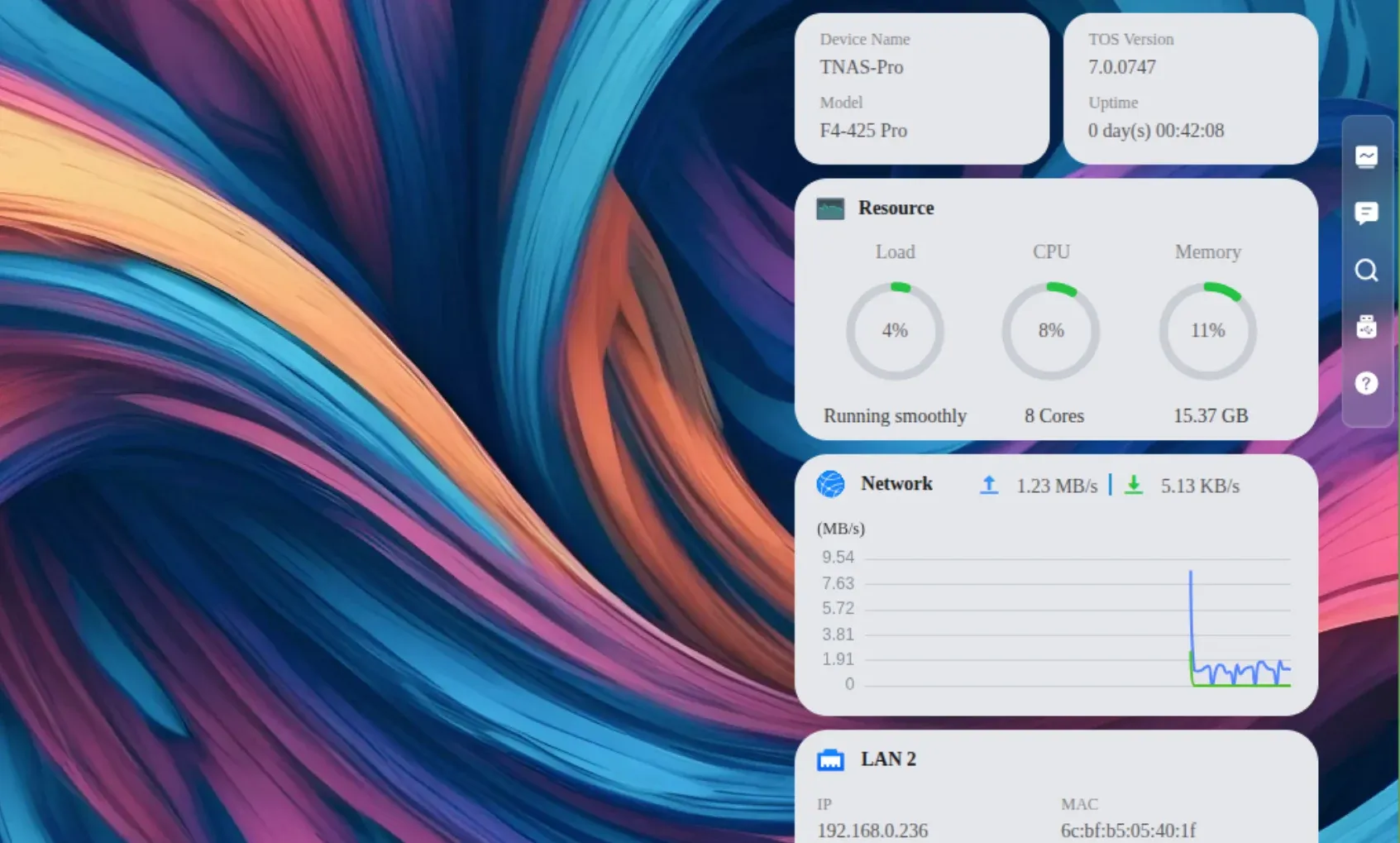
I added around 125 GB of pictures and watched the resource consumption. It remained under 20% CPU and RAM load.
Similarly, I streamed a 4K movie in mkv format. The load remained under 10%. So the processor is quite capable here as a NAS and a casual media hub.
Resource utilization during 4k media streaming
I am not a professional and don't really run benchmark tests. Just sharing what I observed as a novice homelabber.
Verdict: promising hardware, software still maturing
Based on a few days of use, the F4-425 Pro is a capable device with a hardware upgrade that makes sense. The 8-core processor and improved iGPU are relevant improvements for anyone running multiple services. The TOS-on-disk design makes migration genuinely easier than it has any right to be.
TOS 7 is a better version of TOS 6 by a clear margin. But the AI features are far from a finished product. OpenClaw requires external configuration to work so the native AI part is not there yet.
I will be putting the Pro through more extensive use as a daily driver and sharing a full review a few month later perhaps. There is more to test, including sustained performance under load, RAID behavior with multiple disks (if I can afford them), mobile apps and whether Ollama installed directly on the device makes OpenClaw actually useful. Stay tuned for that.
The NAS itself is $799.99 for this configuration. That is the entry point, not the total cost. If you do not already have drives, HDDs and SSDs have increased substantially in price over the past year. Building a usable NAS with populated bays is a meaningfully larger investment than the device price alone suggests. Factor that in before buying.
💡
The device is priced at $799.99 but due to Prime Day sale, it is available for just $639.99. That saves $160 for you. Official website link here or the Amazon link here.
If you already have the previous F4-425 model, I don't think you should upgrade just because there is a new model. If you are buying a NAS for the first time or upgrading your NAS for several years, F4-425 Pro is an option worth considering. Sure, the provided operating system may not be to everyone's liking but you can always install a different operating system. The hardware is solid.
Origin is Brave's stripped-down browser, built for people who never touch most of what the company packages with Brave Browser. It drops the AI assistant, the rewards program, the crypto wallet, and the VPN, leaving the ad and tracker blocking in place.
Don't let that fool you into thinking that this is some half-baked browser; you still get regular security upgrades, Chromium-specific patches, and general browser updates.
Though, for most users, Brave Origin costs $59.99 for a one-time license purchase for use across Windows, Android, macOS, and iOS. However, people running a Linux distro on their computer do not have to pay a dime or sign up for an account.
Announcing Origin earlier this month, Brave explained that they:
Built Brave Origin in response to requests from users who wanted to support Brave’s industry-leading work on Web privacy and open-source adblocking, without having to manage or remove features they weren’t interested in using.
I wanted to see for myself what Brave Origin was about while also comparing it to their flagship offering. So, would you like to come along as I explore it? 🤓
This is what's on offer
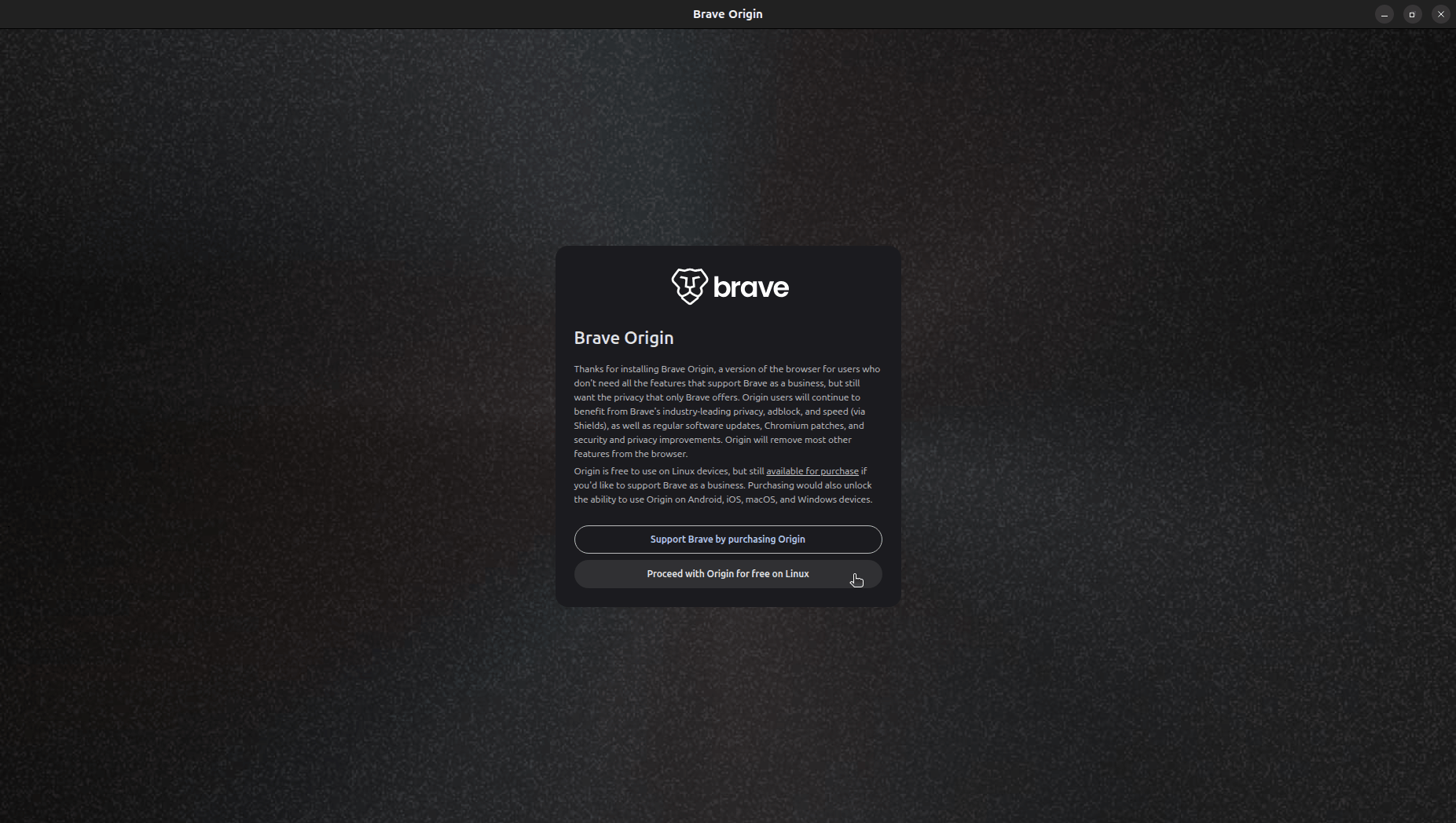
The first thing Origin showed me was a choice built right into onboarding; pay for a license to support Brave, or proceed for free since I was on Linux. I went with free, and right after came the usual first-time setup screens.
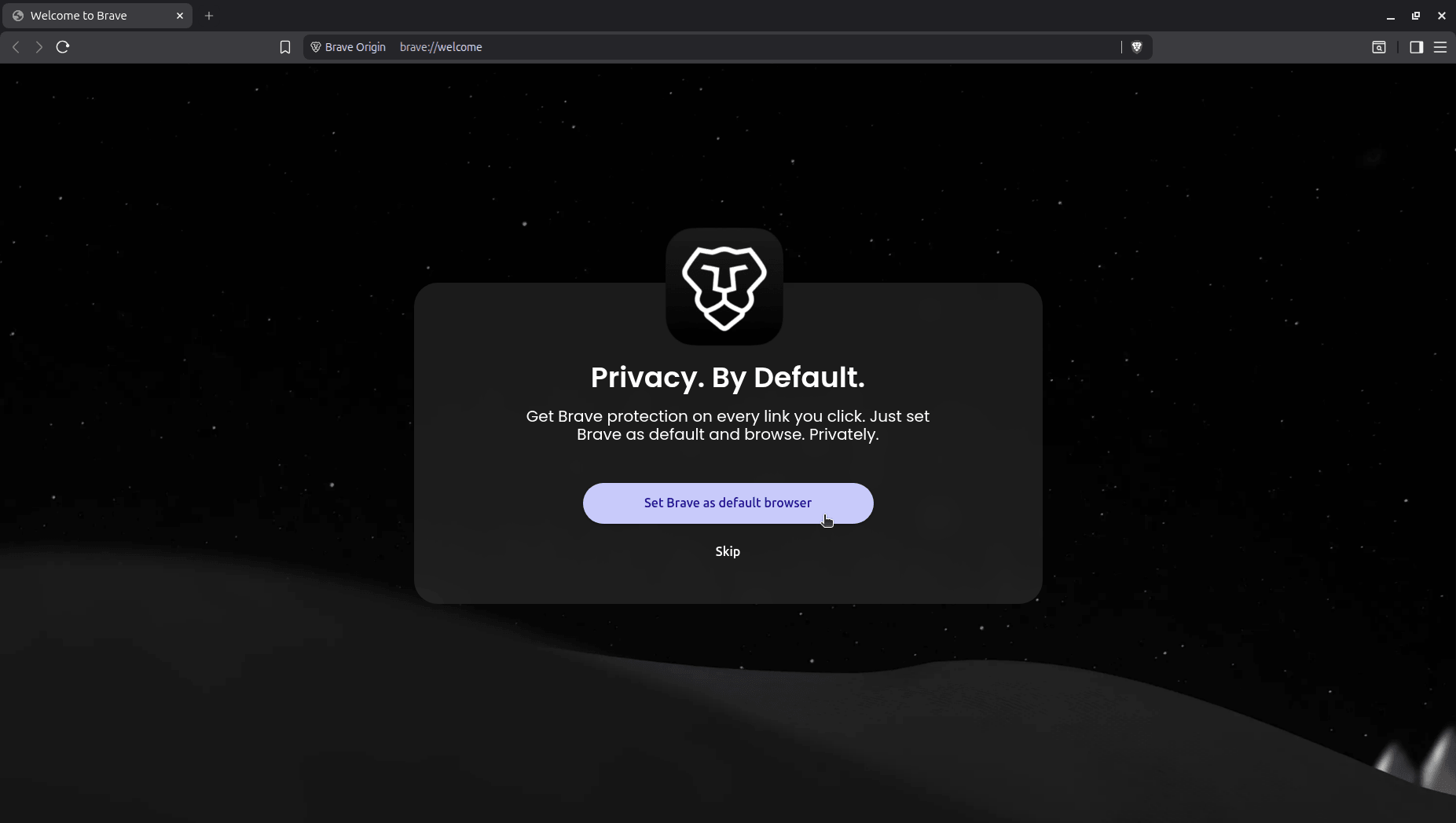
First came the prompt to set it as my default browser.
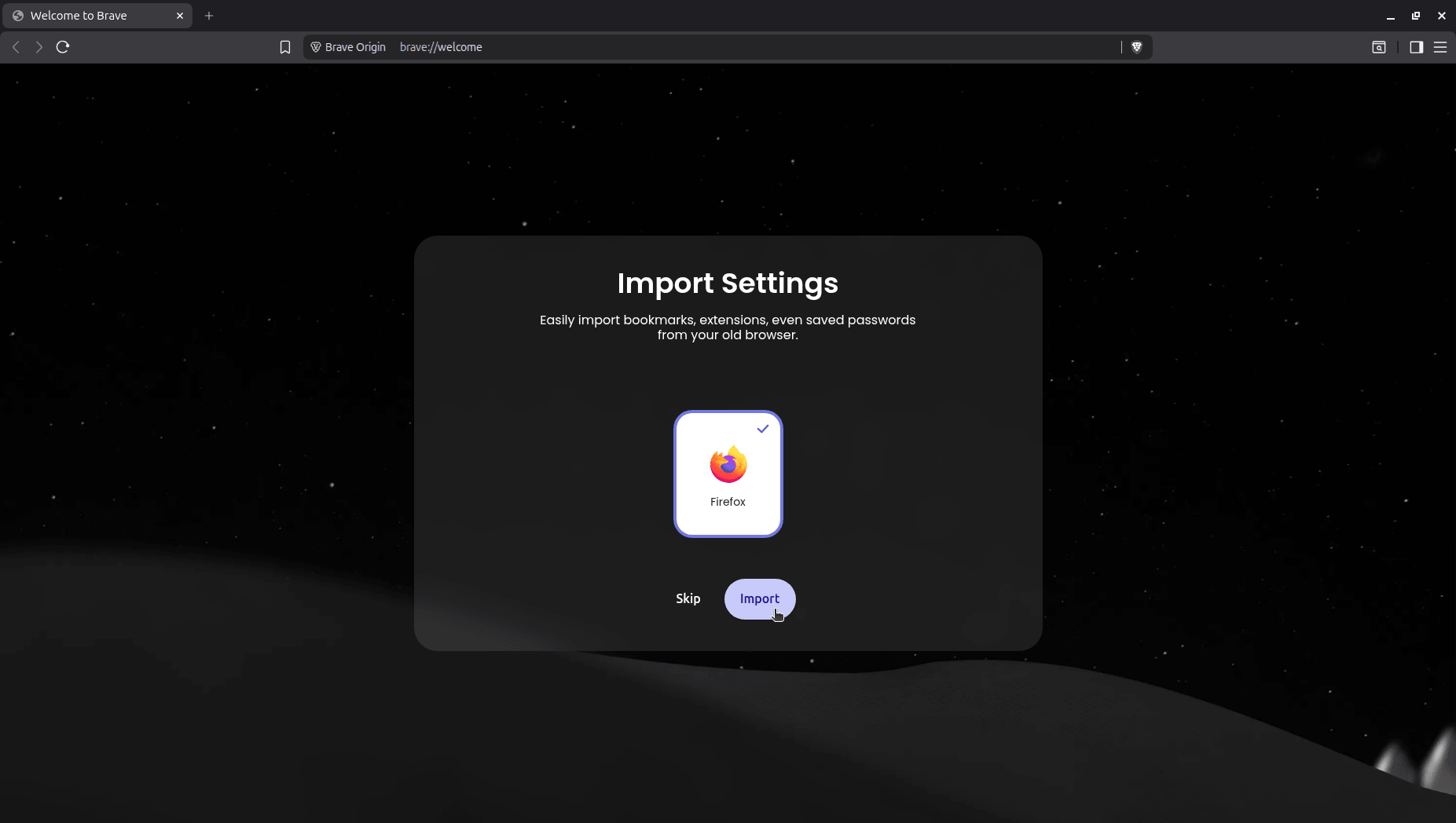
Next came the request to import settings from other browsers, offering to pull bookmarks, extensions, and saved passwords over from whatever browser Brave found on the system (Firefox in my case).
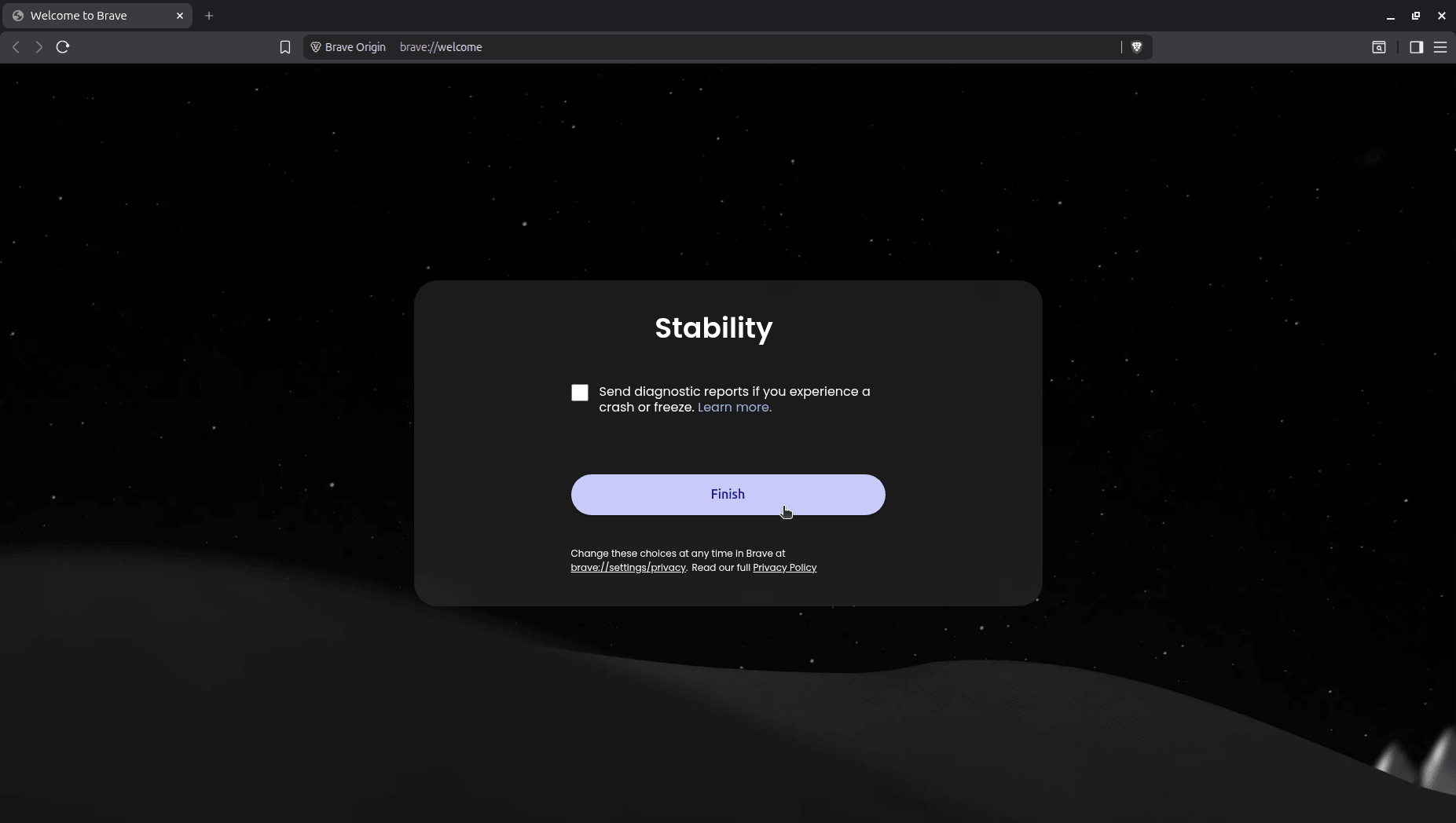
After that came the reporting of crashes or freezes (aka Stability) dialog; basically some telemetry that would be sent over to Brave when Origin behaved erratically during use.
Good to see that it was disabled by default. 😄
Those were the only things asked of me during onboarding, and I started browsing right away. Brave Search is the default here, same as any other Brave install, though it can be swapped out for something else if you prefer something like DuckDuckGo or Ecosia.
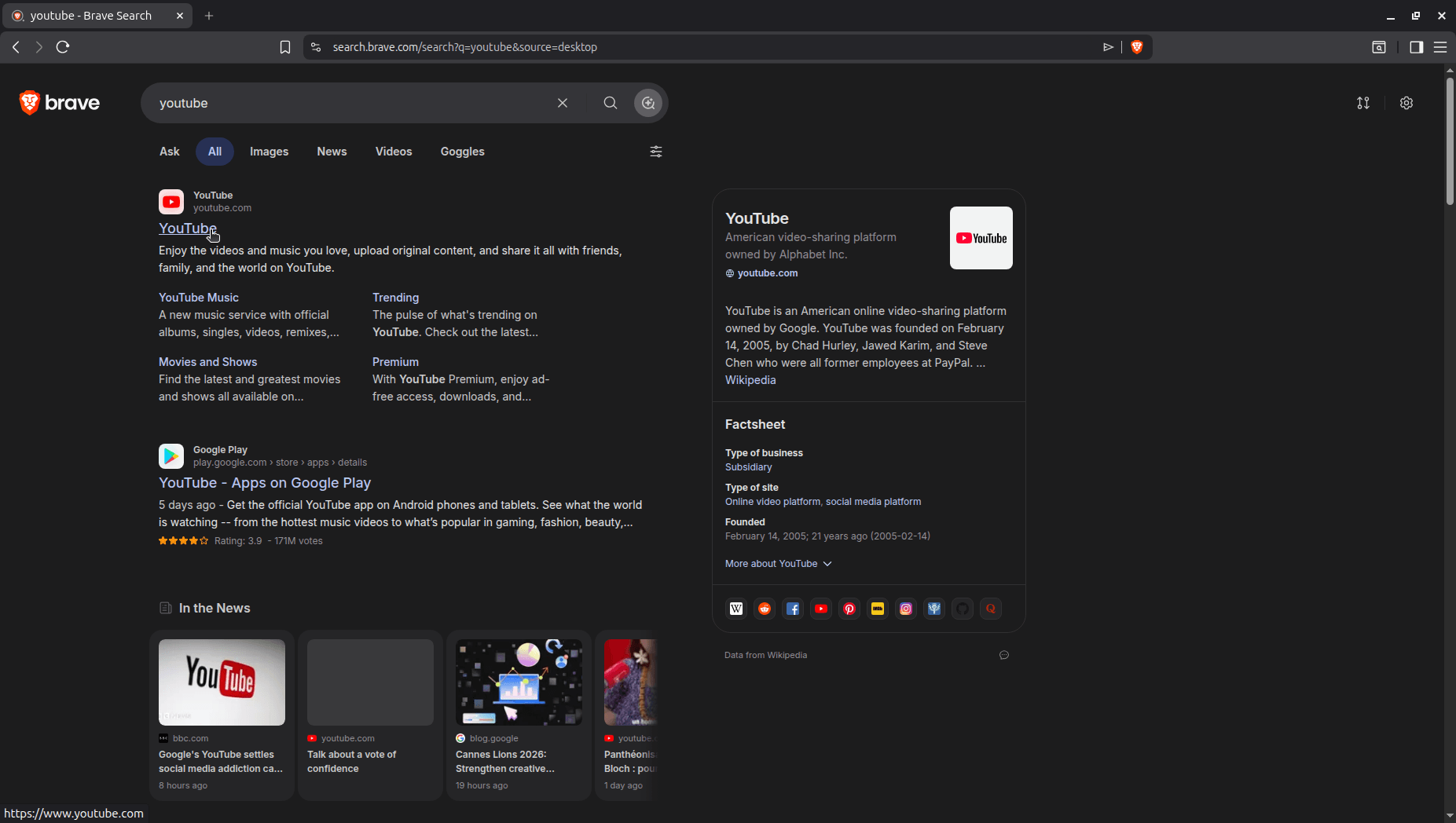
I left it as is during testing, and it held up well. Searching for "YouTube" even pulled in recent coverage from high domain authority sites like the BBC and Google's own blog under the news results.
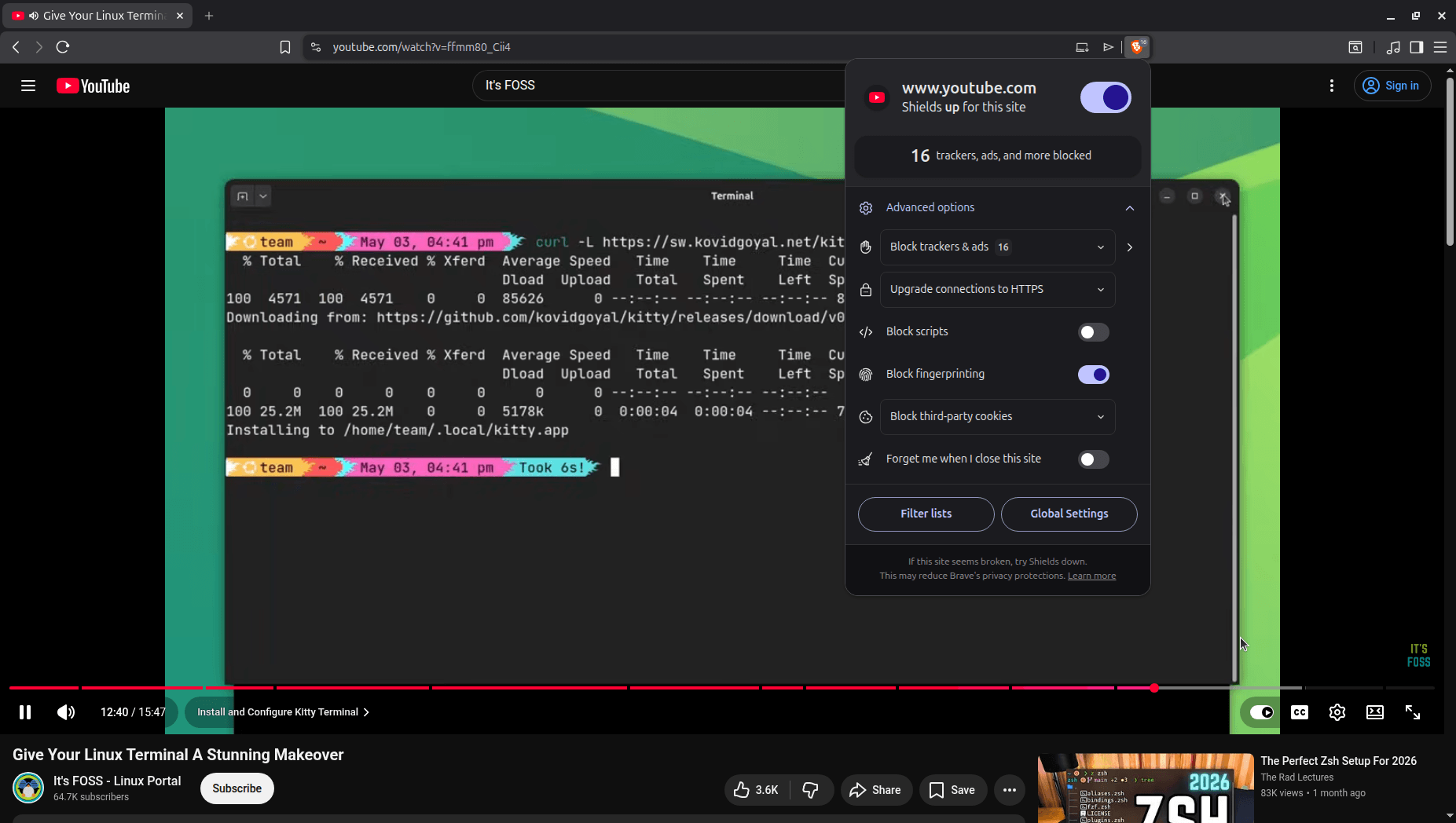
Brave Shields performed quite well too! It did its job without me needing to configure anything. While playing a video on YouTube, it caught 16 trackers and ads on that one page alone, with fingerprinting protection switched on by default.
Nothing about the page felt broken or stripped down because of it either.
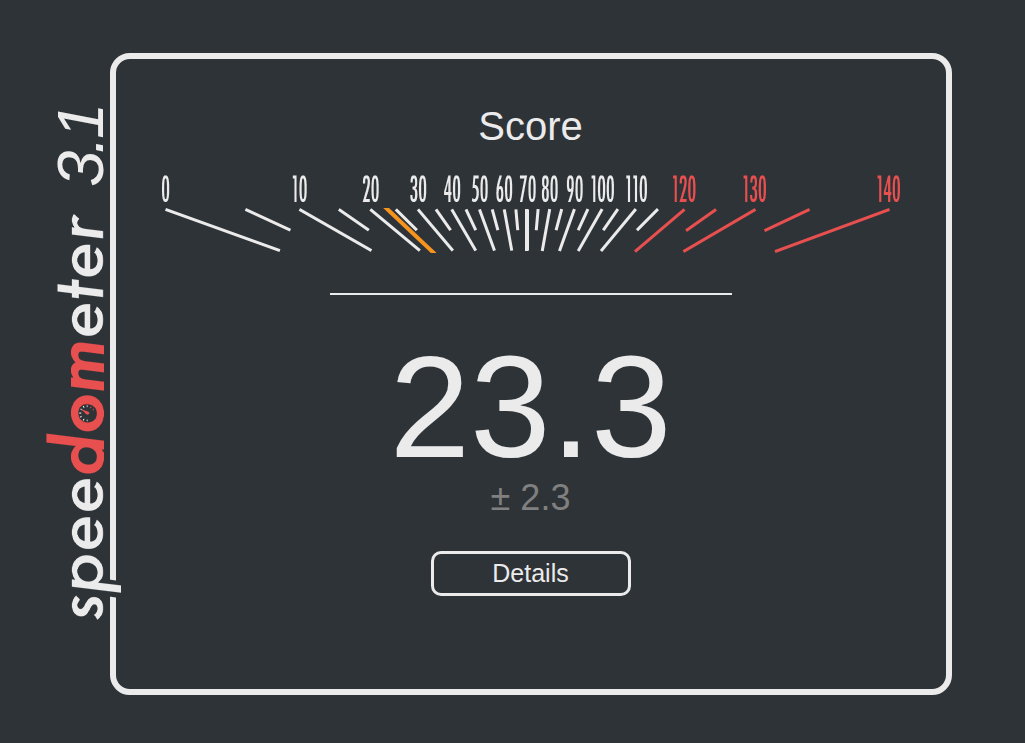
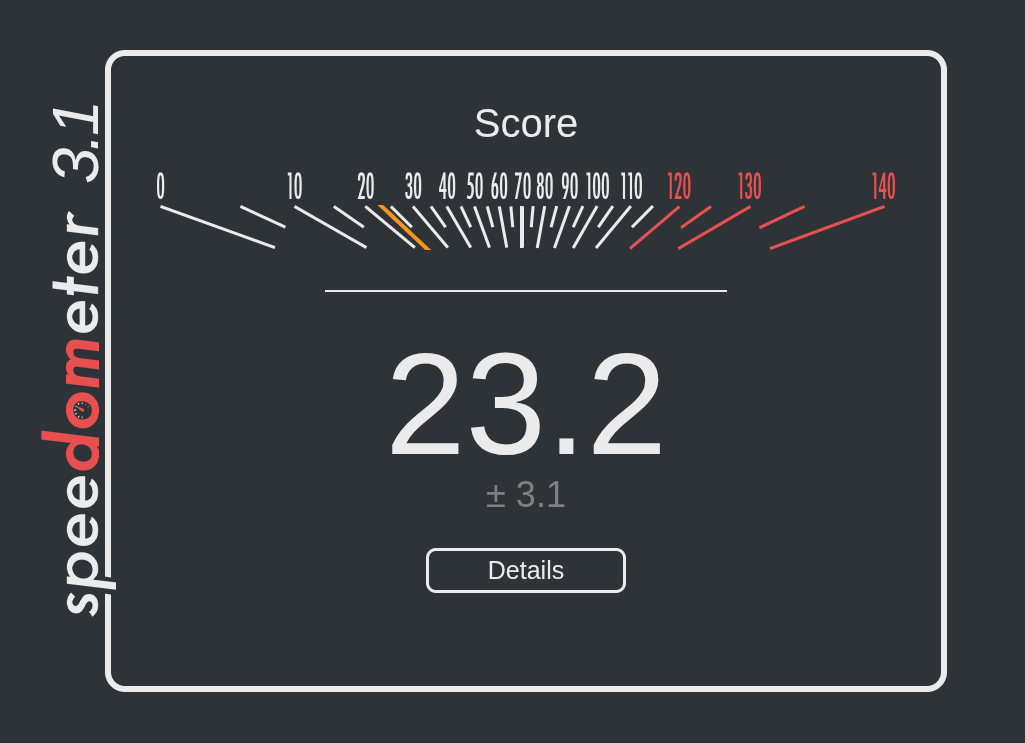
A lean Brave Origin install's Speedometer score on a VM (left), next to a customized Vivaldi install's score on bare metal (right).
I also ran a Speedometer test on BrowserBench, running Origin inside my test setup of an Ubuntu 26.04 LTS virtual machine, and it scored a 23.3 without any extensions or themes installed.
For a comparison, I ran the same test on my daily driver Vivaldi installation on Fedora Workstation 44 (non-VM setup), and the score came in at 23.2, close enough to call a tie.
While it's tempting to say this proves Origin is incredibly lightweight, Speedometer mostly measures responsiveness of Web applications, where modern virtual machines actually perform nearly as fast as real hardware.
Because the two tests ran on entirely different operating systems, the near-tie mostly shows that both browsers handle web code at the same fundamental speed. To truly prove Origin is lighter, I'd need to test them side-by-side on the exact same setup.
I didn't have the chance to do that while working on this piece. 😅
Why not Brave Browser?
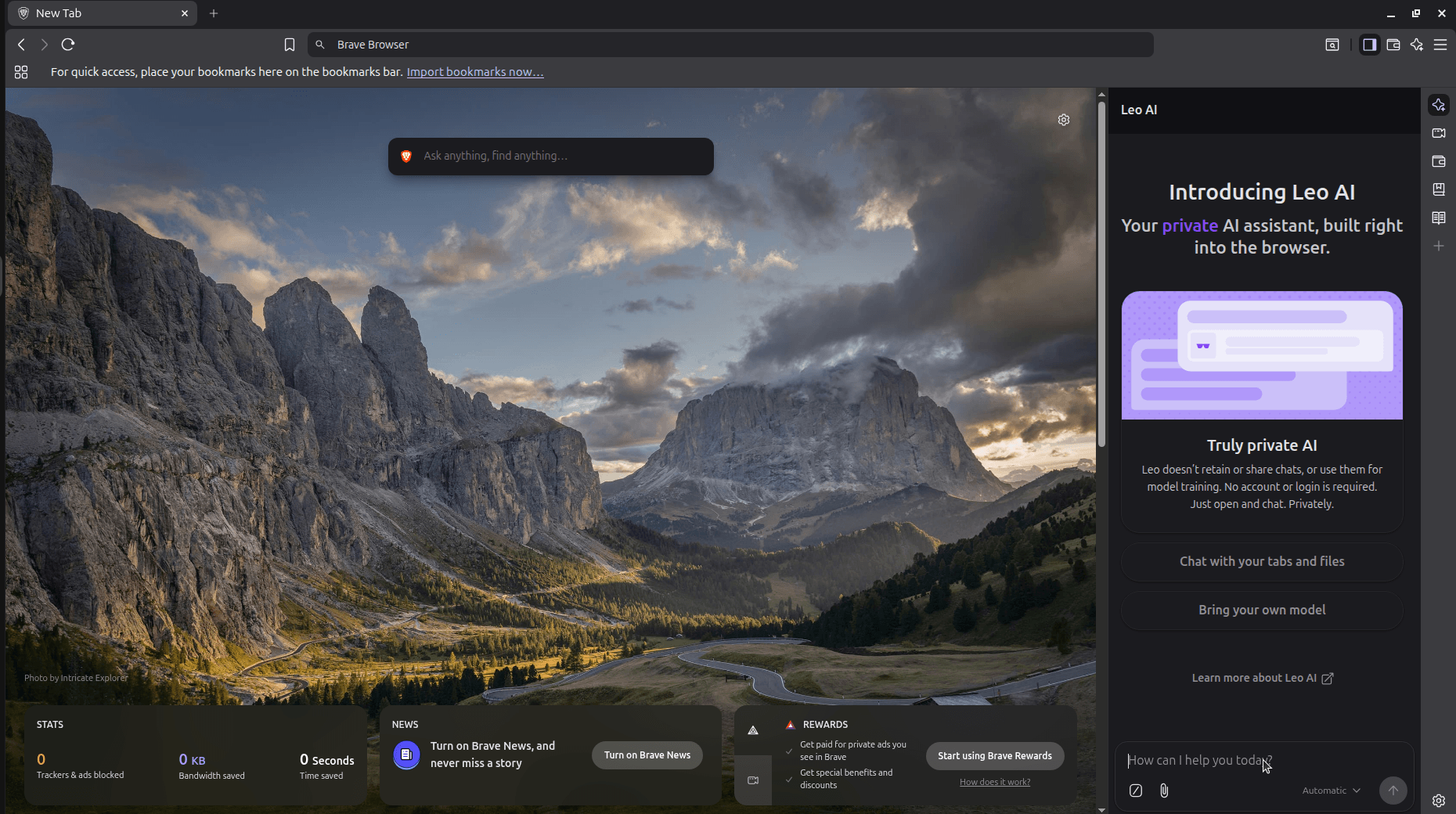
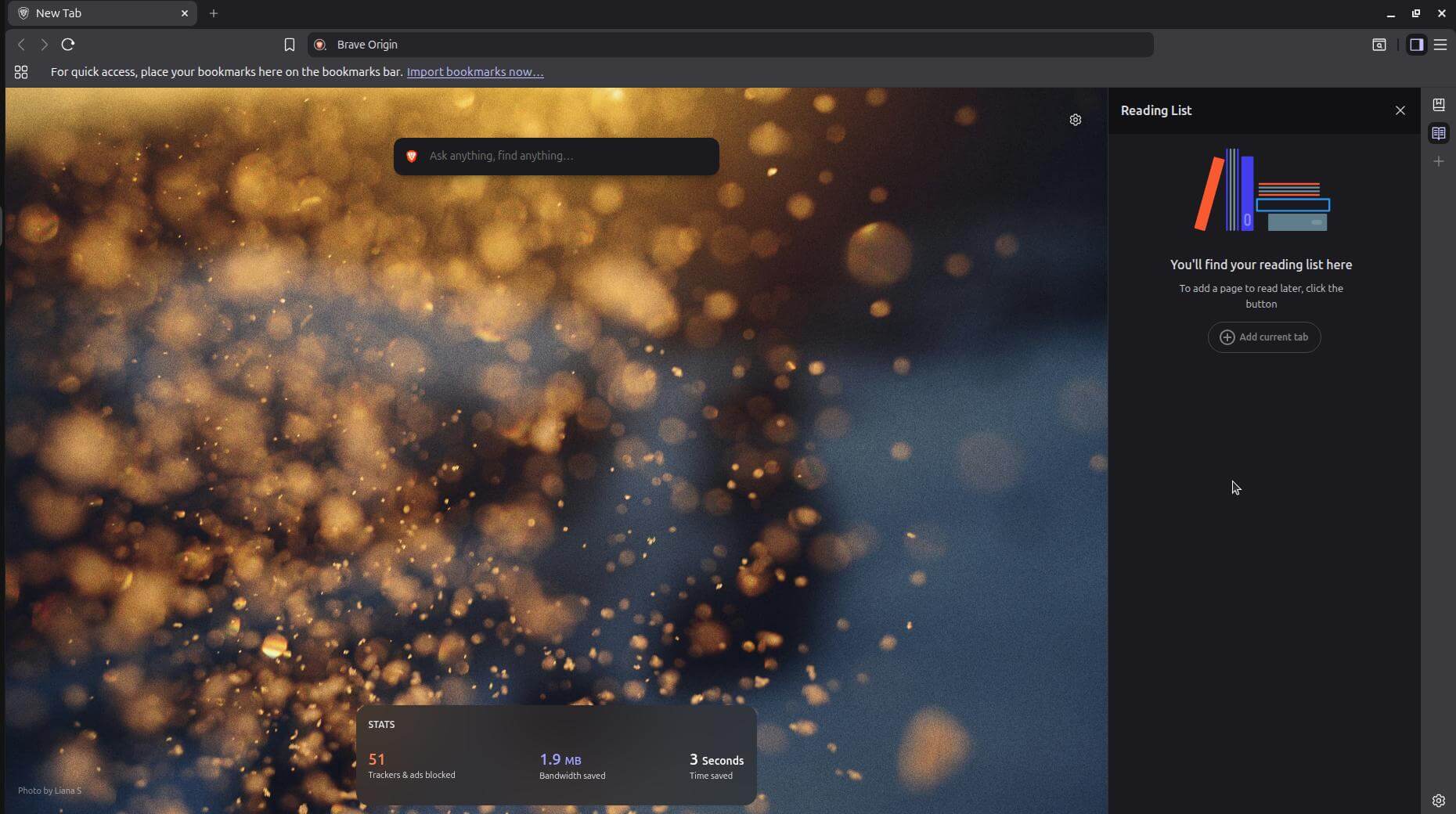
Brave Browser (left) and Brave Origin (right).
Well, the regular Brave Browser already does almost everything Origin does, plus a lot more. Out of the box, it bundles in features like:
Column 1
Column 2
Leo AI
Tor
News
VPN
Rewards (which also brings along Brave Ads)
Wallet (plus Web3 domain support)
Speedreader
Wayback Machine
Talk
Web Discovery Project
It also has an opt-out telemetry system, which, if skipped, will quietly send back a daily usage ping, crash logs, and P3A analytics in the background.
If you use even a couple of those extras, like asking Leo a quick question, the VPN, or the rewards program, stick with regular Brave, since it already does this for free on all platforms.
Brave Origin, on the other hand, removes every item on that list, either compiling them out of the build entirely or switching them off by default, depending on how it's installed.
Simply speaking, Origin is for people who never touched most of those features and want them gone rather than just tucked away in a menu. It's also for the ones who skipped Brave Browser altogether because of all that extra stuff (or bloat).
Running both side by side isn't a problem either. I ran the standalone Origin install alongside a Brave Browser install during testing, and neither one interfered with the other at any point.
Installing Brave Origin on Linux
There are two ways to get Brave Origin running on your Linux computer.
The first is installing the standalone app (we talk about this in detail a bit later), where a dedicated application is downloaded into your system, and you just launch it to use it.
The second method is to upgrade your existing Brave Browser installation by going into Settings > System and scrolling down to the "Brave Origin" entry.
Here, you only need to click the "Proceed with Origin for free on Linux" button, and the browser switches over to the Origin experience, with the option to manually re-enable any of the disabled features.
Switching back to the normal browser doesn't need a reinstallation either. You can do that by disabling the Brave Origin flag at brave://flags.
Ubuntu
If you already have Brave Browser installed via apt, then you can skip the last step in this section.
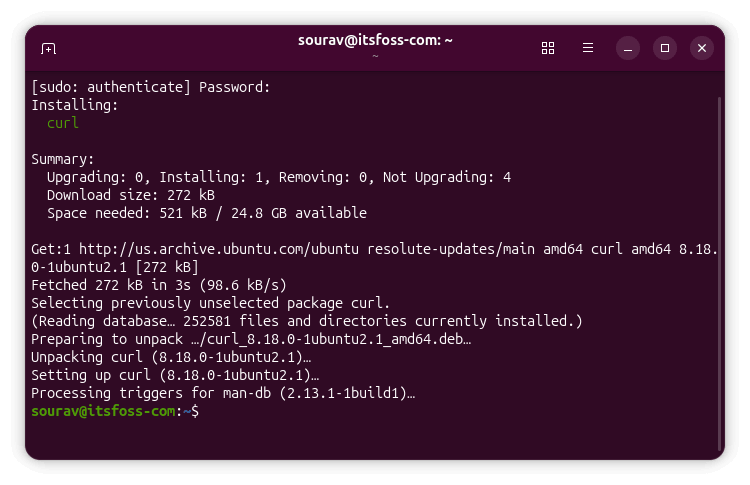
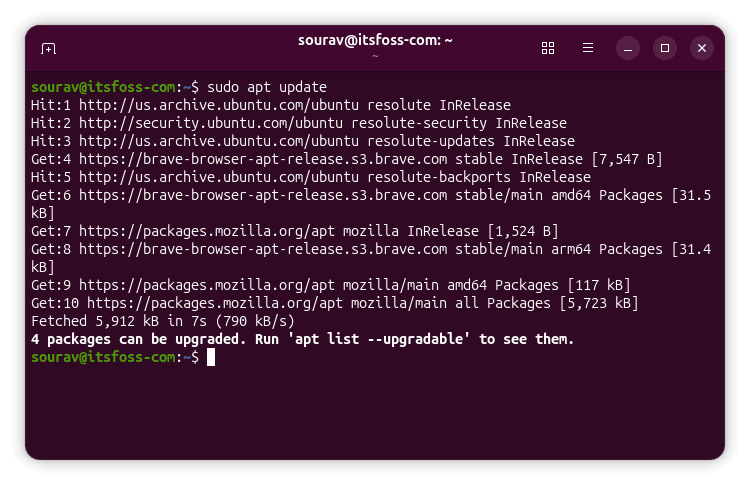
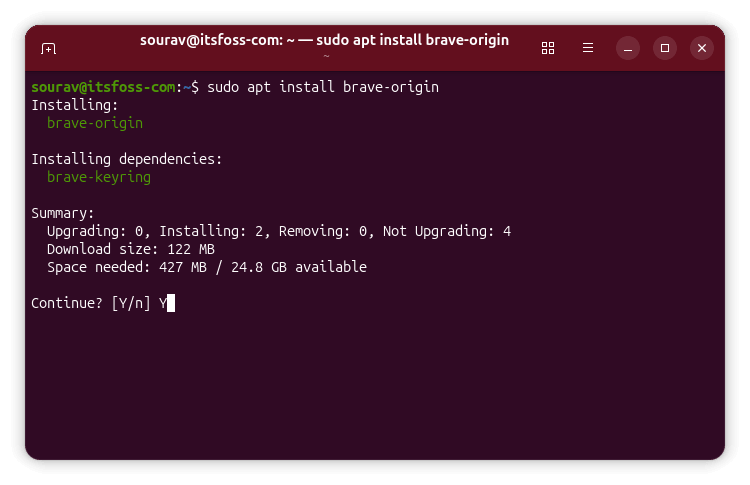
If not, then you can follow these steps to get Brave Origin. First, you have to ensure that you have cURL installed via the following command:
curl --version
If it shows an error, run:
sudo apt install curl
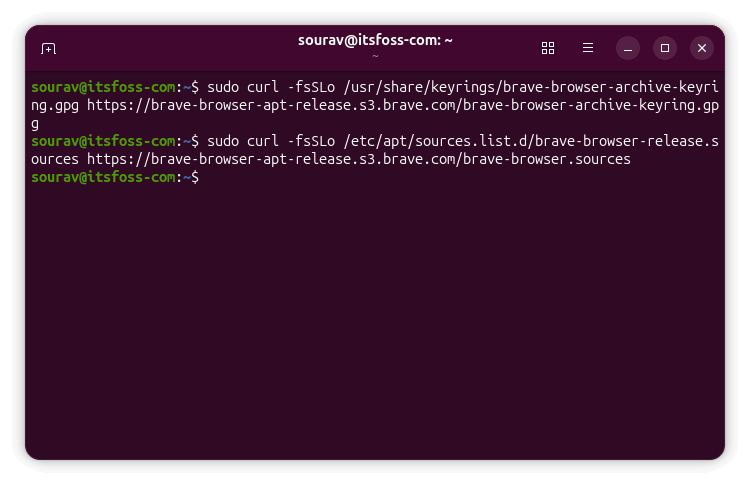
Next, you have to add the GPG keyring for Brave's APT repository to your system:
There's also a cURL command that handles installation on most Linux distros that goes like:
curl -fsS https://dl.brave.com/install.sh | FLAVOR=origin sh
You won't find the source code for Origin in a separate repository on Brave's GitHub, and that's because there isn't one. Origin is just a stripped-down build of brave-core, and doesn't have its own codebase.
a penguin holding a placard that says "thank you" is on the left, on the right is the black/white logo for brave o
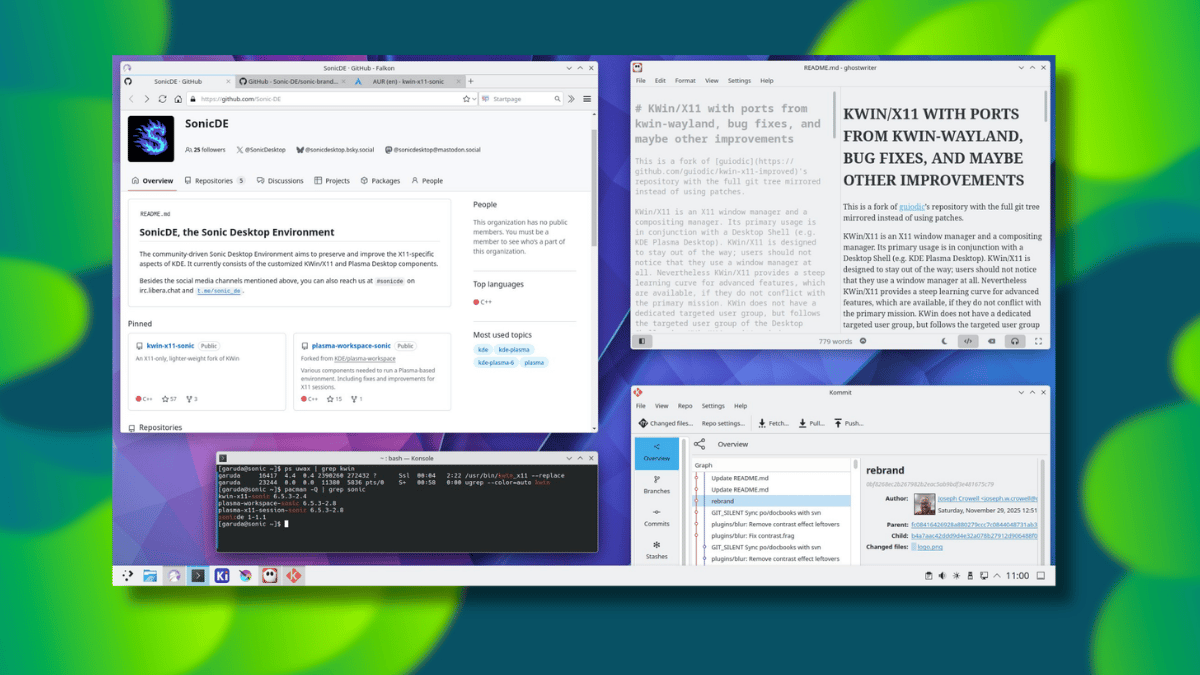
When KDE announced that Plasma 6.8 would be dropping the X11 session entirely, not everyone was happy about it. Wayland has been the default on most major distributions for a while now, but there's still a significant chunk of users with reasons to stay on X11.
One such case is of a group of developers who took the code that KDE itself is walking away from and started building an X11-first desktop around it. That project is SonicDE.
Their goal is to maintain and actively develop the parts of KDE Plasma's X11 stack that are being left behind, while cutting out Wayland dependencies and pushing X11 support forward rather than just holding the line.
The work can be traced back to a KWin/X11 patchset called kwin-x11-improved, which was later merged with the full KWin/X11 source by Joseph Crowell in September 2025 under the name "KDE-Lite," and rebranded as SonicDE by December.
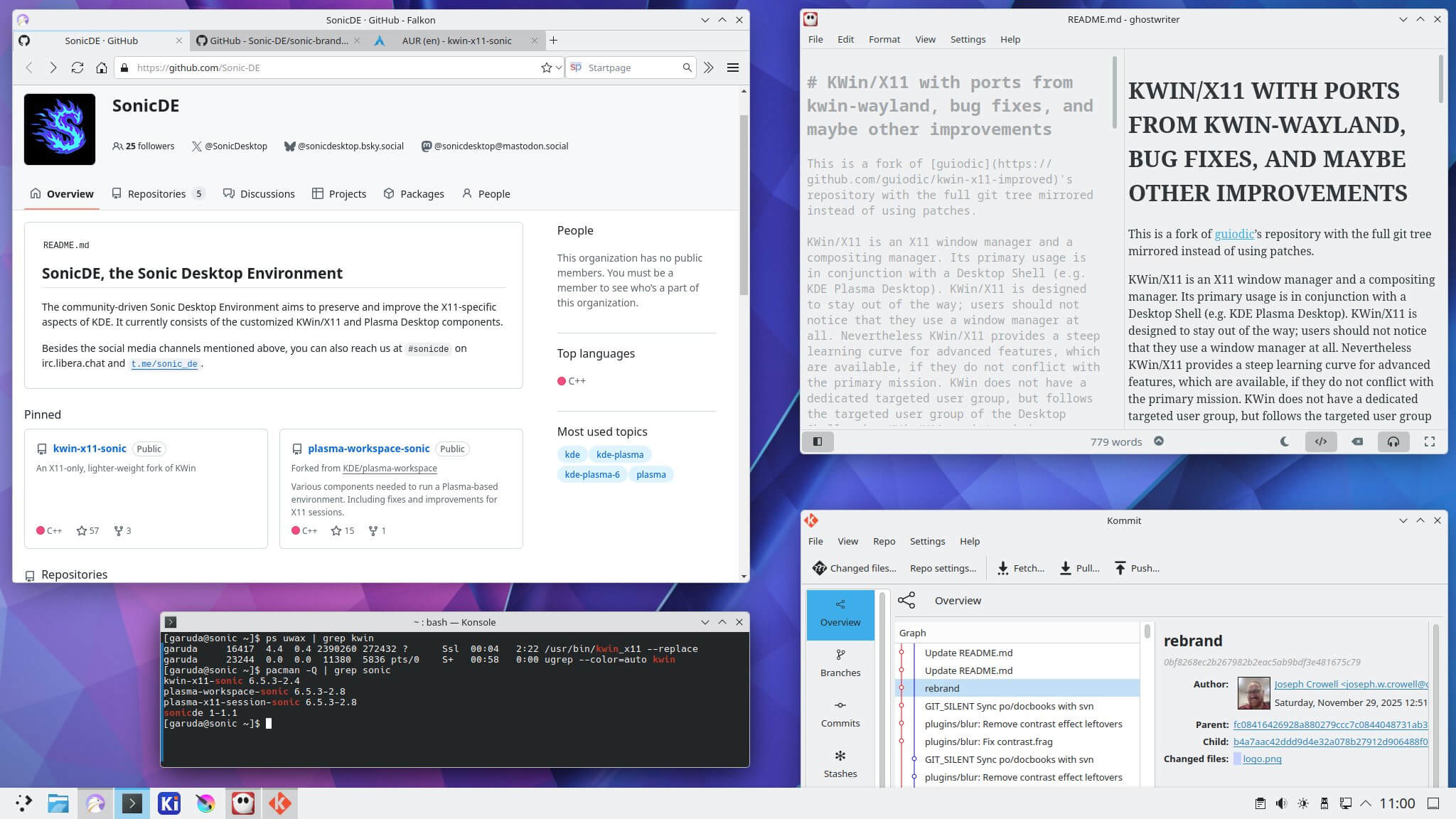
SonicDE: X11 Plasma Restored
Image sourced from Joseph Crowell, one of the contributing developers of SonicDE.
It is a collection of KDE Plasma and KDE Frameworks component forks, each rebuilt with X11 as the focus. The project now spans 40 repositories on GitHub, with the team working through the KDE stack and stripping out what's not needed.
The most prominent of those is sonic-win, a fork of KWin/X11 that handles window management and compositing. It's the most active repository in the project and the one where most of the foundational work is happening.
Alongside it are sonic-workspace, derived from plasma-workspace, and sonic-desktop-interface, forked from plasma-desktop. The former provides the core environment components, while the latter handles the desktop shell. Together with sonic-win, these three form the backbone of what SonicDE actually is as a desktop.
The project covers a lot of ground beyond the core trio of components.
For networking, sonic-network-manager is there; sonic-audio-applet-pulse covers PulseAudio volume management; sonic-screenlocker takes care of screen locking; sonic-screen manages display configuration; and login sessions are handled by sonic-login-manager.
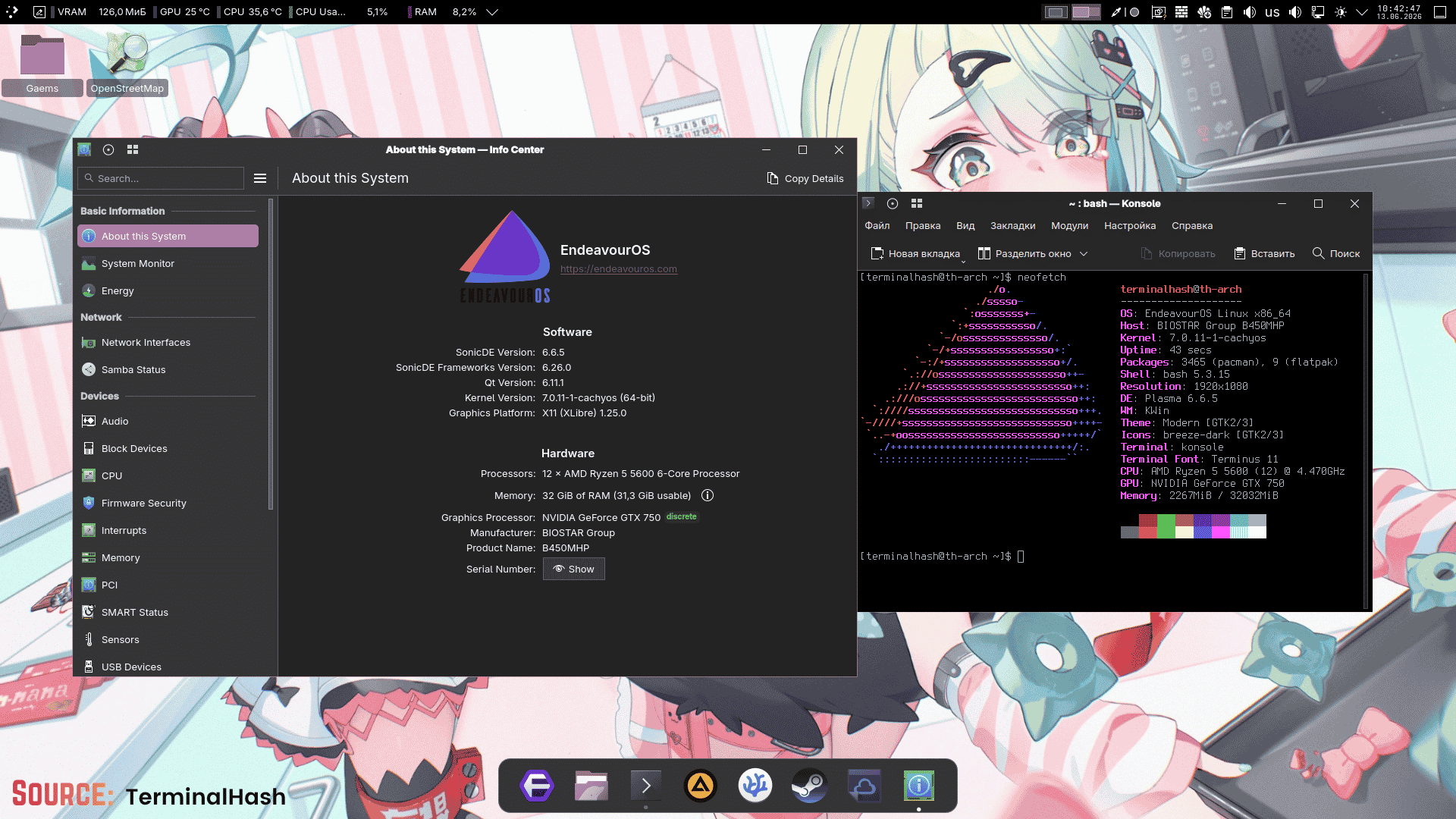
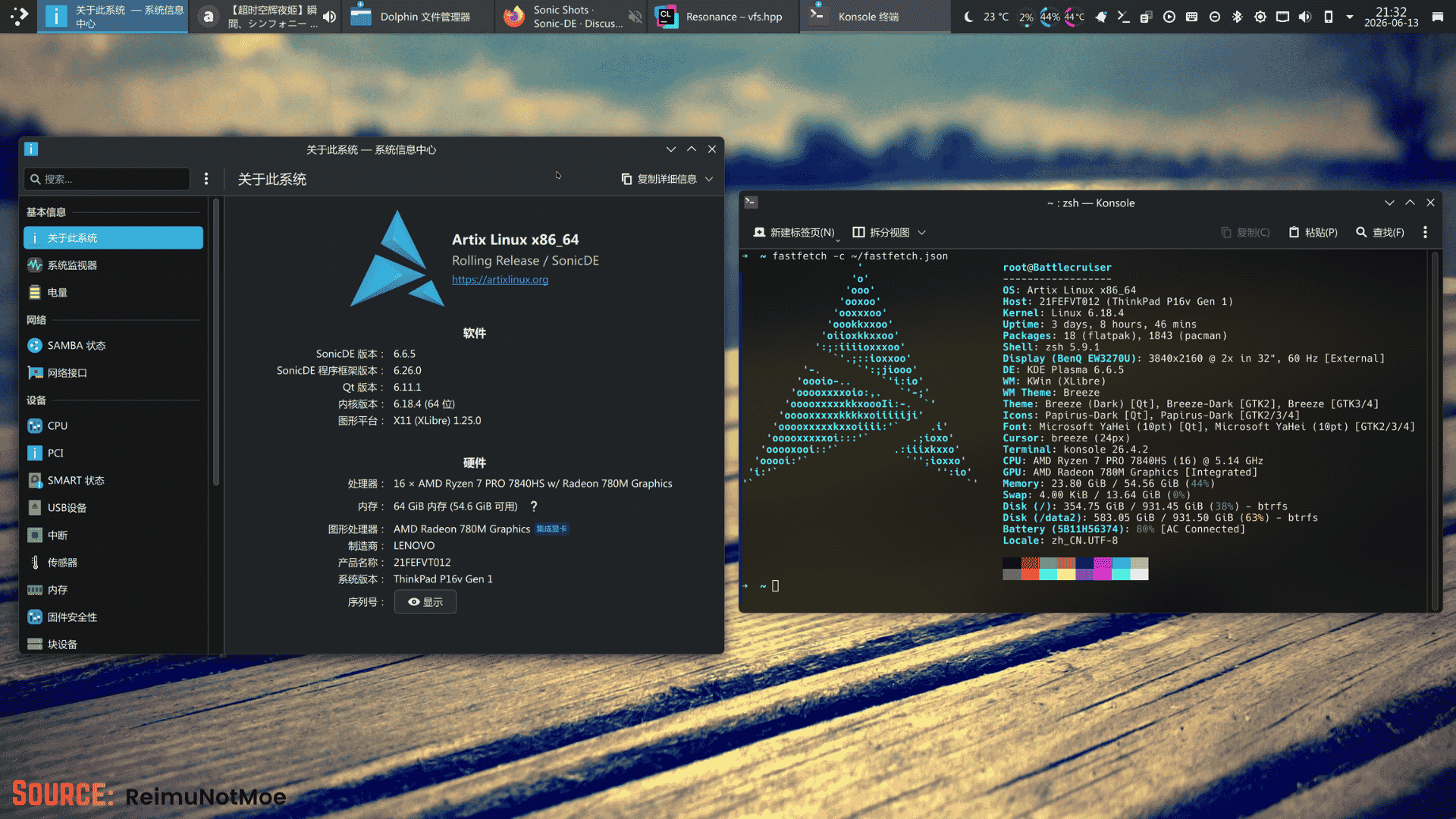
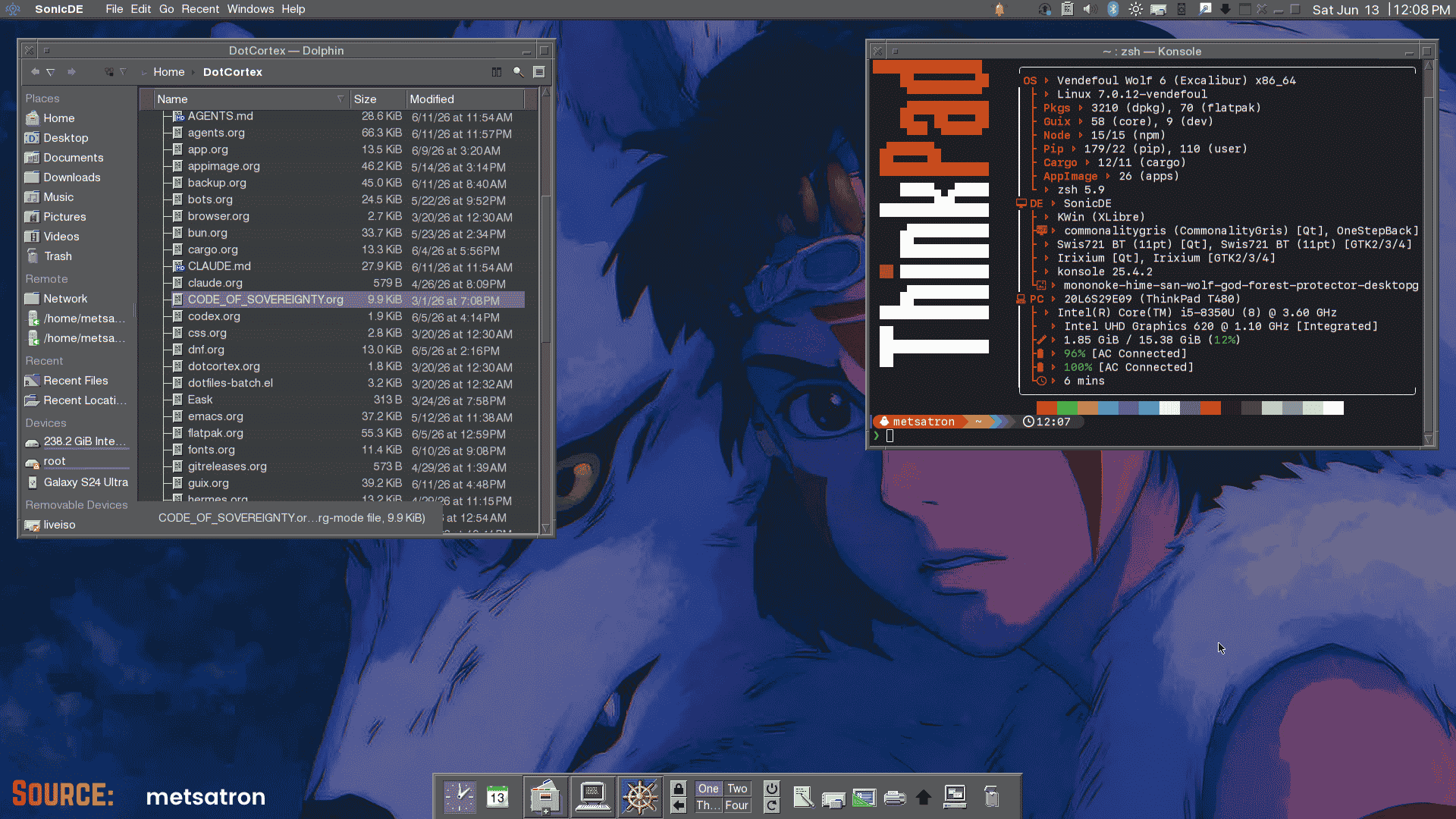
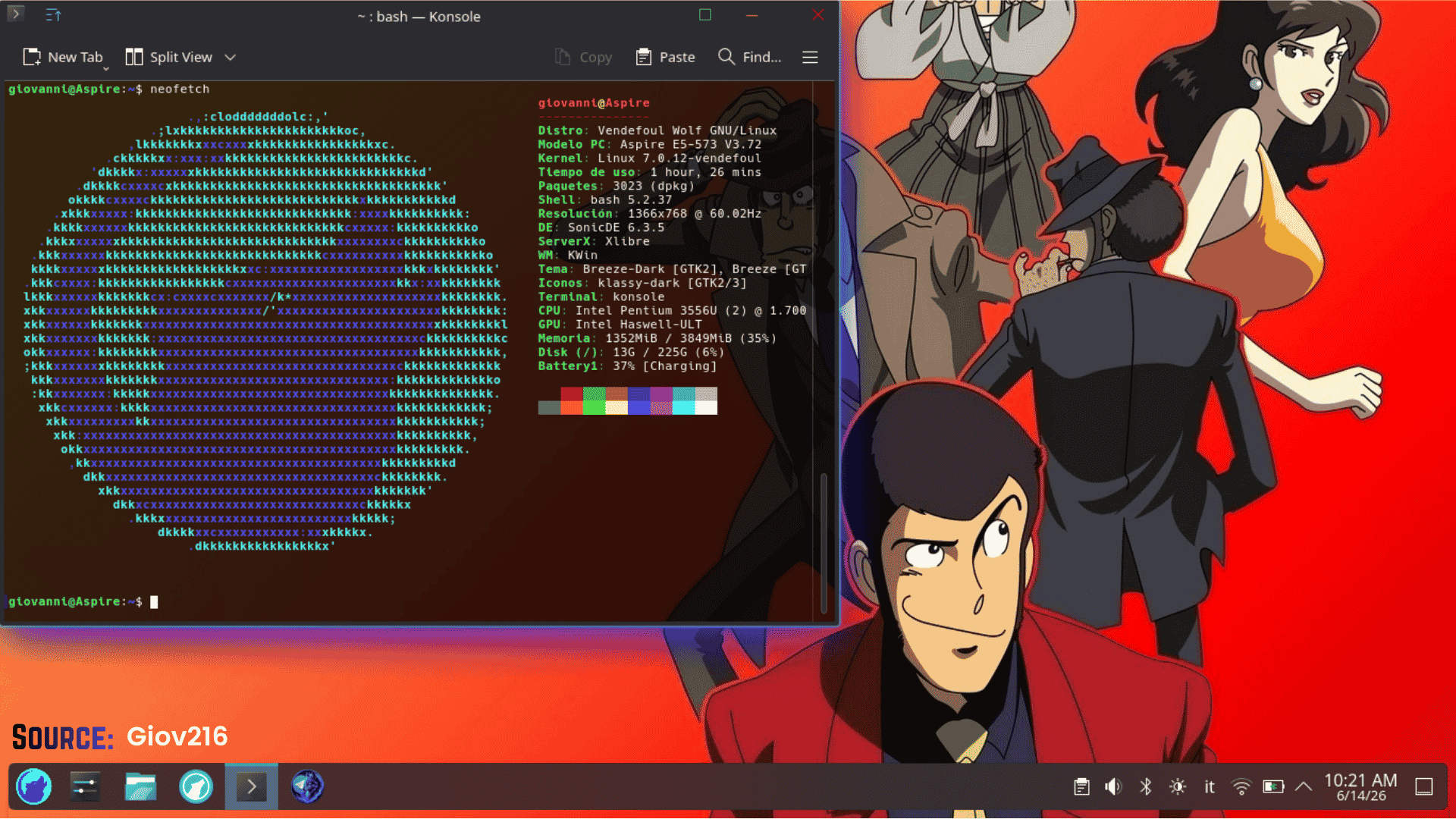
From left to right we have SonicDE on EndeavourOS, Artix Linux, and Vendefoul Wolf.
SonicDE also ships a Silver theme, forked from the Klassy theming utility for Plasma, alongside a matching silver-sddm login screen. Together, they give the desktop a consistent look rather than just resembling a stripped-down Plasma install.
What users actually get is an X11 desktop that behaves the way longtime KDE users expect, while still inheriting improvements from the upstream Plasma components it forks from.
And since SonicDE is being built to be init system agnostic from the start, it isn't locked to systemd. BSD support is one of the stated goals too, so the project is thinking well beyond Linux users.
Availability of this?
It is already packaged for Arch Linux-based distributions, with additional builds available for Debian, Devuan, Artix Linux, and Vendefoul Wolf. The official website has the links for the packages for those distros.
Also good to know is that the developers are already packaging SonicDE for Gentoo, NixOS, OpenMandriva, and FreeBSD, so keep an eye out on their socials and GitHub page for updates.
KDE is Going Wayland Only So This New Project Gives You KDE With X11
Passwords are one of those things everyone knows they should handle better but rarely do. The bare minimum is not reusing them across sites, and beyond that, you really want a password manager doing the heavy lifting for you.
If you have been looking for options, you have probably come across Proton Pass (partner link) and Bitwarden as two of the more popular cloud-powered choices. For local hosting, something like KeePassXC lets you keep everything on your own machine without any cloud dependency at all.
But I recently came across something a bit different. It is web-based, fully open source, works completely outside any ecosystem, and does a fair bit more than just storing passwords. And you can self-host it as well. So let me tell you about it.
AliasVault: One Vault for Everything
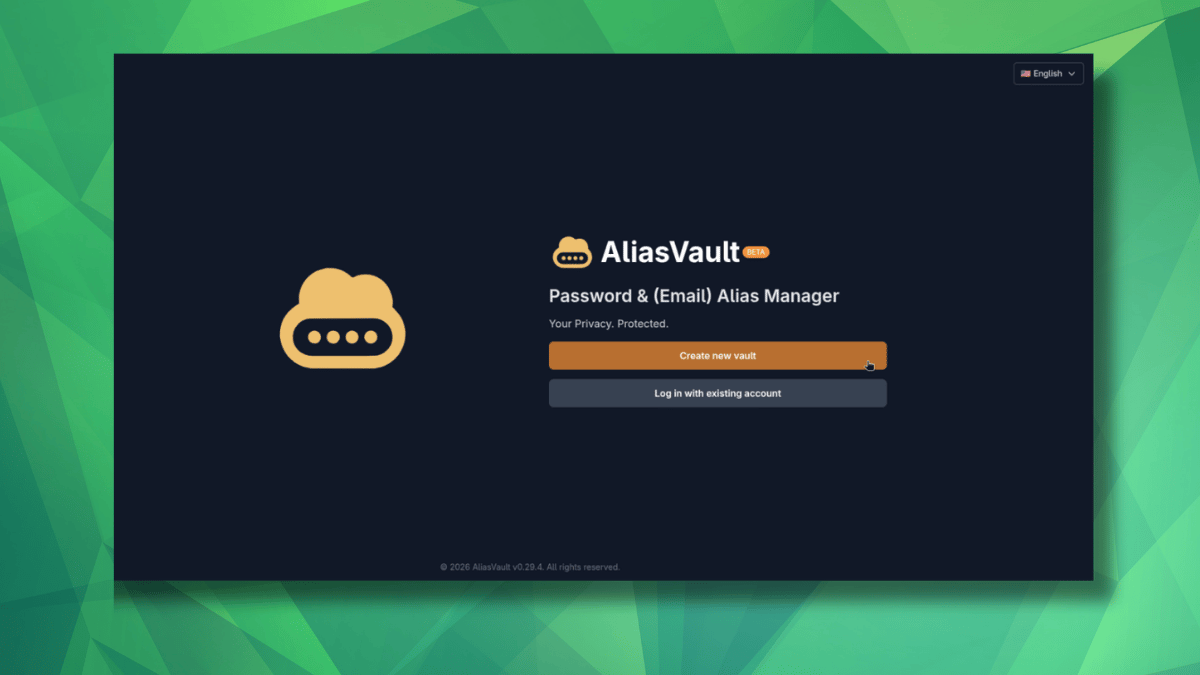
Offered as an open source, end-to-end encrypted password and email alias manager, AliasVault lets you store passwords and create new aliases for use on the web.
The latter works like this. Instead of using your real name and email address everywhere, you generate a unique identity, password, and email alias for each service you sign up to.
If one of those services ever leaks your data or starts spamming you, you know exactly where it came from, and you can just kill that alias.
Operated under XIVISOFT, this is the work of Leendert de Borst, a software developer from the Netherlands who has been building privacy-focused tools since 2013. The project itself is licensed under AGPL-3.0, and the source is available on GitHub.
The cloud version runs on dedicated servers in Germany (Hetzner), within the EU, making it GDPR-compliant. There is also a full self-hosting path via Docker if you would rather keep everything on your own infrastructure.
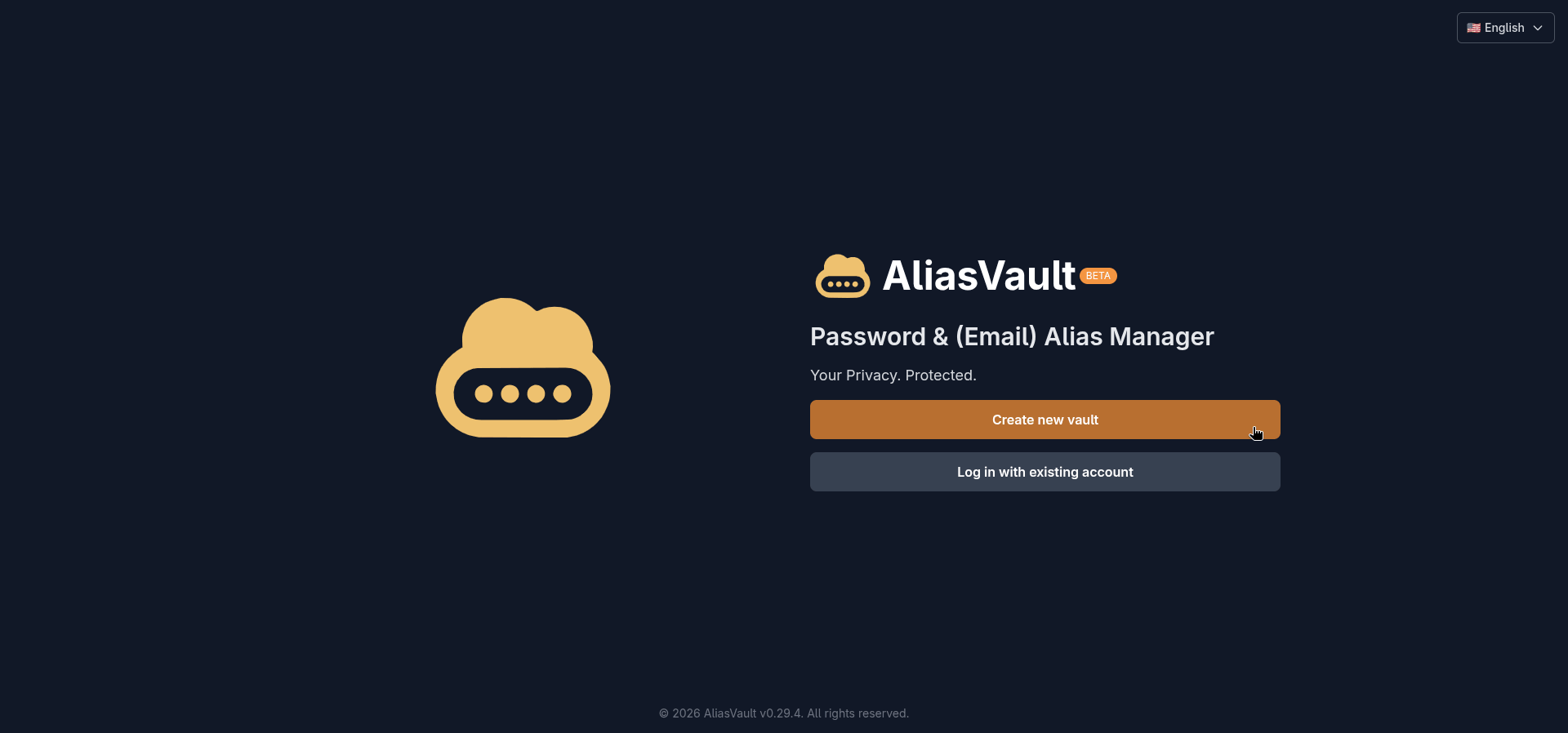
Getting started with AliasVault on the cloud version means heading over to app.aliasvault.net and creating a new vault.
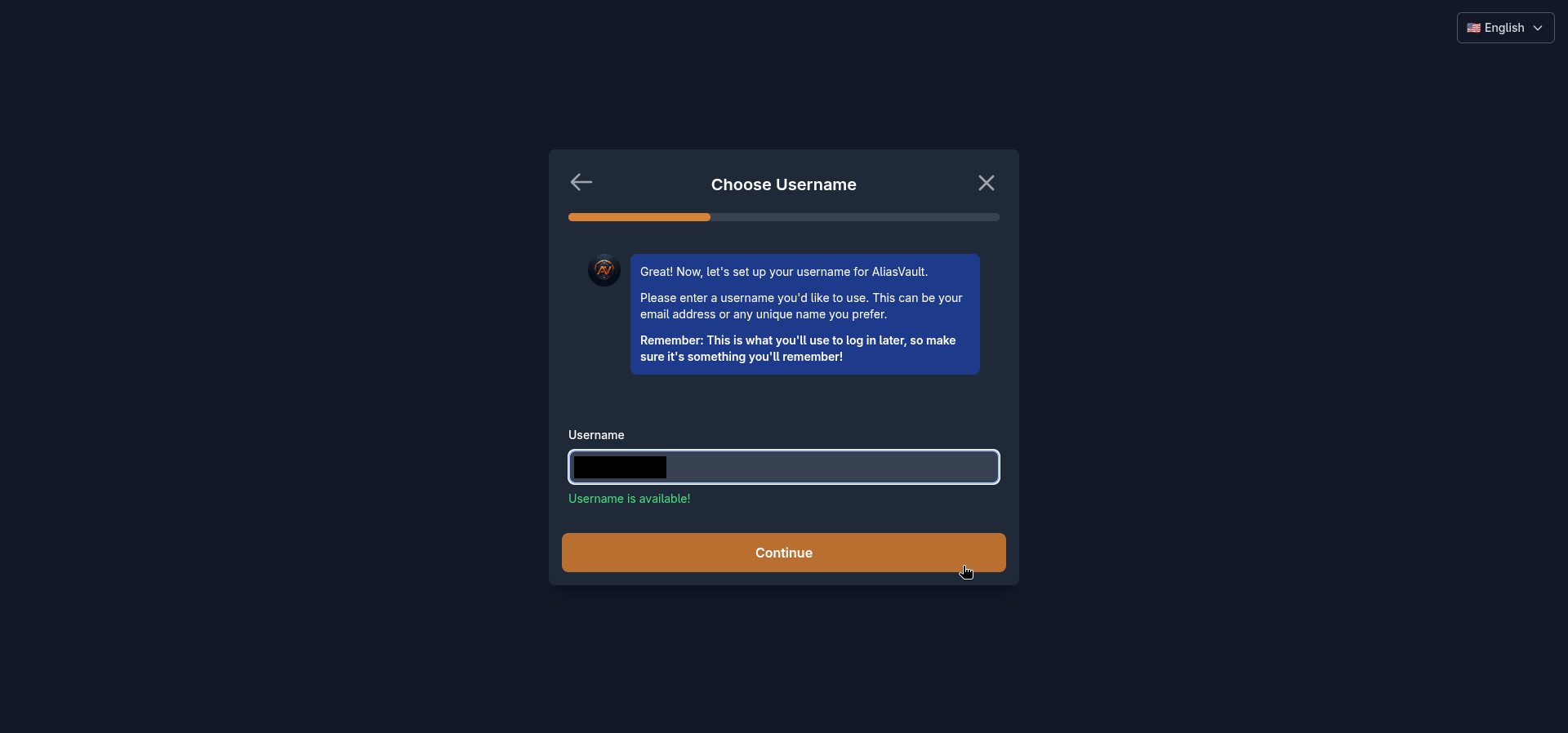
The first thing I noticed is that it does not ask for an email address at signup. You just pick a username, anything you want, and that's all the identifying information it collects.
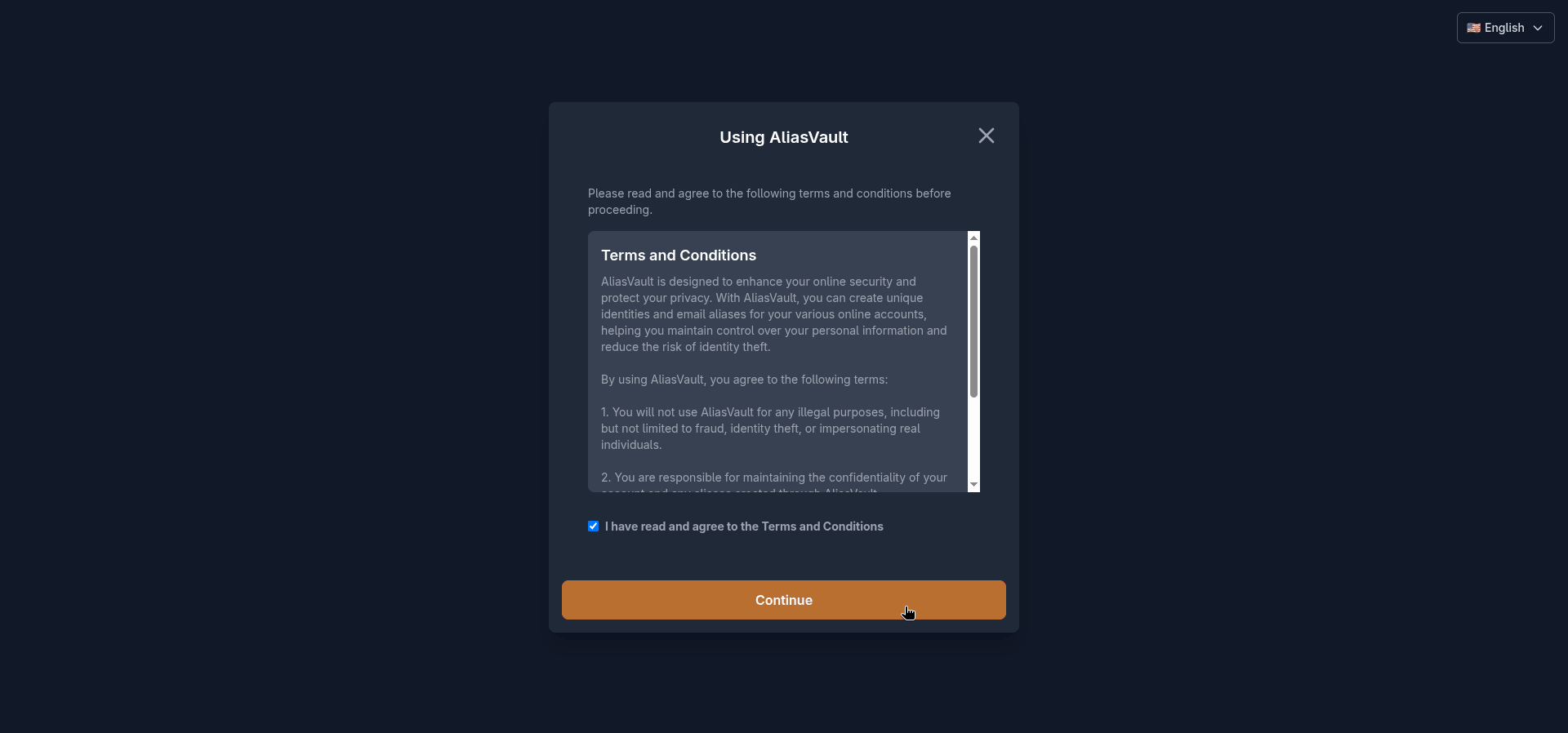
Before you get to the vault itself, you are asked to agree to the terms and conditions. This is pretty standard for any web service, though the terms here are straightforward and not particularly alarming.
The short version is that you cannot use AliasVault for illegal purposes, you are responsible for keeping your account secure, and the project itself is not liable if you lose your master password and your data becomes inaccessible.
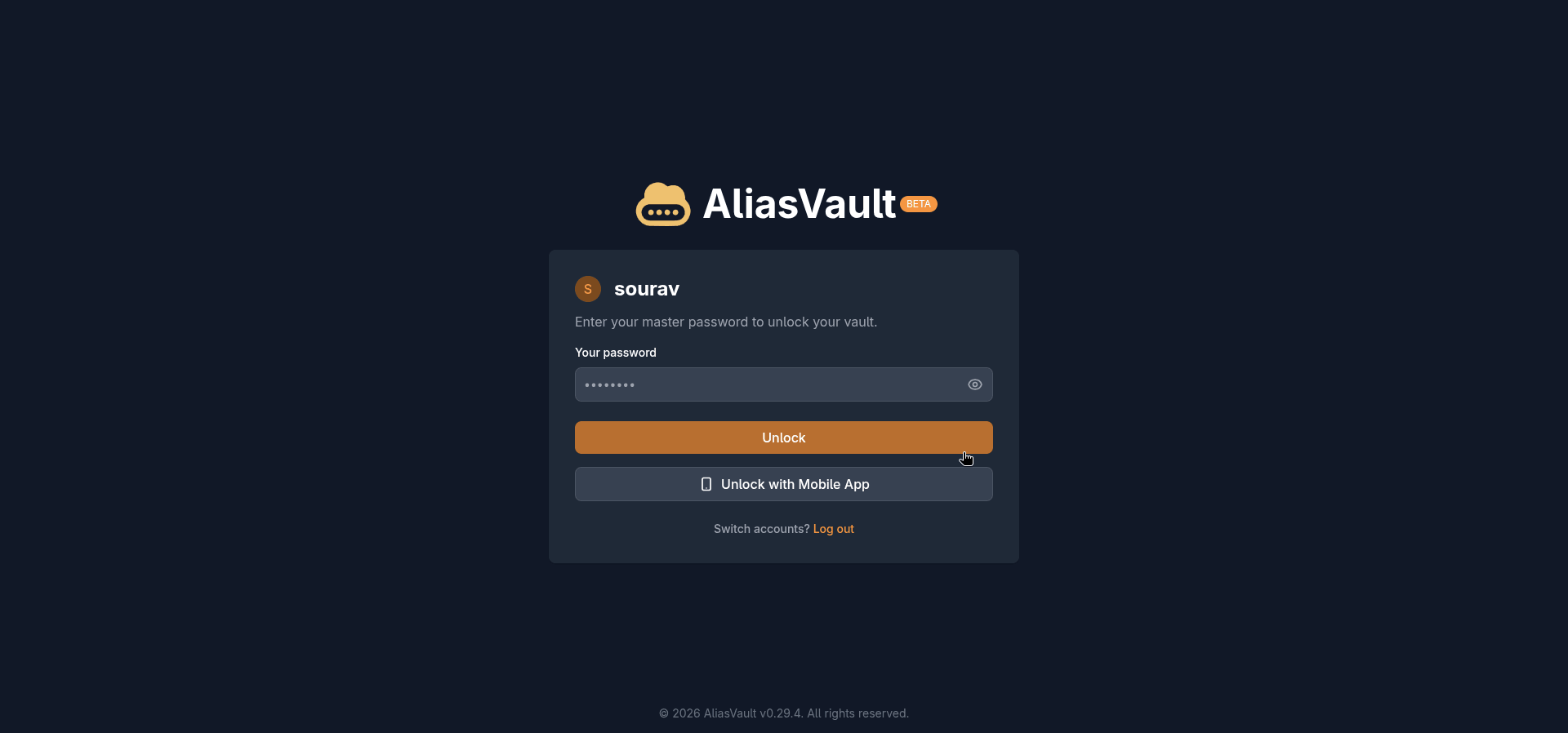
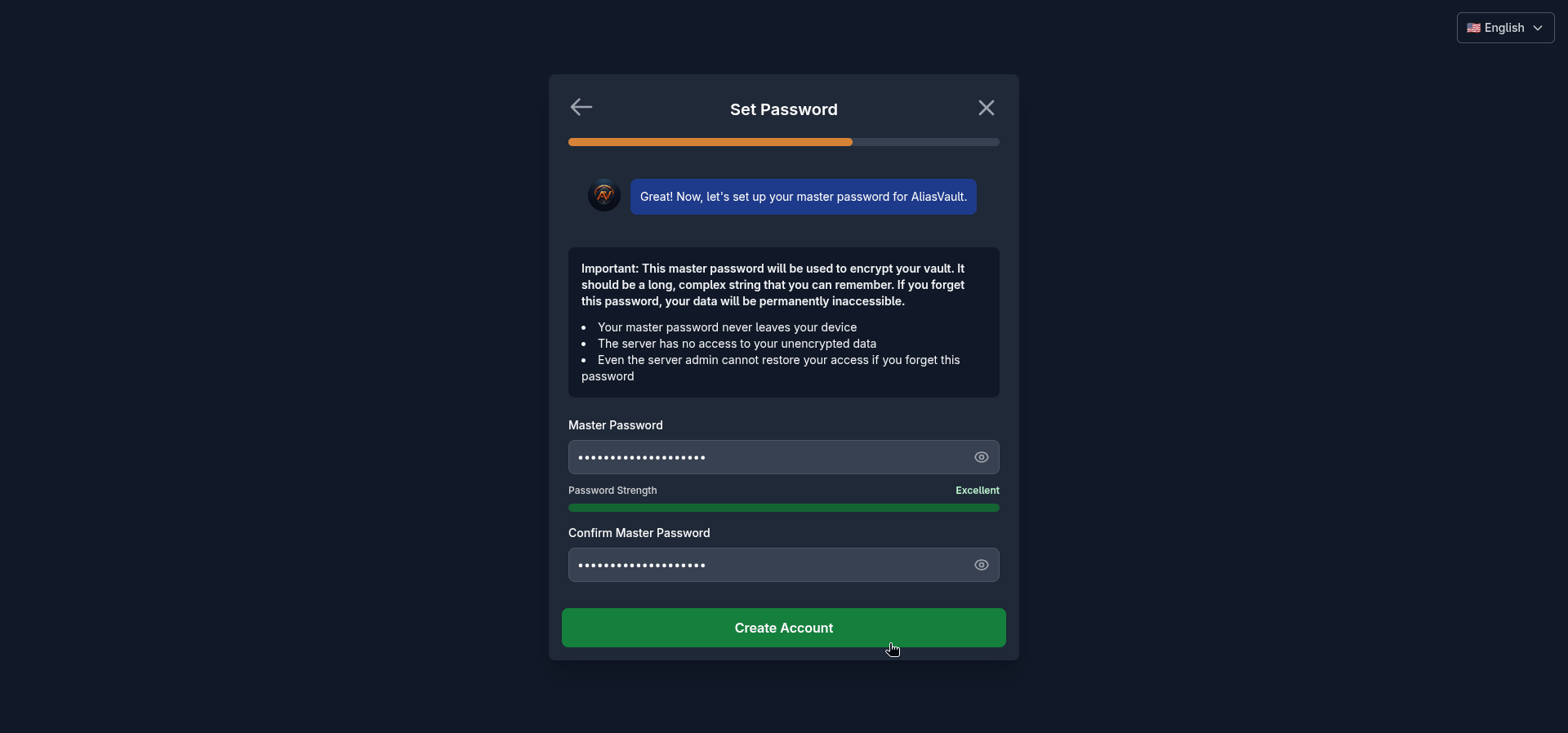
Once past that, you set your master password, and AliasVault shows a strength indicator right there during setup. A strong password is not optional here given the zero-knowledge architecture and the sensitive nature of the contents; lose it and the vault contents are gone for good.
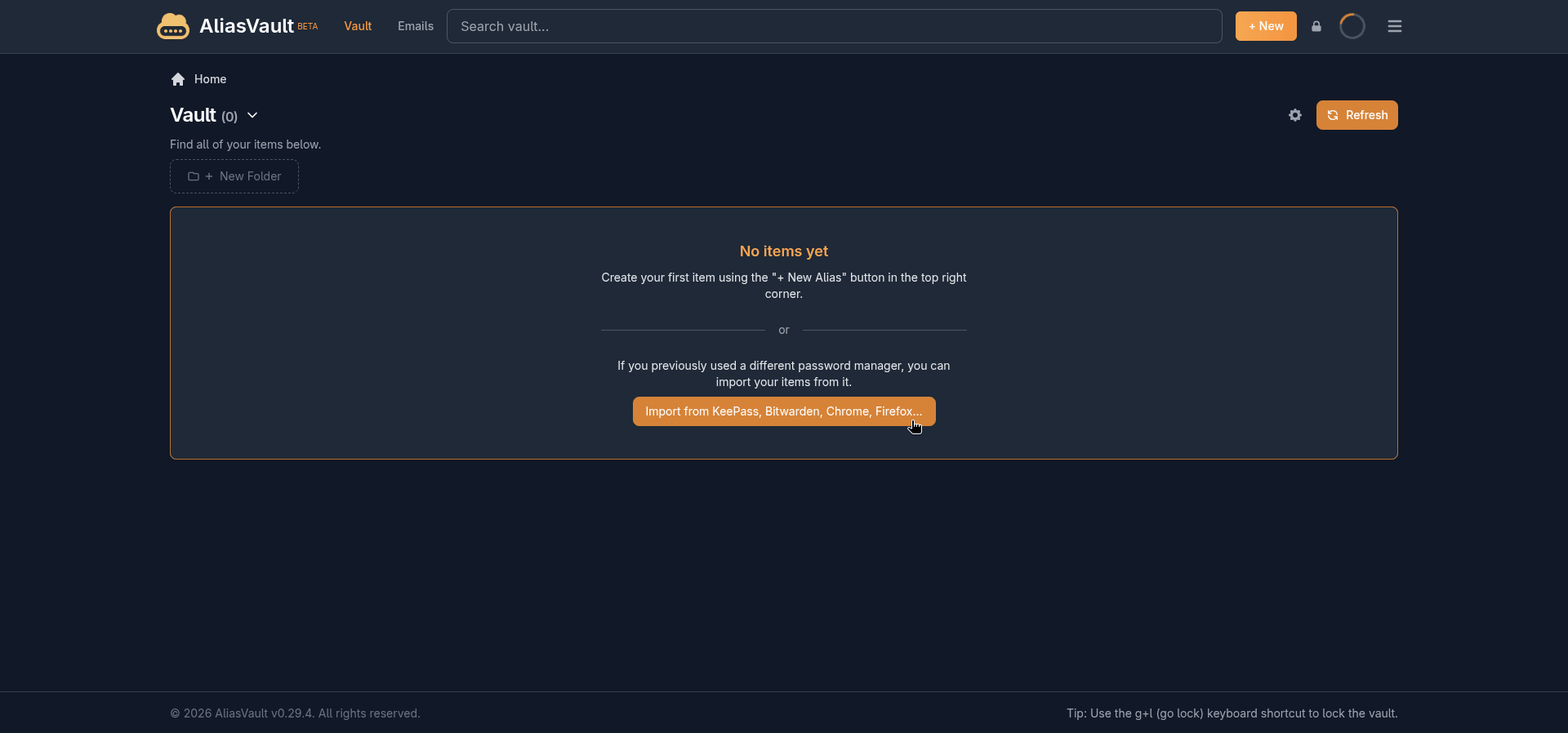
If you are coming from another password manager, the empty vault screen immediately displays an import button. AliasVault can pull in credentials from 1Password, Bitwarden, Chrome, Dashlane, Firefox, KeePass, KeePassXC, Proton Pass, and Strongbox.
Adding new logins
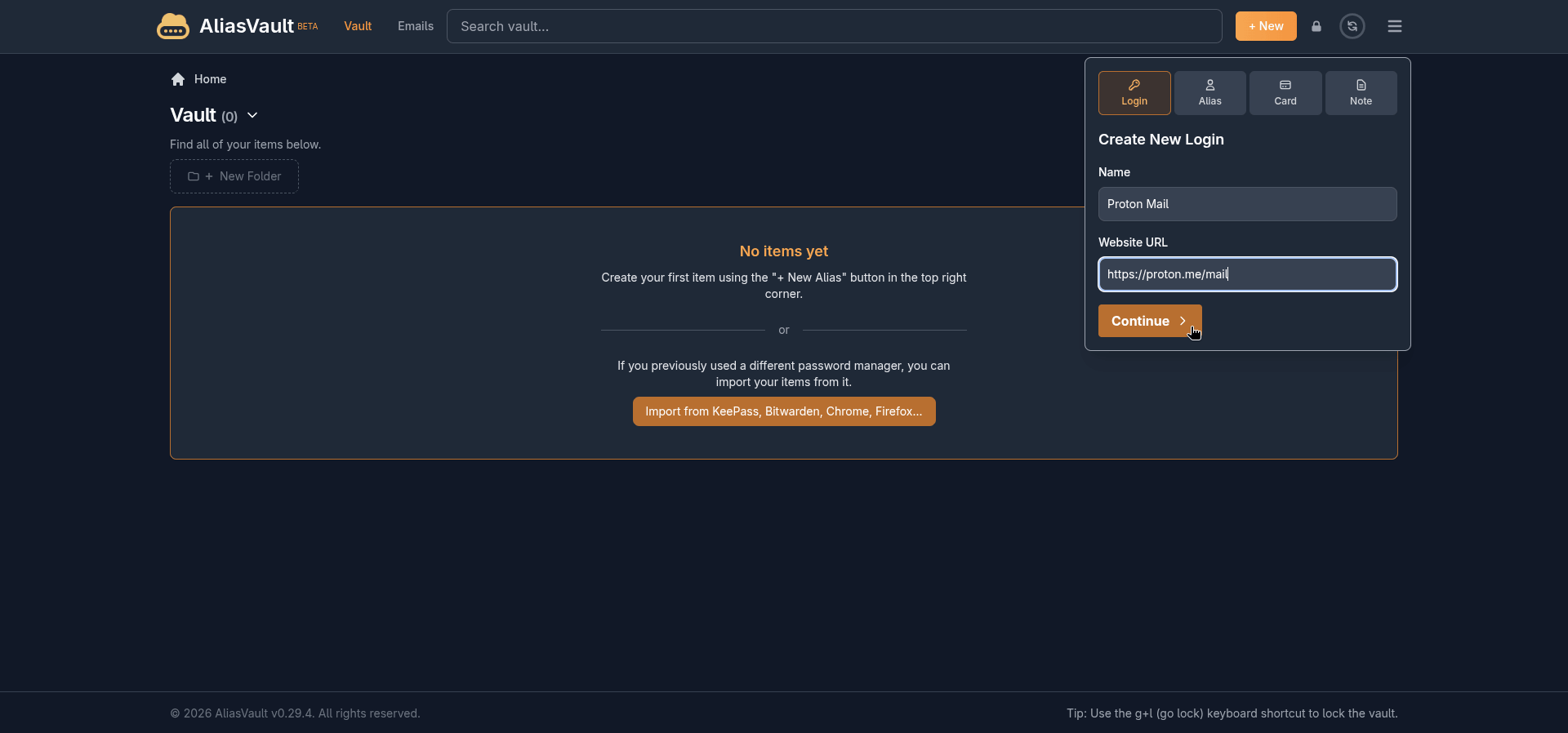
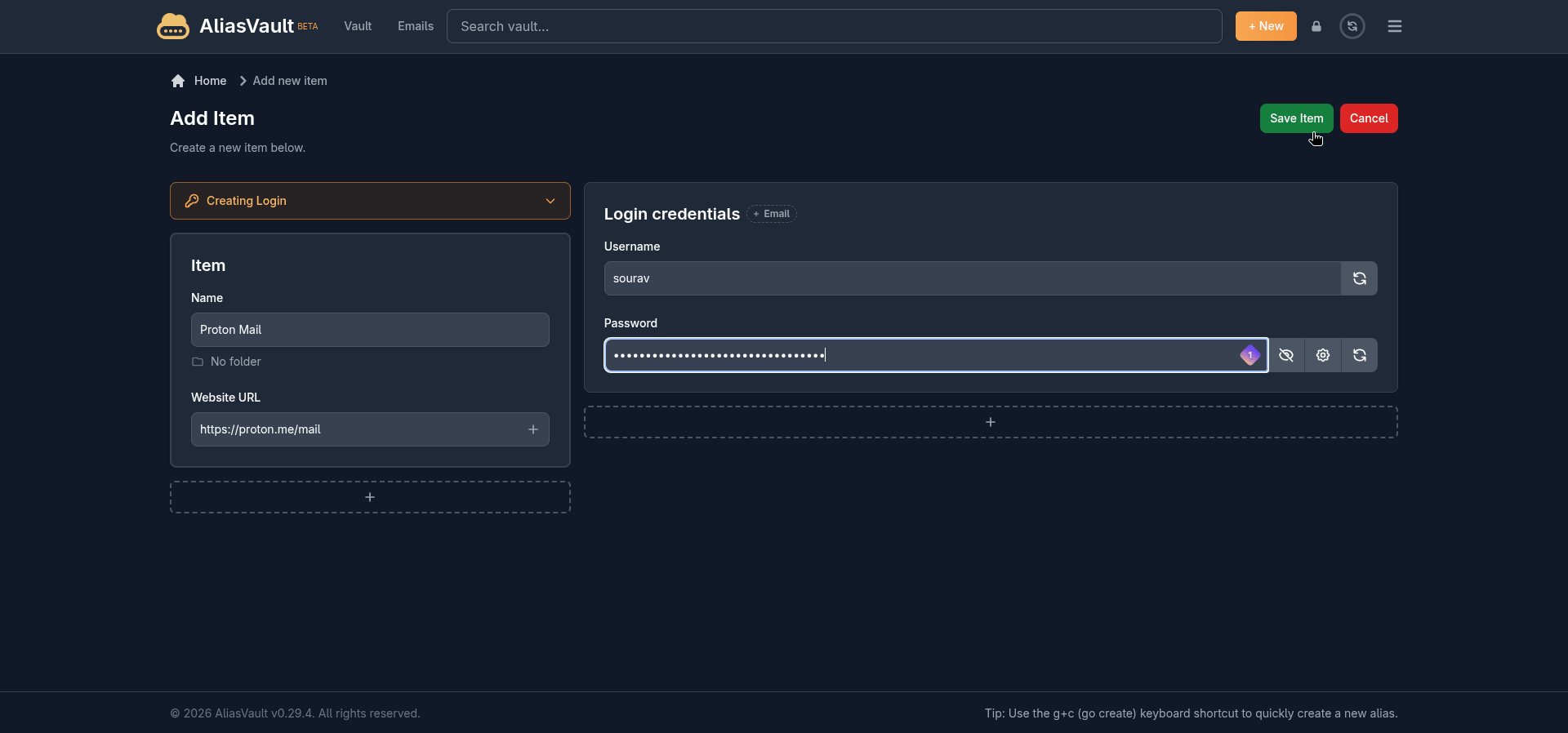
Clicking on the "+ New" button will give you multiple options to add a new entry for Login, Alias, Card, and Note. During my use, I mostly stuck to the Login entry, using it to add new credentials to the vault.
The interface presented here is easy to get used to. You enter the username, add the password, enter the website URL, and click on "Save Item" to get an item added to the vault.
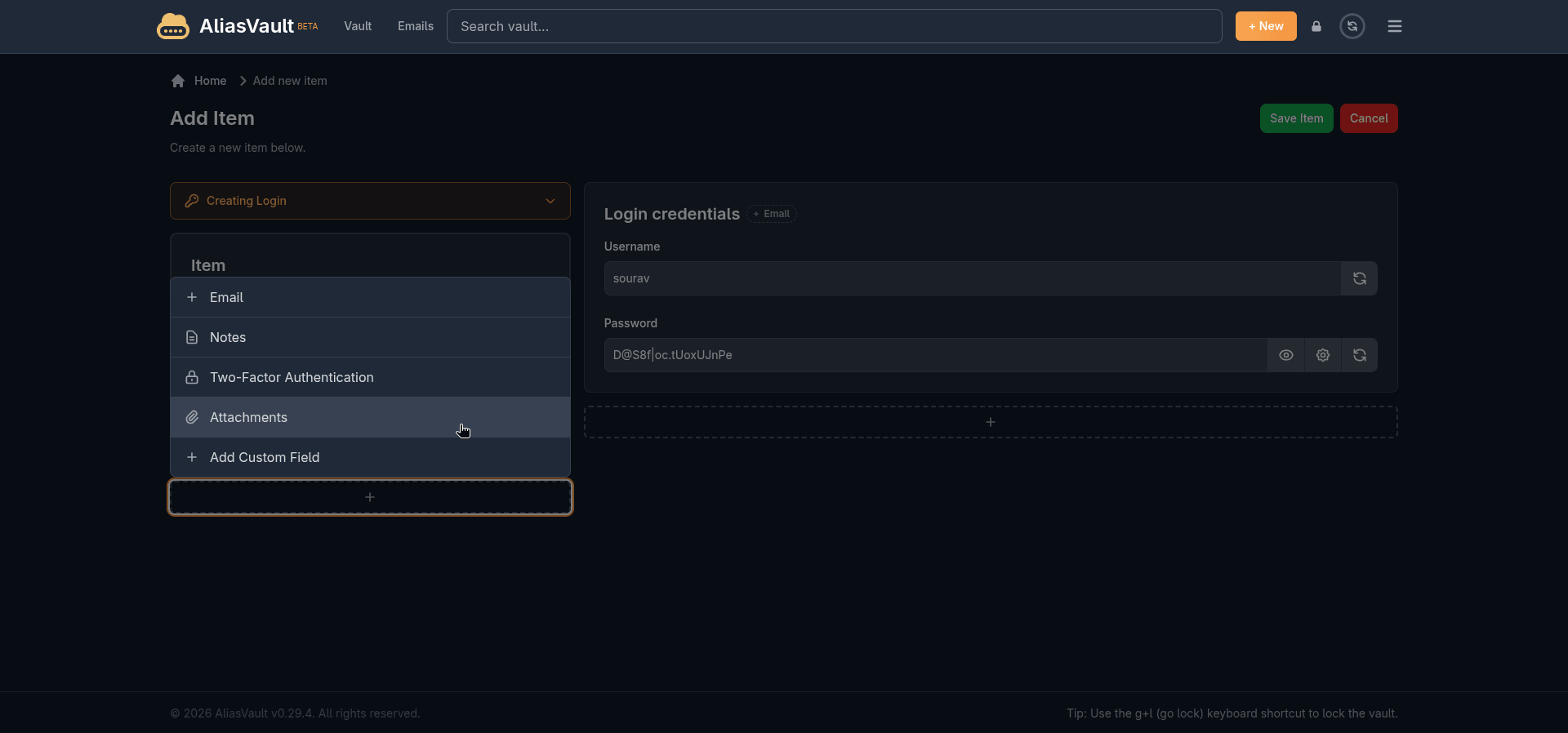
You can even generate passwords, and from the left-hand side menu or at the bottom of the item entry, you can add more content to a vault item, such as email addresses, notes, a two-factor authentication secret, file attachments, or a custom field.
Just click on the plus button to get going.
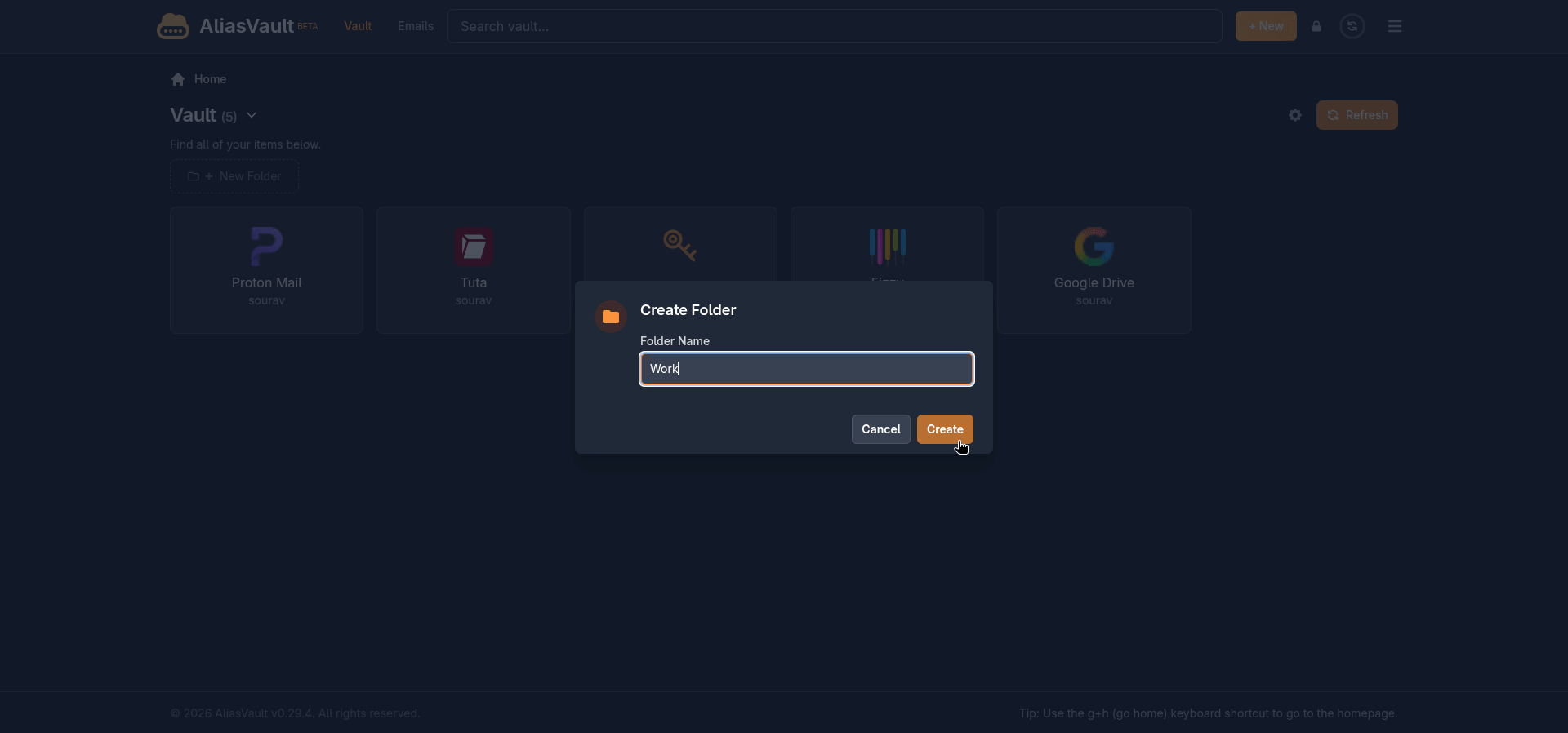
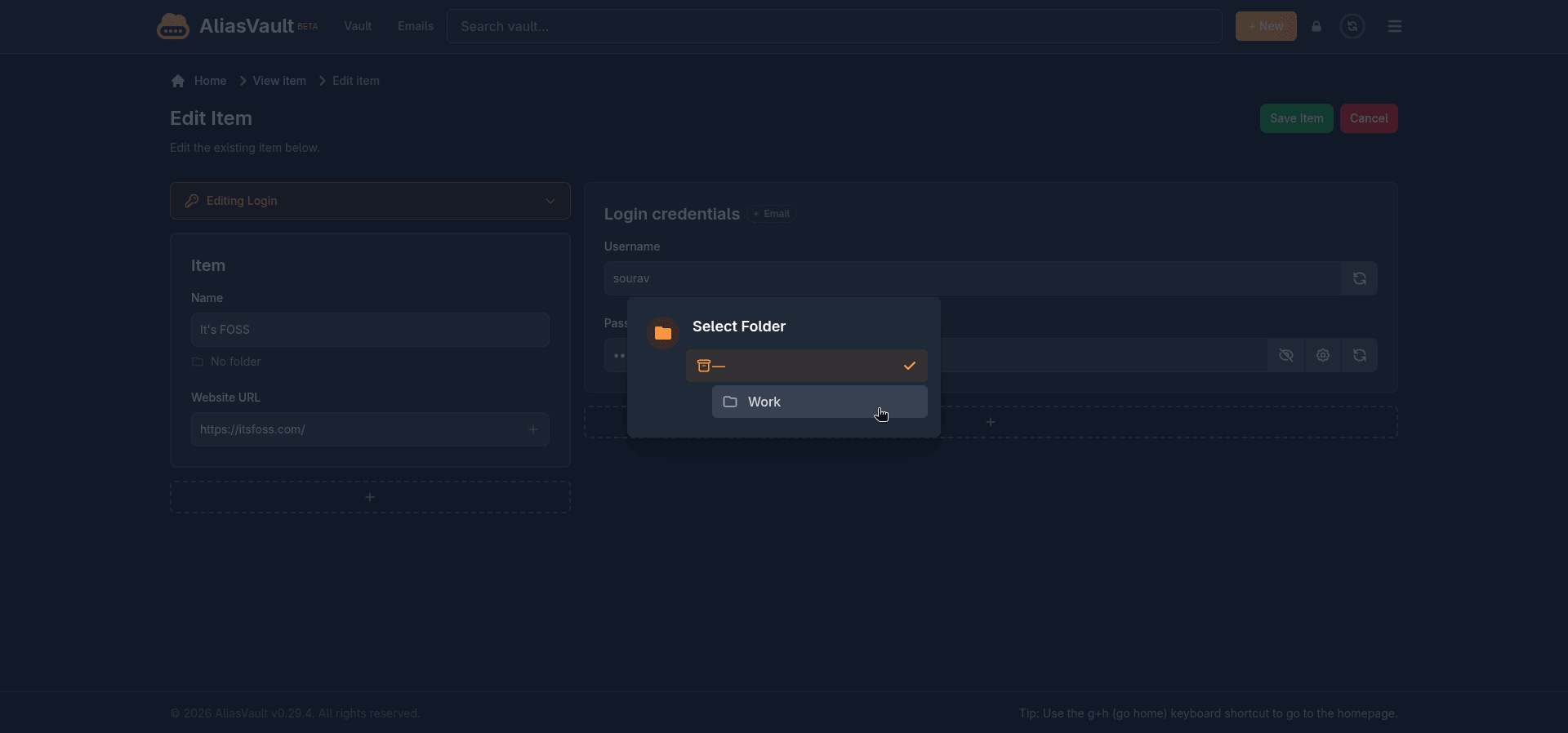
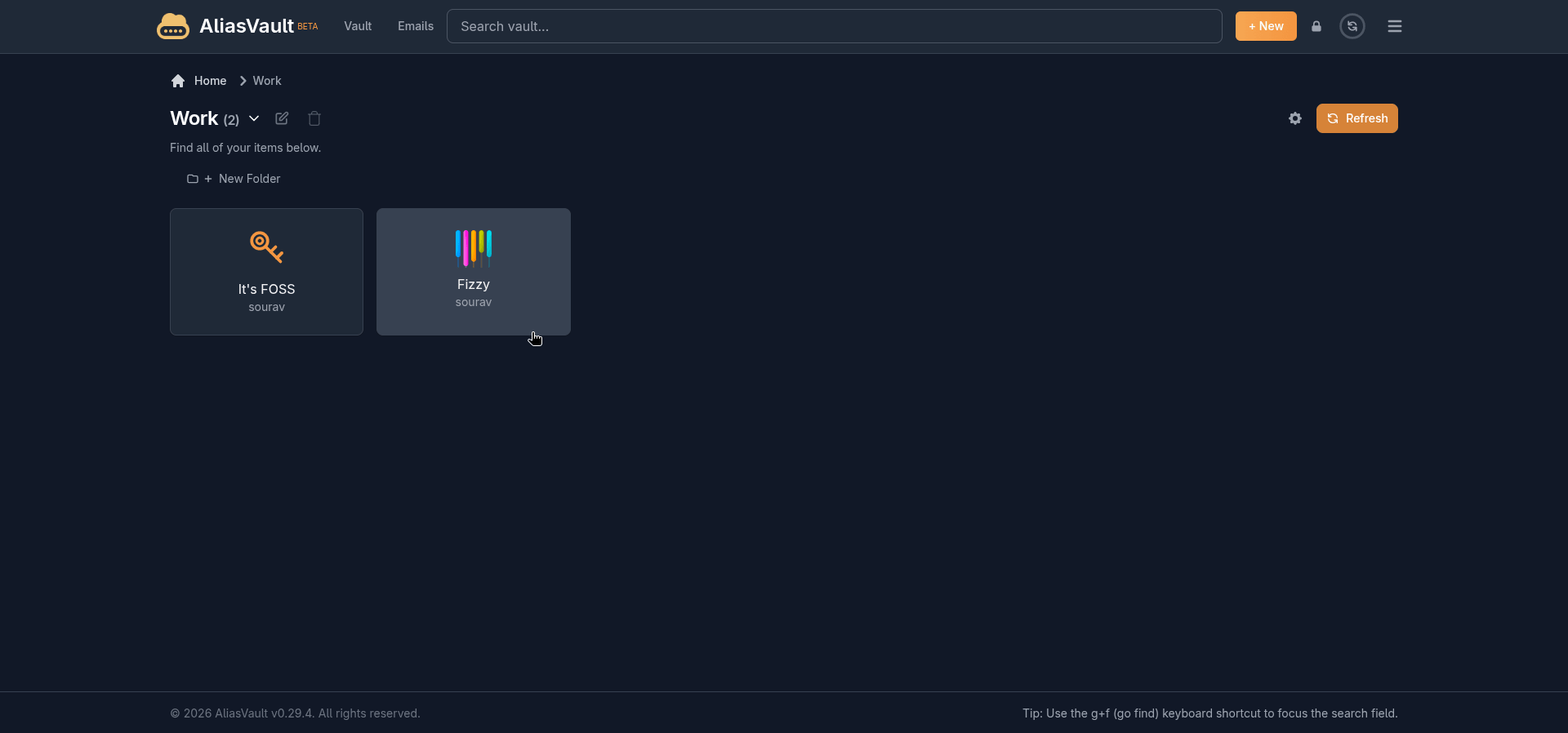
Keeping things organized is straightforward too. Creating a folder takes about three seconds. Click "+ New Folder", type a name, and hit "Create". Moving an existing login into a folder is done through the item's edit screen, where a Select Folder dropdown lists all your folders.
What is missing, though, is anything resembling bulk management. There is no drag and drop to move items into folders, no batch select to reorganize a bunch of credentials at once, and no multi-select for bulk deletion.
If you are migrating a large existing vault and want to sort everything into folders, you are doing it one item at a time.
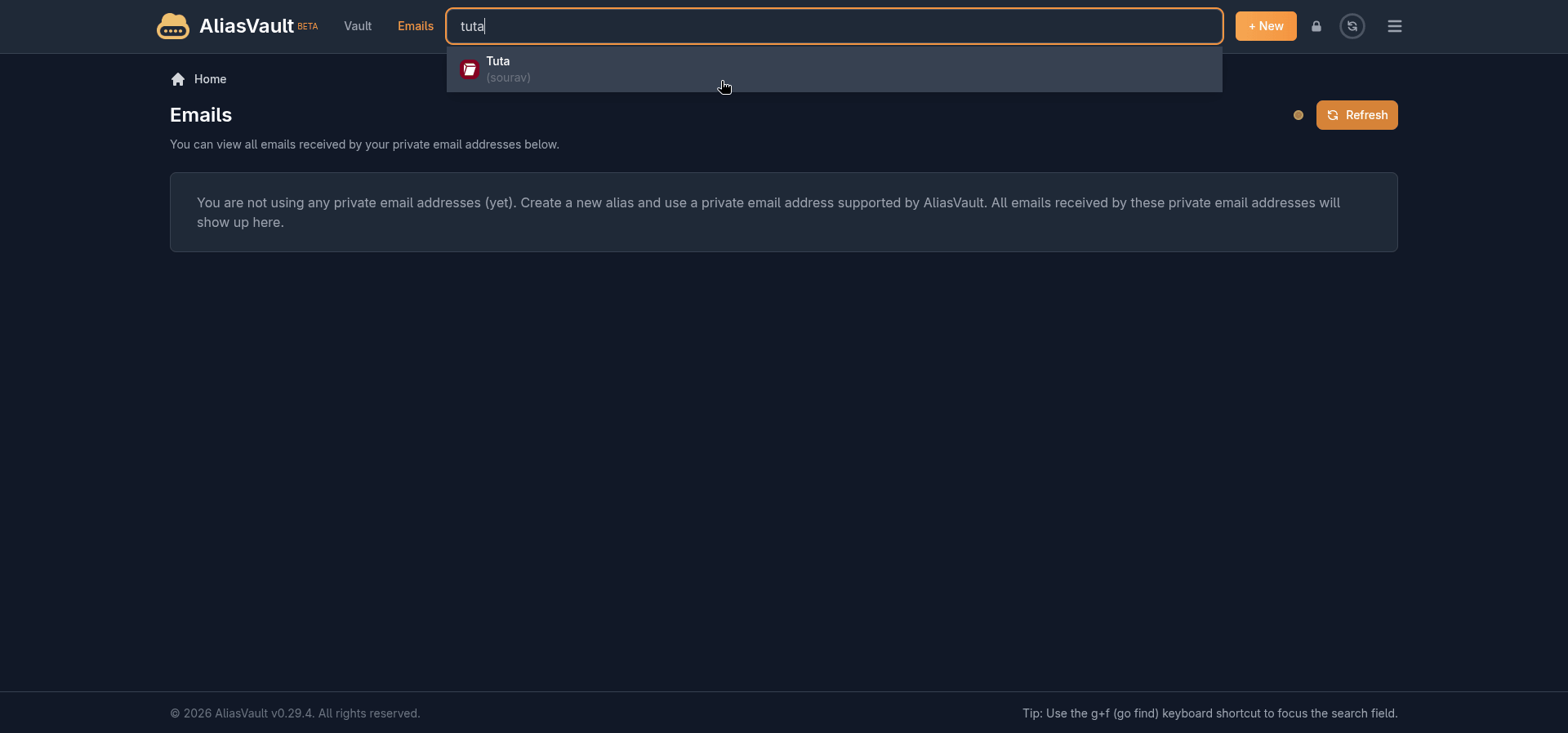
The search functionality does make navigating a crowded vault easier, at least. The search bar at the top of the interface queries across your entire vault in real time, pulling up matching items as you type, with icons shown.
Creating an alias
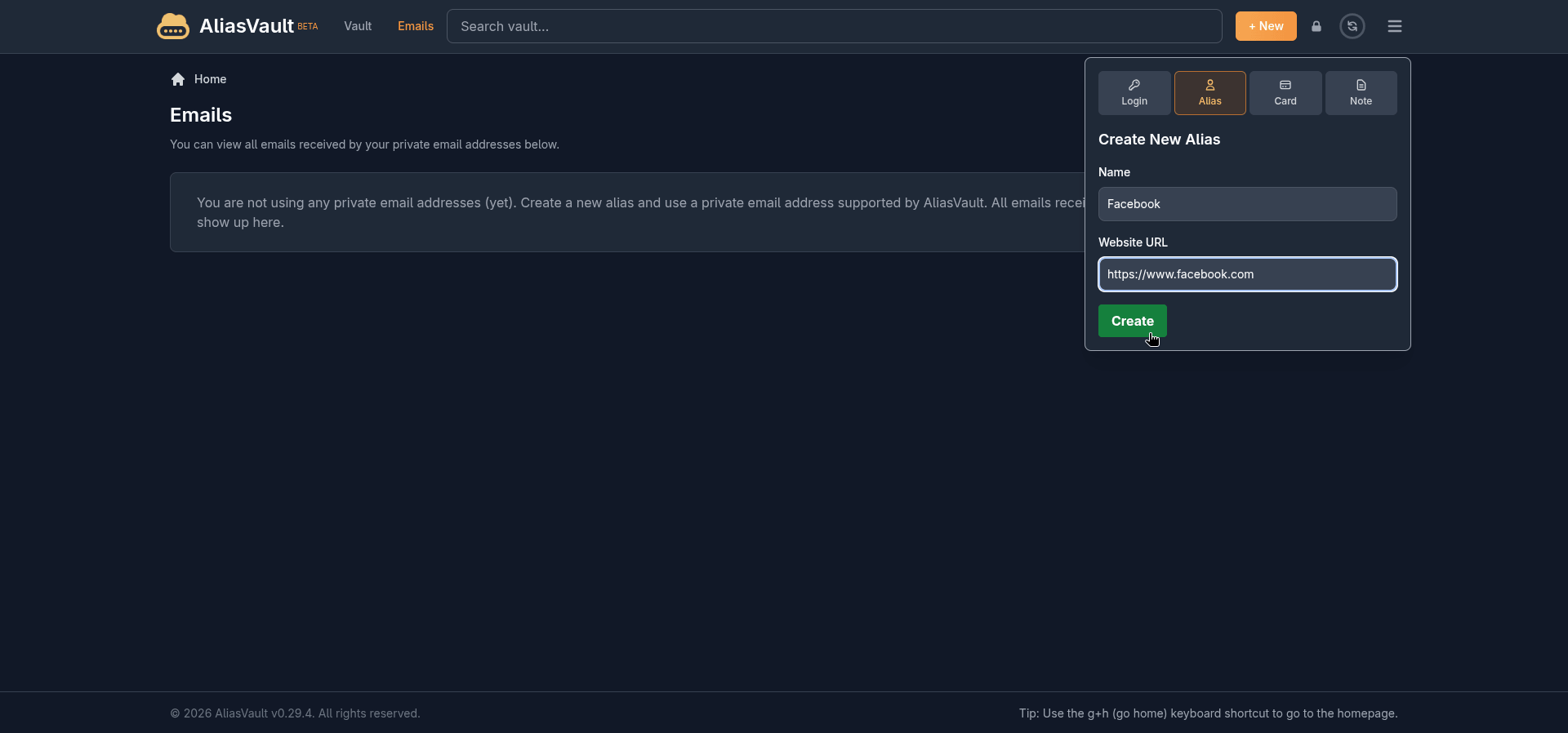
This is where AliasVault separates itself from a regular password manager. Switching to the Alias tab in the "+ New" panel lets you create a fictional identity tied to a service, not just a username and password.
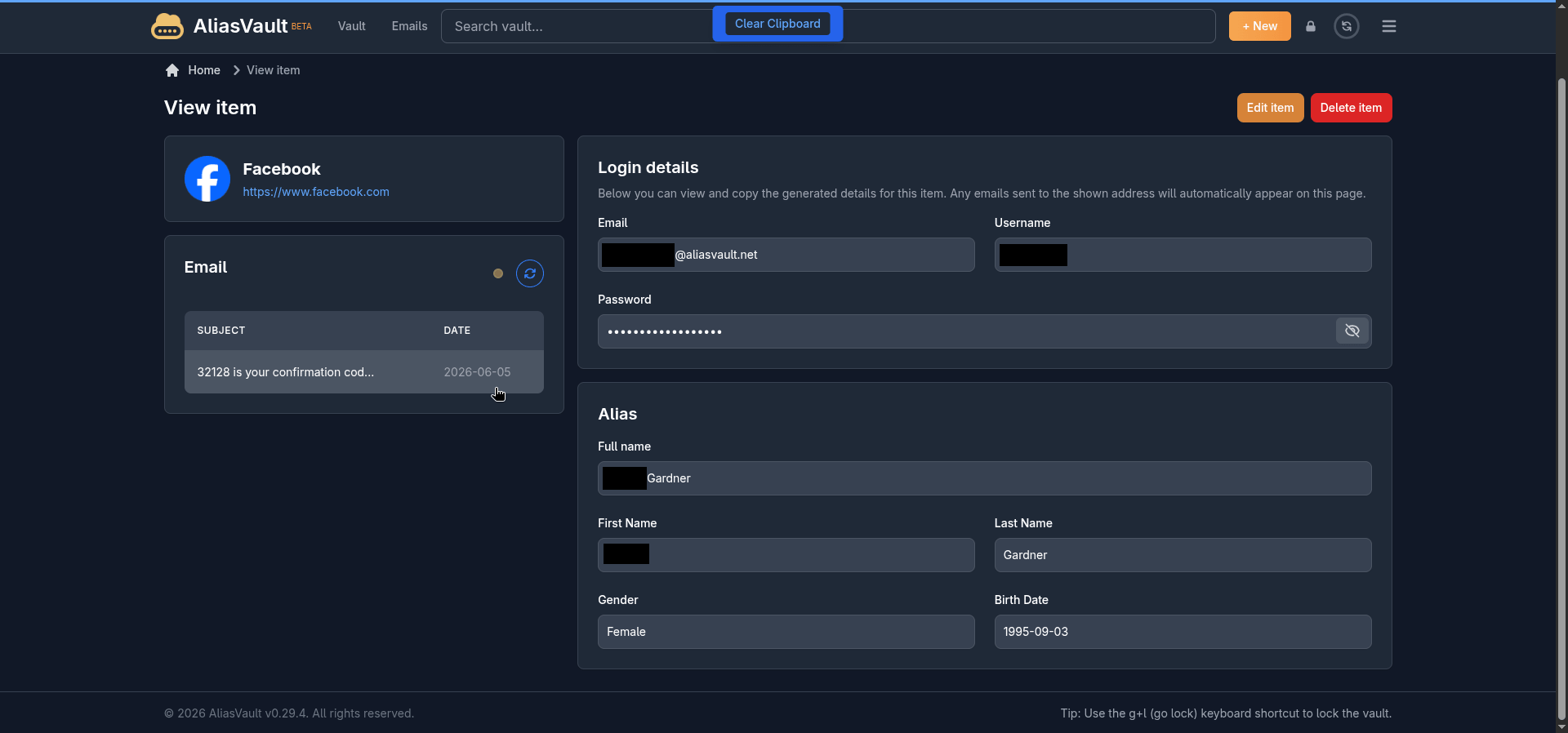
You give it a name and a website URL, hit Create, and AliasVault generates the whole package. A unique email address at the @aliasvault.net domain, a username, a strong password, and a fictitious identity complete with a first name, last name, gender, and birth date.
All of it is ready to use at signup for whatever service you are creating the alias for.
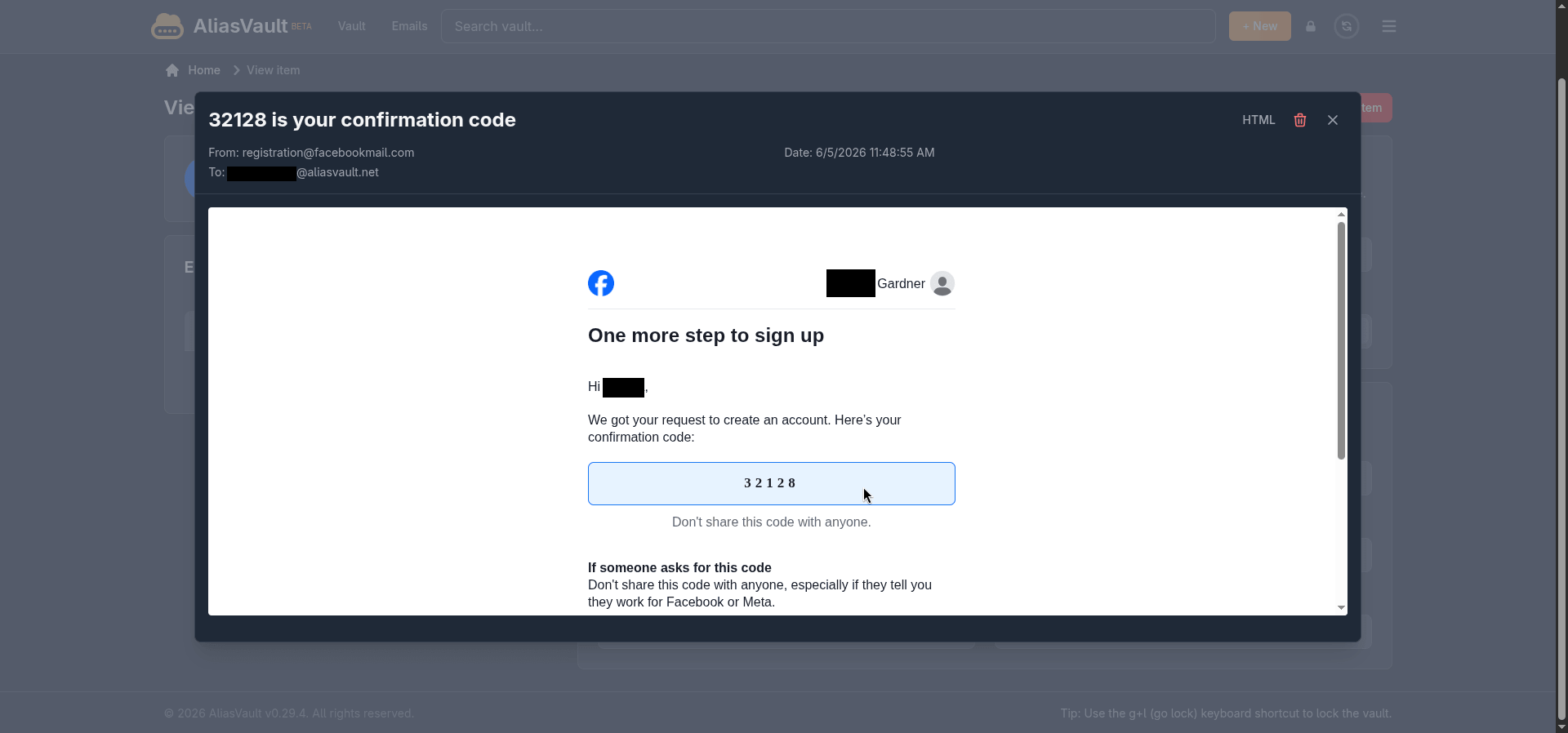
Any emails that land on that alias address show up directly on the item's page inside the vault. I tested this with Facebook, and it worked well enough, getting multiple emails, including the OTP needed to confirm the signup.
The only wrinkle was Facebook asking me to verify the account with a live selfie. ☠️
Another thing to keep in mind is that the built-in email server is currently receive-only.
You cannot reply to or forward emails from your alias addresses on the cloud version. It is a deliberate limitation for now, listed on the roadmap as a future paid feature, so if two-way alias email is something you need, that is worth factoring in.
The browser extension
AliasVault also has browser extensions available for Chrome, Firefox, Edge, Safari, and Brave. I tested it on Vivaldi using the Chrome extension, and the experience was clean.
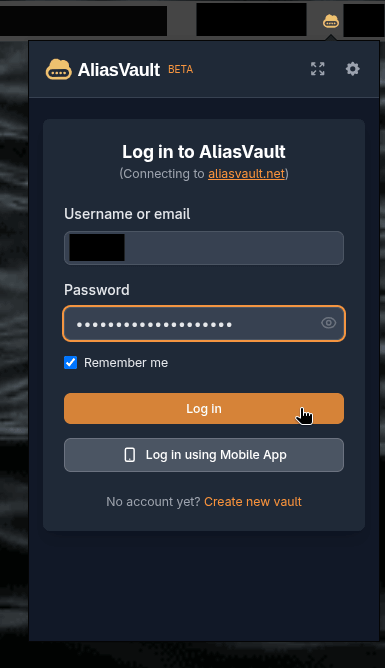
Logging in connects directly to aliasvault.net, and you get a "Log in using Mobile App" option here as you do on the web app if you would rather not type your master password. I didn't test this one, but it should work well.
Once inside, the extension mirrors the web app fairly closely.
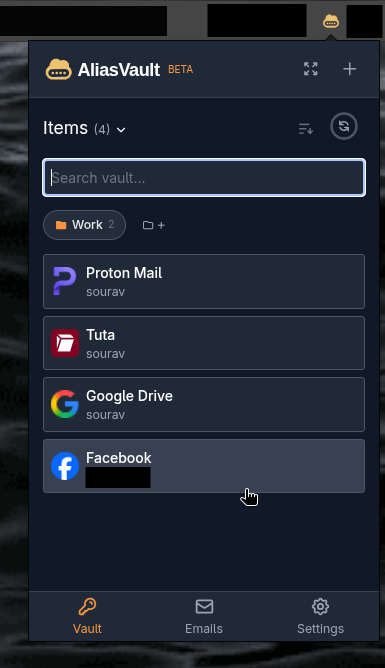
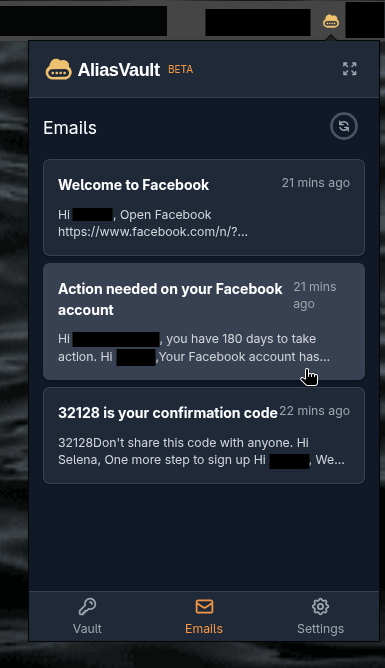
You get your full vault list with website icons, folder filters, a search bar, and a "+" button to add new items without leaving the browser. The Emails tab also works here, so you can check alias inbox activity without switching to the web app.
It even shows relevant saved credentials automatically when you land on a website you have a login stored for.
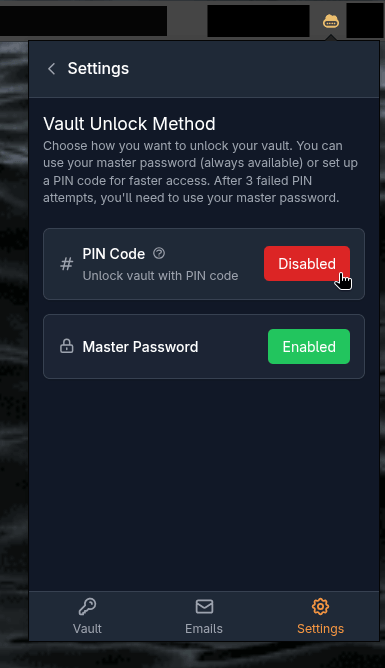
The Settings tab also has a few things worth knowing about. You can switch the vault unlock method between your master password and a PIN code, with the PIN falling back to the master password after three failed attempts.
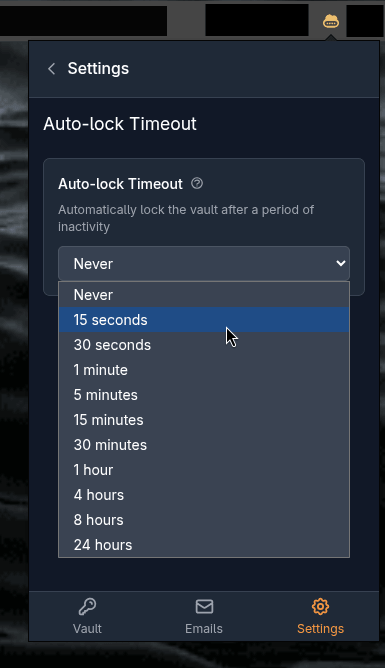
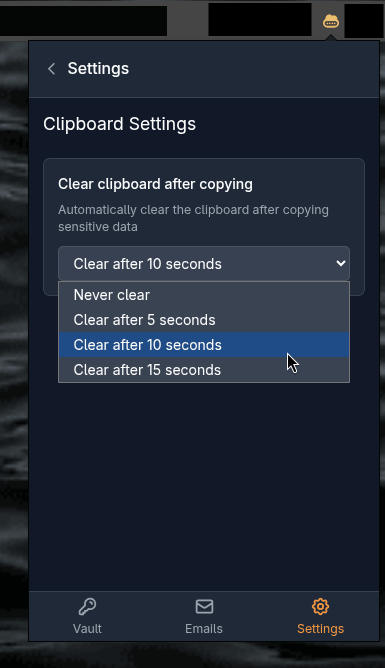
There is also an auto-lock timeout you can configure, ranging from 15 seconds all the way up to 24 hours, or never if that is your preference. Clipboard behavior is configurable too. Copied sensitive data is cleared automatically after 10 seconds by default, with options to change that to 5, 15, or never.
Closing words
AliasVault is one of those tools that makes you wonder why no one put these two things together sooner. A password manager that also handles email aliasing is something that Proton Pass does, but there are some limits involved.
While it is still in beta and missing a few things like bulk credential management and reply support for aliases, nothing about the current state feels rough or half-baked. If privacy matters to you and you have been running a password manager and a separate alias service side by side, this is worth a serious look.