KDE Gear 25.12.1 is now available as the first maintenance update to the latest KDE Gear 25.12 open-source software suite series with fixes for various KDE applications.
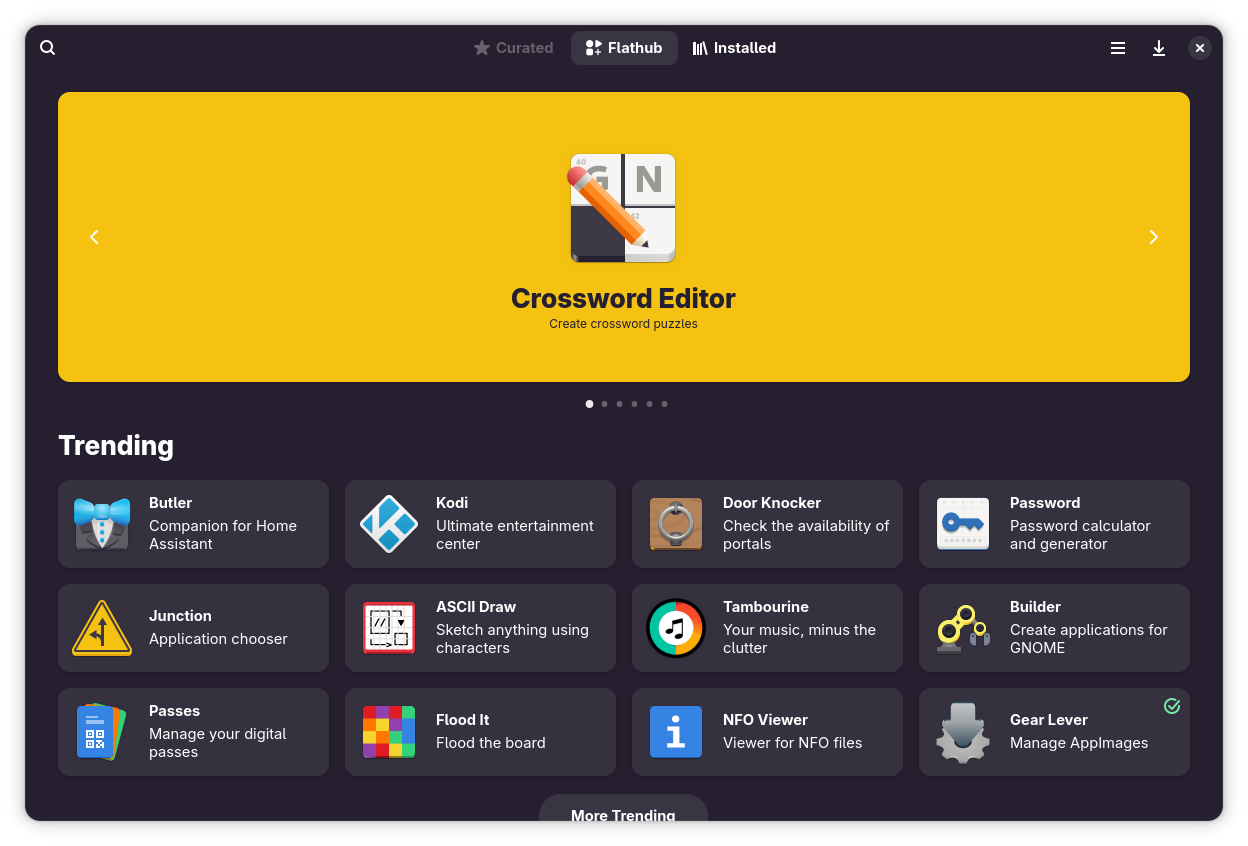
Do we need a separate, dedicated software center application for Flatpaks? I don't know and I don't want to go in this debate anymore. For now, I am going to share this new marketplace that I have come across and found intriguing.
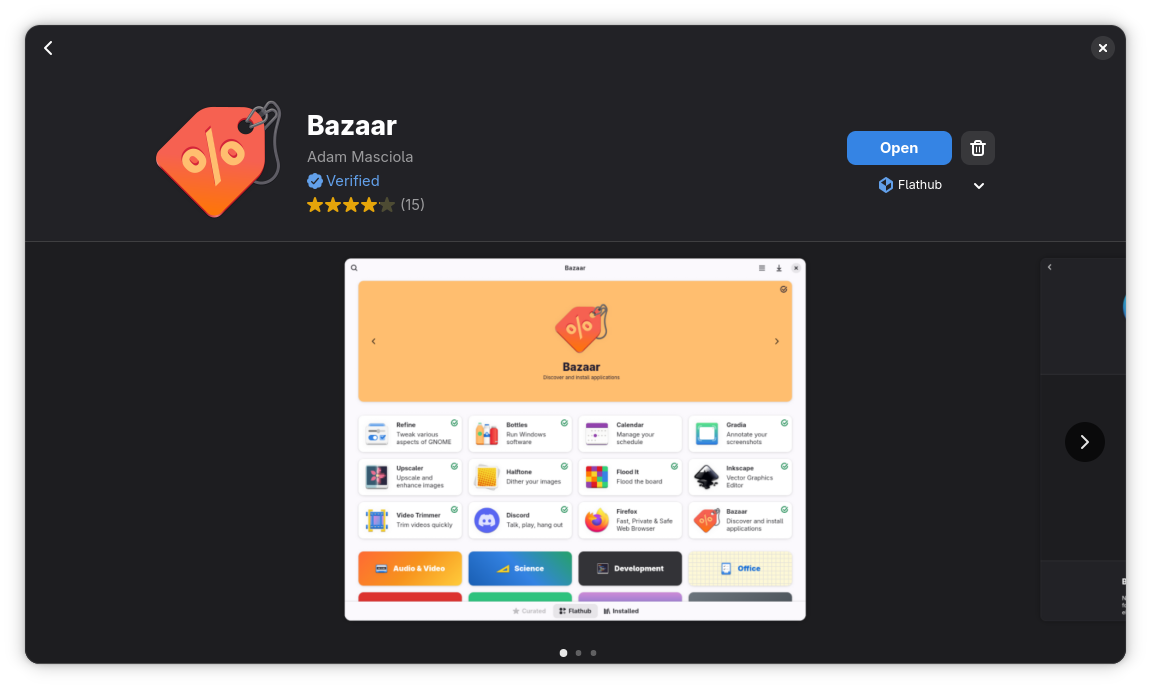
Bazaar is a modern Flatpak app store designed with GNOME styles. It focuses on discovering and installing Flatpak apps, especially from Flathub. In can se you did not know already, bazaar means market or marketplace. A suitable name, I would say.
Bazaar: More than just a front end for Flathub
As you'll see in the later sections, Bazaar is not perfect. But then nothing is perfect in this world. There are scopes for improvement but overall, it provides a good experience if you are someone who frequently and heavily use Flatpaks on GNOME desktop. There is a third-party KRunner plugin for KDE Plasma users.
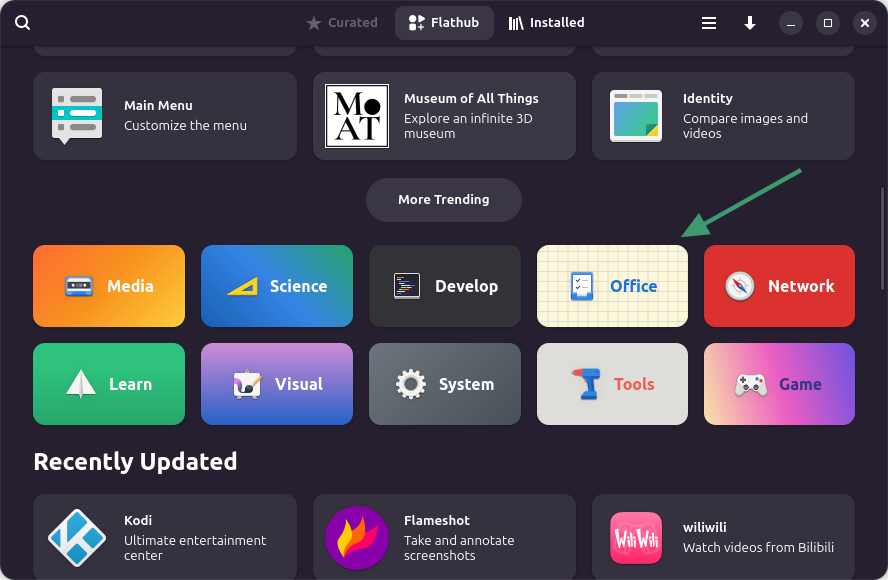
Like GNOME software, several app categories are available in Bazaar. You can find them on the homepage itself. If you are just exploring new apps of your interest, this helps a little.
App categories
Search and install an app
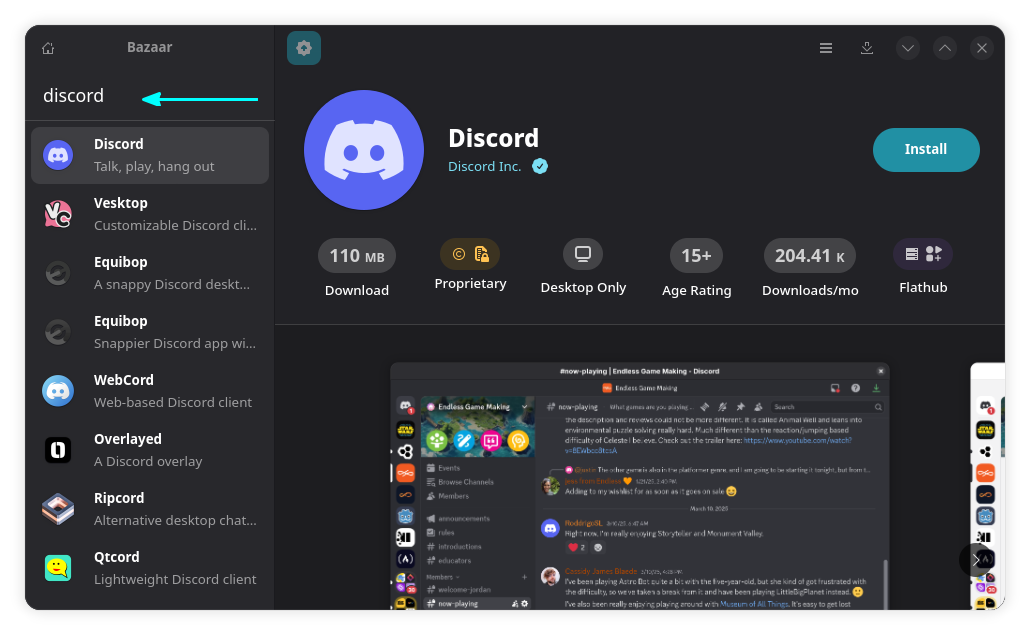
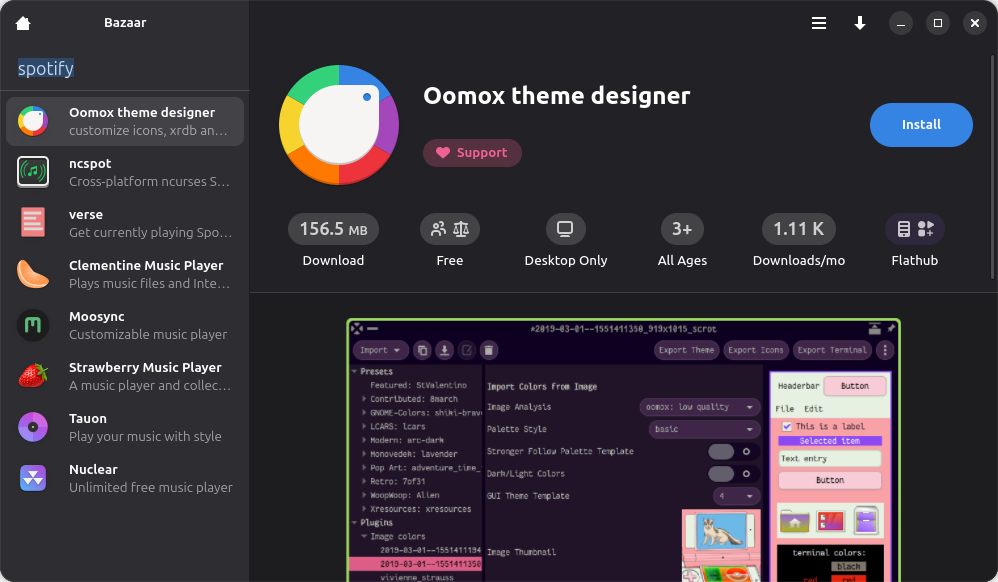
Of course, you can search for an application, too. Not only you can search with its name, you can also search for its type. See, Flathub allows tagging apps and this helps 'categorizing' apps in a way. So if you search for text editor, it will show the applications tagged with text editor.
Search Apps
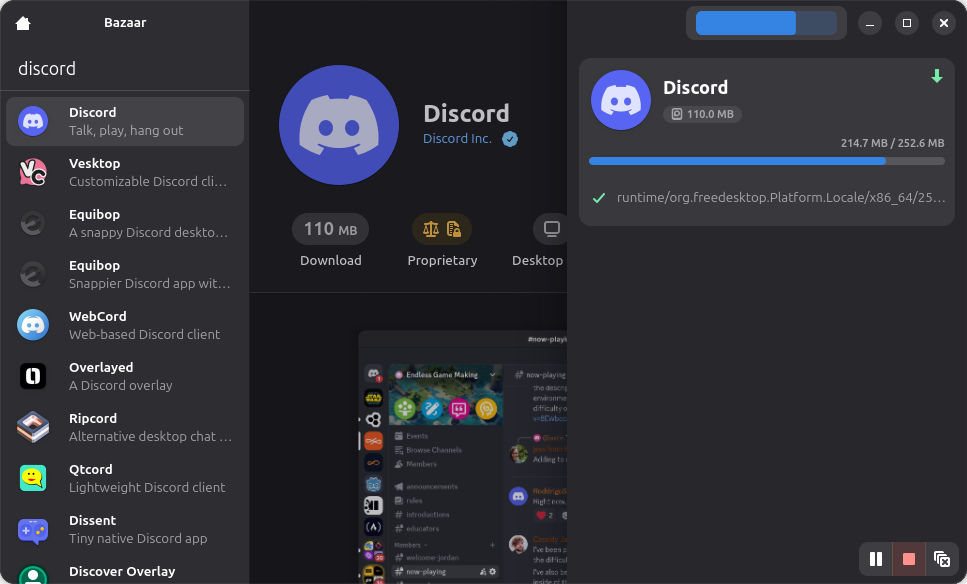
When you hit the install button, you can see a progress bar on the top-right. Click on it to open the entire progress bar as a sidebar.
Progress bar
It shows what items and runtimes are being installed. You can scroll down the page of the package to get more details, screenshots of the project, and more.
Accent colors
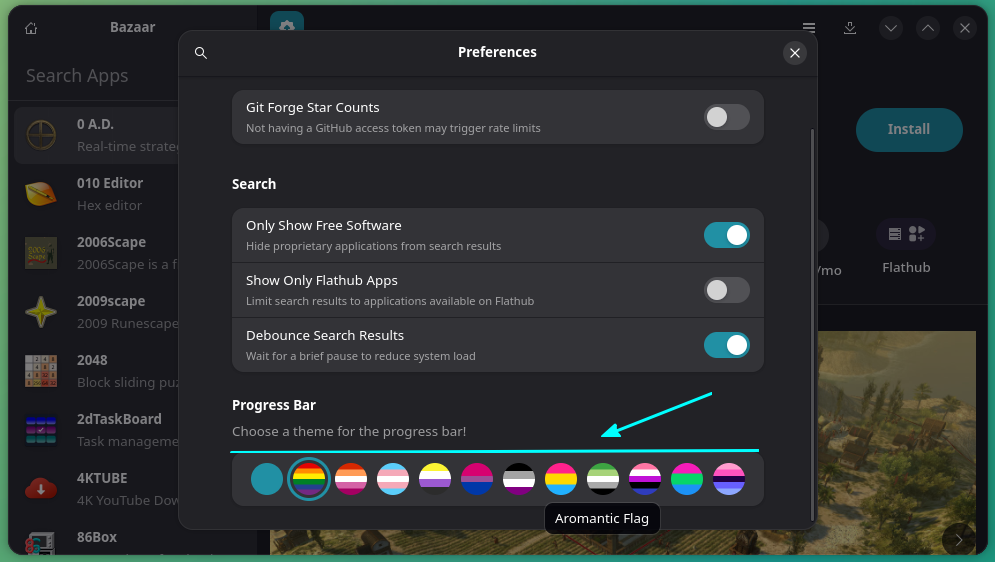
The progress bar you saw above can be customized a little. Click the hamburger menu to access preferences and then go to the Progress Bar section. You'll find the options to choose a theme for the progress bar. These themes are accent colors represent LGBTQ and their sub-catrgories.
Progress bar style settings
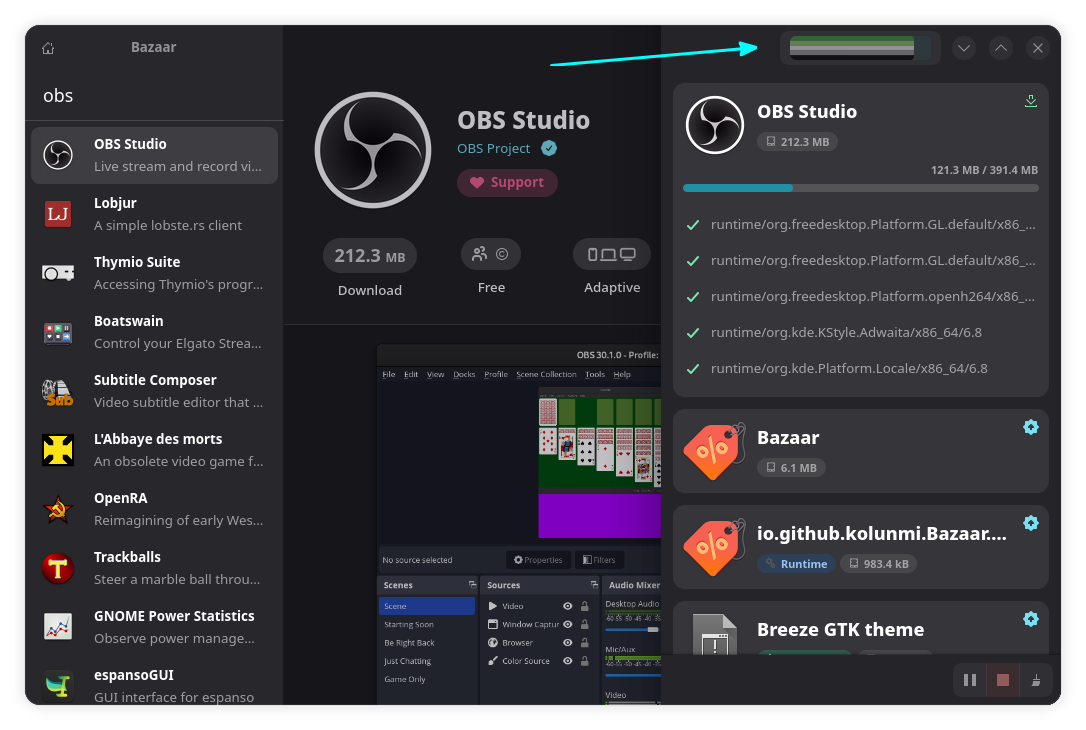
You can see an Aromantic Flag applied for the progress bar in the screenshot below.
Progress bar style applied
Show only open source apps
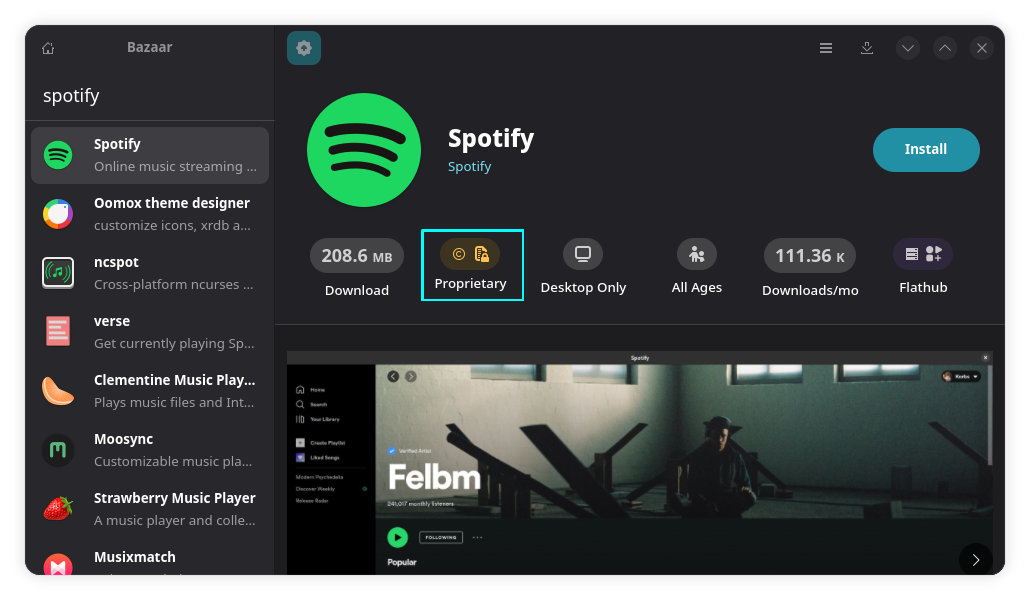
Flathub has both open source and proprietary software available. The licensing information is displayed on an individual application page.
Non-free apps in search result
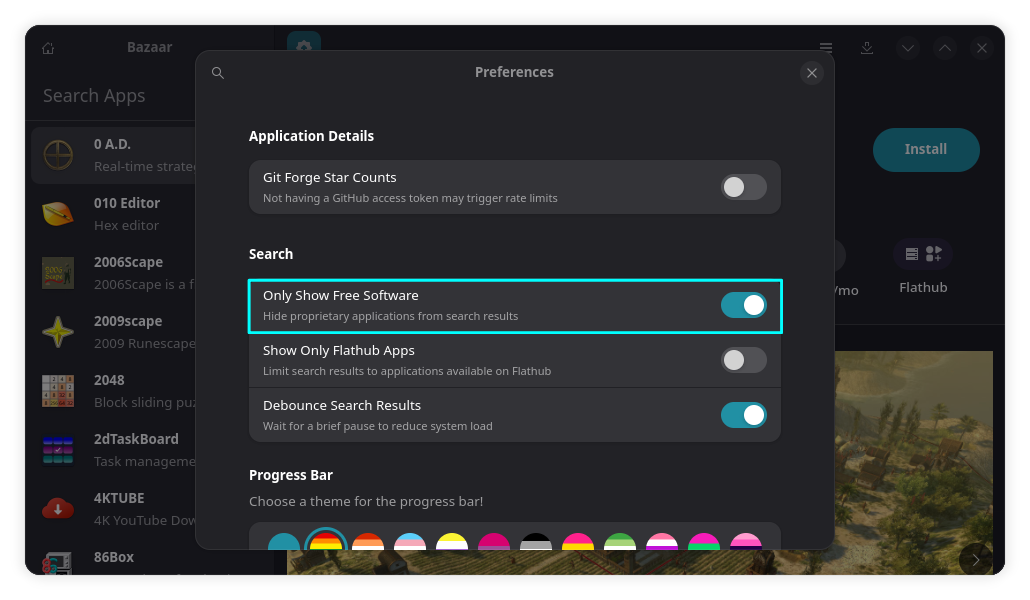
Now, some people don't want to install proprietary software. For them, there is the option to only show open source software in Bazaar.
You can access this option by going to preferences from the hamburger menu and toggle on the button, "Show only free software".
Refresh the content using the shortcut CTRL + R and you should not see proprietary software anymore.
No non-free software in results
Application download statistics
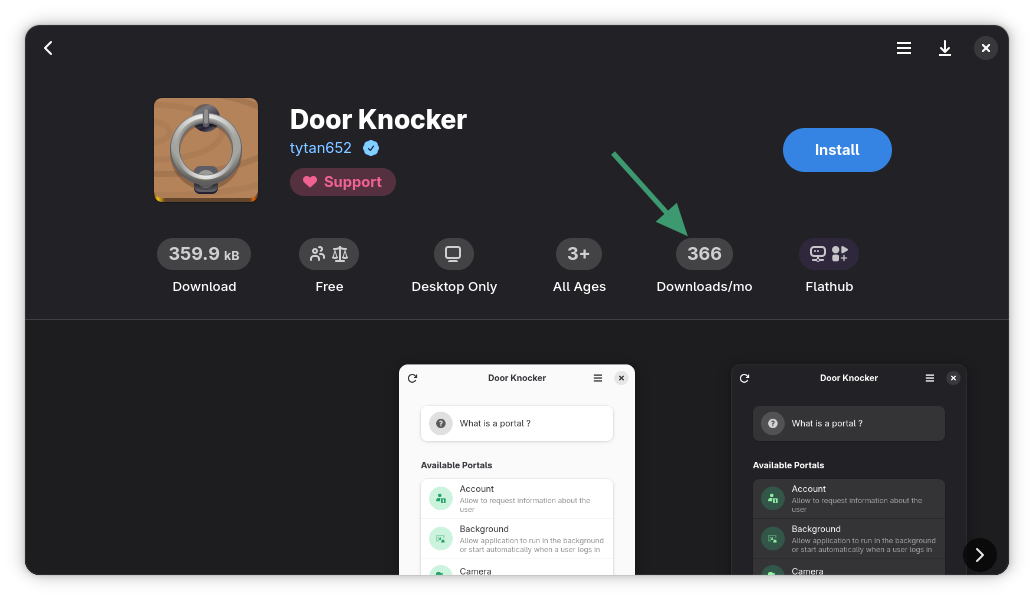
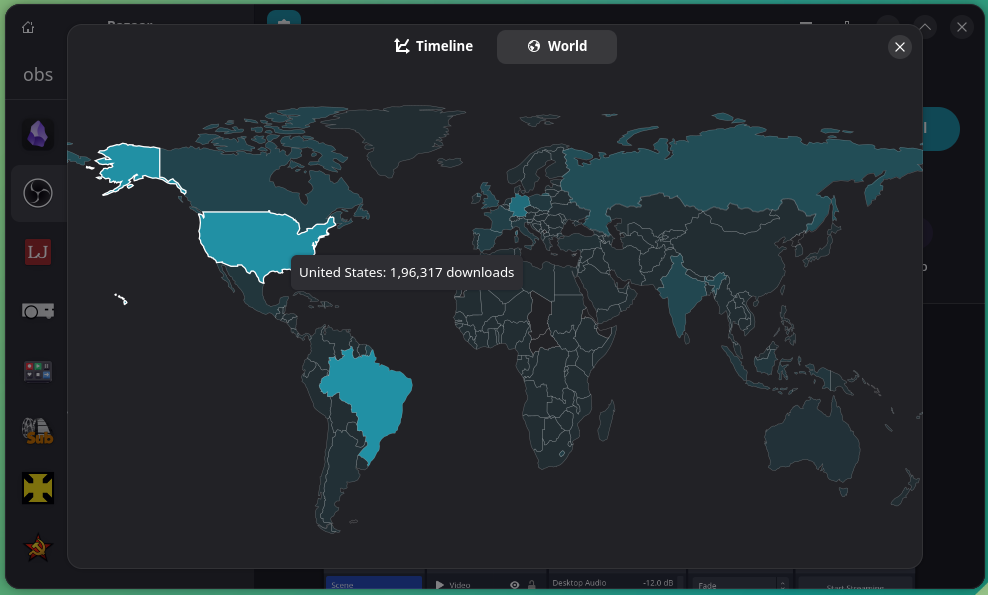
In an app page, you can click on the Monthly Downloads section to get a chart view and a map view.
The map view shows the download per region of that app.
Download per location
The chart view gives you an overview of the download stats.
Download overview chart
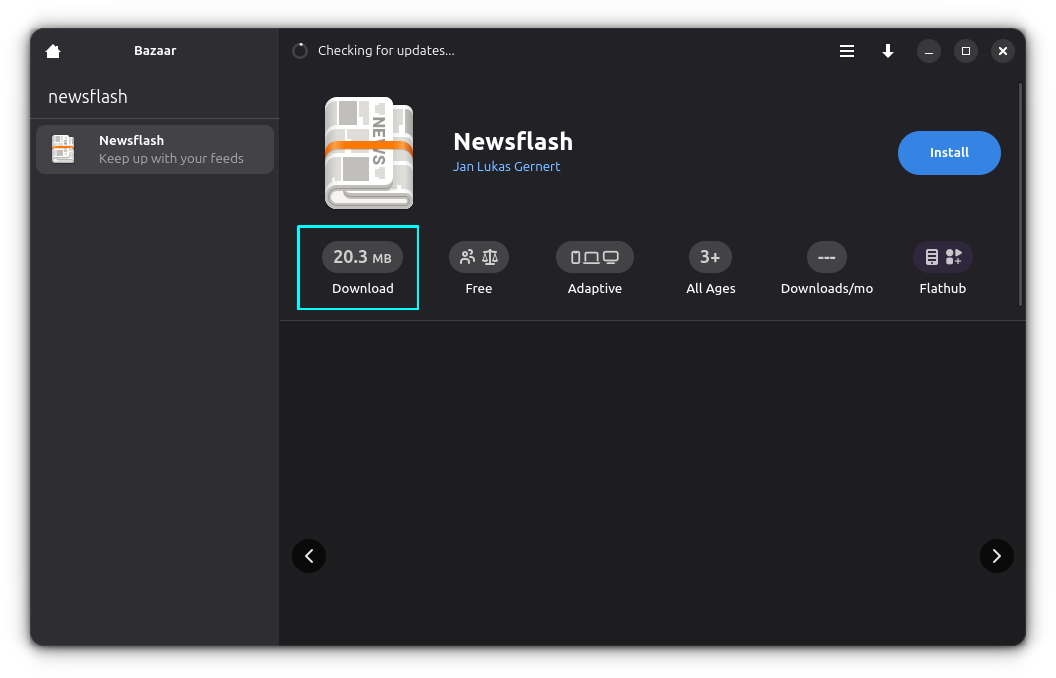
Other than that, if you click on the download size of an application in the app page:
Click on download size
You can see a funny download size table, comparing the size of the Flatpak applications with some facts.
Funny download size chart
Easily manage addons
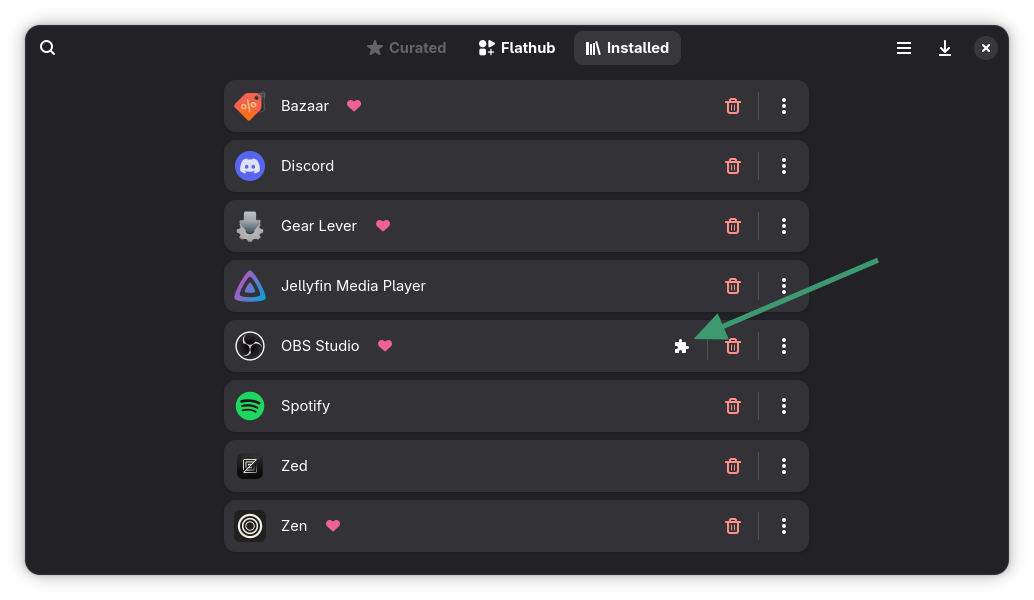
Some apps, like OBS Studio, have optional add-on packages. Bazaar indicates the availability of add-ons in the Installed view. Of course, the add-ons have to be in Flatpak format. This feature comes from Flathub.
When you click the add-ons option, it will show the add-ons available for installation.
Manage add-ons
Removing installed Flatpak apps
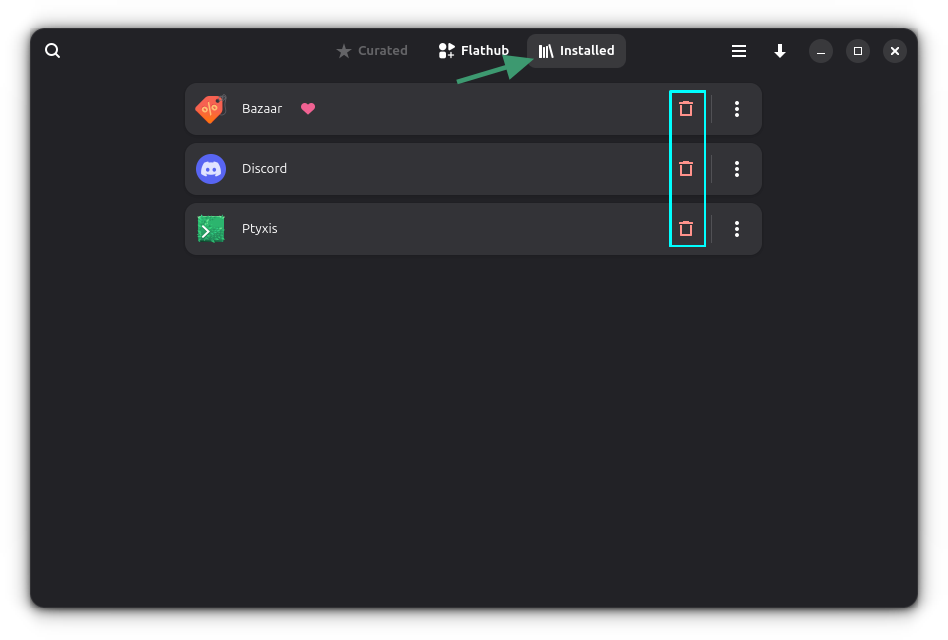
You can easily remove installed Flatpak apps from the Installed view.
Remove applications
This view shows all the installed Flatpak packages on your system, even the ones you did not install via Bazaar.
More than just Flathub
By default, Bazaar includes applications from Flathub repository. But if you have added additional remote Flatpak repositories to your system, Bazaar will include them as well.
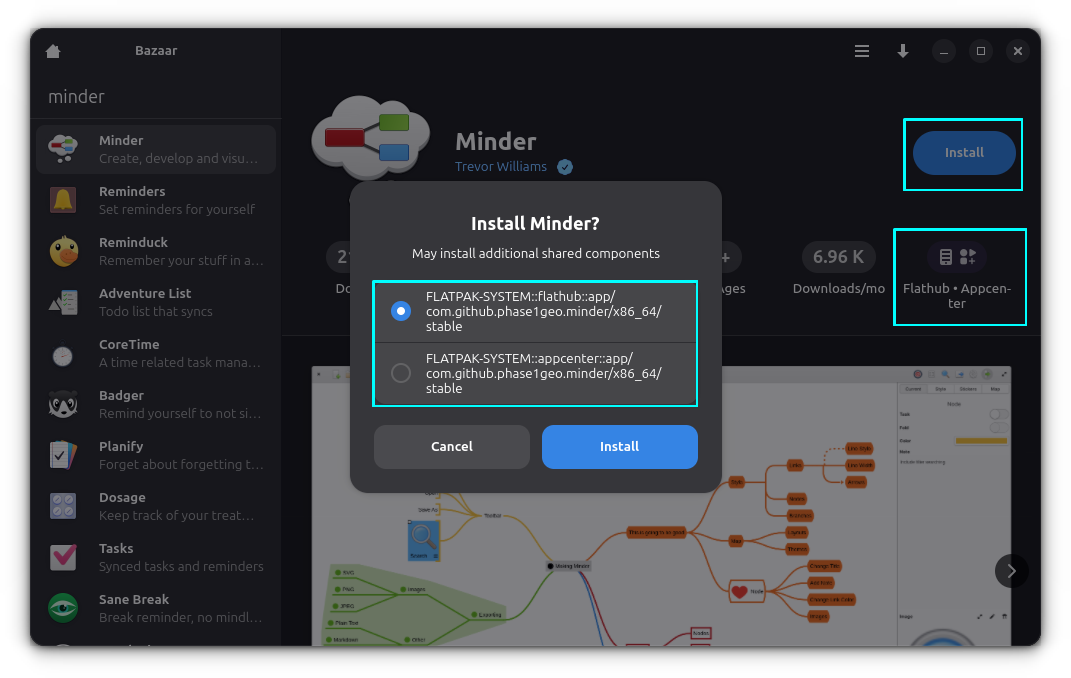
It's possible that an application is available in more than one remote Flatpak repositories. You can choose which one you want to use from the application page.
Select an installation repository
Although, I would like to have the ability to filter applications by repositories. This is something that can be added in the future versions.
Installing Bazaar on Linux
No prizes for guessing that Bazaar is available as a Flatpak application from Flathub. Presuming that you have already added Flathub remote repo to your system, you can install it quickly with this command:
flatpak install flathub io.github.kolunmi.Bazaar
If you are using Fedora or Linux Mint, you can install Bazaar from the software center of respective distributions as well.
Wrapping Up
Overall, this is a decent application for Flatpak lovers. There is also a 'curated' option available for distributors. Which means if some new distros want to package Bazaar as ist software center, they can have a curated list of applications for specific purpose.
Is it worth using it? That is debatable and really up to you. Fedora and Mint already provide Flatpak apps from their default software center. This could, however, be a good fit for obscure window managers and DEs. That's just my opinion and I would like to know yours. Please share yours in the comment section.
A desktop-wide search application can be the key to speeding up your workflow by a significant amount, as anything you might look for will almost be at your fingertips at any given moment.
Today, we'll be looking at a GUI desktop application that does exactly that.
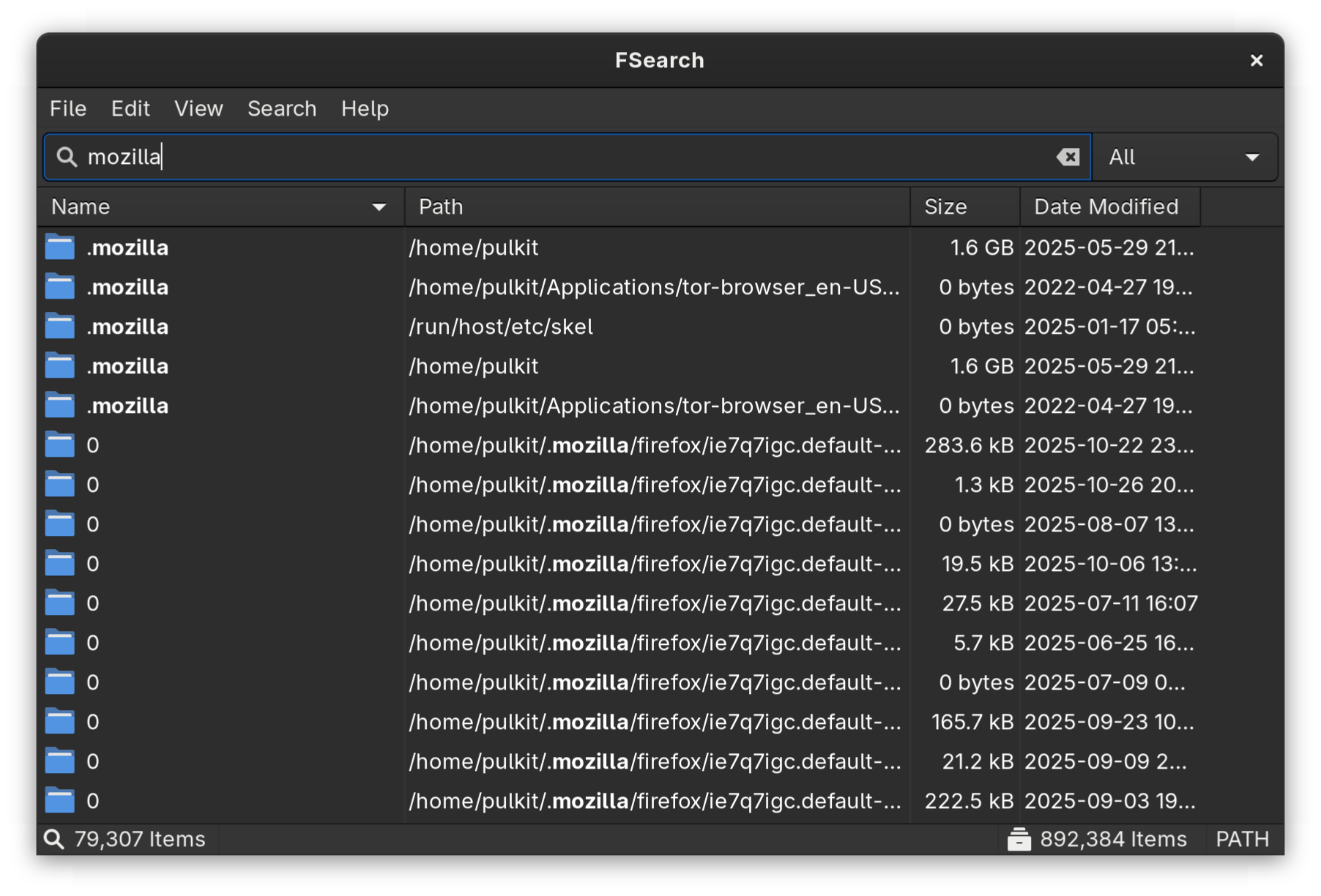
It works in an efficient way without slowing down your system, giving you results as you type the keywords in. The way it does this is by indexing the files from the directories in advance, updating them at a fixed interval, and storing that information to search through whenever the application is used.
It is written in C and based on GTK3, which is ideal for GNOME users but might not look as good on Qt based desktop environments like KDE. Let's look at some of the features this utility offers.
Index Inclusion/Exclusion
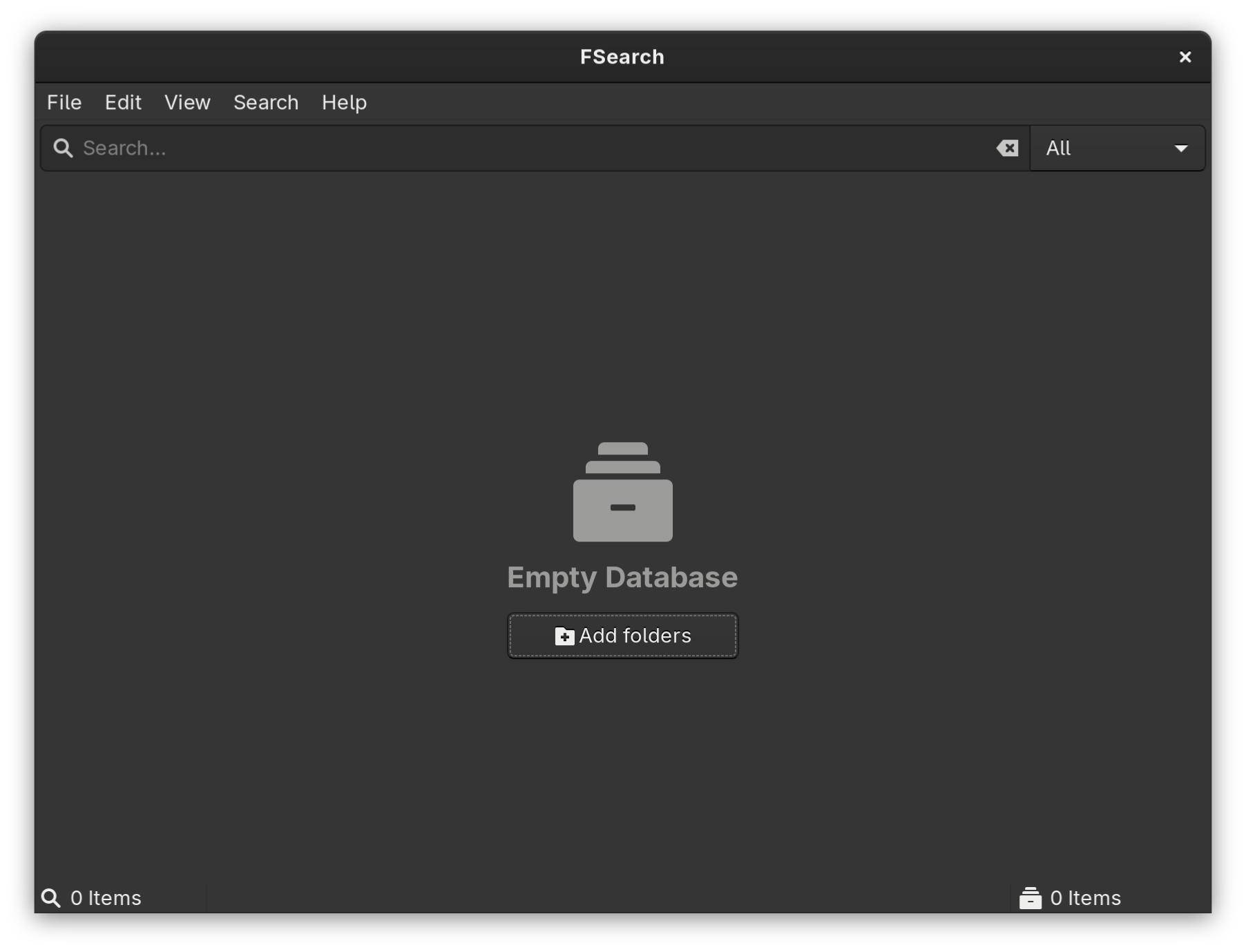
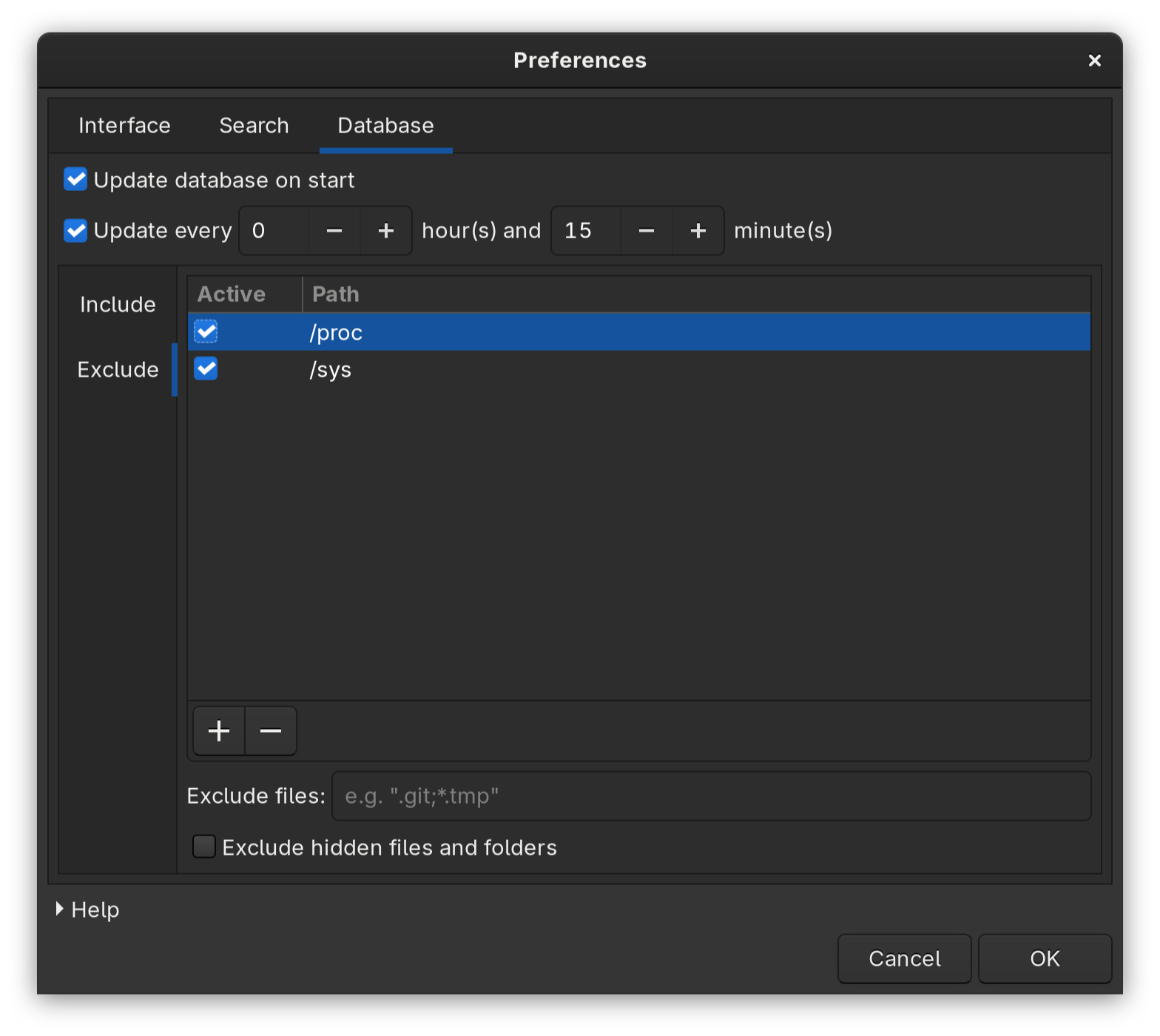
The first thing that you need to do after installation and the most crucial aspect of all is to specify to the utility what are the directories that you want it to search for anything in. Besides the inclusion category, you can also specify what directories you want excluded from the search. Another extremely helpful option is to exclude the hidden files from being searched which can be the case if you only want to search the files as you see them on your file explorer.
Besides that, you can also configure how often the database needs to be refreshed and updated. This will depend on how often the relevant files on your system change, and hence should be your own choice.
Wildcard and RegEx Support
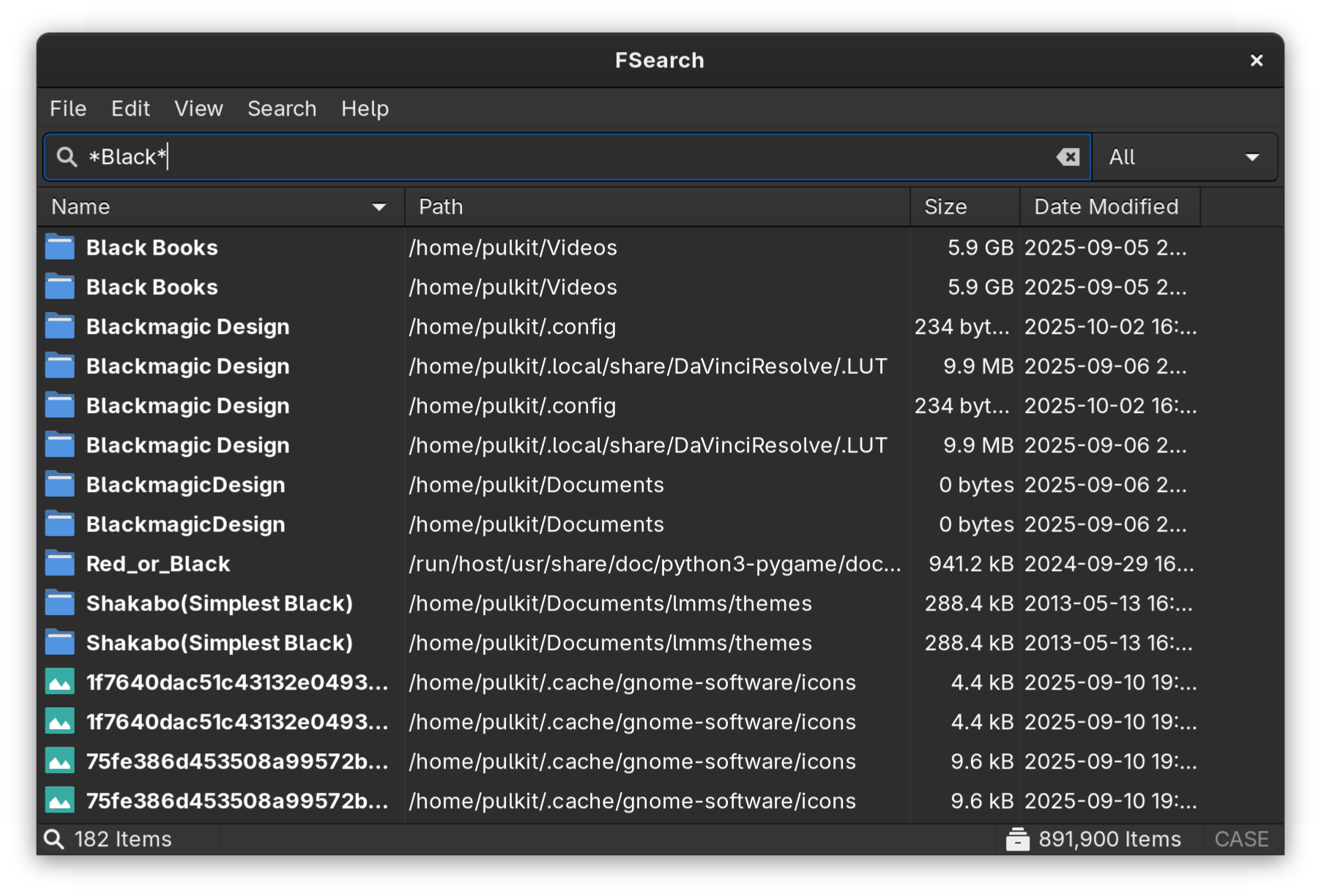
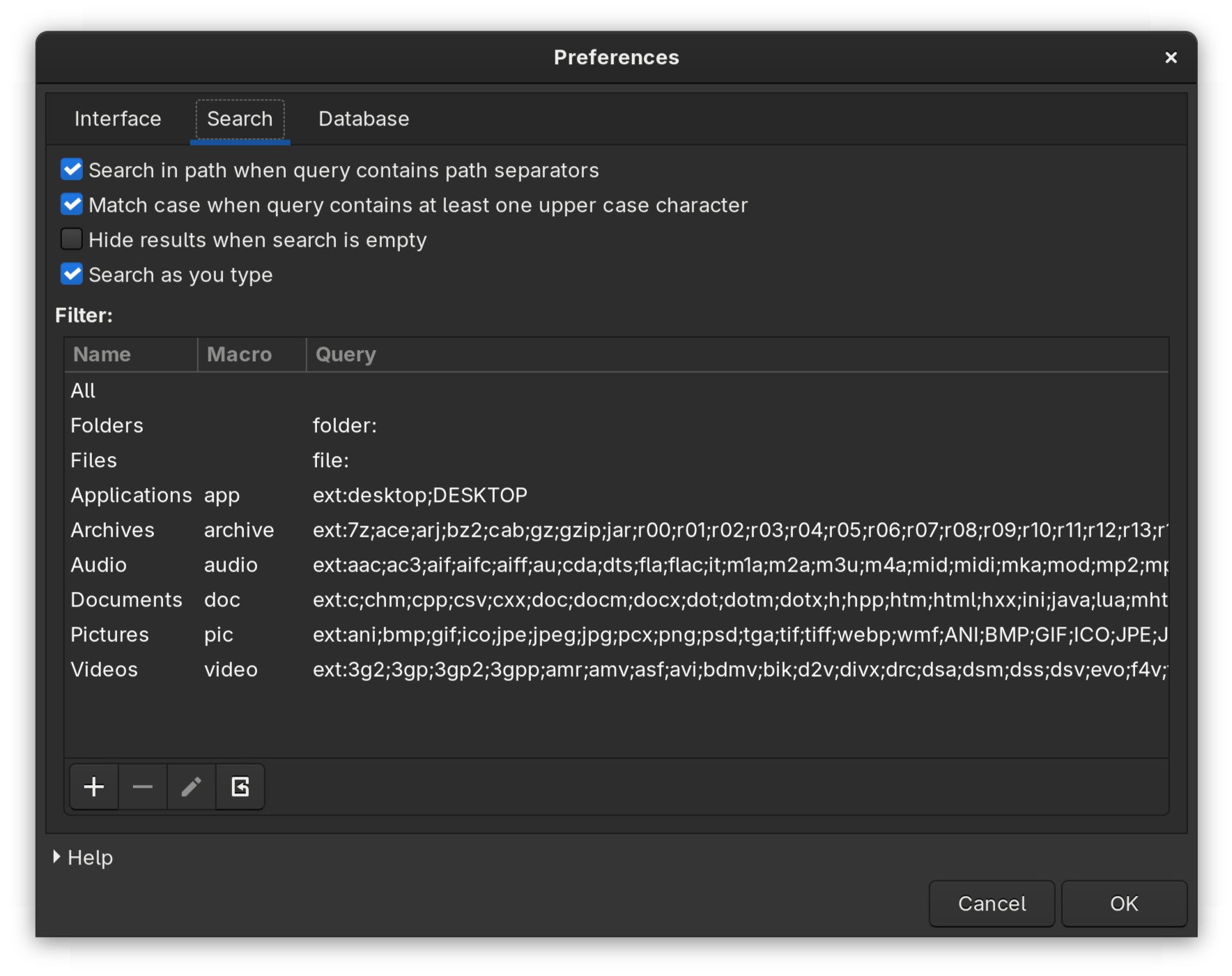
The search input supports the wildcard mode by default, which are often used for specifications on the command line. For example, if I want to search for all files that contain "Black" in the name, I can give the input as such:
Here, "*" essentially means everything. So any files with anything at all before and after the word "Black" will be listed. There are many more wildcards like this such as "?" for one missing character, and "[ ]" specifying ranges. You can read more about them here.
The other option is to specify the search results by the RegEx formatting, which is a different style in itself. It can be activated using Ctrl+R, and switched by the same.
Fast Sort
You can quickly sort out the results based on name, path, size or last modification date right from the interface, as the results are shown with these details present. All it takes is one click on the right detail header (or two clicks if you want them in a descending instead of an ascending order).
Filetype Filter
The searched files can be of different categories defined in the utility itself, which are defined by the extensions of the files that the results yield. There is a button on the right of the search bar where the search results category can be specified, the default being "All". The categories are:
All
Files
Folders
Applications (such as .desktop)
Archives (such as .7z, .gzip, .bz)
Audio (such as .mp3, .aac, .flac)
Documents (such as .doc, .csv, .html)
Pictures (such as .png, .jpg, .webp)
Videos (such as .mp4, .mkv, .avi)
The excellent feature is that these categories and their list of extensions are modifiable. You can add or change any of the options if it doesn't fit your needs well.
Search in Specific Path
Another interestingly important search option is to also search in the path of the filenames. This becomes relevant when you remember the approximate location of the file or part of the path or something as such. It seems like a minor detail but can be a real savior when the appropriate time arises. An example of it can be this:
This mode can be activated using the keyboard shortcut Ctrl+U.
Other Features
There are other minor features that help in the customization, such as toggling the case sensitivity of the search terms (which can also be done with the Ctrl+I keyboard shortcut), single-clicking to open files, pressing Esc to exit, remembering window size on closing, etc.
Installing FSearch on Linux
FSearch is available on various distributions in multiple different ways. First, to cover the distro-independent option, Flatpak. FSearch exists on Flathub and can be installed with a simple search on any distribution where Flathub is enabled internally in the app store such as Fedora. If not from the store, you can find the .flatpakref file here and (considering it is downloaded in the Downloads folder) install it with:
If none of these apply, you can always install from source or find instructions on the official website.
Final Thoughts
FSearch does what it claims to do without exceptions and hurdles. It is very fast, not very taxing on the hardware, has very sensible configuration options, and looks pretty good while doing its job. A huge recommendation from my side would be to add a keyboard shortcut to open FSearch (the process will depend on your distribution), something very accessible like Shift+S perhaps to easily open the utility and use it immediately.
I know that for many Linux users, nothing replaces the find command clubbed with xargs and exec but still, not all desktop Linux users are command line ninjas. That's why desktop search apps like FSearch, ANGRYsearch and SearchMonkey exist. Nautilus' built-in file search works well, too.
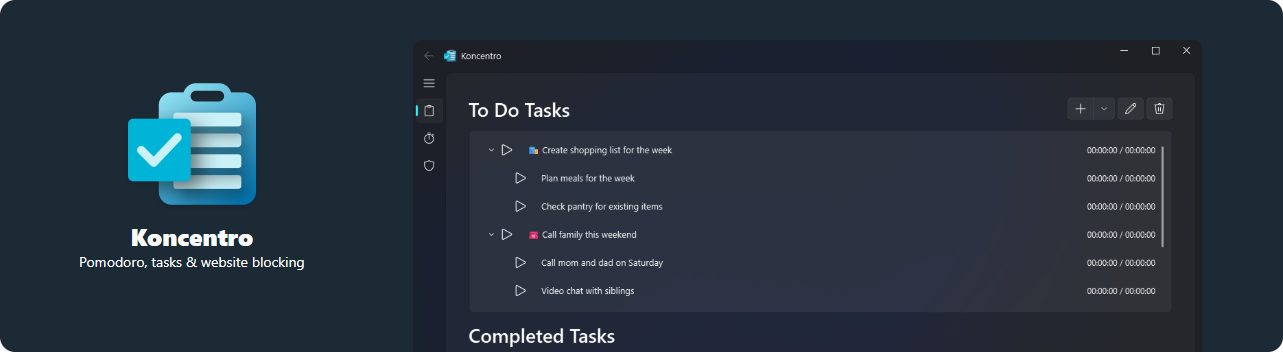
There is no shortage of to-do apps in the Linux ecosystem, but few are designed to keep you focused while you work. Koncentro takes a direct approach by bundling a versatile task list, a Pomodoro-style timer, and a configurable website blocker into one tidy solution.
What is Koncentro exactly?
Koncentro is a free, open-source productivity tool, inspired by the likes of Super Productivity and Chomper. The project is actively developed by Bishwa Saha (kun-codes), with source code, issue tracking, and discussions hosted on GitHub. Built with a sleek Qt 6 interface echoing Microsoft’s Fluent Design language, this app pairs modern aesthetics with solid functionality.
The latest release, version 1.1.0, arrived earlier this month with new features and quality-of-life improvements, including sub-tasks and a system-tray option.
That said, it's not without quirks, and first-time users may hit a few bumps along the way. However, once you get past the initial hurdles and multistep setup, it becomes a handy companion for getting things done while blocking out common distractions.
In this review, we examine what sets Koncentro apart from the to-do crowd and help you determine whether it is the right fit for your workflow.
Bringing Koncentro’s methods into focus
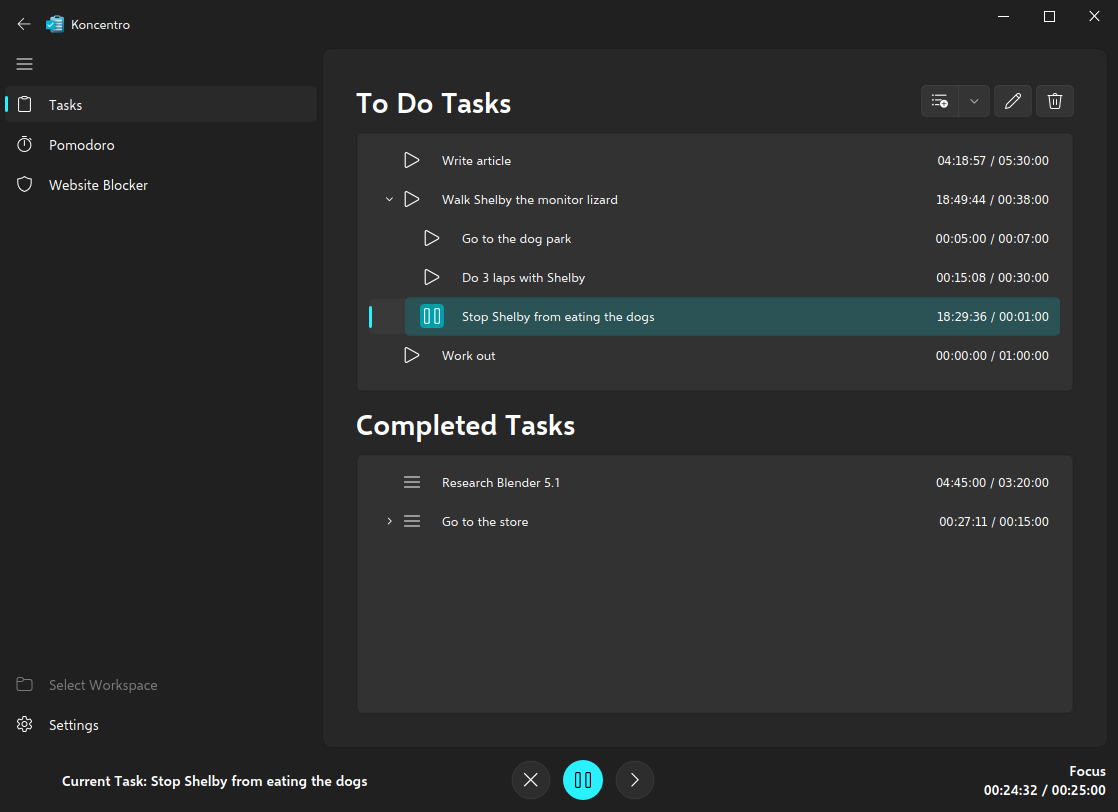
It is rare to find an app that gives you everything you need in one go without becoming overstuffed or cumbersome to use. Koncentro strikes a solid balance, offering more than to-do apps that stop at lists and due dates without veering into overwhelm.
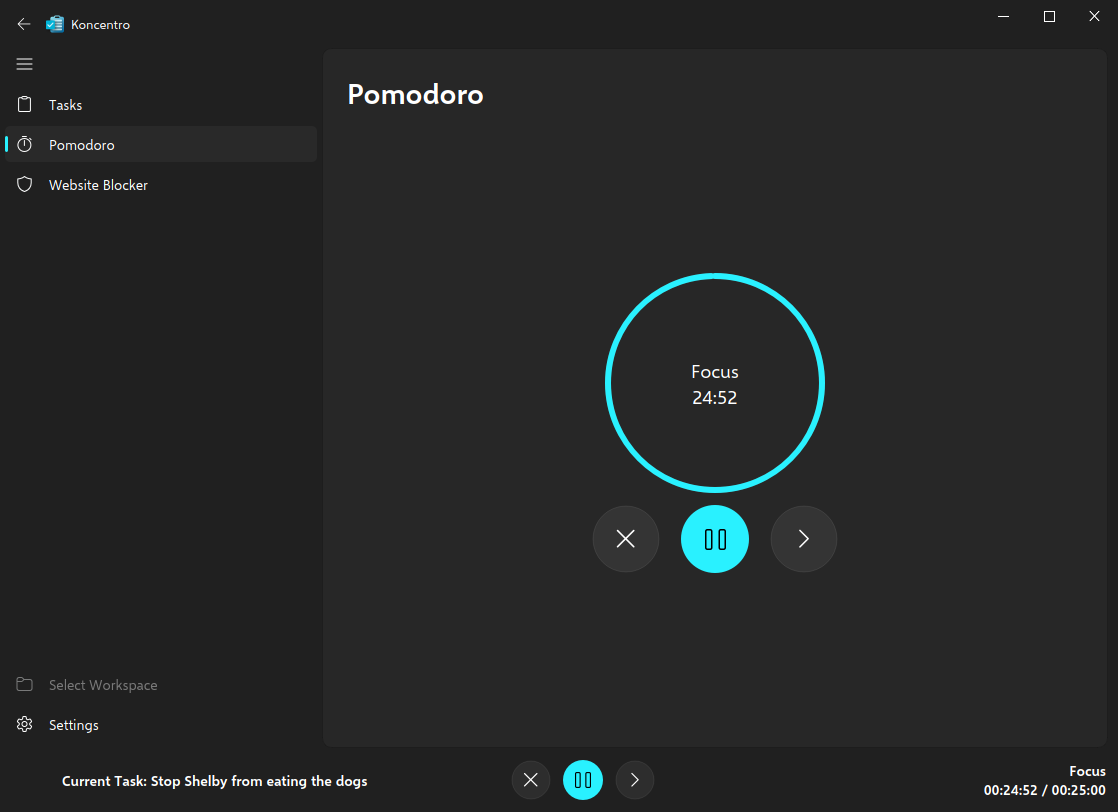
The pomodoro timer in Koncentro during a focus period
It combines the Pomodoro technique with timeblocking, emphasizing an economical approach where time is the primary unit of work. As such, it caters to an audience that aims to structure the day rather than the week.
In fact, there is no option to add tasks with specific dates — only times. This omission is not a limitation so much as a design choice. It fits the Pomodoro philosophy of tackling work in short, focused intervals, encouraging you to act now rather than plan for later. It makes Koncentro perfect for day-to-day activities, but you may need to find another solution if you're looking for long-term task tracking.
Backing up this standard functionality is a snazzy website blocker to help you stave off distractions while you get down to work.
The hands-on experience
In my experience, Koncentro proved to be quite pleasant to use, as someone who relies on similar apps in my daily life. In this section, I'll focus on the overall experience of using the app from a fresh install onward.
Using Koncentro
📋
While Koncentro features a distinct Pomodoro timer, I will not discuss this feature in depth in this section.
First run
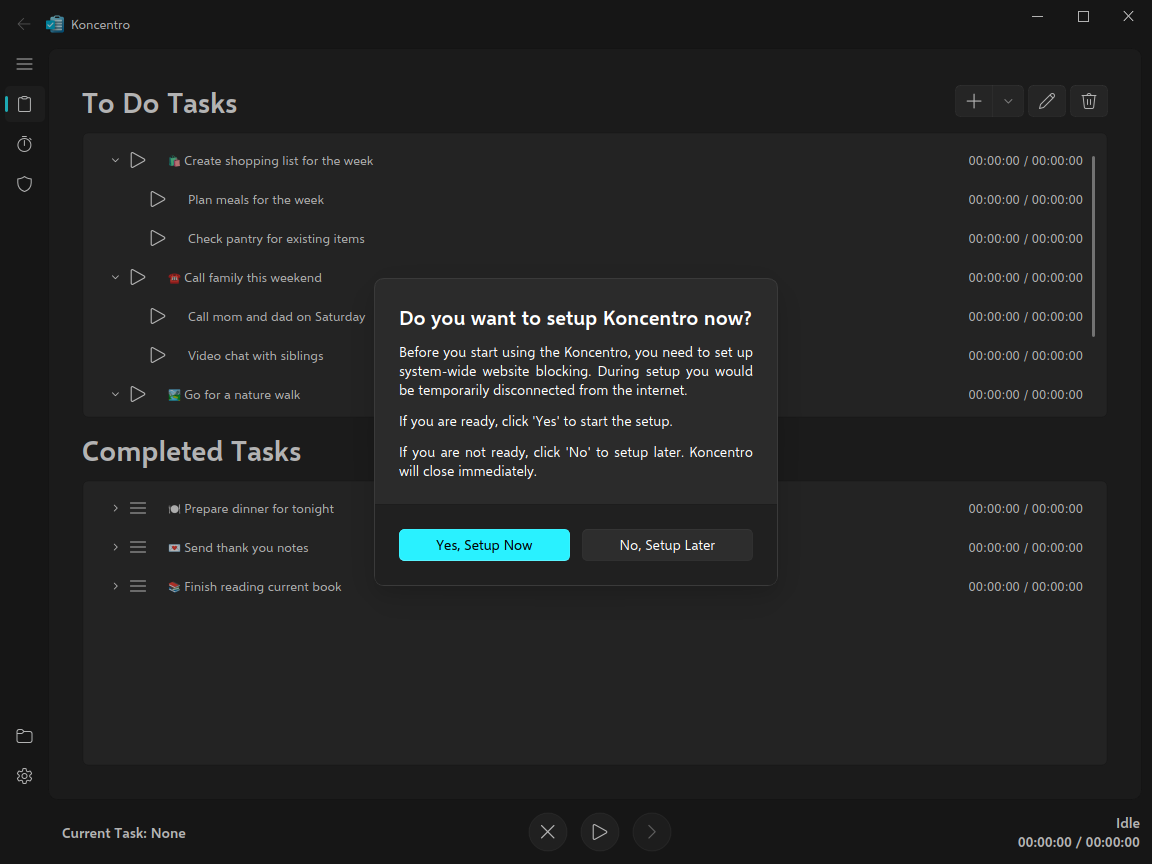
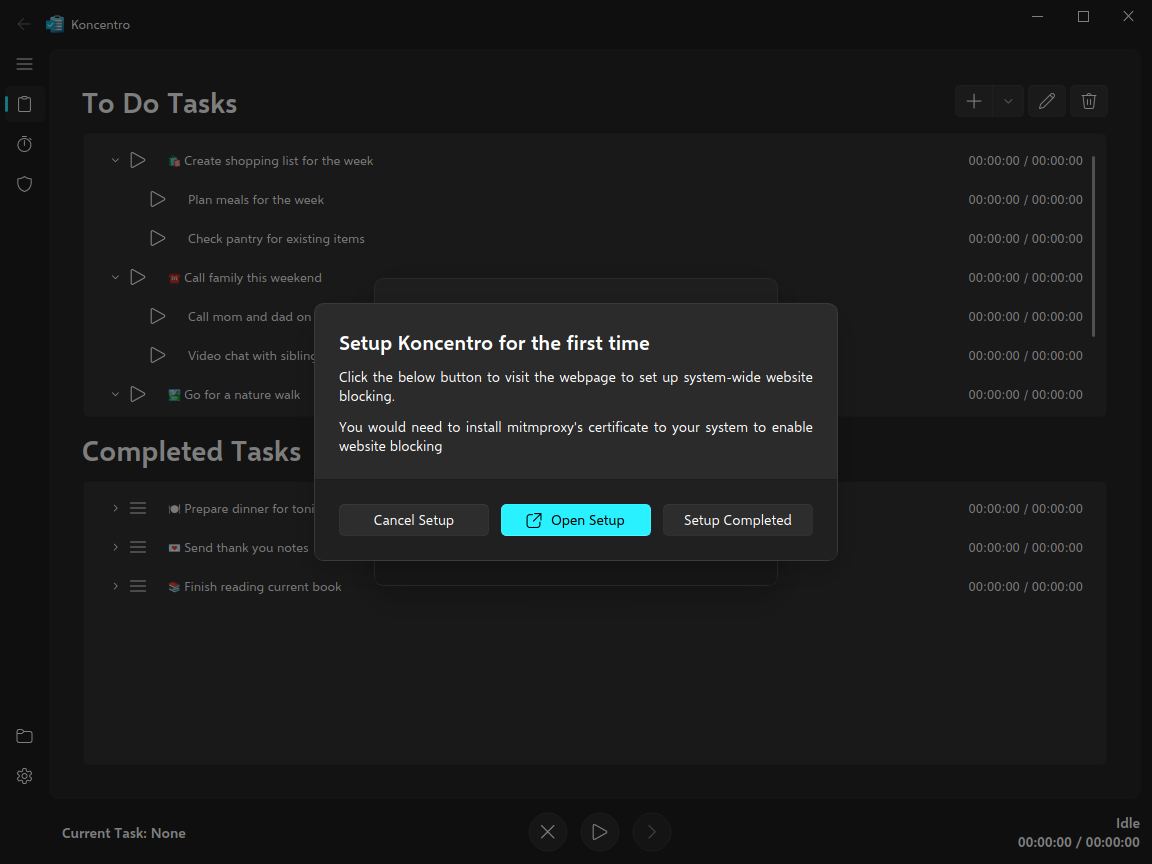
On the first run, Koncentro will guide you through setting up its website blocking feature; the app's core function outside simple task management. In order for this to work, the system must temporarily disconnect from the internet, since the app must set up a proxy to facilitate website blocking. All filtering happens locally; no browsing data is sent anywhere outside your machine. I'll explain how this works when we get to the website blocker in detail.
The first of two setup dialogs in Koncentro
🚧
Note: The proxy Koncentro relies on runs on port :8080, so it may conflict with other services using this port. Be sure to check for any conflicts before running the setup.
The second setup dialog in Koncentro
Once you've managed to set it up (or managed to bypass this step), Koncentro will walk you through an introductory tutorial, showing how its primary features work. Once the tutorial is completed, you can rename or remove the default workspace and tasks.
🚧
Be aware that there is a known bug on X11, the tutorial traps focus and may not be able to exit until the app is restarted.
Straightforward task management
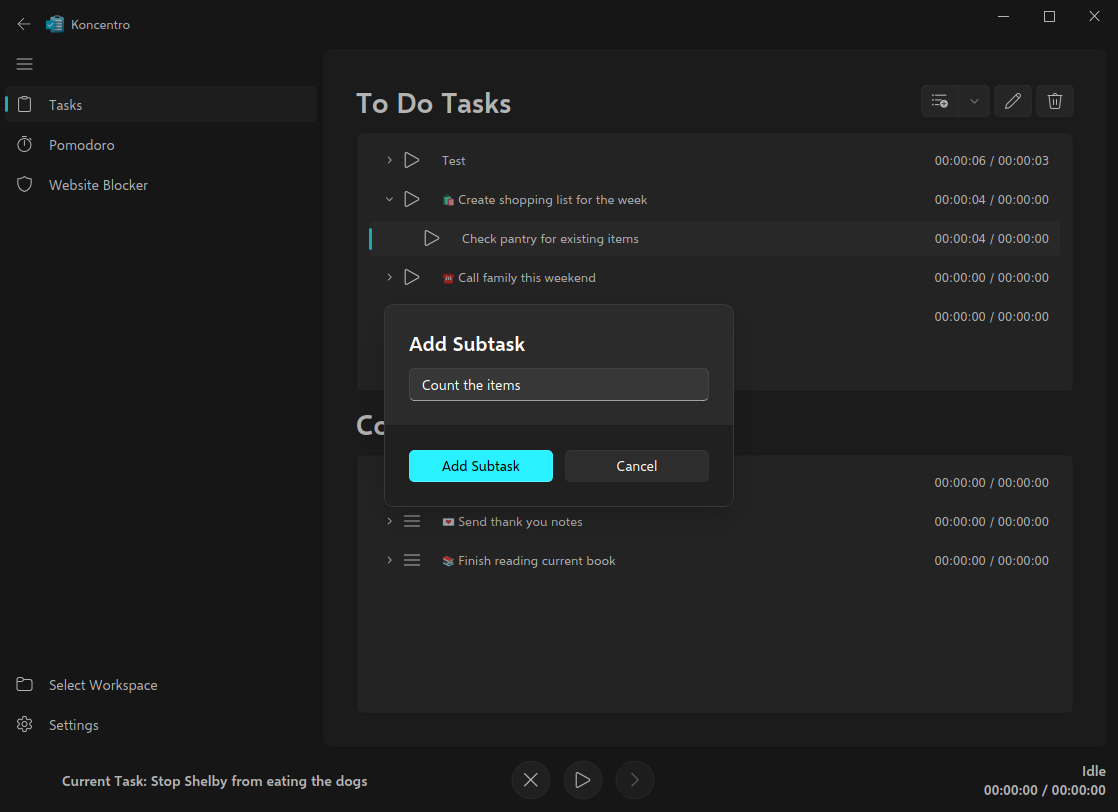
Koncentro follows a rather uncomplicated approach to task management. There are no tags, no due dates, and no folders. Also, tasks cannot overlap, since the timer for one task is automatically stopped if you start another. Furthermore, while tasks can have sub-tasks, parent tasks cannot be started on their own.
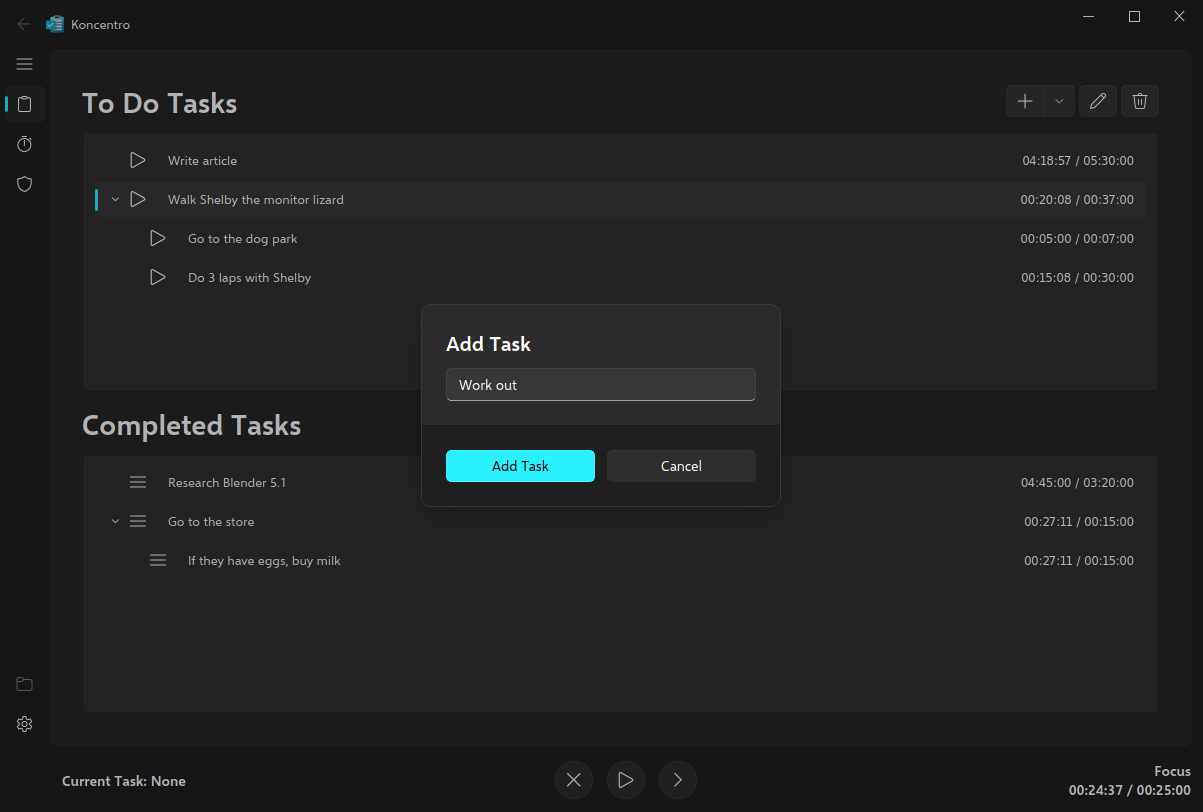
Adding a task in Koncentro
This approach may not be for everyone, but since the app is focused on streamlined productivity, it makes sense to arrange things in this way, as you're unlikely to lose track of any given tasks with strict rules around time management.
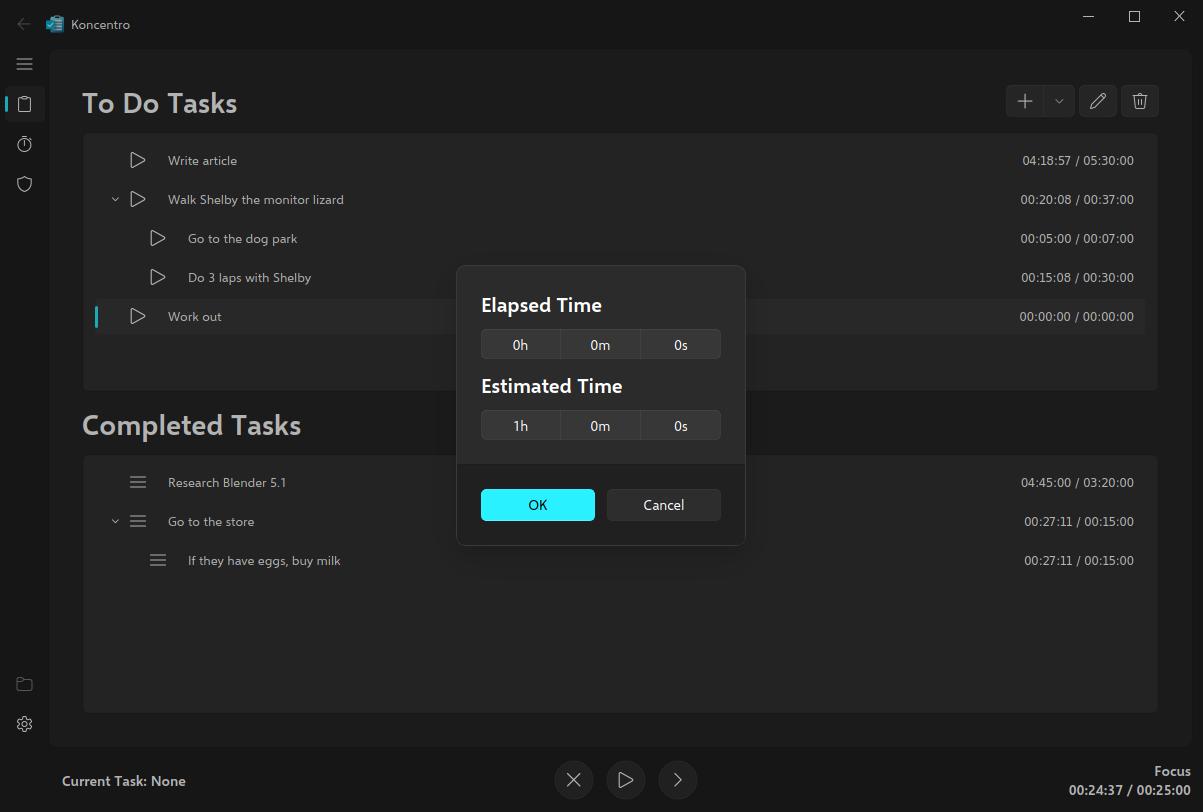
Tasks must be timeboxed upon creation, meaning you have to select a maximum time for each task to be accomplished within. This is set as the "estimated time" value. When you start the timer on any task, "elapsed time" is recorded and contrasted against the estimated time. This comes in pretty handy if you want to measure your performance against a benchmark or goal.
Editing the time for a task in Koncentro
Active and uncompleted tasks are grouped into "To Do Tasks", and finished tasks into "Completed Tasks", though this doesn't happen automatically. Since there are no folders or tags, task organization is accomplished by simply dragging tasks between these two sections.
Workspaces: a subtle power tool
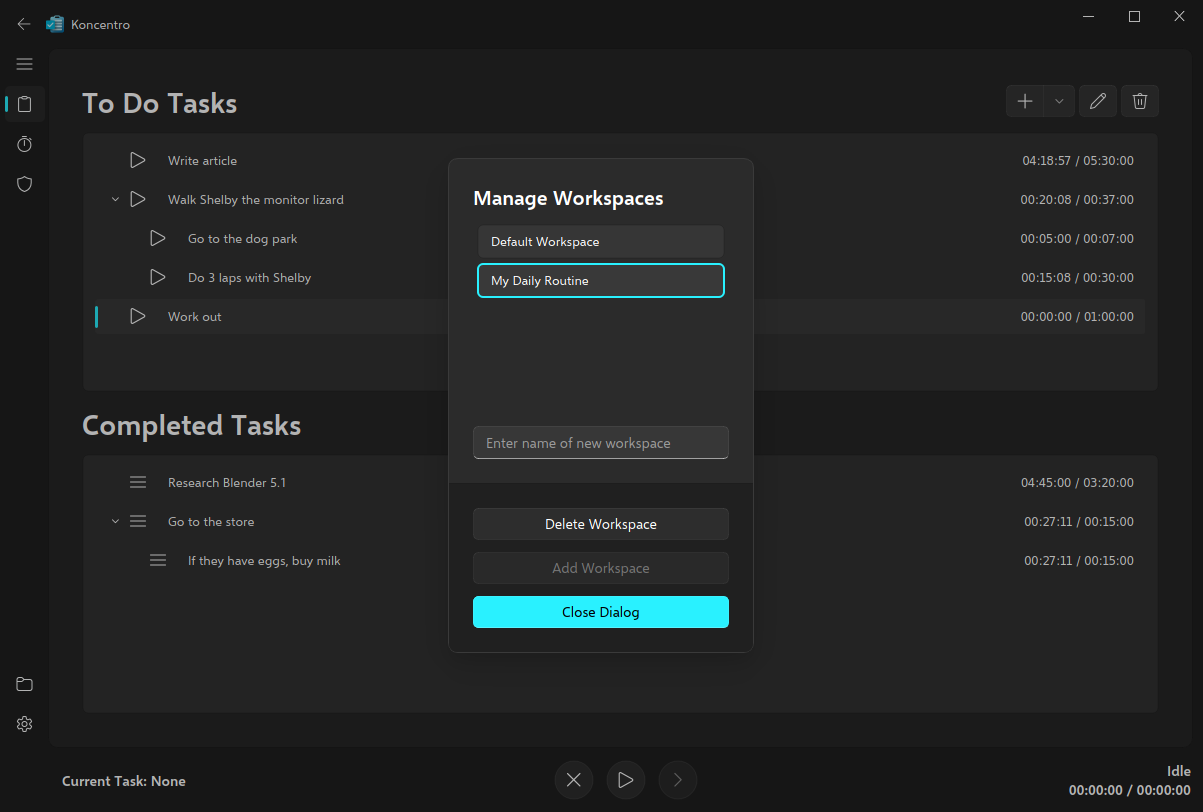
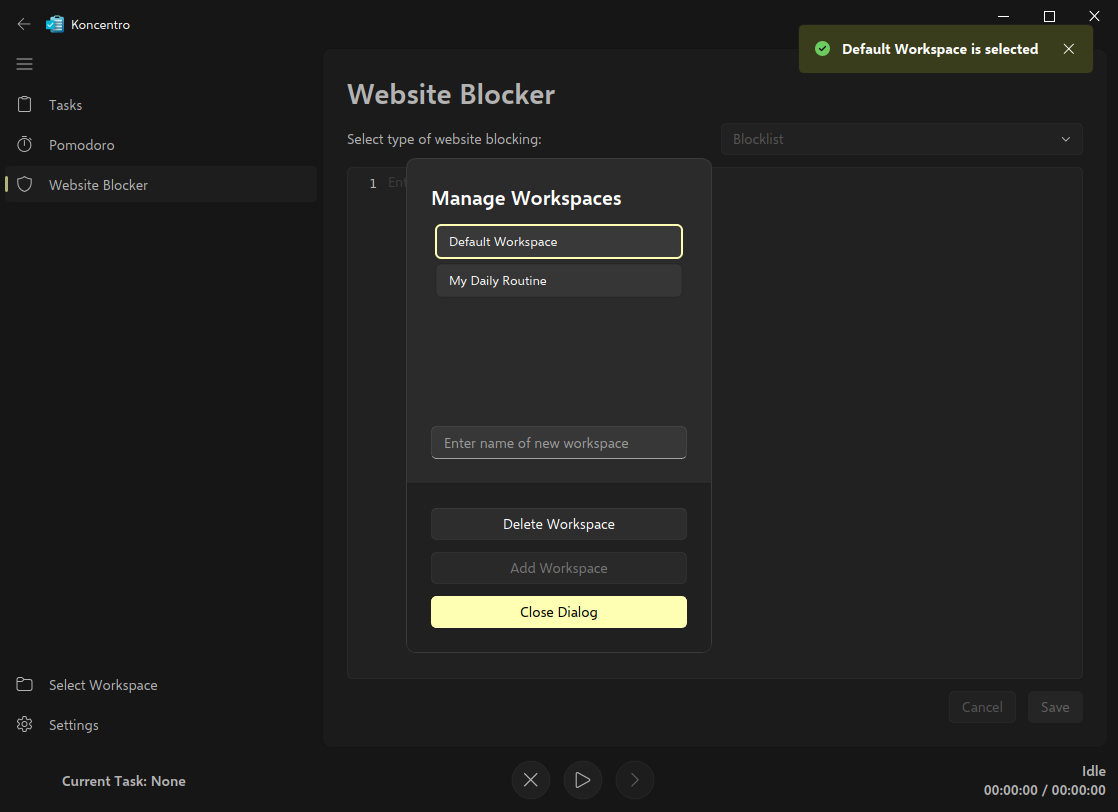
One of the standout features of Koncentro is the way it uses workspaces to manage not just tasks, but overall settings. While this implementation is still clearly in its infancy, I see the potential for even more powerful functionality in the future.
Managing Workspaces in Koncentro
Currently, workspaces serve to group your tasks and are protected by an optional website blocker to keep your attention on the present goal.
📋
In order to access workspaces, you must first make sure to stop any timers on your tasks, and ensure that "Current Task:" says "None" in the bottom left of the window. If the workspace button is greyed out, clicking the stop button will fix this.
The website blocker in depth
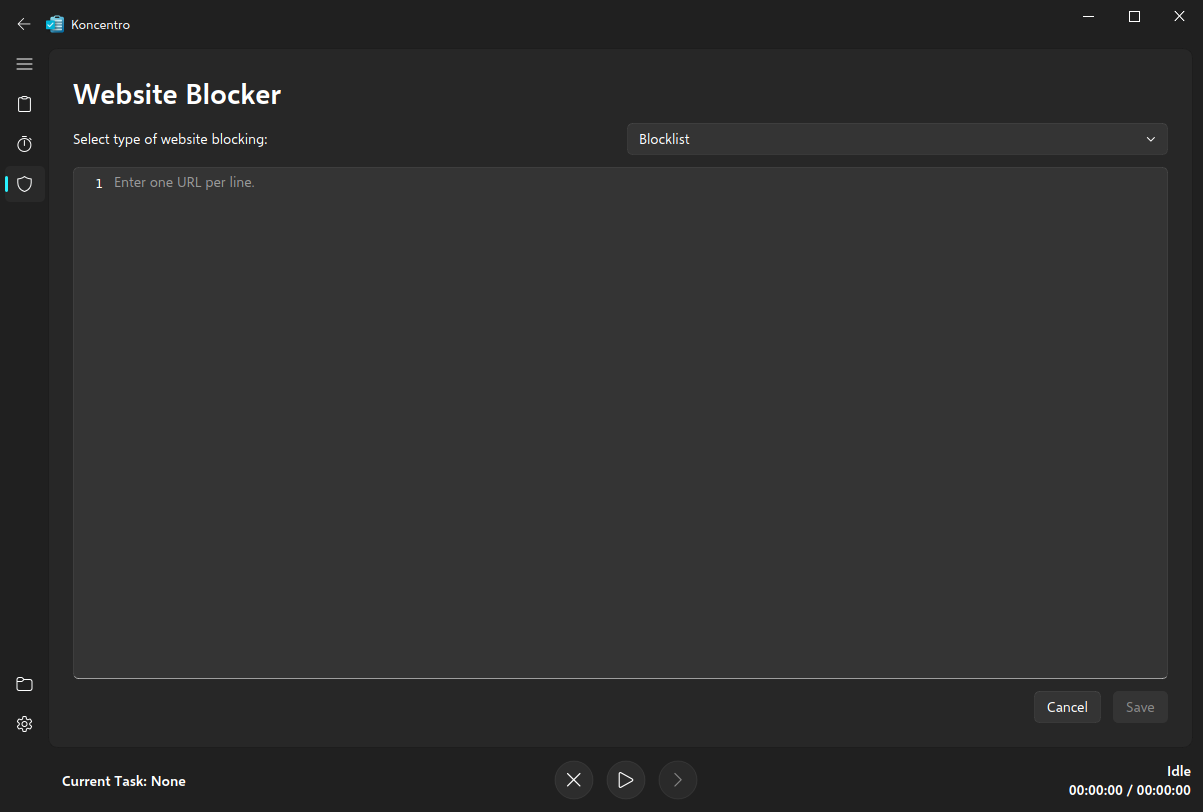
Perhaps the most distinguishing feature of Koncentro is its website blocker. It's not something you find in most to-do list apps for Linux, yet its simplicity and versatility make it a truly standout addition. Plus, the fact that each workspace can have its own block list makes Koncentro especially useful for scoping your focus periods and break times.
The website blocker in Koncentro
In terms of usage, it's mostly seamless once you've passed the initial setup process, which isn't too tedious, but certainly could be made smoother overall. Koncentro doesn't block any particular sites by default, so you'll need to manually add any sites you'd like to block to each workspace.
Note: Website blocking is only active when there is an active task. If all tasks are stopped, website blocking will not be activated.
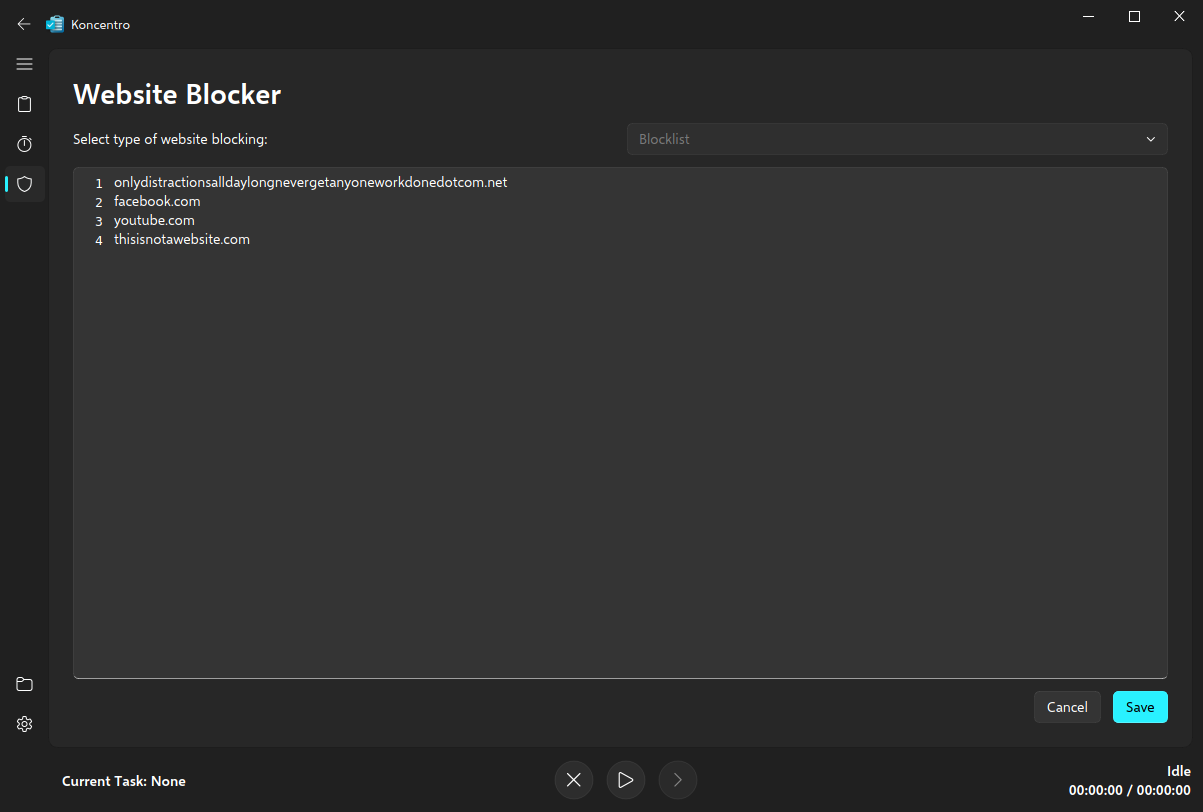
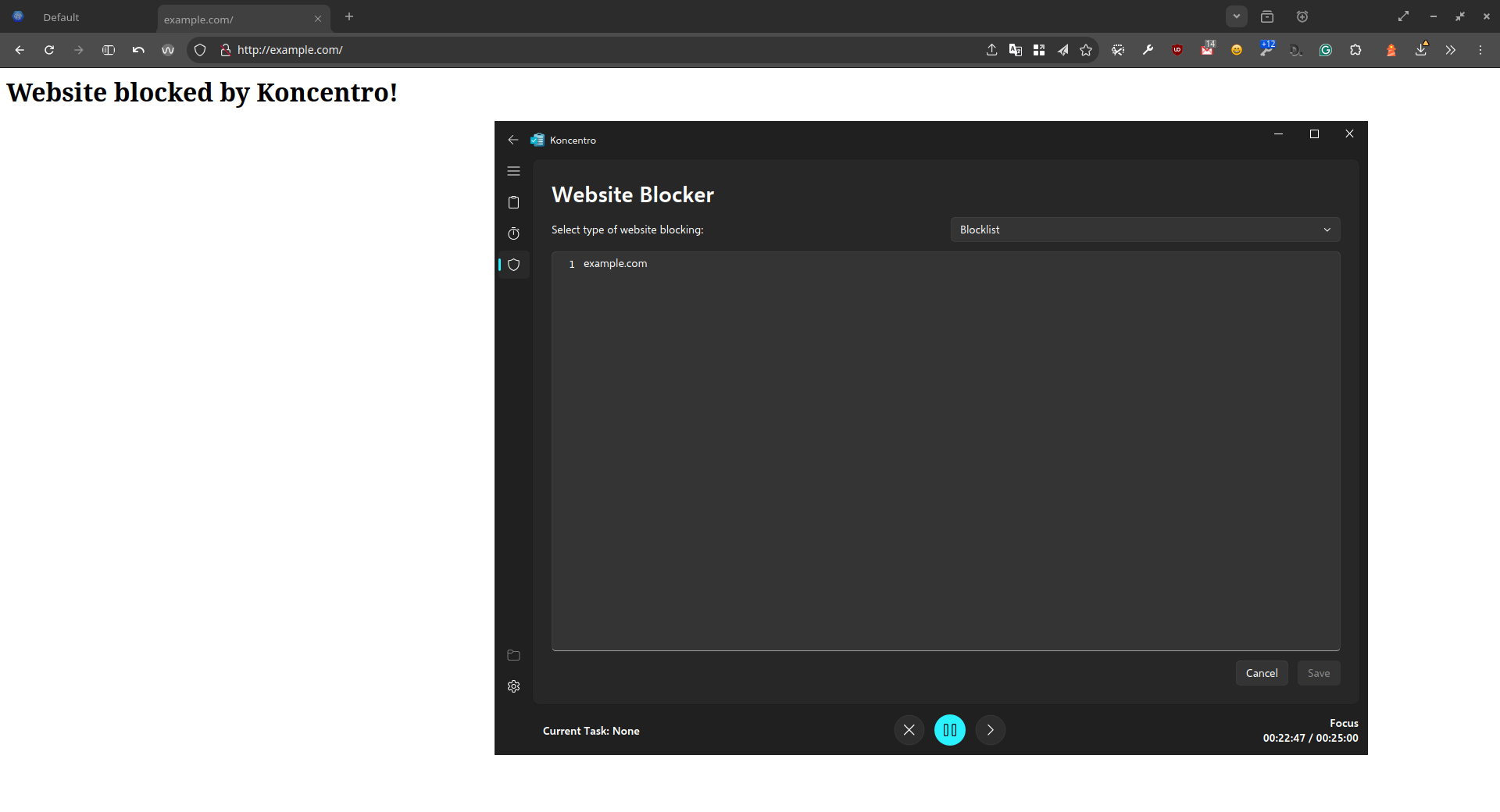
Editing the blocklist in Koncentro
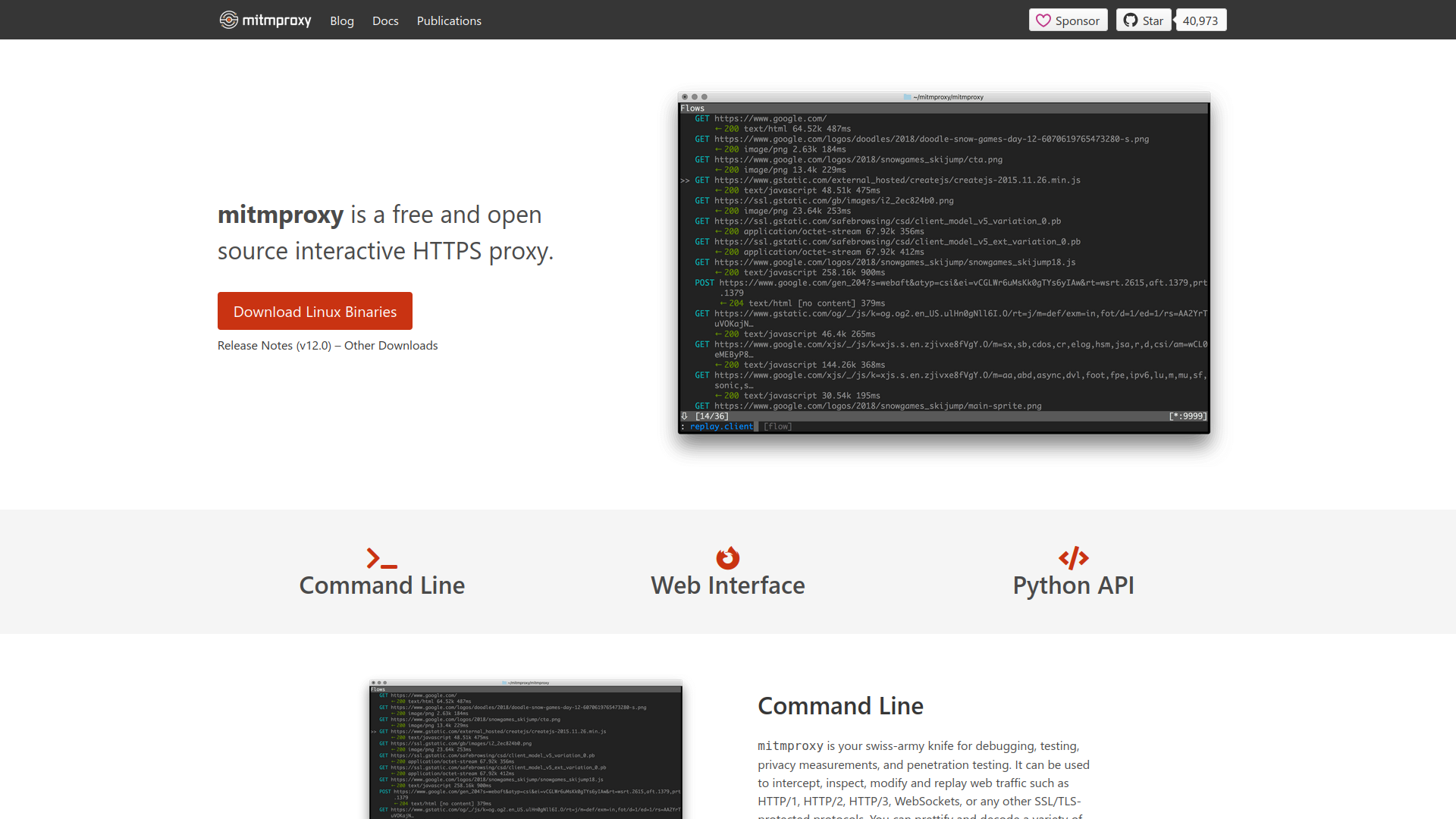
Koncentro relies on a Man In The Middle (MITM) proxy called mitmproxy to power this feature. Don't let the name throw you off: mitmproxy is a trusted open-source Python tool commonly used for network testing, repurposed here to handle local HTTPS interception for blocking rules. It's only activated when you're performing a task, and can be disabled altogether in Koncentro's settings.
The mitmproxy home page
Part of the setup process involves installing its certificates if you wish to use the website blocker. You'll need to do this both for your system and for Firefox (if you're using Firefox as your browser), since Firefox does not use the system's certificates.
Example usage scenario
Let's say, for instance, you want to block all social media while you're working. You'd just need to add these sites to your "At-work space" (or whatever you'd like to call it) and get down to business.
Website blocking with Koncentro is simple and straightforward
Even if a friend sends you a YouTube video, you won't be distracted by thumbnails because that URL would be locked out for that time period. Once that stretch of work ends, you could switch to your "taking a break" workspace, where social media is allowed, and (if you like) all work-related URLs are blocked.
But does it really work?
That's the real question here, of course: whether this is actually effective in practice. Of course, if you're highly distractible, it might be just the thing to help you keep on track. However, if you're already quite disciplined in your work, it might not be particularly meaningful. It really depends on how you work as an individual, after all.
That said, I can definitely see a benefit for power users who know how to leverage the site blocker to prevent notifications in popular chat apps, which must still communicate with a central server to notify you.
Sure, you can use "Do not disturb" in desktop environments that support it, but this doesn't consistently disable sound or notifications (if the chat app in question uses non-native notifications, for instance).
A focus on aesthetics - Why it feels nice to use
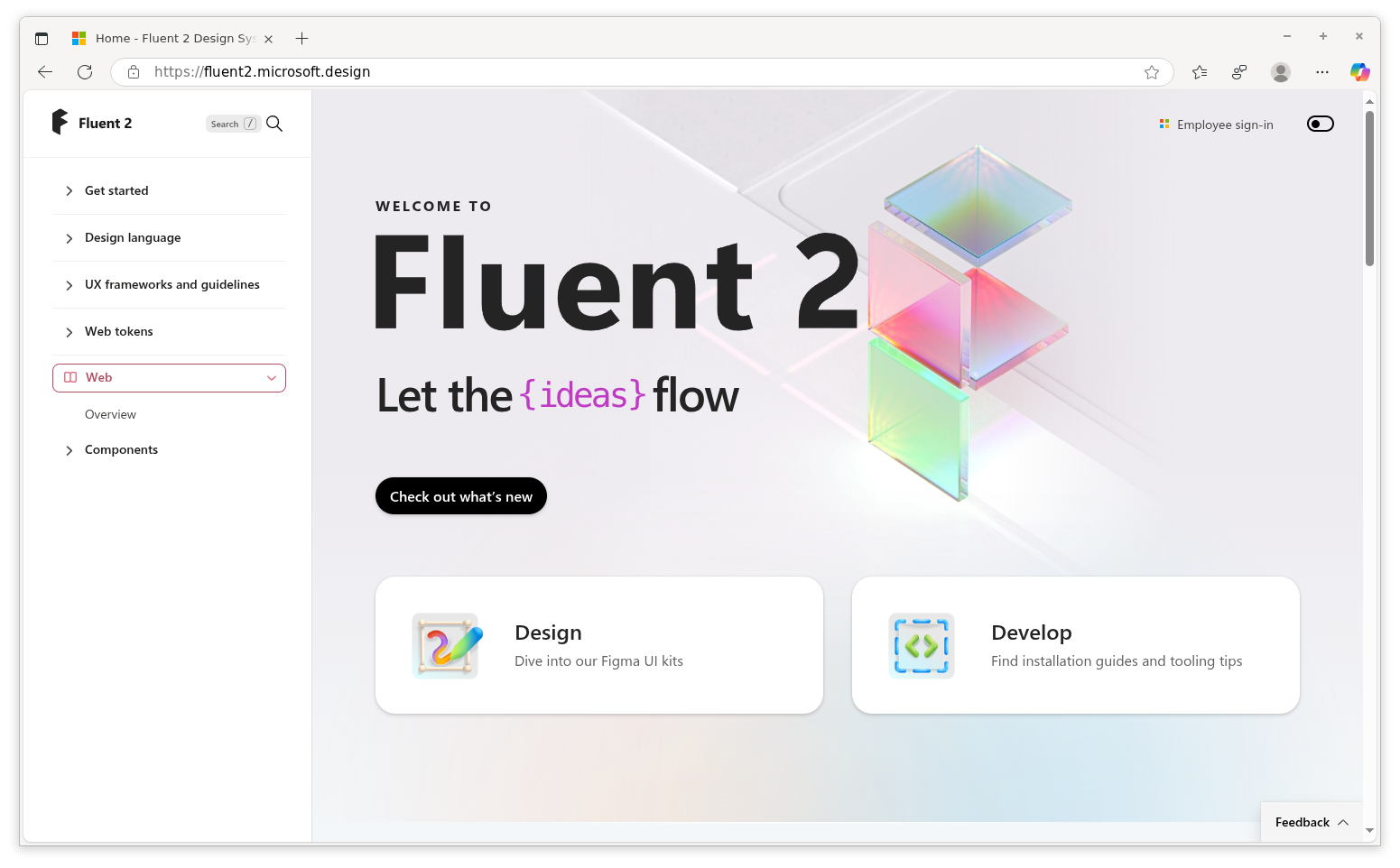
The choice to use Microsoft's Fluent design language may seem strange to many Linux users, but in fairness, Koncentro is a cross-platform application, and Windows still maintains the dominant position in the market.
The Fluent Design language home page in Microsoft Edge, which also uses this design language for its UI.
That being said, in many ways, it's similar enough in practical usage to the UI libraries and UX principles popular within the Linux ecosystem. It's close enough in functionality to apps built with Kirigami and Libadwaita that it doesn't seem too out of place among them.
Customization
Koncentro features a limited degree of customization options, following the "just enough" principle that seems to be the trend in modern design. It threads the delicate line between the user's freedom for customization and the developer's intentions for how their app should look and behave across platforms.
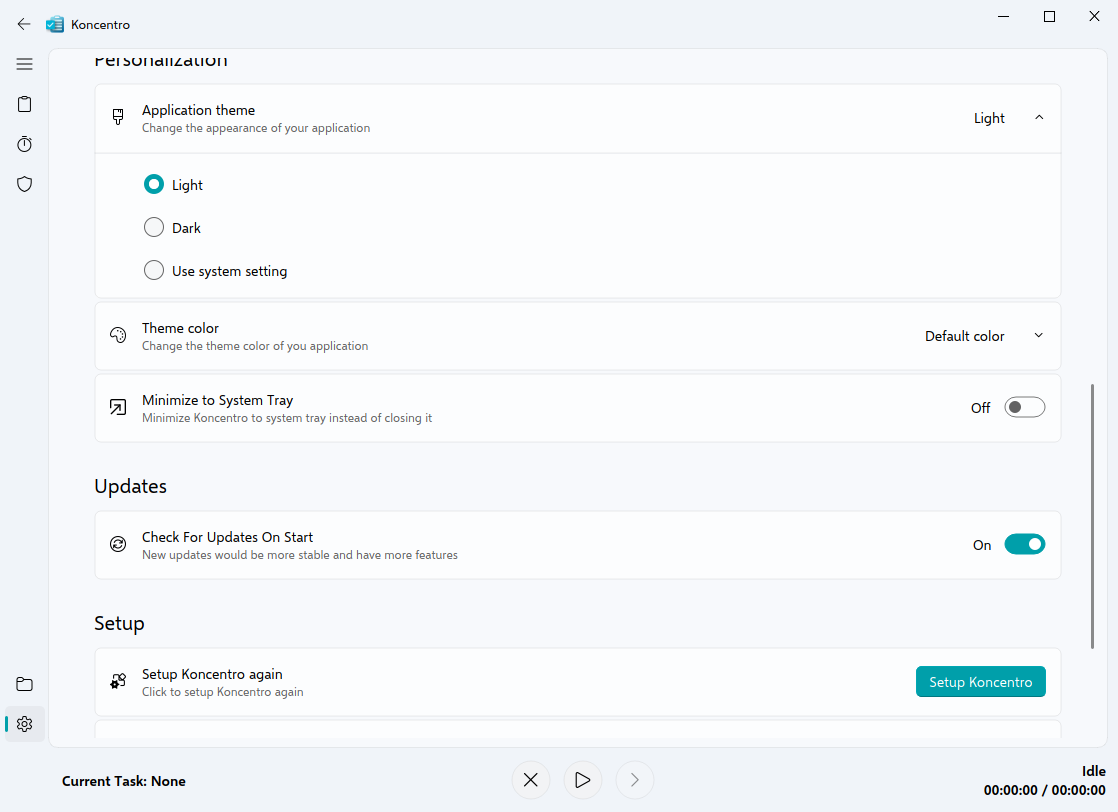
Koncentro using the "Light" theme
You get the standard light and dark modes, and the option to follow your system's preference. Using it on the Gnome desktop, it picked up my dark mode preference out of the box.
System Integration
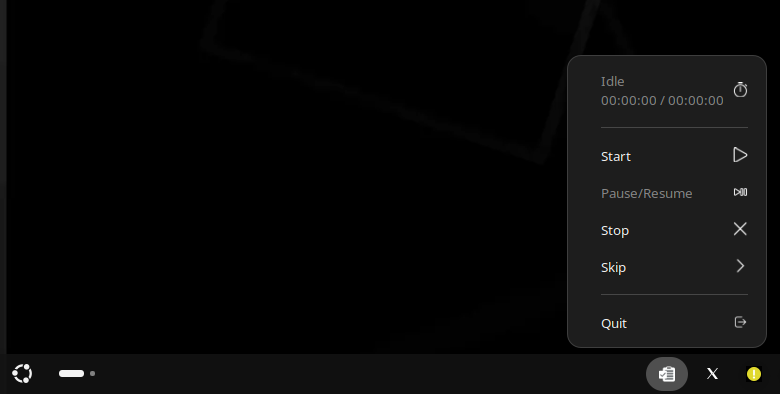
Koncentro integrates well with the system tray support, using a standard app indicator with a simple menu.
The Koncentro indicator menu in the Gnome Desktop on Ubuntu with Dash-To-Panel enabled
However, while you get the option to choose a theme colour, it doesn't give the option to follow your system's accent colour, unlike most modern Linux/open-source applications. It also does not feature rounded corners, which some users may find disappointing.
Koncentro with a custom accent colour selected
The quirks that still hold it back
As mentioned earlier, Koncentro has a number of quirks that detract from the overall experience, though most of these are limited to its first-time run.
Mandatory website blocker setup
Perhaps the most unconventional choice, there's no way to start using Koncentro until its website blocker is set up. It will not allow you to use the app (even to disable the website blocker) in any way without first completing this step.
While you can "fake it" by clicking "setup completed" in the second pop-up dialog, it creates a false sense of urgency, which could be especially confusing for less experienced users. This is perhaps where Koncentro would be better served by offering a smoother initial setup experience.
No way to copy workspaces/settings
While you can have multiple workspaces with their own settings, you can't duplicate workspaces or even copy your blocklists between them.
This isn't a big deal if you're just using a couple of workspaces with simple block/allow lists, but if you're someone who wants to have a complex setup with shared lists on multiple workspaces, you'll need to add them to each workspace manually.
No penalty for time overruns
At this time, nothing happens when you go over time — no warnings, no sounds, no notifications. If you're trying to stay on task and run overtime, it would help to have some kind of "intervention" or warning.
Being that it's available on Flathub, Koncentro can be installed on all Linux distributions that support Flatpaks. You can grab it from there through your preferred software manager, or run this command in the terminal:
flatpak install flathub com.bishwasaha.Koncentro
Alternatively, you can also get official .deb or .rpm packages for your distro of choice (or source code for compiling it yourself) from the project's releases page.
Conclusion
All told, Koncentro is a promising productivity tool that offers a blend of simplicity, aesthetic appeal, and smooth functionality. It's a great tool for anyone who likes to blend time management with structure. For Linux users who value open-source productivity tools that respect privacy and focus, it’s a refreshing middle ground between the more minimal to-do lists and full-blown productivity suites. It’s still young, but it already shows how open-source can combine focus and flexibility without unnecessary noise.
KDE Gear 22.04.1 is now available for download as the first point release to the KDE Gear 22.04 software suite with more than 110 changes. Here's what's fixed or improved in your favorite KDE apps!
KDE Gear 21.12.2 open-source software suite is out now. This maintenance update is here with more improvements for Elisa, Gwenview, and other KDE apps.