🔒
Es gibt neue verfügbare Artikel. Klicken Sie, um die Seite zu aktualisieren.
✇It's FOSS

Here's How You Can Customize Linux Desktop for Halloween [Dot Files Included]

Von: Abhishek Prakash
Here's How You Can Customize Linux Desktop for Halloween [Dot Files Included]

Halloween is here. Some people carve pumpkins, I crafted a special set up for my Arch Linux 🎃

0:00
/0:30

In this tutorial, I'll share with you all the steps I took to give a Halloween-inspired dark, spooky makeover with Hyprland. Since it is Hyprland, you can relatively easily replicate the setup by getting the dot files from our GitHub repository.

🚧
This specific setup was done with Hyprland window compositor on top of Arch Linux. If you are not using Hyprland and still want to try it, I advise installing Arch Linux in a virtual machine.

If videos are your thing, you can watch all the steps in action in this video on our YouTube channel.

Step 1: Install Hyprland and necessary packages

First, install all the essential Hyprland packages to get the system up and running:

sudo pacman -S hyprland xdg-desktop-portal-hyprland hyprpolkitagent kitty

The above will install Hyprland and necessary packages. Now, install other utility packages.

sudo pacman -S hyprpaper hyprpicker hyprlock waybar wofi dunst fastfetch bat eza starship nautilus

What do these packages do? Well, here are some info:

  • hyprpaper: Hyprland Wallpaper utility
  • hyprpicker: Color picker
  • hyprlock: Lock screen utility
  • waybar: Waybar is a Wayland panel
  • wofi: Rofi launcher alternative, but for Wayland. Rofi can be used. In fact, we have some preset config for Rofi in our GitHub repository. But Wofi was selected for this video.
  • dunst: Notification daemon.
  • fastfetch: fastfetch is a system information display utility.
  • bat: Modern alternative for cat command.
  • eza: Modern ls command alternative
  • starship: Starship is a prompt customization tool.
  • nautilus: Nautilus is the file manager from GNOME.

Step 2: Install and enable display manager

You need a display manager to login to the system. We use SDDM display manager. GDM also works fine with Hyprland.

sudo pacman -S sddm

Once SDDM package is installed, enable the display manager on boot time.

sudo systemctl enable sddm.service
Here's How You Can Customize Linux Desktop for Halloween [Dot Files Included]
Enable SDDM


Now, reboot the system. When login prompt appears, login to the system.

Here's How You Can Customize Linux Desktop for Halloween [Dot Files Included]
Login to Hyprland

Step 3: Install other utility packages

Once essential Hyprland packages are installed and you are logged in, open a terminal in Hyprland using Super + Q. Now install Firefox browser using:

sudo pacman -S firefox

It's time to install theme packages. Hyprland is not a desktop environment in the sense of what GNOME or KDE is. Yet you may still use some apps developed for GNOME (GTK apps) or Qt apps.

To theme, you need to install theme managers for respective system:

  • nwg-look: To apply theme to GTK apps.
  • qt5ct: To apply theme to Qt5 apps.

Install these packages using the command:

sudo pacman -S qt5ct nwg-look
🚧
If you are using a minimal installation of Arch Linux, you may need to install an editor like nano to edit file in terminal.

Step 4: Change the monitor settings

In most cases, Hyprland should recognize the monitor and load accordingly. But in case you are running it in a VM, it will not set the display size properly.

Even though we give full configuration at a later stage, if you want to fix the monitor, use the command:

monitor=<Monitor-name>,1920x1080,auto,auto
Here's How You Can Customize Linux Desktop for Halloween [Dot Files Included]
Monitor settings

It is important to get the name of the monitor. Use this command:

hyprctl monitors

Remember the name of your monitor.

Here's How You Can Customize Linux Desktop for Halloween [Dot Files Included]
Get monitor name

Step 5: Download our custom Hyprland dot files

Go to It's FOSS GitHub page and download the text-script-files repository.

Here's How You Can Customize Linux Desktop for Halloween [Dot Files Included]
Download config files

You can also clone the repo, if you want using the command:

git clone https://github.com/itsfoss/text-script-files.git

But the above needs git installed.

If you have downloaded the zip file, extract the archive file. Inside that, you will find a directory config/halloween-hyprland. This is what we need in this article.

Step 6: Copy wallpaper to directory

Copy the images in the wallpapers folder to a directory called ~/Pictures/Wallpapers. Create it if it does not exist, of course.

mkdir -p ~/Pictures/Wallpapers
Here's How You Can Customize Linux Desktop for Halloween [Dot Files Included]
Copy wallpapers

Step 7: Download GTK theme, icons and fonts

Download the Everforest GTK theme dark borderless macOS buttons.

Here's How You Can Customize Linux Desktop for Halloween [Dot Files Included]
Download GTK theme

Download Dominus Funeral icon theme dark style.

Here's How You Can Customize Linux Desktop for Halloween [Dot Files Included]
Download Icon theme

Download the "Creepster" font from Google Fonts website.

Next, create ~/.themes, ~/.icons, and ~/.fonts respectively:

mkdir -p ~/.themes ~/.icons ~/.fonts

And we need to paste theme, icon, and font files in their respective locations:

  • Extract the "Creepster" font file and place it at ~/.fonts.
  • Extract the theme file and paste it at ~/.themes.
  • Extract the icon file and paste it at ~/.icons
Here's How You Can Customize Linux Desktop for Halloween [Dot Files Included]
Paste thems, icons, and fonts

Step 8: Install other nerd fonts

Install Nerd fonts like:

If you are in Arch Linux, open a terminal and run the command:

sudo pacman -S ttf-firacode-nerd ttf-cascadia-code-nerd ttf-cascadia-mono-nerd woff2-font-awesome ttf-jetbrains-mono

Step 9: Verify Waybar and Hyprland config

Open the config.jsonc file on the downloaded directory and replace any occurrence of Virtual-1 with your monitor name.

For GNOME Box VM, it is Virtual-1. On my main system, I have two monitors connected. So, the names for my monitors are HDMI-A-1 and HDMI-A-2. Note the name of the monitors as we saw in Step 4:

hyprctl monitors

Now in the Waybar config, change the monitor name from Virtual-1 to the name of your monitor. Change all such occurrences.

📋
You can use any editor's find and replace feature. Find complete word Virtual-1 and replace it with your monitor name. If you are using nano, follow this guide to learn search and replace in nano editor.

Also, take a look at the panel item. If you see any item that is not needed in the panel, you can remove it from the [modules-<position>] part.

👉 Similarly, open the hyprland config in the downloaded directory. Change all reference to Virtual-1 to your monitor name. Similarly, replace monitor name in the hyprlock and hyprpaper config files.

Step 10: Copy and paste config files

Copy the following directories (in the downloaded GitHub files) and paste it to the ~/.config folder.

  • waybar: Waybar panel configs and styles.
  • wofi: Application launcher config
  • dunst: Customized dunst notification system.
  • starship.toml: Customized starship prompt.

If you are using a GUI file manager, copy all file/folders except hypr, wallpaper, and README.

Here's How You Can Customize Linux Desktop for Halloween [Dot Files Included]
Copy except hypr and wallpaper

Step 11: Replace Hyprland config

We did not copy hypr folder, because there is already a folder called hypr in every Hyprland system, which contains the minimal config.

I don't want to make it vanish. Instead, keep it as a backup.

cp ~/.config/hypr/hyprland.conf ~/.config/hypr/hyprland.conf.bak

Now, exchange the content of the hyprland.conf in your system with the customized content. Luckily, the mv command has a convenient option called -exchange.

mv --exchange ~/.config/hypr/hyprland.conf /path/to/new/hyprland/config
🚧
What the above command does is swap the contents of your default hyprland config with the one we created.
Here's How You Can Customize Linux Desktop for Halloween [Dot Files Included]
Backup and replace Hyprland config

Step 12: Paste hyprlock and hyprpaper configs

Now, copy the hyprlock.conf and hyprpaper.conf file to ~/.config/hypr directory.

Here's How You Can Customize Linux Desktop for Halloween [Dot Files Included]
Copy hyprlock and hyprpaper config files

Step 13: Change themes

Open the NWG-Look app and set the GTK theme and font (Creepster font) for GTK apps:

Here's How You Can Customize Linux Desktop for Halloween [Dot Files Included]
Set GTK Theme and font

Now, change icon theme:

Here's How You Can Customize Linux Desktop for Halloween [Dot Files Included]
Set icon theme for GTK apps

This app automatically adds necessary file links in the ~/.config/gtk-4.0. Thanks to this feature, you don't need to apply theme manually to the GTK4 apps.

Open the Qt5ct app and change the theme to darker.

Here's How You Can Customize Linux Desktop for Halloween [Dot Files Included]
Apply Qt Darker theme

Now, apply icon theme:

Here's How You Can Customize Linux Desktop for Halloween [Dot Files Included]
Qt icon theme

And change the normal font to "Creepster":

Here's How You Can Customize Linux Desktop for Halloween [Dot Files Included]
Qt font style

Step 14: Set Starship and aliases

First, paste some cool command aliases for the normal ls and cat command, using the modern alternatives eza and bat respectively. This is optional, of course.

Open ~/.bashrc in any editor and paste these lines at the bottom of this file:

alias ls='eza -lG --color always --icons'
alias la='eza -alG --color always --icons'
alias cat='bat --color always --theme="Dracula"'

Now, to enable Starship prompt, paste the starship eval line to the ~/.bashrc and source the config.

Here's How You Can Customize Linux Desktop for Halloween [Dot Files Included]
Edit bashrc
eval "$(starship init bash)"

source ~/.bashrc
Here's How You Can Customize Linux Desktop for Halloween [Dot Files Included]
Customized starship prompt

Once all this is done, restart the system, and log back in to see the Halloween themed Hyprland.

Hyprland Halloween Makeover

Enjoy the spooky Hyprland set up. Happy Halloween 🎃
✇Linux und Ich

KooL’s Hyprland Dotfiles: Gericeter Desktop auf Knopfdruck

Von: Christoph Langner

Ich muss zugeben, meine wilden Jahre mit Distrohopping, Desktop-Tuning und nächtelangem Konfigurieren sind inzwischen vorbei. Statt ständig neue Umgebungen zu basteln, freue ich mich, wenn mein System einfach funktioniert – möglichst ohne Nachjustieren nach jedem Update. Trotzdem bin ich neugierig geblieben. Und manchmal landet dann doch wieder ein Projekt auf dem Radar, das einen zweiten Blick verdient.

So ging’s mir mit KooL’s Hyprland Dotfiles. Eine Sammlung von Konfigurationsdateien und Installationsskripten, mit der ihr in wenigen Minuten einen vollständig eingerichteten Hyprland-Desktop bekommt – inklusive Terminal-Setup, Dateimanager, Panel, Widgets, Shortcuts, Themes und allem Drum und Dran. Ohne eigenes Frickeln, aber mit dem vollen „Ricing“-Look, den man sonst nur aus /r/unixporn kennt.

Was steckt dahinter?

Hyprland ist ein dynamischer Tiling-Window-Manager für Wayland, der in Go größtenteils in C++ geschrieben wurde und besonders bei den „Tweakern“ unter den Linux-Usern beliebt ist. Er bietet Out-of-the-box-Unterstützung für Effekte, Gesten, regelbasierte Fensterplatzierung und Animationen – aber eben kaum Komfort in der Erstkonfiguration. Wer Hyprland produktiv einsetzen will, muss sich normalerweise durch diverse Wikis und Config-Dateien kämpfen.

KooL (bzw. der GitHub-Nutzer JaKooLit) hat sich genau dieser Einstiegshürde angenommen: Seine Hyprland Dots bündeln nicht nur vorkonfigurierte Einstellungen, sondern liefern auch ein Installationsskript mit, das die Konfiguration automatisiert einrichtet. Je nach Distribution ruft das Skript die passenden Paketquellen und Abhängigkeiten auf und richtet danach alles ein, was zur täglichen Nutzung nötig ist.

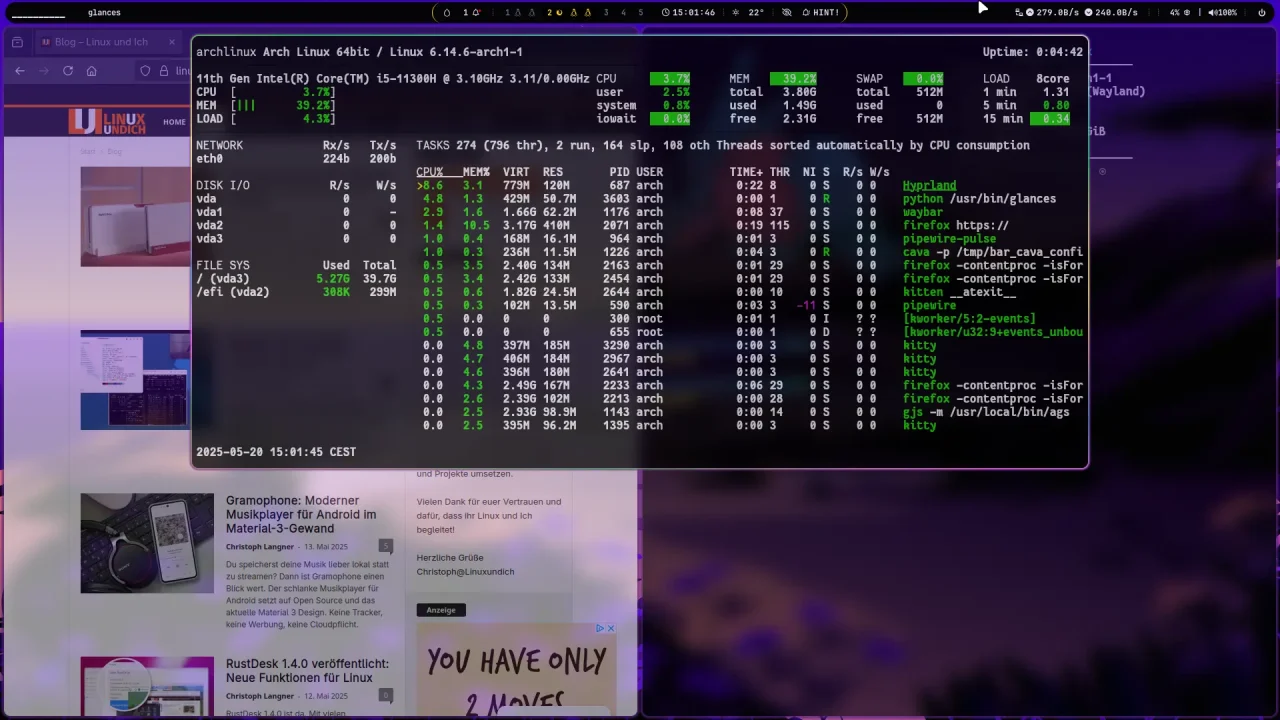
KooL’s Hyprland Dots in Aktion – das Video zeigt Terminal, Tiling, Waybar, Widgets und Fenstertransparenz im Zusammenspiel. So sieht der vorkonfigurierter Hyprland-Desktop aus.

Unterstützte Distributionen

Ich habe den Test unter Arch Linux in einer VM gemacht. Die Einrichtung verlief problemlos, und nach etwa fünf Minuten stand ein vollständiger Hyprland-Desktop, der nicht nur funktional, sondern auch durchgestylt war. Wenn ihr euch also fragt, wie ein Hyprland-Setup „mit allem“ aussieht, bekommt ihr hier einen soliden Eindruck. Insgesamt unterstützt das Projekt praktisch jede große Distro.

  • Arch Linux
  • Fedora
  • openSUSE Tumbleweed
  • Debian Trixie und Sid
  • Ubuntu 24.04 LTS, 24.10 und 25.04 (aktuell noch als Alpha)
  • NixOS

Zur Installation müsst ihr lediglich das folgende Skript ausführen. Das kleine Programm erkennt automatisch, auf welcher Distribution ihr unterwegs seid, und holt die passenden Abhängigkeiten. Optional lassen sich nachträglich einzelne Module hinzufügen, anpassen oder ersetzen. Insgesamt aber als Warnung: Hier passiert SEHR SEHR viel. Zu Risiken und Nebenwirkungen fragt euren Arzt oder Apotheker.

sh <(curl -L https://raw.githubusercontent.com/JaKooLit/Hyprland-Dots/main/Distro-Hyprland.sh)

Was wird installiert?

Die Auswahl ist pragmatisch und praxisnah: Statt modischer Experimente setzt KooL auf bewährte Komponenten.

  • Kitty als Terminal und Zsh als Shell
  • Thunar als Dateimanager
  • Mousepad als Editor
  • Waybar für die Leiste
  • Eww für Widgets
  • Rofi als App-Launcher
  • Pyprland für erweiterte Shortcuts und Fensterlogik
  • NetworkManager-Applet, Blueman, Paru und Yay, Mako, Swaylock u. v. m.

Viele dieser Programme stammen aus dem Xfce-Umfeld, was generell keine schlechte Idee ist: Sie sind ressourcenschonend, stabil und gut in GTK-Umgebungen integriert. Aufgesetzt ist das Ganze auf einem durchgestylten GTK- und Waybar-Theme mit dunkler oder heller Farbgebung, halbtransparenten Panels und „klassischem“ Tiling-Manager-Layout.

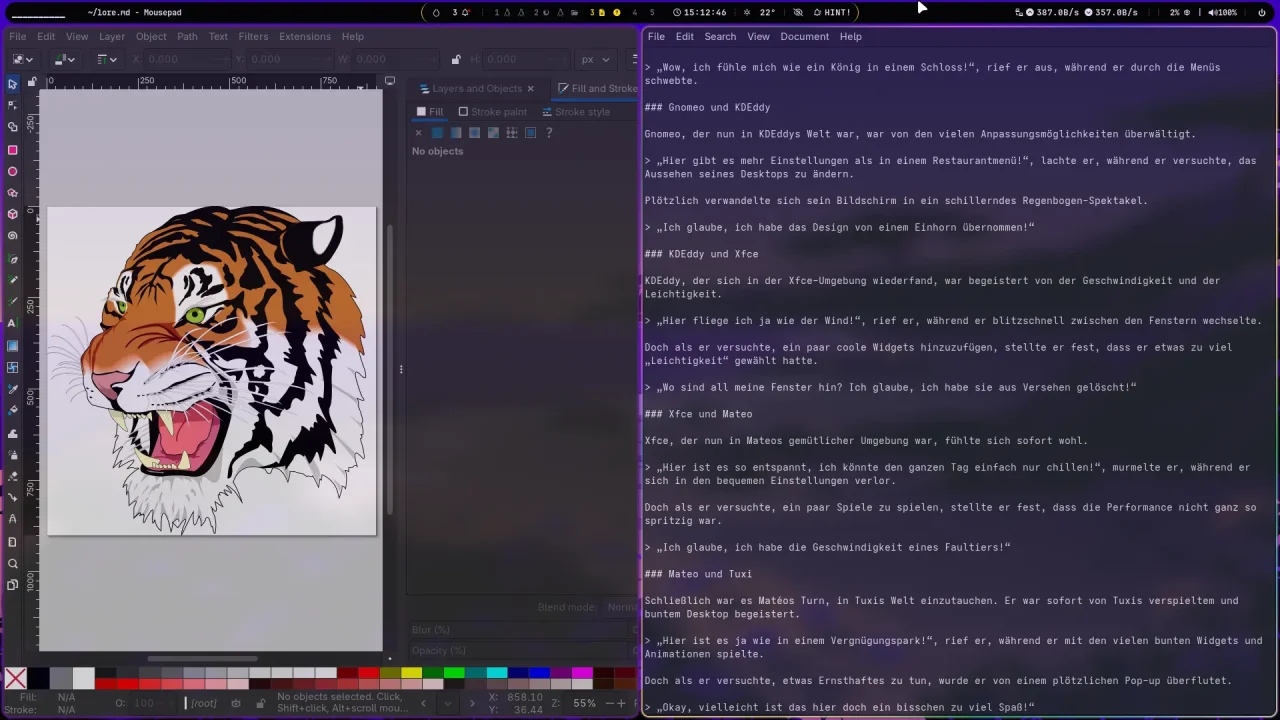
Kitty und Thunar in Aktion: Terminal und Dateimanager fügen sich nahtlos ins Theme ein und bieten eine schlanke Arbeitsumgebung nach klassischer Unix-Philosophie.
Browser und Konsole: Das Drop-down-Terminal und Rofi ermöglichen schnelle Navigation, während Firefox sich optisch und funktional stimmig ins Gesamtbild einfügt.
Hyprland ist ideal für Multitasker, die ungern die Finger von der Tastatur nehmen – auch wenn Programme wie Inkscape sich ohne Maus kaum nutzen lassen.

Für wen ist das was?

Die Hyprland Dots sind ideal, wenn ihr Hyprland ausprobieren möchtet, ohne bei Null anzufangen. Besonders für Leute, die sich sonst in klassischen Desktops wie GNOME oder KDE bewegen, ist das Setup eine gute Brücke zur Tiling-Welt. Ich würde aber nicht dazu raten, das Skript auf einem wichtigen Produktivsystem auszuführen. Es installiert unzählige Pakete und spült einen Haufen Konfigurationen ins System.

Wichtig ist aber auch: Die Konfiguration ist nicht statisch. Wer eigene Anpassungen machen möchte, sollte sich nach der Installation gut mit den Config-Dateien vertraut machen. Viele davon liegen in ~/.config/, einige sind in Bash-Skripten untergebracht. Dokumentation gibt’s im Projekt-Wiki, aber nicht alles ist vollständig erklärt – hier hilft dann nur Ausprobieren, ein Blick in das Wiki oder der direkte Kontakt über Discord. Es gibt auch auf YouTube zahlreiche Videos, die viel erklären und demonstrieren.

Experimente für den Desktop

Ich finde es spannend, wie sehr sich die Linux-Desktop-Welt weiterentwickelt – auch abseits der großen Projekte wie GNOME und KDE. KooL’s Hyprland Dots liefern einen beeindruckenden Rundumschlag für alle, die Hyprland ausprobieren wollen, ohne sich monatelang einzuarbeiten. Das Ganze ist offen, nachvollziehbar und ohne proprietären Ballast – also genau das, was wir an Linux lieben. Wer weiß, vielleicht bekommt ihr ja doch Lust, mal wieder was Neues auszuprobieren.

✇It's FOSS

Adding Grouped Items in Waybar

Von: Sreenath
Adding Grouped Items in Waybar

Waybar is the perfect top panel program for Wayland systems like Hyprland, Sway, etc.

It offers many built-in modules and also allows the user to create custom modules to fill the panel.

We have already discussed how to configure Waybar in a previous tutorial.

📋
I recommend you to go through the article first. It should make things easy to understand as you read on.

In this article, let's learn some eye-candy tricks to make your Hyprland user experience even better.

0:00
/0:11

Hardware Groups with Waybar with group module.

Grouping modules in Waybar

Those who went through the wiki pages of Waybar, may have seen a module called group. Unlike other modules (memory, cpu, etc.), this group module allows you to embed more pre-built modules inside it.

This is shown in the above video.

So, what we are doing here is grouping related (or even unrelated, as you like) modules inside a group.

Writing a sample group module

Usually, all modules should be defined and then called in the top bar on respective places as you require.

This is applicable to the group as well. Let's make one:

Step 1: Start with framework

First, define the group with a name and the structure:

"group/<groupname>": {
	----,
	----
}

The group module definition should be wrapped between the parentheses.

For example, I am creating a group called hardware to place CPU, RAM (memory), and Temperature modules.

🚧
The modules like cpu, memory, etc., that we need to add to a group should be defined separately outside the group definition. These definitions are explained in the Waybar article.

So, I will start the group definition at the end of my ~/.config/waybar/config.jsonc file:

"group/hardware": {
	----,
	----
}
🚧
In the JSONC files, never forget to add a comma to the end of previous module (},), if it is not the last item.

Step 2: Add an orientation

You already know that Waybar allows you to place the bar on the top, bottom, left, or right of the screen. This means, you can place your bar either vertically (left/right) or horizontally (top/bottom).

Therefore, you may need to specify an orientation for the group items using the key orientation.

"group/hardware": {
	"oreintation": "horizontal",
}

I am using a bar configured to appear at the top of the screen. Therefore, I chose “horizontal” orientation. The value for orientation can be horizontal, vertical, orthogonal, or inherit.

Step 3: Add a drawer effect

With orientation set, let's make the groups a bit neat by hiding all items except one.

The interesting part is, when you hover over this unhidden item, the rest of the modules inside the group will come out with a nice effect. It is like collapsing the items at once under one of the items, and then expanding.

The keyword we use in the configuration here is “drawer”.

"group/hardware": {
	"oreintation": "horizontal",
	"drawer": {
		---
	},
}

Inside the drawer, we can set the transition duration, motion, etc. Let's go minimal, with only setting the transition duration and transition motion.

"group/hardware": {
	"oreintation": "horizontal"
	"drawer": {
		"transition-duration": 500,
		"transition-left-to-right": false
	},
}

If we set the transition-left-to-right key to false, the first item in the list of modules (that we will add in the next section) will stay there, and the rest is expanded.

Likewise, if left to default (true), the first item and the rest will all draw out.

Step 4: Add the modules

It's time to add the modules that we want to appear inside the group.

"group/hardware": {
	"oreintation": "horizontal",
	"drawer": {
		"transition-duration": 500,
		"transition-left-to-right": false
	},
	"modules": [
		"custom/hardware-wrap",
		"cpu",
		"memory"
		"temperature"
	]
}

Here, in the above snippet, we have created four modules to appear inside the group hardware.

📋
The first item inside the module key will be the one visible. The subsequent items will be hidden and will only appear when hovered over the first item.

As said earlier, we need to define all the modules appearing inside the group as regular Waybar modules.

Here, we will define a custom module called custom/hardware-wrap, just to hold a place for the Hardware section.

So, outside the group module definition parenthesis, use the following code:

"custom/hardware-wrap": {
	"format": Hardware
	"tooltip-format": "Hardware group"
} 

So, when "custom/hardware-wrap" is placed inside the group module as the first item, only that will be visible, hiding the rest (cpu, memory, and temperature in this case.).

Step 5: Simple CSS for the custom module

Let's add a CSS for the custom module that we have added. Go inside the ~/.conf/waybar/style.css file and add the lines:

#custom-hardware-wrap {
     box-shadow: none;
     background: #202131;
         text-shadow: none;
     padding: 0px;
     border-radius: 5px;
     margin-top: 3px;
     margin-bottom: 3px;
     margin-right: 6px;
     margin-left: 6px;
     padding-right: 4px;
     padding-left: 4px;
     color: #98C379;
}

Step 6: Add it to the panel

Now that we have designed and styled the group, let's add it to the panel.

We know that in Waybar, we have modules-left, modules-center, and modules-right to align elements in the panel.

Let's place the new Hardware group to the right side of the panel.

"modules-right": ["group/hardware", "pulseaudio", "tray"],

In the above code inside the ~/.config/waybar/config.jsonc, you can see that, I have placed the group/hardware on the right along with PulseAudio and system tray.

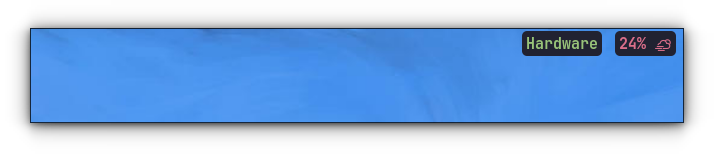
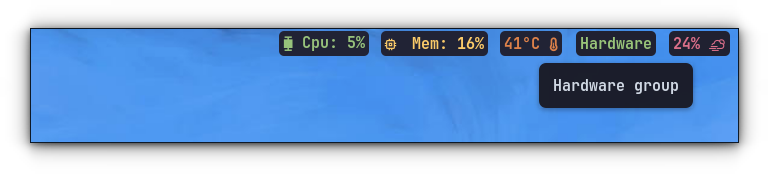
Adding Grouped Items in Waybar
Hardware Group Collapsed
Adding Grouped Items in Waybar
Hardware Group Expanded

Wrapping Up

Grouping items is a handy trick, since it can create some space to place other items and make the top bar organized.

If you are curious, you can take a look at the drawer snippet given in the group page of Waybar wiki. You can explore some more customizations like adding a power menu button.

✇It's FOSS

Taking Screenshots in Hyprland

Von: Sreenath
Taking Screenshots in Hyprland

Hyprland is a highly customizable Wayland tiling compositor known for its eye-catching aesthetics and impressive performance. With such a high degree of customization, one important feature that many users seek is the ability to take screenshots.

Whether for sharing on social media or saving essential screen details for future reference, capturing your screen is an essential task.

In this article, we will explore various methods to set up screenshot functionality on your Hyprland installation.

First Option: Grimblast

Grimblast is an official Hyprland screenshot utility offering various options.

It is a shell script, that uses tools like grim and slurp to take screenshots.

Installing Grimblast

Before installing Grimblast, we need to get the required dependencies. On Arch Linux, use the following command:

sudo pacman -Syu jq grim slurp wl-clipboard libnotitfy hyprpicker
📋
For other distributions, you should check the official program pages for installation instructions.

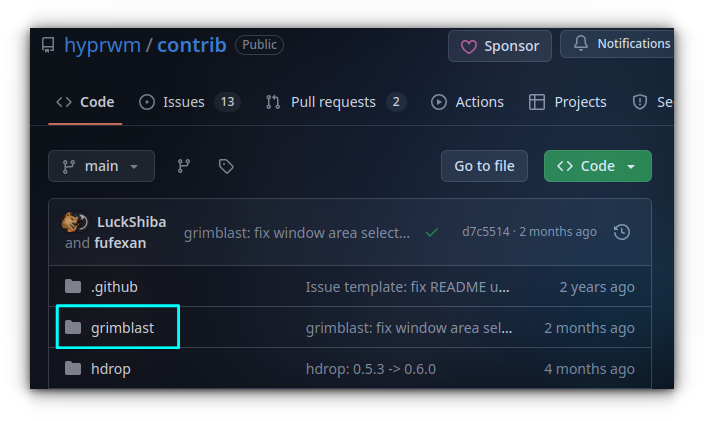
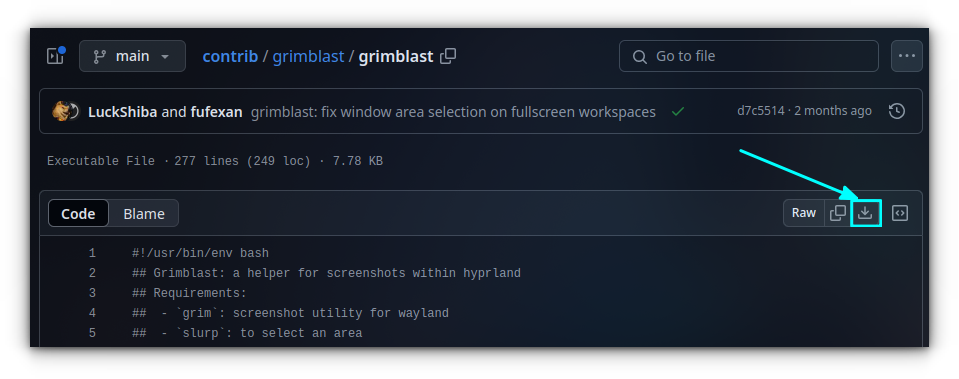
Grimblast is not available in the package manager of applications. To install, first go to the official repo of the project and go to the grimblast folder.

Taking Screenshots in Hyprland
Click on grimblast

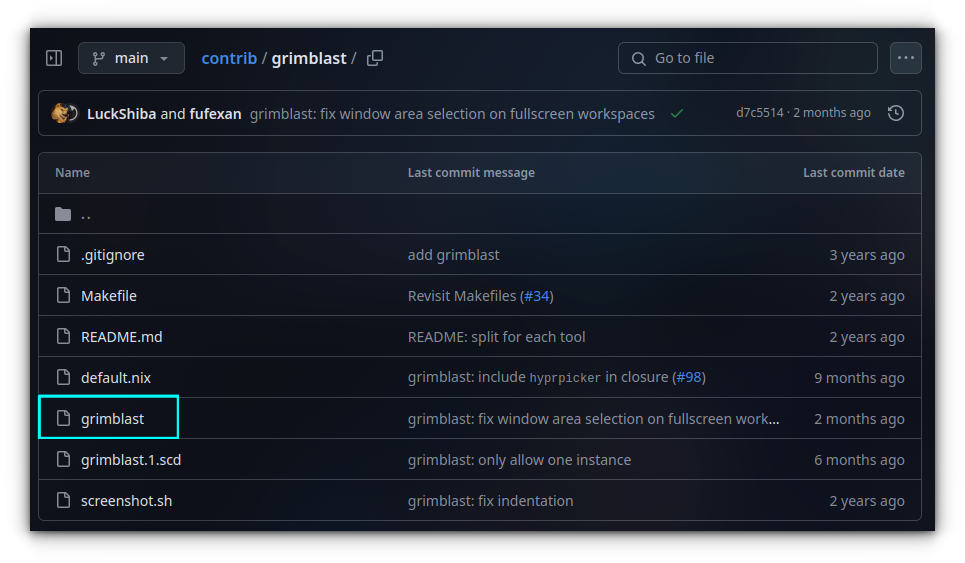
Here, go to the script file 'grimblast' and click on it to access.

Taking Screenshots in Hyprland
Click on grimblast script file

Here, click on the download icon on the top-right corner of the code page to start downloading it.

Taking Screenshots in Hyprland
Download grimblast script
📋
You should keep an eye on the project for updates/commits.

Once downloaded, go to the download location and give it execution permission.

chmod +x ./grimblast

Now, copy the file to a directory that is in your PATH.

sudo cp ./grimblast /usr/local/bin/

Using Grimblast

Grimblast has several useful options. We will be taking a look at some items in the table below:

Command Description
grimblast save active Save the screenshot of active window
grimblast save area Save the screenshot of a rectangular area selectable with mouse.
grimblast --notify copy active|area|output|screen Take the screenshot of respective area and copy it to clipboard and notify the user.
grimblast --cursor copysave area Copy the screenshot of the selected window area along with cursor to the clipboard. Also save the image to Pictures directory.

Grimblast supports the following area of screenshots:

  • active: Current active window.
  • screen: All visible outputs.
  • output: Currently active output/monitor.
  • area: Manually selected rectangular area/window.

1. Open the image in an editor

Grimblast supports opening the screenshot in a selected image editing application. By default, this is set as GIMP.

So, if you have GIMP installed, you can use the command:

grimblast edit area

The above command will take a screenshot of an area and open it in GIMP.

If you are using another image editor like Photoflare, you can use that program by configuring the GRIMBLAST_EDITOR environment variable.

On your ~/.config/hypr/hyprland.conf file, use the following line:

env = GRIMBLAST_EDITOR,photoflare

That's it. Now, when a screenshot is taken, it is opened in the selected editor.

2. Move the screenshot area

While taking region screenshots, you can move the screenshot view port. For this, when the screenshot key is pressed, and a region is selected, hold down the Space key without releasing the mouse click.

Now, without releasing the mouse click, drag the mouse to move around the screenshot area.

You can release the space key, and continue the resizing of the screenshot as well.

3. Add Grimblast Keybindings

You should be using Grimblast only through keybindings.

On Hyprland configuration file, add the line:

bind = , PRINT, exec, grimblast copysave area
bind = $mainMod_SHIFT, PRINT, exec, grimblast copysave output

The above command will save a screenshot of the selected area or window to ~/Pictures directory when you hit the PrtScr key. It will also be copied to your clipboard. The Super + SHIFT + PrtScr key will save a screenshot of currently active output, with the same will be copied to clipboard as well.

Second Option: Hyprshot

Hyprshot is an exclusive screenshot utility designed specifically for Hyprland.

It is a straightforward tool that does exactly what it's meant for: taking screenshots.

If you have read through the GitHub page of this tool, you will realize that it is primarily a shell script that serves as a wrapper around tools like grim, slurp, and others to take screenshots in Wayland environment. Furthermore, it is specially tailored to work with Hyprland, which is the most important thing here.

Installing Hyprshot

Before installing Hyprshot, first we need to get the dependencies. On Arch Linux, use the following command:

sudo pacman -Syu jq grim slurp wl-clipboard libnotitfy hyprpicker

Once the dependencies are installed, let's install Hyprshot:

yay -S hyprshot

If you are using any other distribution, go to the official GitHub page of Hyprshot and download the release file.

Once done, extract the archive file, and you will get a shell script file called hyprshot. Go inside the extracted location and make this script file executable:

chmod +x ./hyprshot>

Now, copy this file to a directory in your PATH to make it available everywhere.

sudo cp ./hyprshot /usr/local/bin/

That's it!

Setting Hyprshot

Once installed, it's time to configure. Open your hyprland.conf file using any of your favorite text editor.

nano ~/.config/hypr/hyprland.conf

Inside this file, go to the end and add a key binding for Hyprshot. To make everything look neat, we will create a section using comment called Hyprshot Screenshots.

# Hyprshot Screenshots
bind = , PRINT, exec, hyprshot -m region
bind = $mainMod_SHIFT, PRINT, exec, hyprshot -m window

Here, we have set two keybindings with the values. To take a screenshot of a rectangular region:

hyprshot -m region
💡
While selecting a region, without releasing the mouse left-click press the space and drag the mouse. This will move the selection area. A video is shown in the Grimblast section.

And to take the screenshot of an open window, you type in:

hyprshot -m window

There are other options available with Hyprshot, let's take a brief look:

Option Description
hyprshot -m window Take the screenshot of open window.
hyprshot -m region Take the screenshot of a rectangular region.
hyprshot -m output Take the screenshot of a selected display/monitor.
hyprshot -m active Take the screenshot of an active window.
--clipboard-only Use this option with other options to not save the image, but only copy to clipboard.

Did you know you can also freeze the screen?

An interesting use-case that you can pull off is to freeze the screen while taking a screenshot. For this to work, you should have hyprpicker installed.

Once you have Hyprshot and Hyprpicker, you can use the -z option to freeze the screen.

For example, to take the screenshot of a rectangular region with screen frozen, use the command:

hyprshot -zm region

To add this to the Hyprland config, use the keybinding command:

bind = , PRINT, exec, hyprshot -zm region

For those who only need to add it to the clipboard without saving, use:

bind = , PRINT, exec, hyprshot -zm region --clipboard-only
💡
If you have a notification daemon like dunst is running, Hyprshot will notify you about the screenshot.

Third Option: Flameshot

Flameshot is a great screenshot taking utility for Linux. But the default package available in the repos of distribution works mainly on Xorg-based distributions.

But, you can use the git version of Flameshot in Wayland-based systems like Hyprland. Let me tell you how.

Install Flameshot

First, remove any other Flameshot instance installed on your system (this is applicable for Arch users):

sudo pacman -Rs flameshot

Next, install the git version of Flameshot from the AUR. We will recommend using an AUR helper like yay to install the package.

yay -S flameshot-git

Wait for some time to compile the program and installation process to complete.

Once completed, you can open Flameshot from your app menu:

Flameshot offers better screenshot options compared to other items mentioned here. But, you should keep in mind that Flameshot is developed mainly for Xorg sessions, and the packaged versions may not work properly in Hyprland.

So, try out Flameshot as an experiment if you do not like the first two options.

Wrapping Up

While starting with Hyprland can be challenging for new users, you can do a great deal of things with ease, as mentioned above.

💬 How do you take screenshots on Hyprland? Let me know your thoughts in the comments below!

  • Es gibt keine weiteren Artikel
❌