🔒
Es gibt neue verfügbare Artikel. Klicken Sie, um die Seite zu aktualisieren.
✇It's FOSS

I Ran Local LLMs on My Android Phone

Von: Community
I Ran Local LLMs on My Android Phone

Like it or not, AI is here to stay. For those who are concerned about data privacy, there are several local AI options available. Tools like Ollama and LM Studio makes things easier.

Now those options are for the desktop user and require significant computing power.

What if you want to use the local AI on your smartphone? Sure, one way would be to deploy Ollama with a web GUI on your server and access it from your phone.

But there is another way and that is to use an application that lets you install and use LLMs (or should I say SLMs, Small Language Models) on your phone directly instead of relying on your local AI server on another computer.

Allow me to share my experience with experimenting with LLMs on a phone.

📋
Smartphones these days have powerful processors and some even have dedicated AI processors on board. Snapdragon 8 Gen 3, Apple’s A17 Pro, and Google Tensor G4 are some of them. Yet, the models that can be run on a phone are often vastly different than the ones you use on a proper desktop or server.

Here's what you'll need:

  • An app that allows you to download the language models and interact with them.
  • Suitable LLMs that have been specifically created for running on mobile devices.

Apps for running LLMs locally on a smartphone

After researching, I decided to explore following applications for this purpose. Let me share their features and details.

1. MLC Chat

MLC Chat supports top models like Llama 3.2, Gemma 2, phi 3.5 and Qwen 2.5 offering offline chat, translation, and multimodal tasks through a sleek interface. Its plug-and-play setup with pre-configured models, NPU optimization (e.g., Snapdragon 8 Gen 2+), and beginner-friendly features make it a good choice for on-device AI. 

You can download the MLC Chat APK from their GitHub release page.

Android is looking to forbid sideloading of APK files. I don't know what would happen then, but you can use APK files for now.

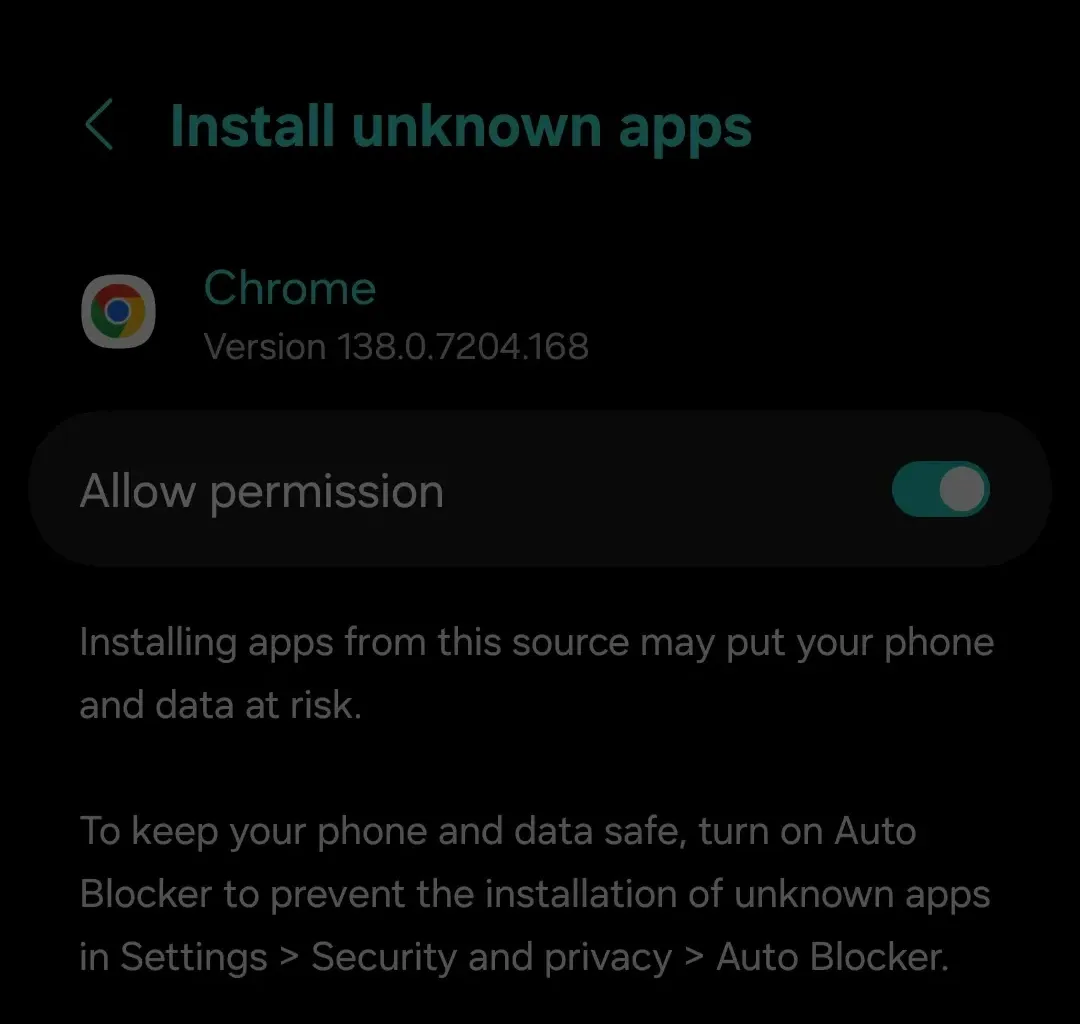
Put the APK file on your Android device, go into Files and tap the APK file to begin installation. Enable “Install from Unknown Sources” in your device settings if prompted. Follow on-screen instructions to complete the installation.
I Ran Local LLMs on My Android Phone
Enable APK installation

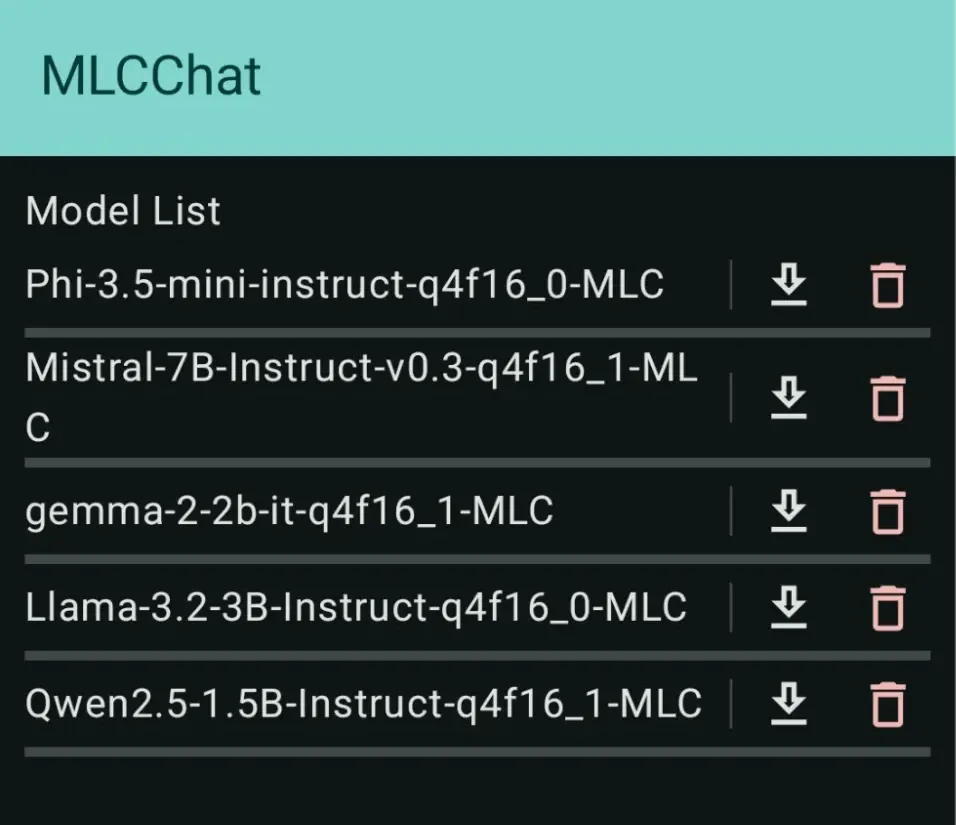
Once installed, open the MLC Chat app, select a model from the list, like Phi-2, Gemma 2B, Llama-3 8B, Mistral 7B. Tap the download icon to install the model. I recommend opting for smaller models like Phi-2. Models are downloaded on first use and cached locally for offline use.
I Ran Local LLMs on My Android Phone
Click on the download button to download a model

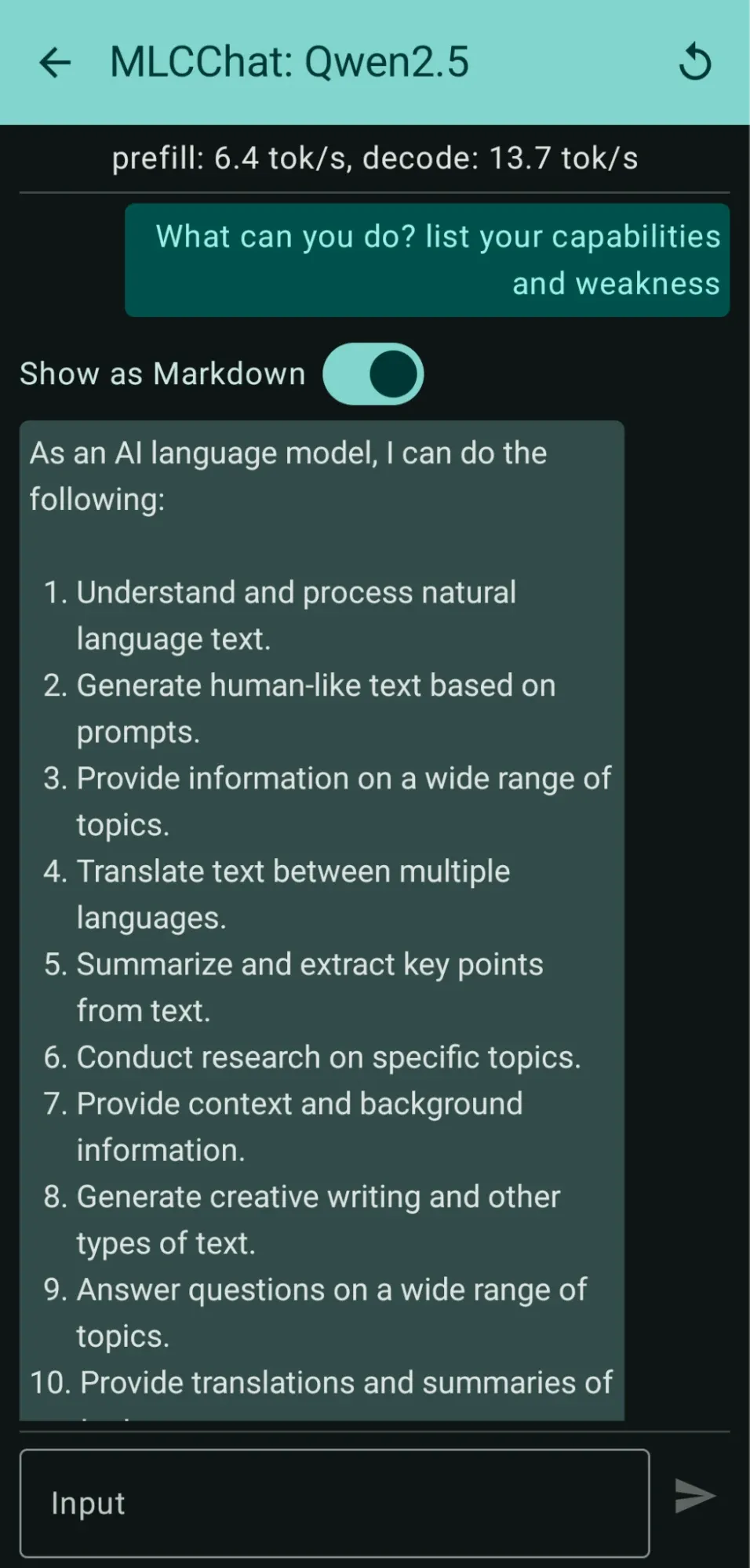
Tap the Chat icon next to the downloaded model. Start typing prompts to interact with the LLM offline. Use the reset icon to start a new conversation if needed.
I Ran Local LLMs on My Android Phone

2. SmolChat (Android)

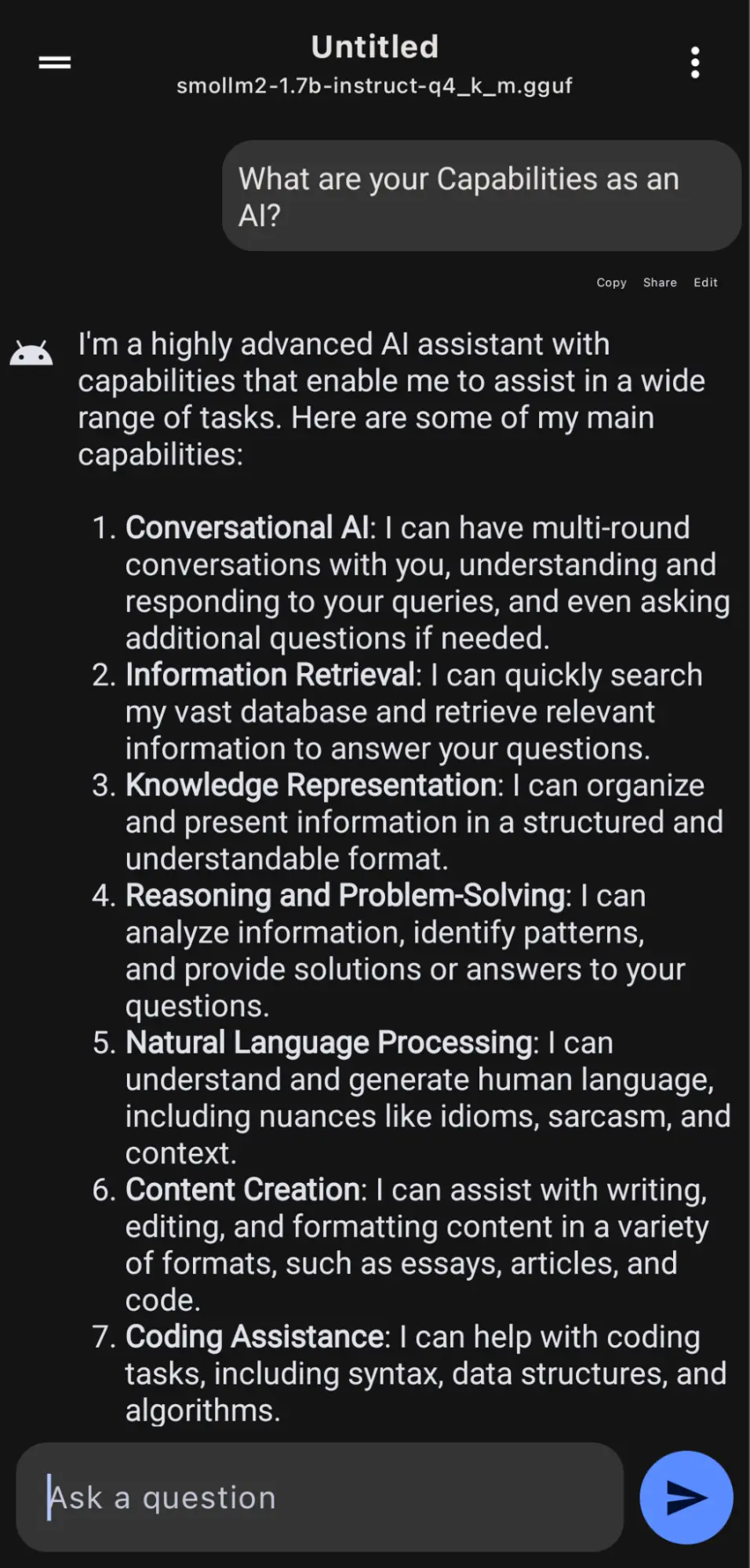
SmolChat is an open-source Android app that runs any GGUF-format model (like Llama 3.2, Gemma 3n, or TinyLlama) directly on your device, offering a clean, ChatGPT-like interface for fully offline chatting, summarization, rewriting, and more.

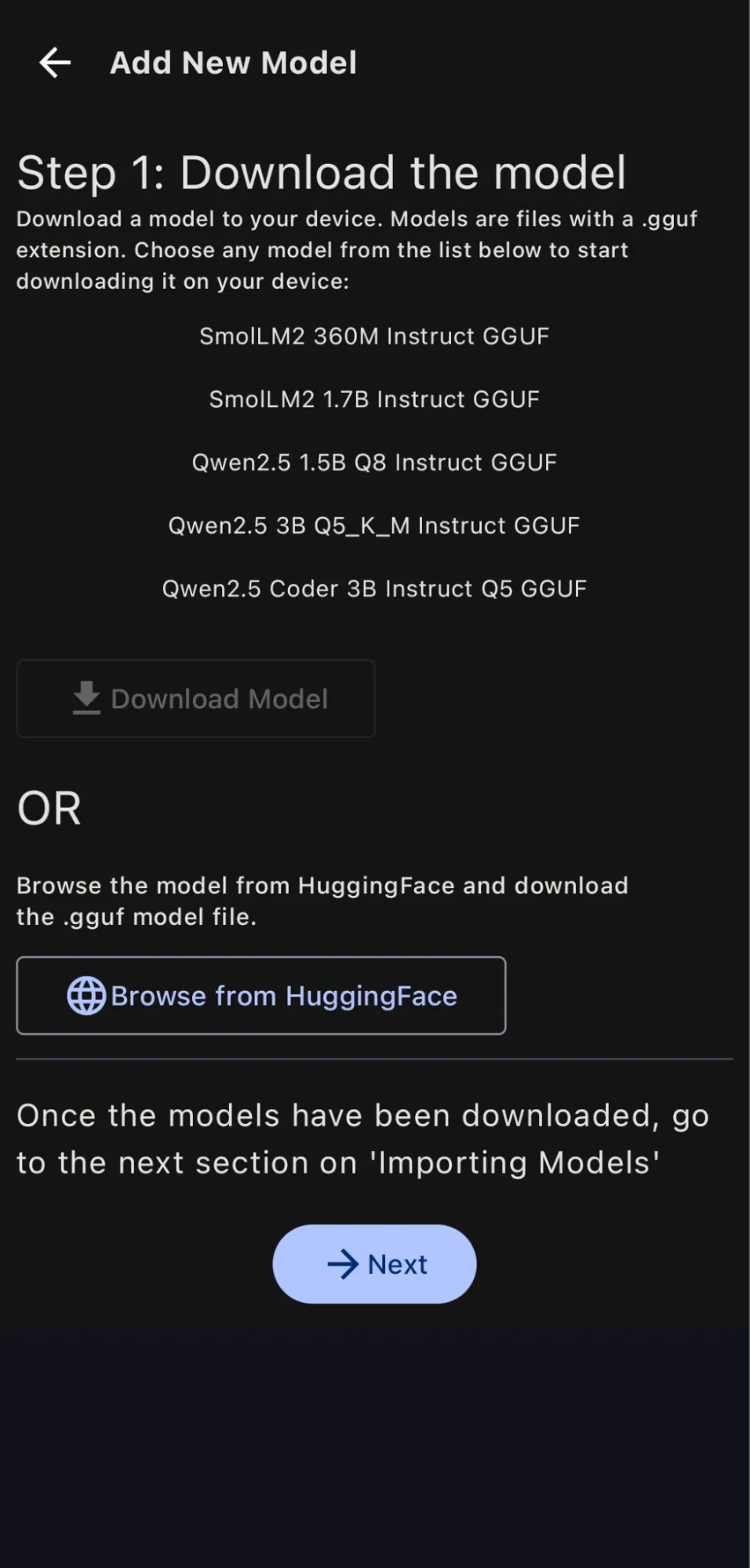
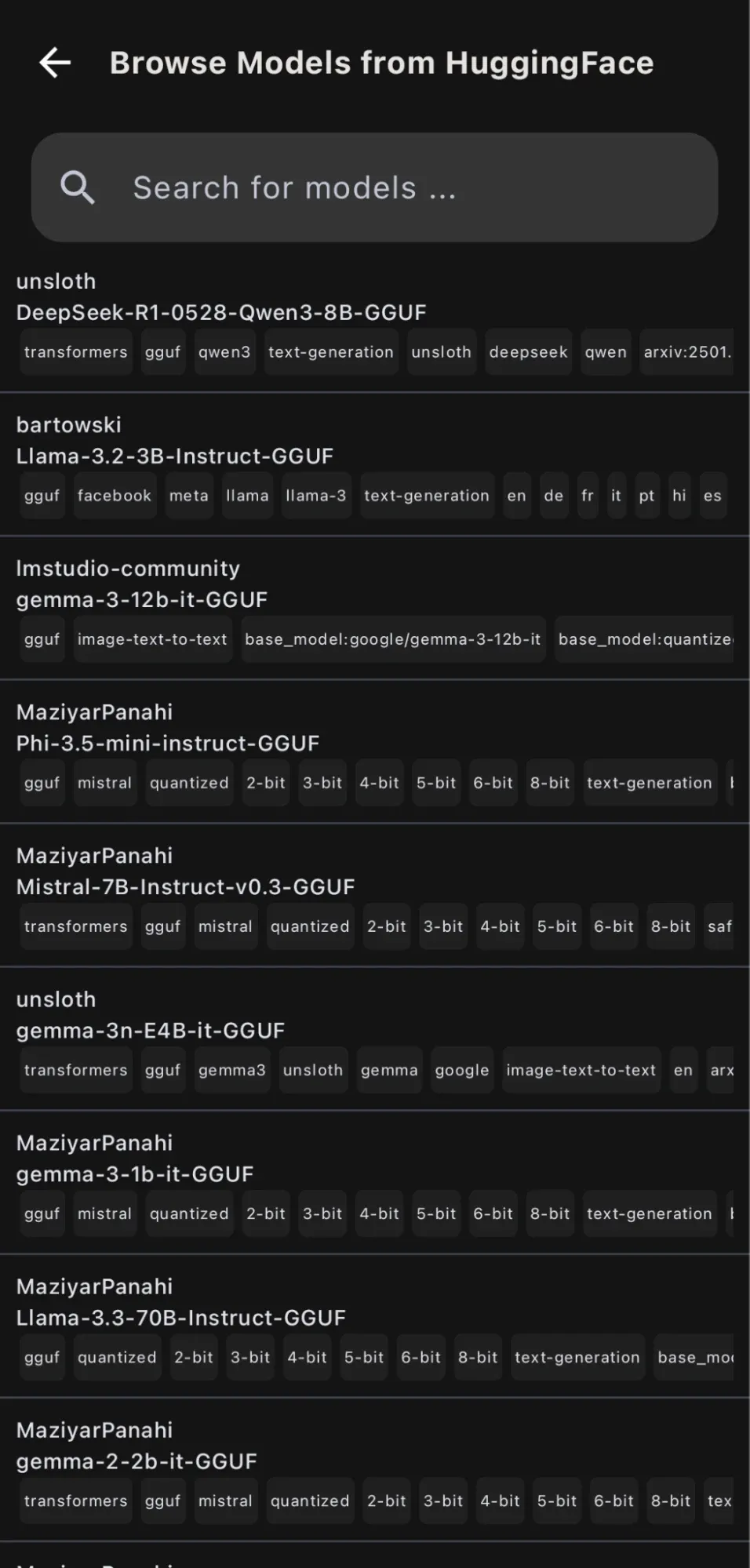
Install SmolChat from Google's Play Store. Open the app, choose a GGUF model from the app’s model list or manually download one from Hugging Face. If manually downloading, place the model file in the app’s designated storage directory (check app settings for the path).
I Ran Local LLMs on My Android Phone

3. Google AI Edge Gallery

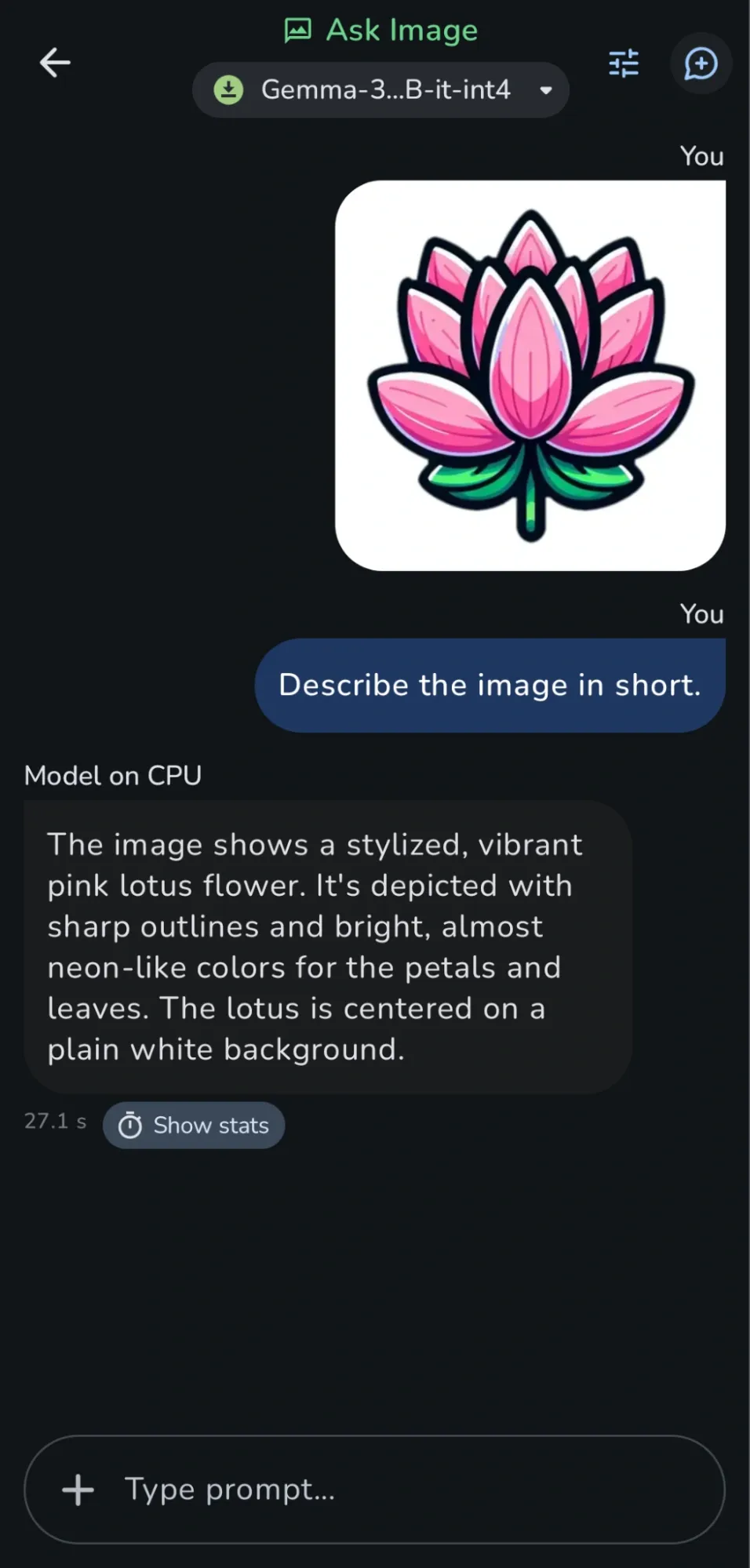
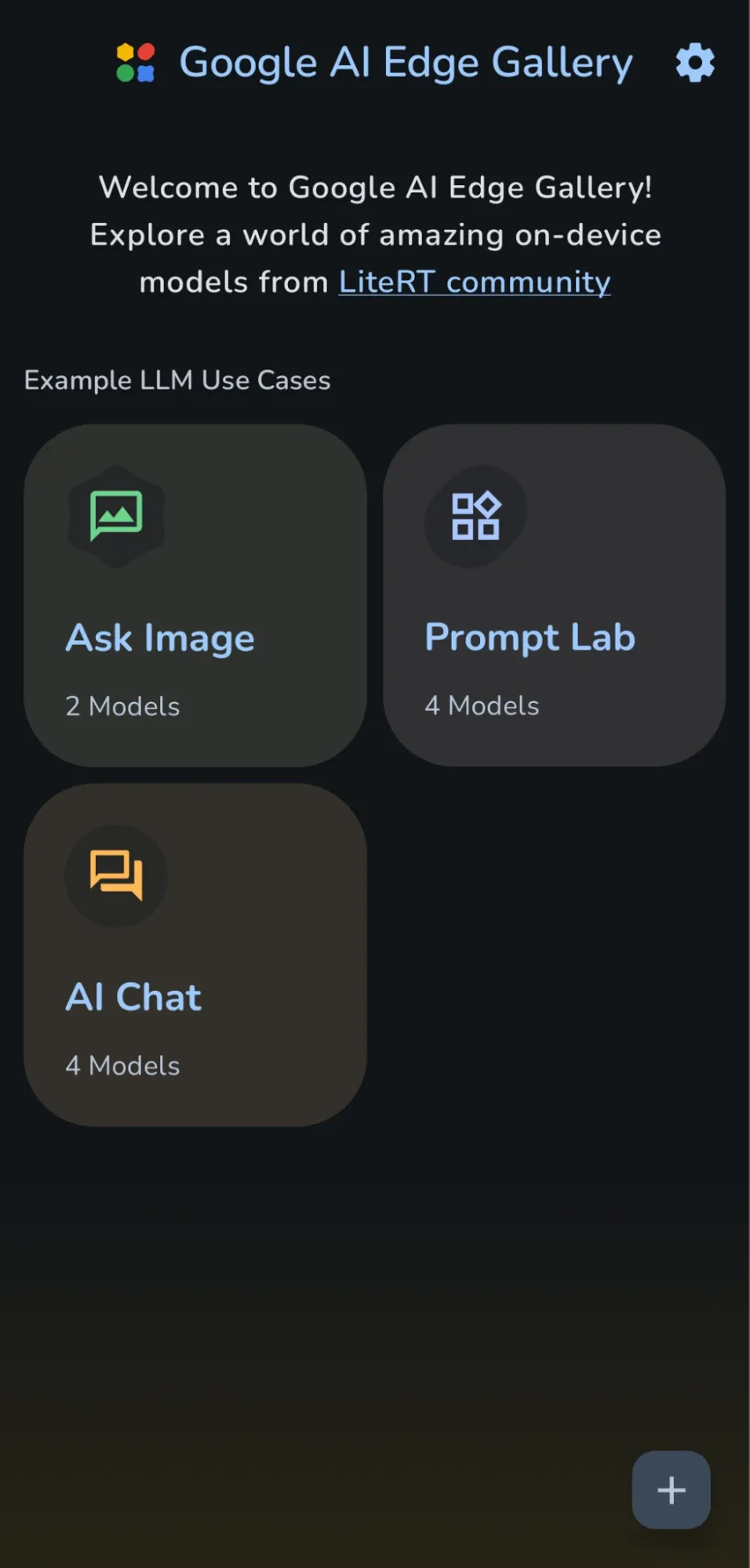
Google AI Edge Gallery is an experimental open-source Android app (iOS soon) that brings Google's on-device AI power to your phone, letting you run powerful models like Gemma 3n and other Hugging Face models fully offline after download. This application makes use of Google’s LiteRT framework.

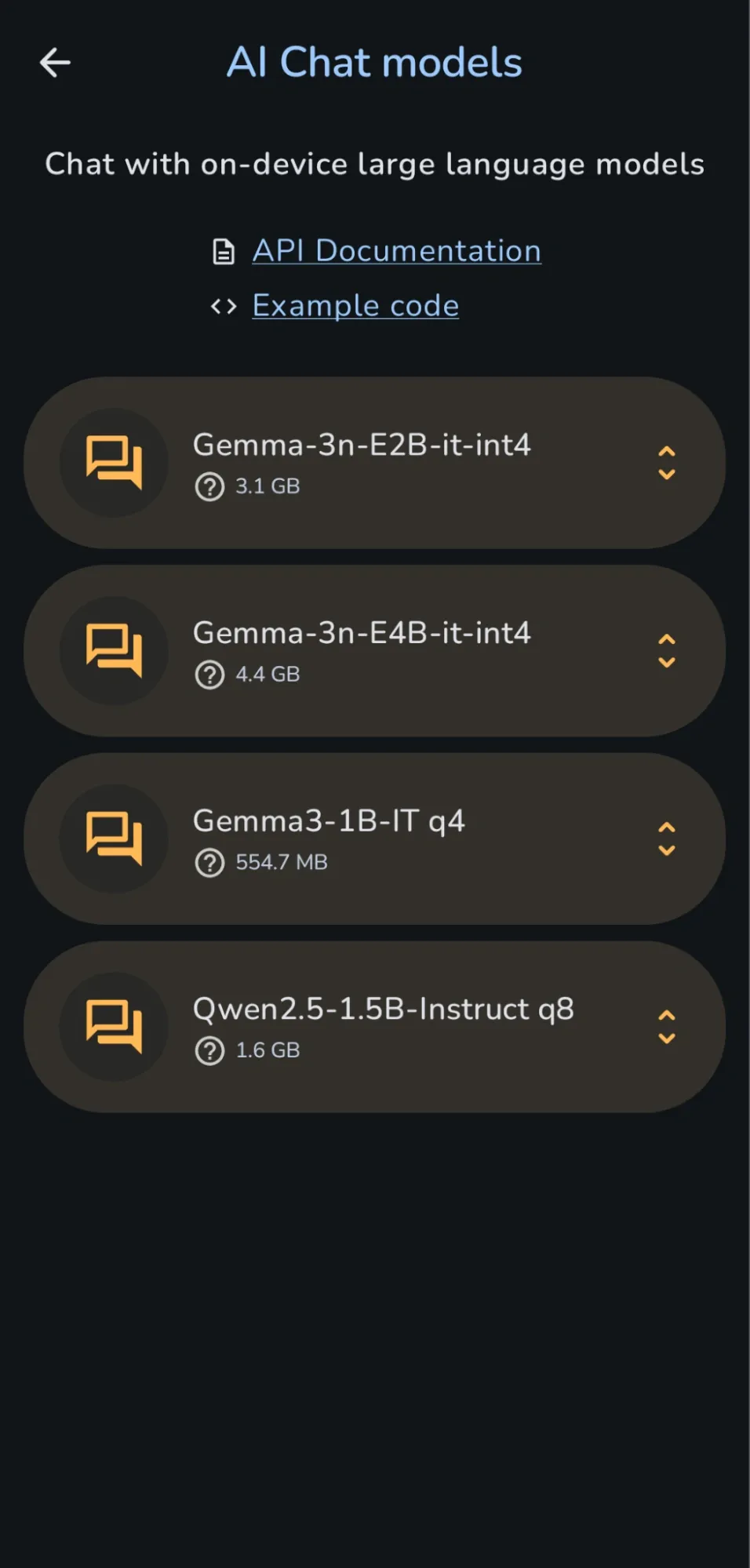
You can download it from Google Play Store. Open the app and browse the list of provided models or manually download a compatible model from Hugging Face.

Select the downloaded model and start a chat session. Enter text prompts or upload images (if supported by the model) to interact locally. Explore features like prompt discovery or vision-based queries if available.
I Ran Local LLMs on My Android Phone

Top Mobile LLMs to try out

Here are the best ones I’ve used:

Model My Experience Best For
Google’s Gemma 3n (2B) Blazing-fast for multimodal tasks including image captions, translations, even solving math problems from photos. Quick, visual-based AI assistance
Meta’s Llama 3.2 (1B/3B) Strikes the perfect balance between size and smarts. It’s great for coding help and private chats.The 1B version runs smoothly even on mid-range phones. Developers & privacy-conscious users
Microsoft’s Phi-3 Mini (3.8B) Shockingly good at summarizing long documents despite its small size. Students, researchers, or anyone drowning in PDFs
Alibaba’s Qwen-2.5 (1.8B) Surprisingly strong at visual question answering—ask it about an image, and it actually understands! Multimodal experiments
TinyLlama-1.1B The lightweight champ runs on almost any device without breaking a sweat. Older phones or users who just need a simple chatbot

All these models use aggressive quantization (GGUF/safetensors formats), so they’re tiny but still powerful. You can grab them from Hugging Face—just download, load into an app, and you’re set.

Challenges I faced while running LLMs Locally on Android smartphone

Getting large language models (LLMs) to run smoothly on my phone has been equally exhilarating and frustrating.

On my Snapdragon 8 Gen 2 phone, models like Llama 3-4B run at a decent 8-10 tokens per second, which is usable for quick queries. But when I tried the same on my backup Galaxy A54 (6 GB RAM), it choked. Loading even a 2B model pushed the device to its limits. I quickly learned that Phi-3-mini (3.8B) or Gemma 2B are far more practical for mid-range hardware.

The first time I ran a local AI session, I was shocked to see 50% battery gone in under 90 minutes. MLC Chat offers power-saving mode for this purpose. Turning off background apps to free up RAM also helps.

I also experimented with 4-bit quantized models (like Qwen-1.5-2B-Q4) to save storage but noticed they struggle with complex reasoning. For medical or legal queries, I had to switch back to 8-bit versions. It was slower but far more reliable.

Conclusion

I love the idea of having an AI assistant that works exclusively for me, no monthly fees, no data leaks. Need a translator in a remote village? A virtual assistant on a long flight? A private brainstorming partner for sensitive ideas? Your phone becomes all of these staying offline and untraceable.

I won’t lie, it’s not perfect. Your phone isn’t a data center, so you’ll face challenges like battery drain and occasional overheating. But it also provides tradeoffs like total privacy, zero costs, and offline access.

The future of AI isn’t just in the cloud, it’s also on your device.

Author Info

I Ran Local LLMs on My Android Phone

Bhuwan Mishra is a Fullstack developer, with Python and Go as his tools of choice. He takes pride in building and securing web applications, APIs, and CI/CD pipelines, as well as tuning servers for optimal performance. He also has passion for working with Kubernetes.
✇It's FOSS

Absolute Essentials You Need to Know to Survive Vi Editor

Von: Community
Absolute Essentials You Need to Know to Survive Vi Editor

Vi is on almost every Unix and Linux distribution, so why not take advantage of it?

VI, pronounced as distinct letters /ˌviːˈaɪ/ it's a terminal-based text editor. One of the most common tools in Unix, VI is extremely powerful for text manipulation. Although it could be a little bit challenging. And that's why I am listing the absolute basics of the Vi editor commands in this article.

📋
Vim is a popular fork/clone of VI. It includes additional features like syntax highlighting, mouse support (yes, you read that right) and more. Basic commands and keyboard shortcuts remain the same in both VI and Vim. So if you learn Vi, you are automatically learning the basics of Vim and other descendants of Vi.

Why you should learn Vi?

Here are five reasons why I recommend learning Vi and Vim:

  1. Vi/Vim is free and open source. And remember this is it's foss!!
  2. Vi is always available since it's required by POSIX.
  3. Vi/Vim is well documented. And it also has its own user manual; you only need to type :h in command mode. I'll discuss command mode later in this guide.
  4. Vi/Vim has a lot of plugins. Vim Awesome is one of the most popular websites to download extensions.
  5. It does not consume a lot of system resources, and you could do a lot of tasks, even write novels in Vim.
It is not uncommon for some distributions to replace Vi with Vim. Even if you are using Vi commands, it runs Vim.

Launch Vi

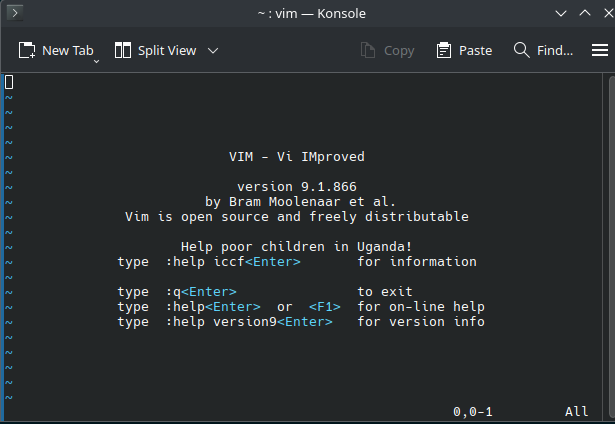
To execute the program, you must type vi:

vi
Absolute Essentials You Need to Know to Survive Vi Editor

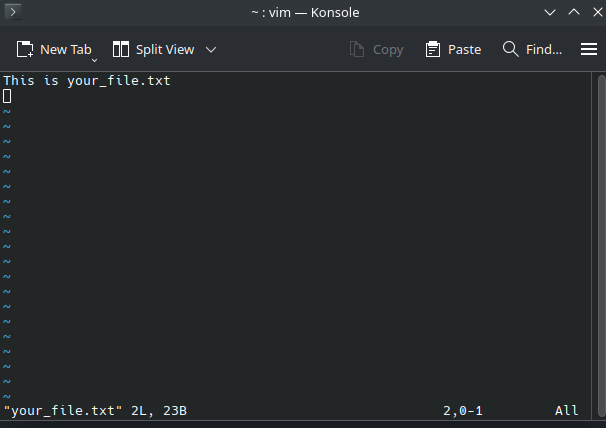
Also, you could open a file by providing its name. It will open the file for editing if it exists, or create a new one if it does not exist.

vi your_file.txt
Absolute Essentials You Need to Know to Survive Vi Editor

Vi modes

You must understand that Vi has 2 different modes:

  • Normal or command mode: This is the mode you use for navigating and copy-pasting
  • Insert mode: This is the editing mode where you actually type text

Using Normal mode in Vi

💡
This is the default mode when VI/Vim opens.

The Normal mode is used for actions like navigation, copy, paste, delete, text substitution (not editing), etc. You always could go back to this mode by pressing <Esc>.

1. Movement commands

These are the movement keys:

  • h: Left.
  • j: Down.
  • k: Up.
  • l: Right.

2. Deletion commands

  • x: It's like the delete key. Delete the character under the cursor.
  • dd: Deletes the current line.

3. Copy and paste

  • y: Yank (Copy) command. Copies the selected text.
  • yy: Yank (Copy) command. Copies the current line.
  • p: Paste. After using a copy command, it pastes the content after the cursor.

(Command Mode)

💡
In fact, this is not a different mode (that's why parentheses are used), but it's important to separate it because it's where you could type orders and commands

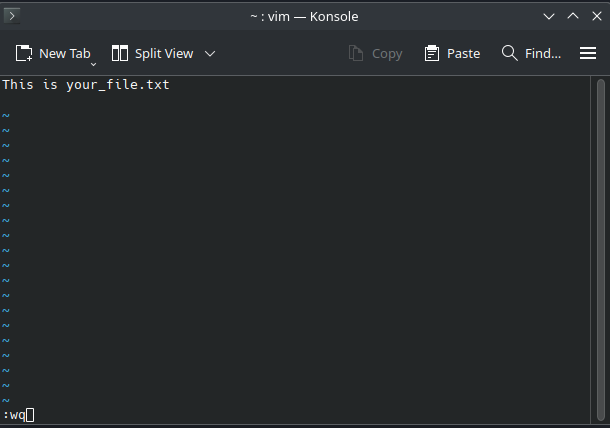
In normal mode, you could use commands by typing :.

For example, if you want to save your text and exit Vi, you can type:

:wq

Absolute Essentials You Need to Know to Survive Vi Editor

Other common Vi commands you can use in normal/command mode:

  • :h: Help
  • :/string: Search for string (use n/N to move to next/previous occurrence)
  • :u: Undo last action
  • :w: Save
  • :q: Quit
  • !: Forces order (:q! becomes force quit)

I have added : in front of each command so that it is easier to note that you have to use : to use the commands.

You can perform search and replace action in command mode with :%s/foo/bar/g where % means search-replace will take place in the entire document. With /g, the search-replace will be global, meaning all occurrences of foo will be replaced with bar.

Insert mode

💡
In this mode, you could edit and manipulate the text.

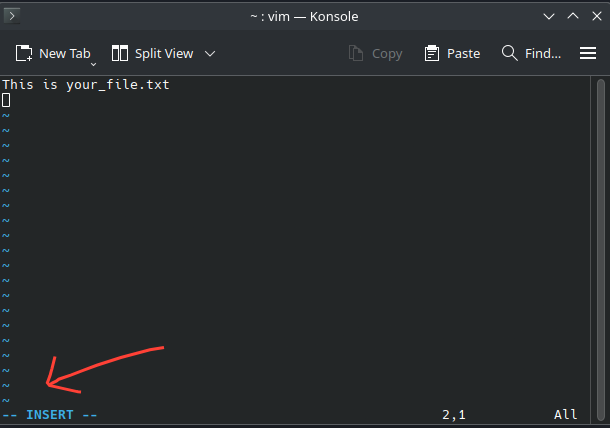
You could enter this mode by pressing the letter i in Normal Mode and start typing whatever you want.

Absolute Essentials You Need to Know to Survive Vi Editor
Look at the bottom left to check insert mode
  • i: Enter in Insert mode. Lets you insert, before the current cursor position.
  • I: Lets you insert at the beginning of the line.
  • a: Lets you append after the cursor.
  • A: Lets you append at the end of the line.

Visual Mode (only in Vim)

💡
In this mode, you could select text visually, which is very useful when working with large paragraphs.

You could enter this mode by pressing the letter:

  • v: Character mode
  • V: Line Mode
  • Ctrl+V: Block mode

Learn more about the visual mode in Vim here.

Visual Mode in Vim [Beginner’s Guide]
There are three modes in Vim and the least popular and yet quite interesting is the Visual mode. Learn more about it.
Absolute Essentials You Need to Know to Survive Vi EditorLinux HandbookPratham Patel
Absolute Essentials You Need to Know to Survive Vi Editor

A "vi" bit of history and trivia

💡
Did you know Vi is tiny, with just 160 kB in size?

It was developed in 1976 by Bill Joy as a visual mode of the ex line editor, also cowritten by Bill Joy.

A 2009 survey of Linux Journal readers found that vi was the most widely used text editor, beating the second Gedit, by nearly a factor of two (36% to 19%).

It was not until 2002 that VI was released as an open-source program under the BSD-style license.

Vim (VI Improved) it's a free and open-source clone of Stevie (ST Editor for VI Enthusiasts), developed in 1991 by Bram Moolenaar. It has a huge number of extensions.

Conclusion

Among all the terminal based text editors, I prefer the Vi ecosystem.

VI/Vim is omnipresent in Unix-like operating systems due to its POSIX syntax, and when you invest a little time to unwrap its real power, you could master one of the best text-editor.

Also, you could keep growing; you could use NeoVim and its myriad of extensions and add-ons to arrive at a full IDE. The sky (and your Lua programming knowledge) is the limit.

📜
BTW, this article has been fully written in (Neo)Vim. :)

Author Info

Absolute Essentials You Need to Know to Survive Vi Editor

Jose Antonio Tenés
A Communication engineer by education, and Linux user by passion. In my spare time, I play chess, do you dare?

  • Es gibt keine weiteren Artikel
❌