What One Year of AI Has Already Changed














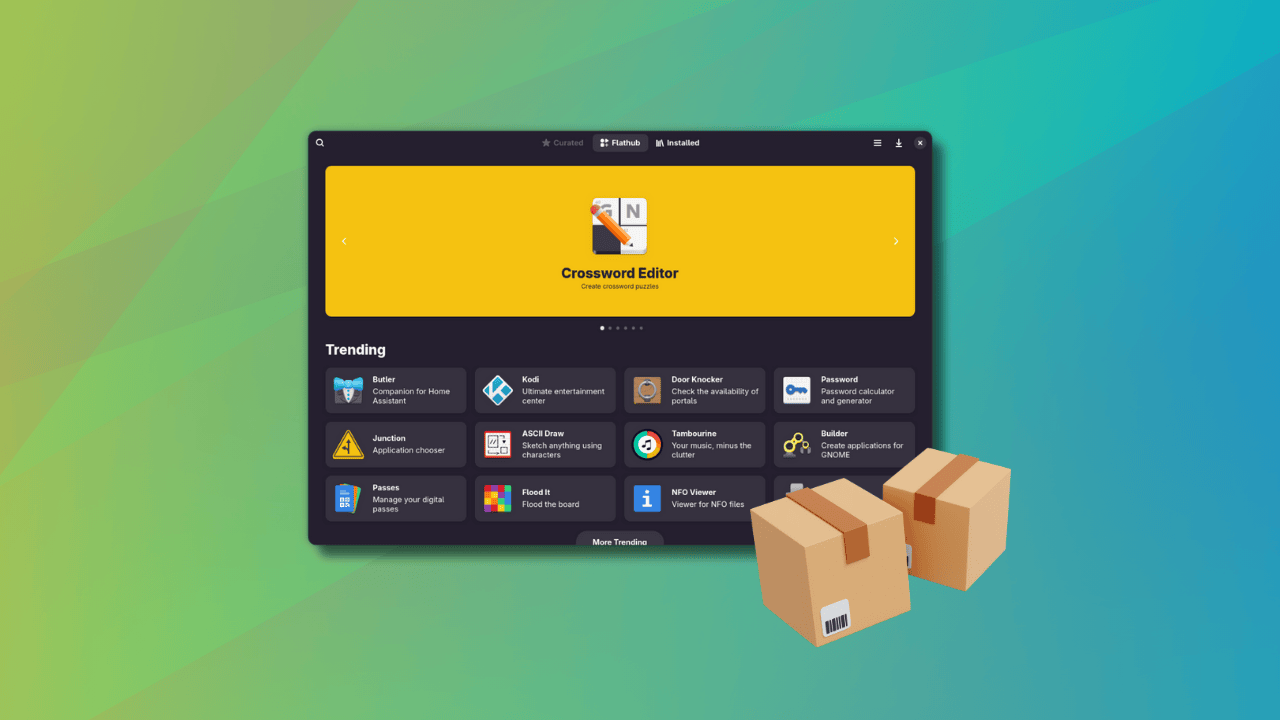
Do we need a separate, dedicated software center application for Flatpaks? I don't know and I don't want to go in this debate anymore. For now, I am going to share this new marketplace that I have come across and found intriguing.
Bazaar is a modern Flatpak app store designed with GNOME styles. It focuses on discovering and installing Flatpak apps, especially from Flathub. In can se you did not know already, bazaar means market or marketplace. A suitable name, I would say.
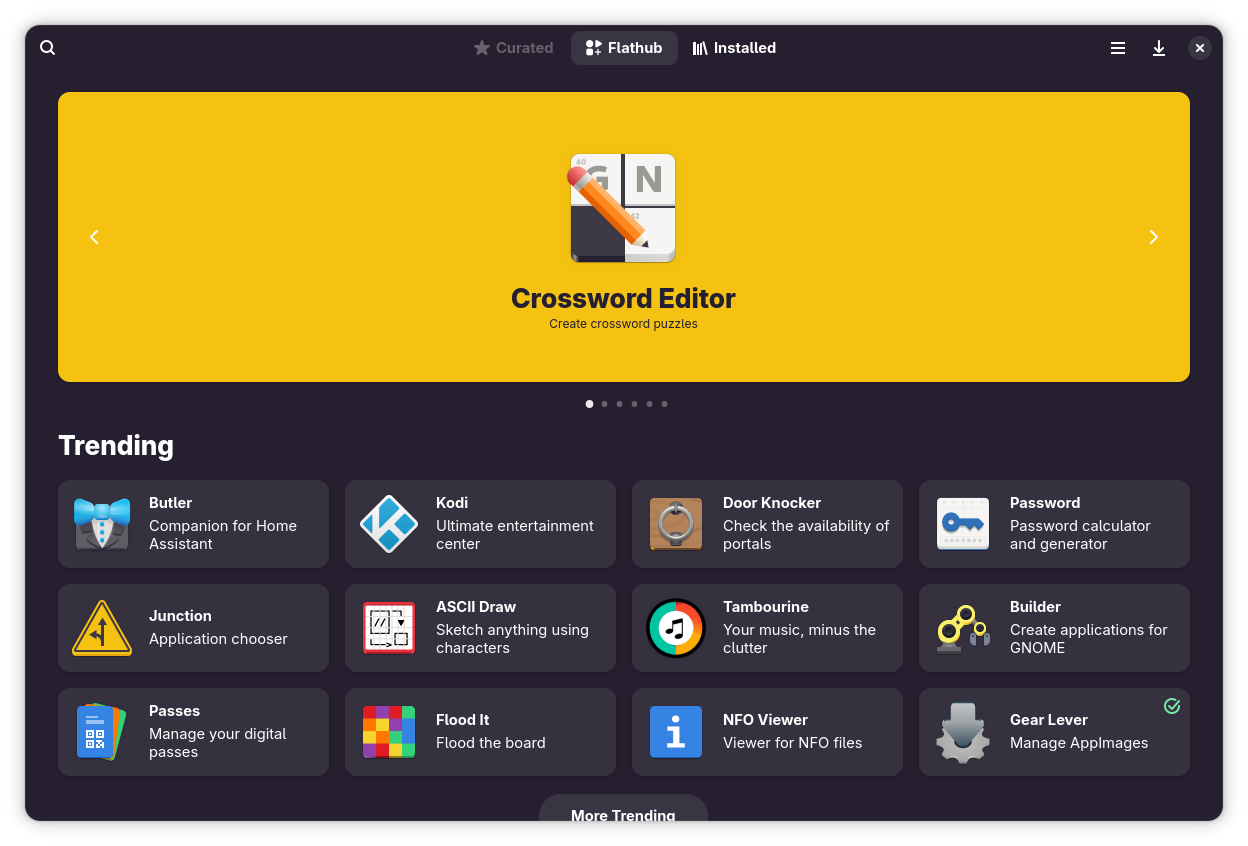
As you'll see in the later sections, Bazaar is not perfect. But then nothing is perfect in this world. There are scopes for improvement but overall, it provides a good experience if you are someone who frequently and heavily use Flatpaks on GNOME desktop. There is a third-party KRunner plugin for KDE Plasma users.
Let's explore this Bazaar and see what features it offers. If you prefer videos, you can watch its features in our YouTube video.
Like GNOME software, several app categories are available in Bazaar. You can find them on the homepage itself. If you are just exploring new apps of your interest, this helps a little.
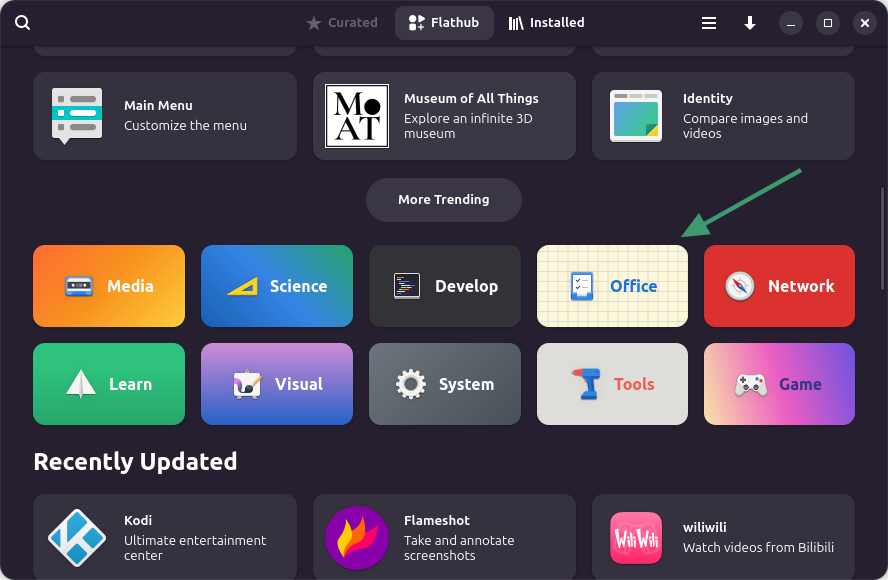
Of course, you can search for an application, too. Not only you can search with its name, you can also search for its type. See, Flathub allows tagging apps and this helps 'categorizing' apps in a way. So if you search for text editor, it will show the applications tagged with text editor.
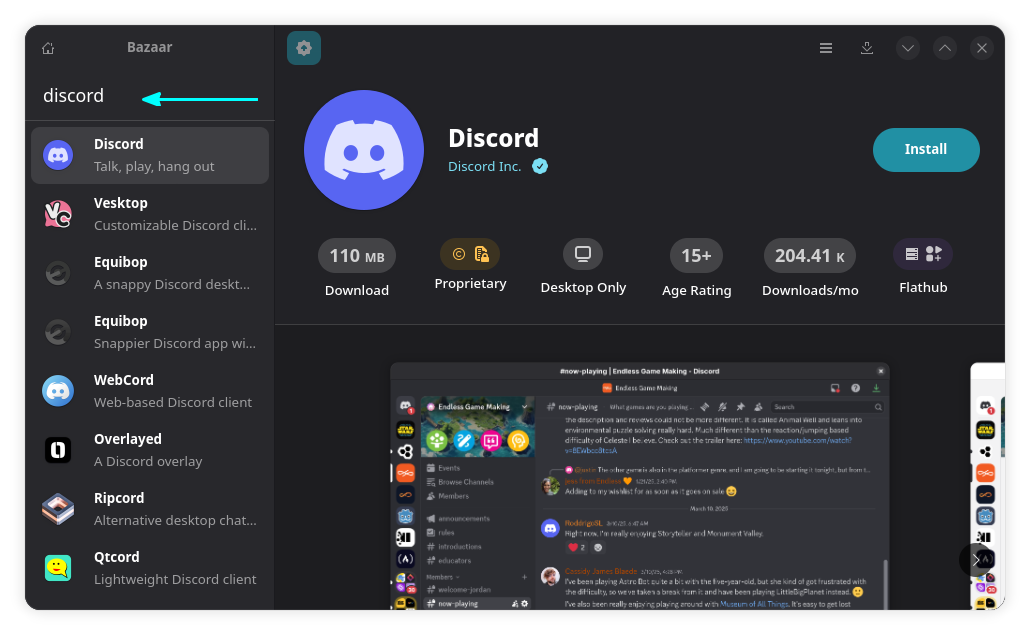
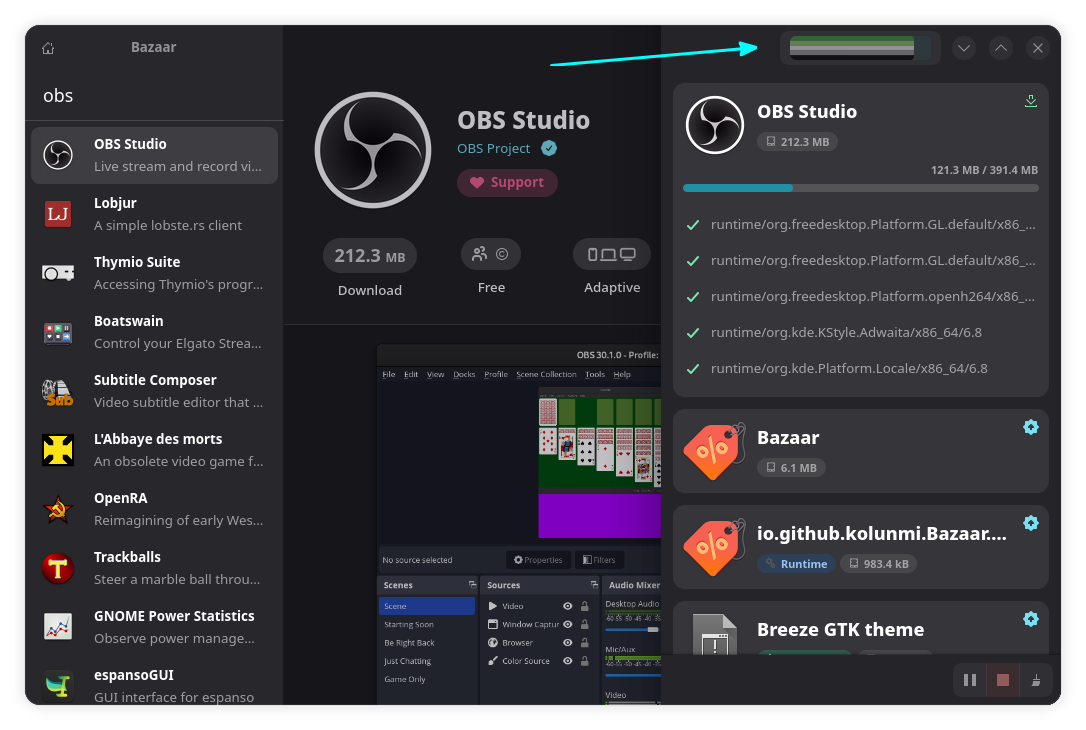
When you hit the install button, you can see a progress bar on the top-right. Click on it to open the entire progress bar as a sidebar.
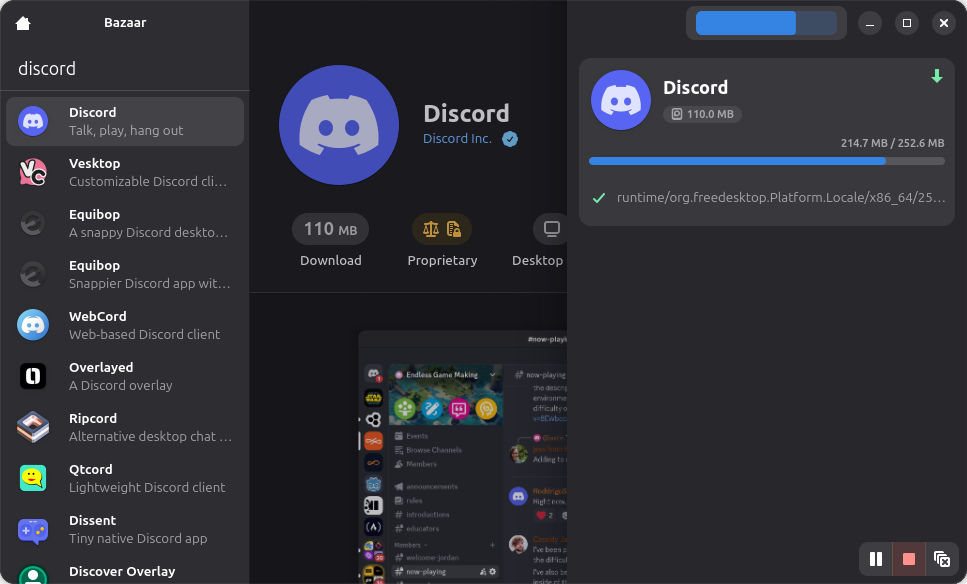
It shows what items and runtimes are being installed. You can scroll down the page of the package to get more details, screenshots of the project, and more.
The progress bar you saw above can be customized a little. Click the hamburger menu to access preferences and then go to the Progress Bar section. You'll find the options to choose a theme for the progress bar. These themes are accent colors represent LGBTQ and their sub-catrgories.
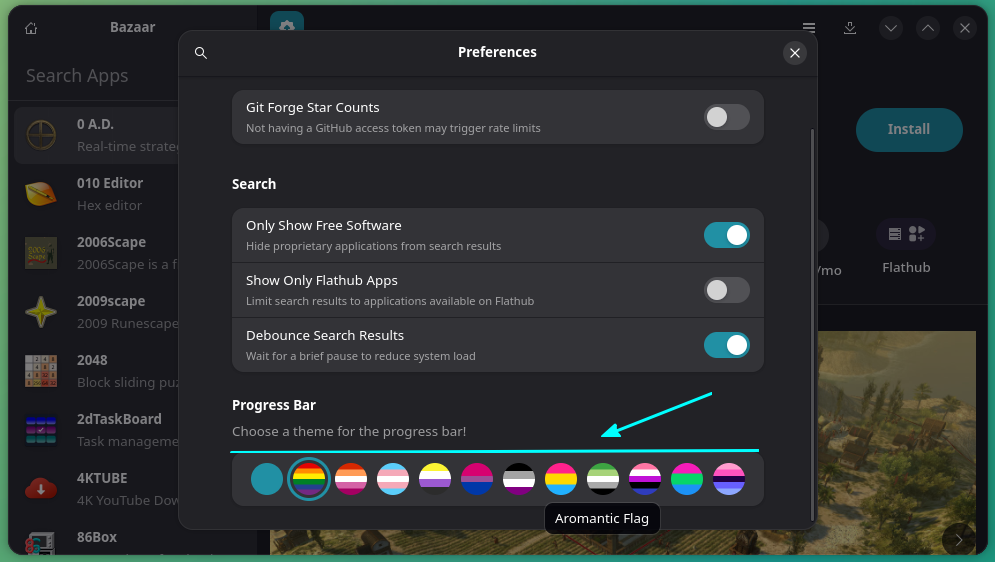
You can see an Aromantic Flag applied for the progress bar in the screenshot below.
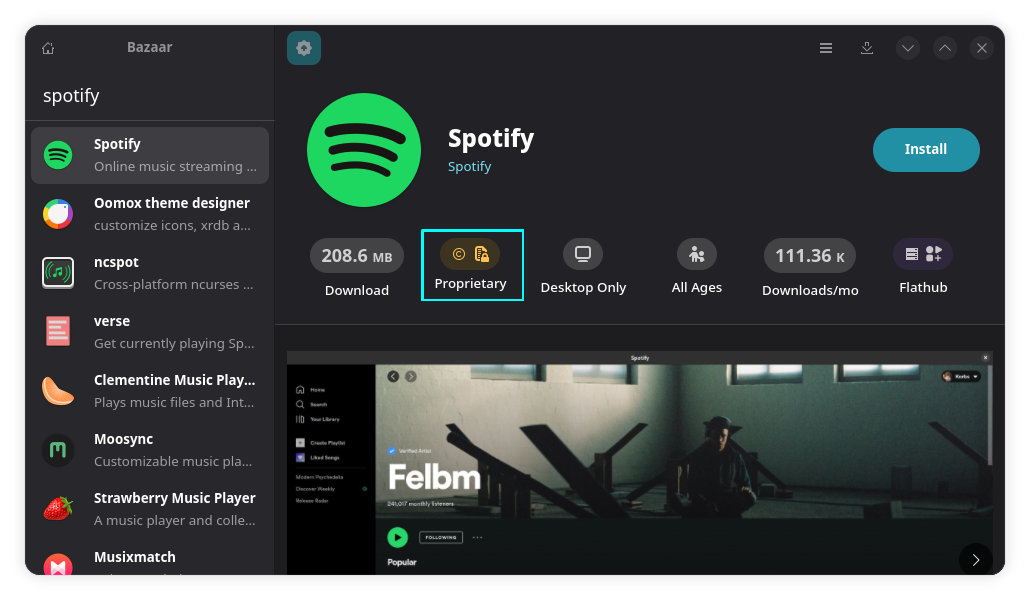
Flathub has both open source and proprietary software available. The licensing information is displayed on an individual application page.
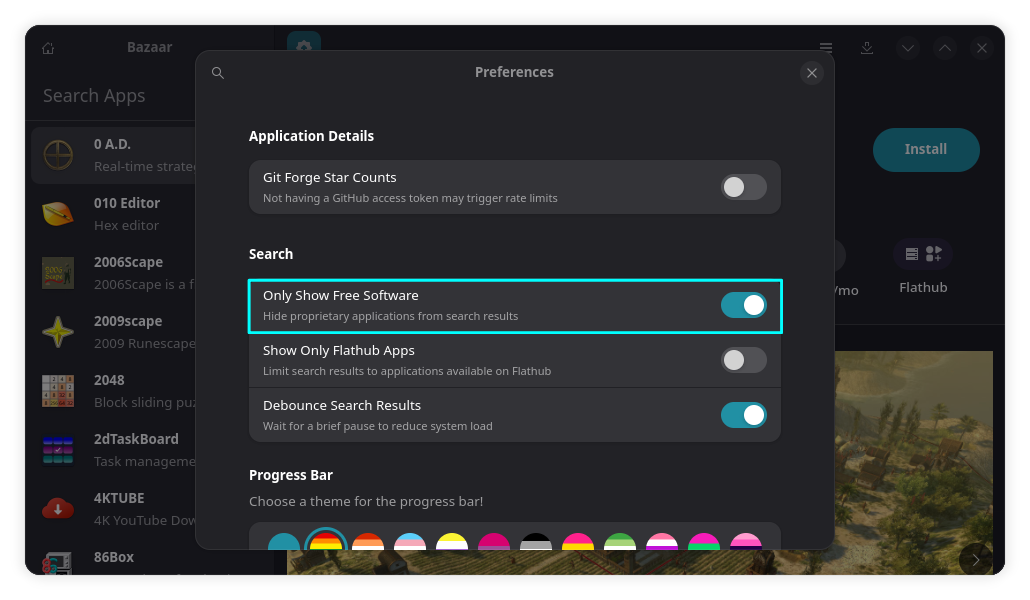
Now, some people don't want to install proprietary software. For them, there is the option to only show open source software in Bazaar.
You can access this option by going to preferences from the hamburger menu and toggle on the button, "Show only free software".
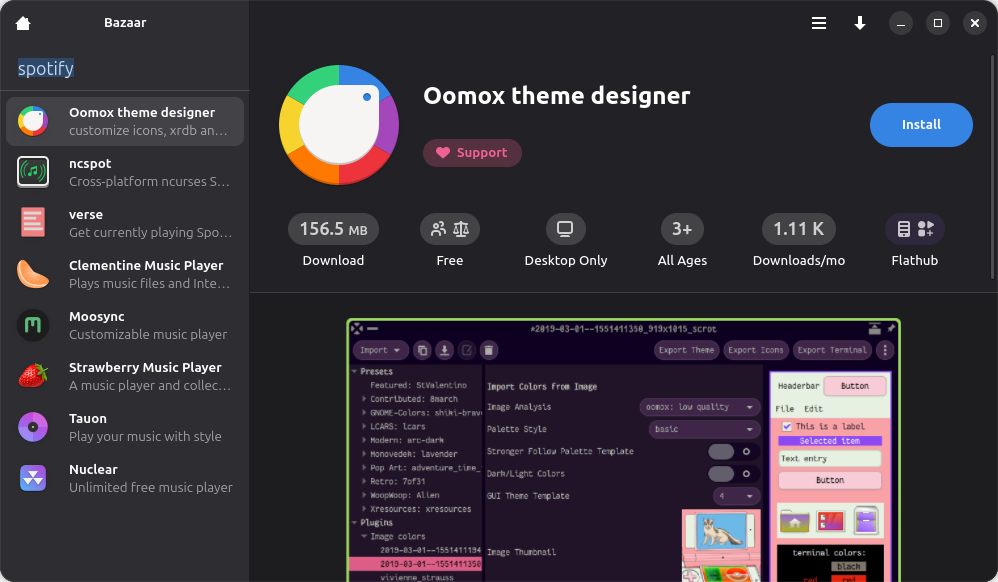
Refresh the content using the shortcut CTRL + R and you should not see proprietary software anymore.
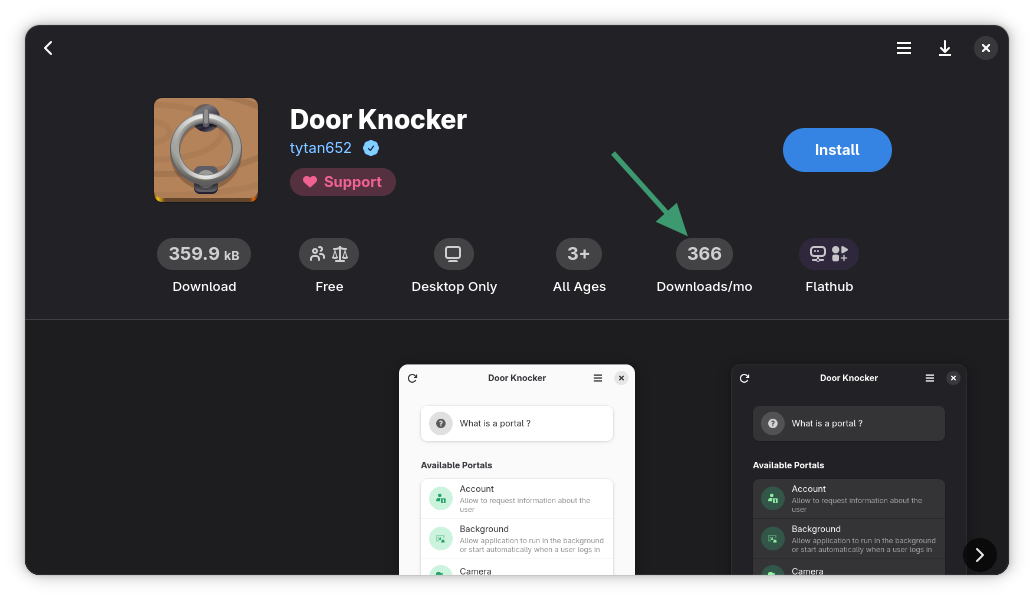
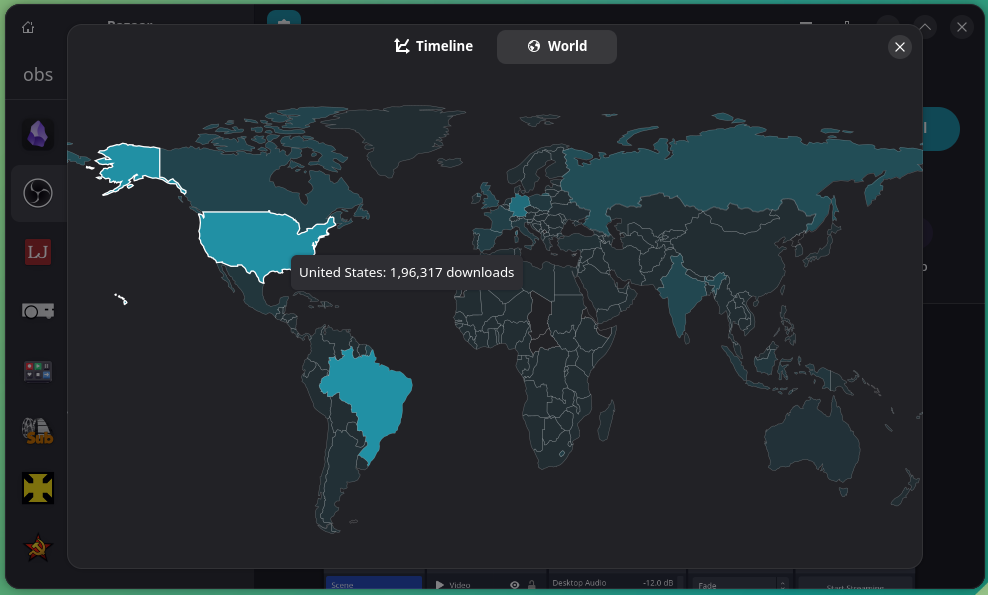
In an app page, you can click on the Monthly Downloads section to get a chart view and a map view.
The map view shows the download per region of that app.
The chart view gives you an overview of the download stats.

Other than that, if you click on the download size of an application in the app page:
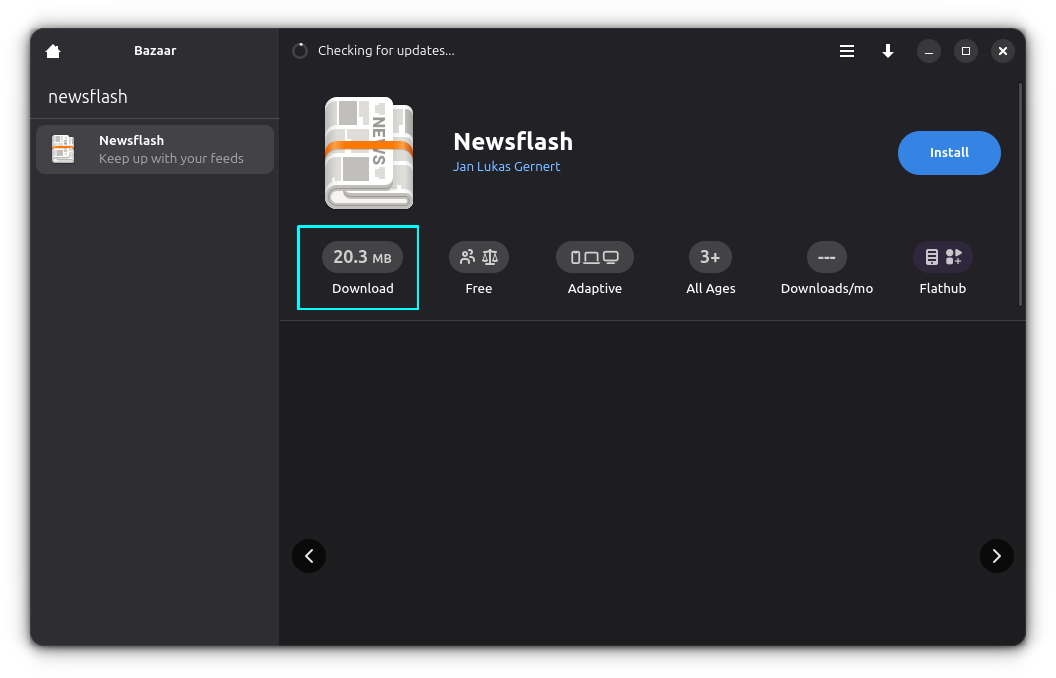
You can see a funny download size table, comparing the size of the Flatpak applications with some facts.

Some apps, like OBS Studio, have optional add-on packages. Bazaar indicates the availability of add-ons in the Installed view. Of course, the add-ons have to be in Flatpak format. This feature comes from Flathub.
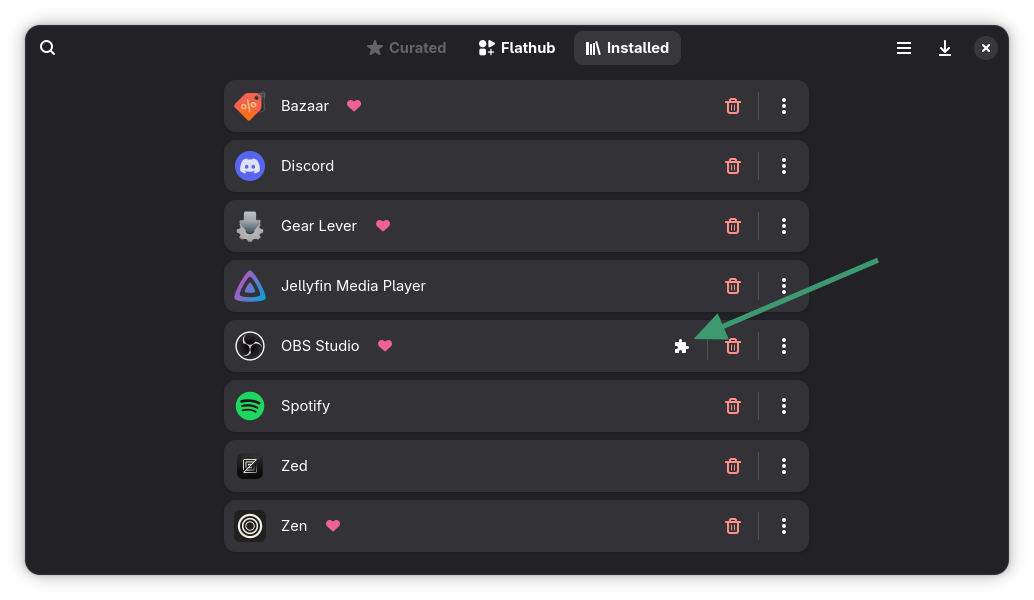
When you click the add-ons option, it will show the add-ons available for installation.

You can easily remove installed Flatpak apps from the Installed view.
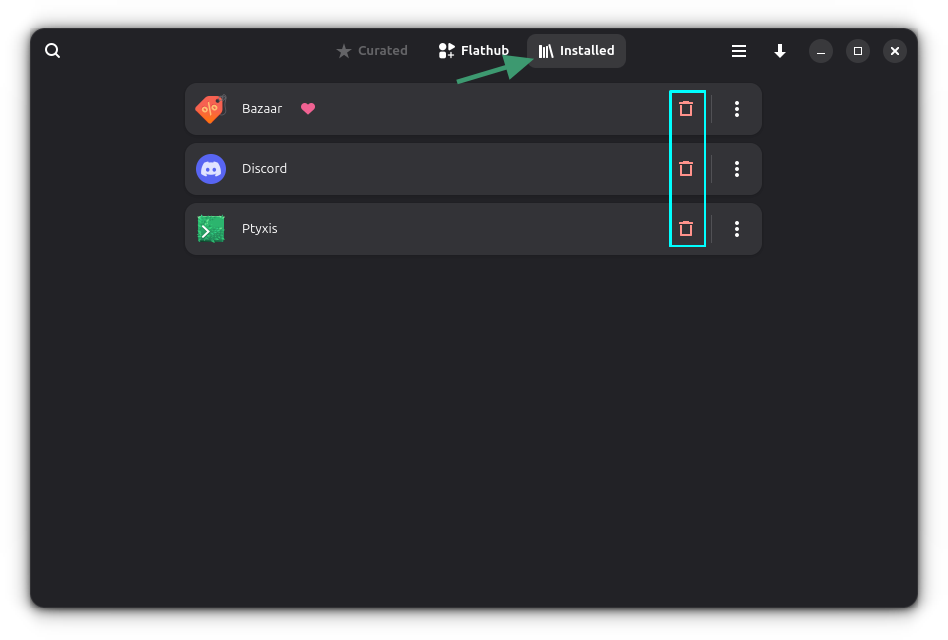
This view shows all the installed Flatpak packages on your system, even the ones you did not install via Bazaar.
By default, Bazaar includes applications from Flathub repository. But if you have added additional remote Flatpak repositories to your system, Bazaar will include them as well.
It's possible that an application is available in more than one remote Flatpak repositories. You can choose which one you want to use from the application page.
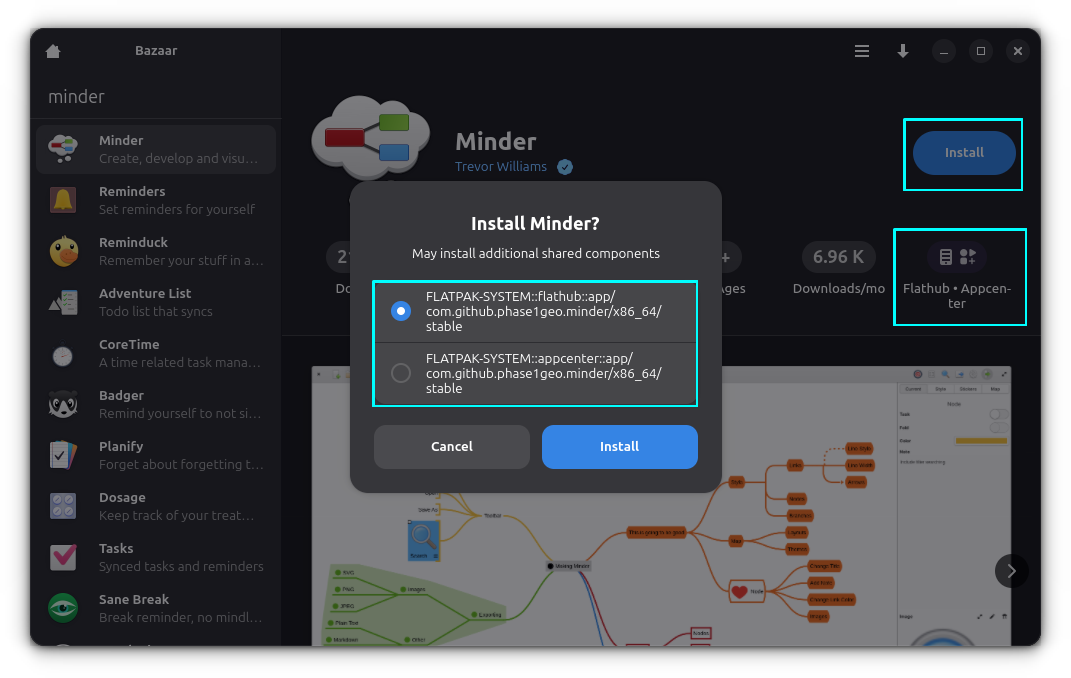
Although, I would like to have the ability to filter applications by repositories. This is something that can be added in the future versions.
No prizes for guessing that Bazaar is available as a Flatpak application from Flathub. Presuming that you have already added Flathub remote repo to your system, you can install it quickly with this command:
flatpak install flathub io.github.kolunmi.Bazaar
If you are using Fedora or Linux Mint, you can install Bazaar from the software center of respective distributions as well.
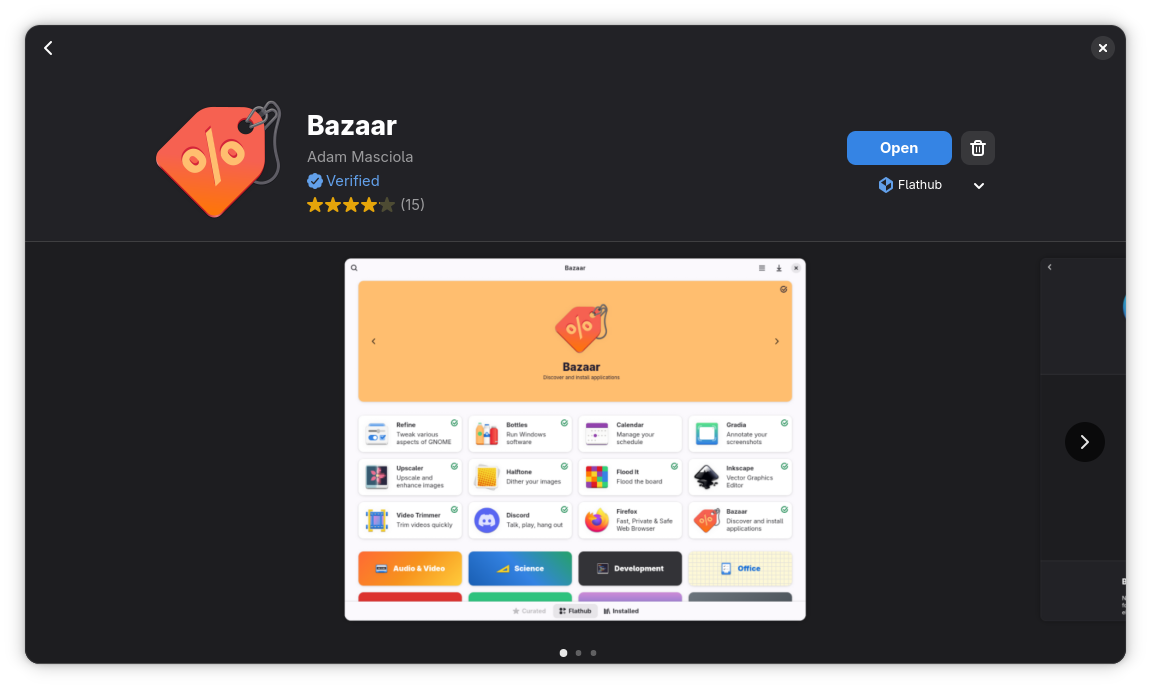
Overall, this is a decent application for Flatpak lovers. There is also a 'curated' option available for distributors. Which means if some new distros want to package Bazaar as ist software center, they can have a curated list of applications for specific purpose.
Is it worth using it? That is debatable and really up to you. Fedora and Mint already provide Flatpak apps from their default software center. This could, however, be a good fit for obscure window managers and DEs. That's just my opinion and I would like to know yours. Please share yours in the comment section.
![Here's How You Can Customize Linux Desktop for Halloween [Dot Files Included]](https://itsfoss.com/content/images/2025/10/halloween-thumbnail-1-.png)
Halloween is here. Some people carve pumpkins, I crafted a special set up for my Arch Linux 🎃
In this tutorial, I'll share with you all the steps I took to give a Halloween-inspired dark, spooky makeover with Hyprland. Since it is Hyprland, you can relatively easily replicate the setup by getting the dot files from our GitHub repository.
If videos are your thing, you can watch all the steps in action in this video on our YouTube channel.
First, install all the essential Hyprland packages to get the system up and running:
sudo pacman -S hyprland xdg-desktop-portal-hyprland hyprpolkitagent kitty
The above will install Hyprland and necessary packages. Now, install other utility packages.
sudo pacman -S hyprpaper hyprpicker hyprlock waybar wofi dunst fastfetch bat eza starship nautilus
What do these packages do? Well, here are some info:
hyprpaper: Hyprland Wallpaper utilityhyprpicker: Color pickerhyprlock: Lock screen utilitywaybar: Waybar is a Wayland panelwofi: Rofi launcher alternative, but for Wayland. Rofi can be used. In fact, we have some preset config for Rofi in our GitHub repository. But Wofi was selected for this video.dunst: Notification daemon.fastfetch: fastfetch is a system information display utility.bat: Modern alternative for cat command.eza: Modern ls command alternativestarship: Starship is a prompt customization tool.nautilus: Nautilus is the file manager from GNOME.You need a display manager to login to the system. We use SDDM display manager. GDM also works fine with Hyprland.
sudo pacman -S sddm
Once SDDM package is installed, enable the display manager on boot time.
sudo systemctl enable sddm.service
![Here's How You Can Customize Linux Desktop for Halloween [Dot Files Included]](https://itsfoss.com/content/images/2025/10/enable-sddm.png)
Now, reboot the system. When login prompt appears, login to the system.
![Here's How You Can Customize Linux Desktop for Halloween [Dot Files Included]](https://itsfoss.com/content/images/2025/10/login-to-hyprland.png)
Once essential Hyprland packages are installed and you are logged in, open a terminal in Hyprland using Super + Q. Now install Firefox browser using:
sudo pacman -S firefox
It's time to install theme packages. Hyprland is not a desktop environment in the sense of what GNOME or KDE is. Yet you may still use some apps developed for GNOME (GTK apps) or Qt apps.
To theme, you need to install theme managers for respective system:
nwg-look: To apply theme to GTK apps.qt5ct: To apply theme to Qt5 apps.Install these packages using the command:
sudo pacman -S qt5ct nwg-look
nano to edit file in terminal.In most cases, Hyprland should recognize the monitor and load accordingly. But in case you are running it in a VM, it will not set the display size properly.
Even though we give full configuration at a later stage, if you want to fix the monitor, use the command:
monitor=<Monitor-name>,1920x1080,auto,auto
![Here's How You Can Customize Linux Desktop for Halloween [Dot Files Included]](https://itsfoss.com/content/images/2025/10/monitor-settings-initial.png)
It is important to get the name of the monitor. Use this command:
hyprctl monitors
Remember the name of your monitor.
![Here's How You Can Customize Linux Desktop for Halloween [Dot Files Included]](https://itsfoss.com/content/images/2025/10/hyprctl-monitors.png)
Go to It's FOSS GitHub page and download the text-script-files repository.
![Here's How You Can Customize Linux Desktop for Halloween [Dot Files Included]](https://itsfoss.com/content/images/2025/10/download-the-zip-files.png)
You can also clone the repo, if you want using the command:
git clone https://github.com/itsfoss/text-script-files.git
But the above needs git installed.
If you have downloaded the zip file, extract the archive file. Inside that, you will find a directory config/halloween-hyprland. This is what we need in this article.
Copy the images in the wallpapers folder to a directory called ~/Pictures/Wallpapers. Create it if it does not exist, of course.
mkdir -p ~/Pictures/Wallpapers
![Here's How You Can Customize Linux Desktop for Halloween [Dot Files Included]](https://itsfoss.com/content/images/2025/10/copy-wallpapers-to-folder.png)
Download the Everforest GTK theme dark borderless macOS buttons.
![Here's How You Can Customize Linux Desktop for Halloween [Dot Files Included]](https://itsfoss.com/content/images/2025/10/download-gtk-theme.png)
Download Dominus Funeral icon theme dark style.
![Here's How You Can Customize Linux Desktop for Halloween [Dot Files Included]](https://itsfoss.com/content/images/2025/10/download-icon-theme.png)
Download the "Creepster" font from Google Fonts website.
Next, create ~/.themes, ~/.icons, and ~/.fonts respectively:
mkdir -p ~/.themes ~/.icons ~/.fonts
And we need to paste theme, icon, and font files in their respective locations:
~/.fonts.~/.themes.~/.icons![Here's How You Can Customize Linux Desktop for Halloween [Dot Files Included]](https://itsfoss.com/content/images/2025/10/paste-theme-icon-and-fonts.png)
Install Nerd fonts like:
If you are in Arch Linux, open a terminal and run the command:
sudo pacman -S ttf-firacode-nerd ttf-cascadia-code-nerd ttf-cascadia-mono-nerd woff2-font-awesome ttf-jetbrains-mono
Open the config.jsonc file on the downloaded directory and replace any occurrence of Virtual-1 with your monitor name.
For GNOME Box VM, it is Virtual-1. On my main system, I have two monitors connected. So, the names for my monitors are HDMI-A-1 and HDMI-A-2. Note the name of the monitors as we saw in Step 4:
hyprctl monitorsNow in the Waybar config, change the monitor name from Virtual-1 to the name of your monitor. Change all such occurrences.
Virtual-1 and replace it with your monitor name. If you are using nano, follow this guide to learn search and replace in nano editor.Also, take a look at the panel item. If you see any item that is not needed in the panel, you can remove it from the [modules-<position>] part.
👉 Similarly, open the hyprland config in the downloaded directory. Change all reference to Virtual-1 to your monitor name. Similarly, replace monitor name in the hyprlock and hyprpaper config files.
Copy the following directories (in the downloaded GitHub files) and paste it to the ~/.config folder.
waybar: Waybar panel configs and styles.wofi: Application launcher configdunst: Customized dunst notification system.starship.toml: Customized starship prompt.If you are using a GUI file manager, copy all file/folders except hypr, wallpaper, and README.
![Here's How You Can Customize Linux Desktop for Halloween [Dot Files Included]](https://itsfoss.com/content/images/2025/10/copy-config-to-location.png)
We did not copy hypr folder, because there is already a folder called hypr in every Hyprland system, which contains the minimal config.
I don't want to make it vanish. Instead, keep it as a backup.
cp ~/.config/hypr/hyprland.conf ~/.config/hypr/hyprland.conf.bak
Now, exchange the content of the hyprland.conf in your system with the customized content. Luckily, the mv command has a convenient option called -exchange.
mv --exchange ~/.config/hypr/hyprland.conf /path/to/new/hyprland/config
![Here's How You Can Customize Linux Desktop for Halloween [Dot Files Included]](https://itsfoss.com/content/images/2025/10/backup-hypr-config-and-replace.png)
Now, copy the hyprlock.conf and hyprpaper.conf file to ~/.config/hypr directory.
![Here's How You Can Customize Linux Desktop for Halloween [Dot Files Included]](https://itsfoss.com/content/images/2025/10/copy-hyprlock-and-hyprpaper.png)
Open the NWG-Look app and set the GTK theme and font (Creepster font) for GTK apps:
![Here's How You Can Customize Linux Desktop for Halloween [Dot Files Included]](https://itsfoss.com/content/images/2025/10/set-theme-and-font.png)
Now, change icon theme:
![Here's How You Can Customize Linux Desktop for Halloween [Dot Files Included]](https://itsfoss.com/content/images/2025/10/set-icon-theme.png)
This app automatically adds necessary file links in the ~/.config/gtk-4.0. Thanks to this feature, you don't need to apply theme manually to the GTK4 apps.
Open the Qt5ct app and change the theme to darker.
![Here's How You Can Customize Linux Desktop for Halloween [Dot Files Included]](https://itsfoss.com/content/images/2025/10/apply-qt-darker-theme.webp)
Now, apply icon theme:
![Here's How You Can Customize Linux Desktop for Halloween [Dot Files Included]](https://itsfoss.com/content/images/2025/10/apply-qt-icon-theme.png)
And change the normal font to "Creepster":
![Here's How You Can Customize Linux Desktop for Halloween [Dot Files Included]](https://itsfoss.com/content/images/2025/10/apply-qt-font-creepster.png)
First, paste some cool command aliases for the normal ls and cat command, using the modern alternatives eza and bat respectively. This is optional, of course.
Open ~/.bashrc in any editor and paste these lines at the bottom of this file:
alias ls='eza -lG --color always --icons'
alias la='eza -alG --color always --icons'
alias cat='bat --color always --theme="Dracula"'
Now, to enable Starship prompt, paste the starship eval line to the ~/.bashrc and source the config.
![Here's How You Can Customize Linux Desktop for Halloween [Dot Files Included]](https://itsfoss.com/content/images/2025/10/edit-bashrc-and-add-lines.webp)
eval "$(starship init bash)"

source ~/.bashrc
![Here's How You Can Customize Linux Desktop for Halloween [Dot Files Included]](https://itsfoss.com/content/images/2025/10/starship-prompt.png)
Once all this is done, restart the system, and log back in to see the Halloween themed Hyprland.
Hyprland Halloween Makeover
Enjoy the spooky Hyprland set up. Happy Halloween 🎃

It's Halloween so time to talk spooky stuff 👻
If solving Linux mysteries sounds thrilling, SadServers will be your new haunted playground. I came across this online platform that gives you real, misconfigured servers to fix and real-world inspired situations to deal with. This is perfect for sharpening your troubleshooting skills, specially in the Halloween season 🎃
 It's FOSS NewsAbhishek Prakash
💬 Let's see what else you get in this edition:

Ghosts aren’t the only ones watching 👀 — Big Tech is too. Protect your inbox from creepy trackers and invisible eyes with Proton Mail, the privacy-first, end-to-end encrypted email trusted by millions. Make the switch today and exorcize your inbox demons. 🕸️💌
 It's FOSS NewsSourav Rudra
Austria's BMWET has moved away from Microsoft in a well-organized migration to Nextcloud.
 It's FOSS NewsSourav Rudra
Ghostty is loaded with functionality; join me as I explore some of them.
Forks happen when freedom matters more than control.
 It's FOSSPulkit Chandak
Don't forget to utilize templates feature in LibreOffice and save some time.
Comparing two of the best open source but mainstream password managers.
 It's FOSSAnkush Das
Discover what’s next for tinkerers in the post-Qualcomm world.
 It's FOSSPulkit Chandak
TerraMaster has launched two flagship-class hybrid NAS devices that pack a punch.
The 16-book library also includes just-released editions of The Official Raspberry Pi Handbook 2026, Book of Making 2026, and much more! Whether you’re just getting into coding or want to deepen your knowledge about something more specific, this pay-what-you-want bundle has everything you need. And you support Raspberry Pi Foundation North America with your purchase!
 Humble Bundle
An in-depth look at a super cool Pomodoro app for Linux.
 It's FOSSRoland Taylor
Giving a dark, menacing but fun Halloween makeover to my Arch Linux system.
Linux is the most used operating system in the world. but on servers. Linux on desktop is often ignored. That's why It's FOSS made it a mission to write helpful tutorials and guides to help use Linux on their personal computer.
We do it all for free. No venture capitalist funds us. But you know who does? Readers like you. Yes, we are an independent, reader supported publication helping Linux users worldwide with timely news coverage, in-depth guides and tutorials.
If you believe in our work, please support us by getting a Plus membership. It costs just $3 a month or $99 for a lifetime subscription.
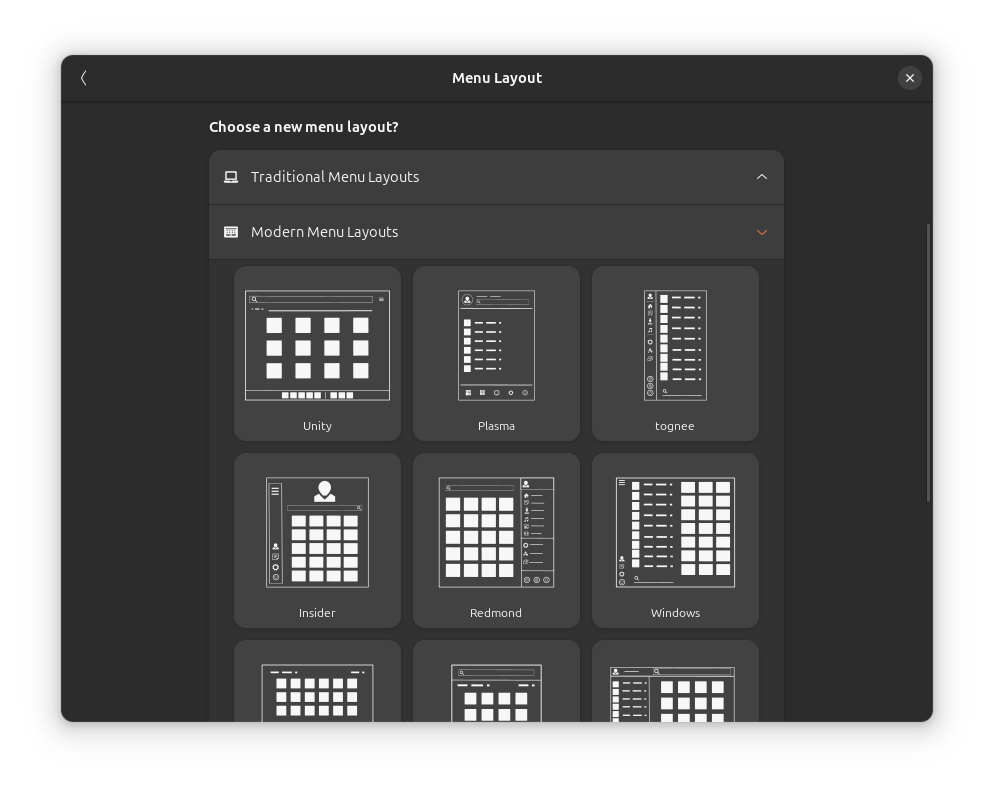
In GNOME desktop, you can use the ArcMenu extension for a heavily customizable panel app menu. For instance, you can get 20+ menu layouts by going to Menu → Menu Layout → Pick a layout of your choice.
We have got a spooky crossword this time around. Can you identify all the FOSS ghosts?
 It's FOSSAbhishek Prakash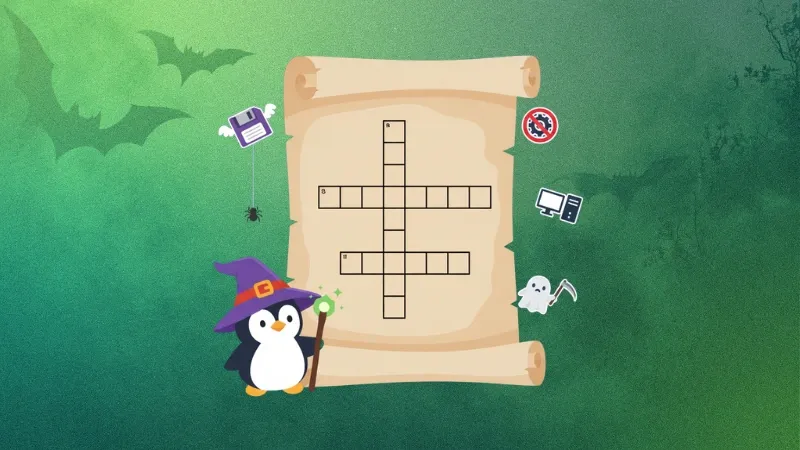
Actually, there is a whole bunch of Halloween themed puzzles and quizzes for you to enjoy 😄🎃
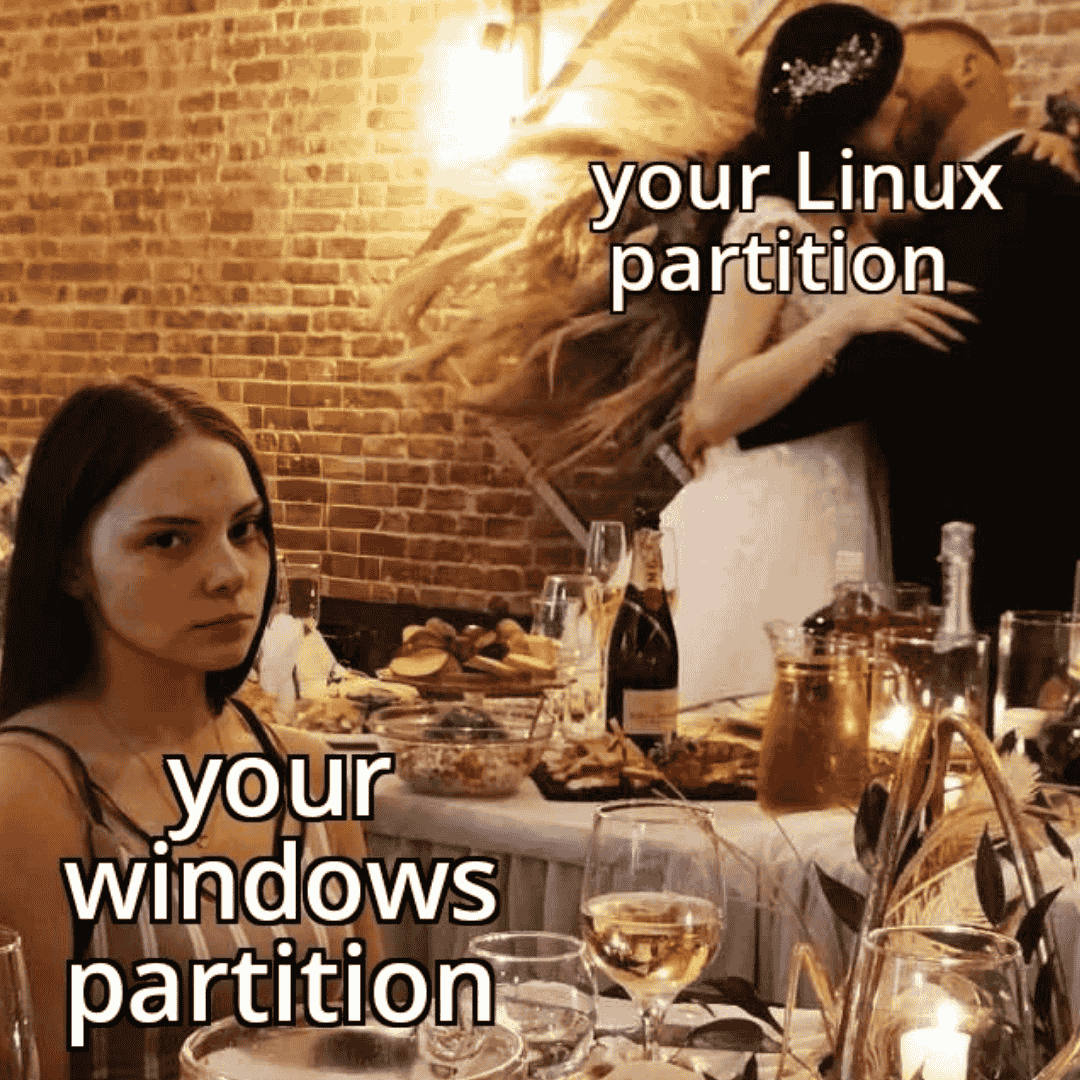
🤣 Meme of the Week: Yeah, my Windows partition feels left out.
🗓️ Tech Trivia: On October 30, 2000, the last Multics system was shut down at the Canadian Department of National Defence in Halifax. Multics was a groundbreaking time-sharing operating system that inspired Unix and introduced ideas like hierarchical file systems, dynamic linking, and security rings that shaped modern computing.
🧑🤝🧑 From the Community: Pro FOSSer Neville has shared a fascinating take on arithmetic.
 It's FOSS Communitynevj
Please share it with your Linux-using friends and encourage them to subscribe (hint: it's here).
Share the articles in Linux Subreddits and community forums.
Follow us on Google News and stay updated in your News feed.
Opt for It's FOSS Plus membership and support us 🙏
Enjoy FOSS 😄